Session Management and Configuration
LoginRadius provides you with the ability to control and manage your customer’s login session. This guide will take you through the different aspects of Session Management available in the LoginRadius Identity Platform:
Part 1 - Access Token and Refresh Token Lifetime
The Access Token is a unique identifier key generated by LoginRadius after successful authentication. It is unique to each authenticated customer and is different even when the same customer authenticates the next time. It is used to perform various actions such as retrieve, update, delete, and more on the authenticated customer's profile.
The Refresh Token is also an additional unique key generated by LoginRadius, along with Access Token, after successful authentication. Please note this token is used to refresh the LoginRadius Access Token so that the end users can use their currently active session continuously without having them log in multiple times.
Furthermore, several tokens are generated throughout the authentication process. For detailed information, refer to the LoginRadius Tokens document.
Note:
- The default life of the LoginRadius access token is 15 minutes and for refresh token is 60 days.
- For more details, look for the Access Token APIs here.
Access Token Lifetime Configuration
The following explains how you can check the access token lifetime set for your account and request a change if required:
Step 1: Log in to your Admin Console account and navigate to Platform Security > Account Protection > Session Management > Token Lifetime.
The following screen will appear:
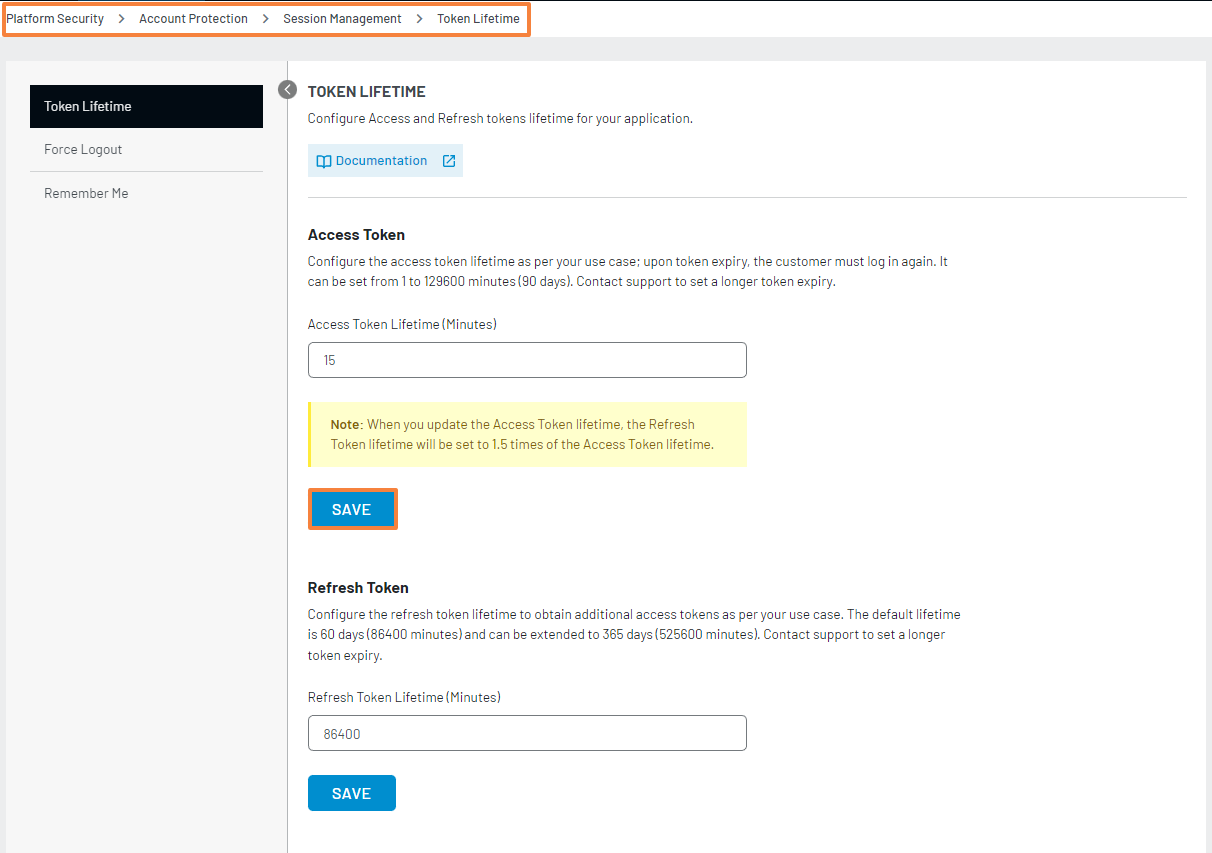
Step 2: To get the information about the Access Token expiration time change process, click here.
Note:
- You can change time from 1 to 129600 minutes (90 days) and if you want more than this, contact LoginRadius support.
- When you update the Access Token lifetime, the Refresh Token lifetime will be set to 1.5 times of the Access Token lifetime.
Refresh Token Lifetime Configuration
In LoginRadius Identity Platform, the Refresh Token is used to generate Access Token. Whenever an access token expires or becomes invalid, LoginRadius provides refresh tokens to the customer to obtain a new access token.
The following explains how you can check the refresh token lifetime set for your account and request a change if required:
Step-1: Log in to your Admin Console account and navigate to Platform Security > Account Protection > Session Management > Token Lifetime.
Step-2: Under the refresh token section, you can change time from 1 to 525600 minutes (365 days) and if you want more than this, contact LoginRadius support.
Note: Please be informed that the lifetime of refresh token should be greater than the access token.
Following are two important features of Refresh Token:
-
Sliding sessions: A session is considered as a sliding session when it expires after a period of inactivity. Refresh Token will extend the token validity if it is accessed or used before the expiration time.
-
Refresh tokens are long-lived: It means whenever LoginRadius issues a refresh token, it must be stored securely. If a refresh token is leaked, it can be used to obtain new access tokens until it is expired. You can mitigate this risk by providing the customer with a short-lived access token (E.g. 15 minutes).
Note: Revoking the refresh token does not invalidate associated access token if you wish to invalidate the access token, use the Invalidate Access Token API.
For more details, refer to the RefreshToken APIs.
Part 2 - Force Logout
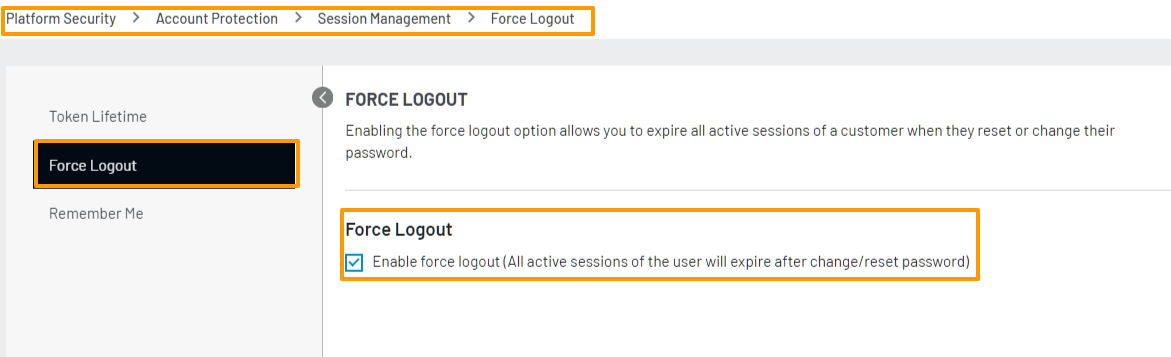
Enabling Force Logout allows you to expire all active sessions of the customer account on Password Reset or Change, except the session in which the password has been reset/changed.
Force Logout Configuration
The following explains how you can configure the force logout:
Step 1: Login to your Admin Console account and navigate to Platform Security > Account Protection > Session Management > Force Logout
The following screen will appear:
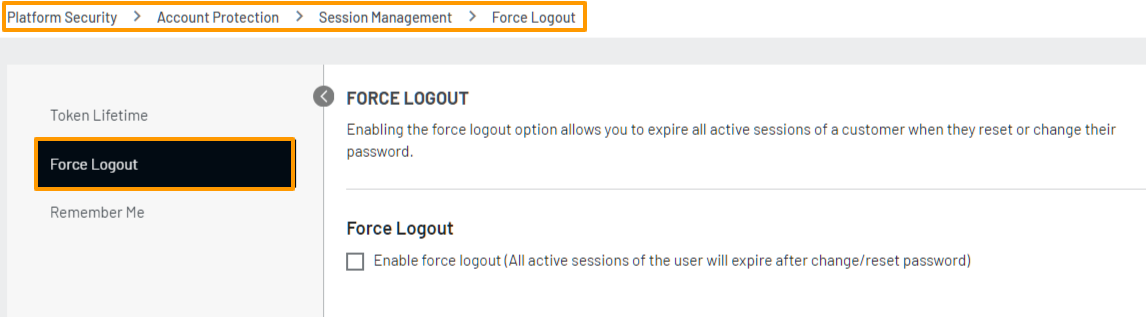
Step 2: Select the Enable force logout checkbox to activate the force logout option as highlighted in the following screen:
Part 3 - Remember Me
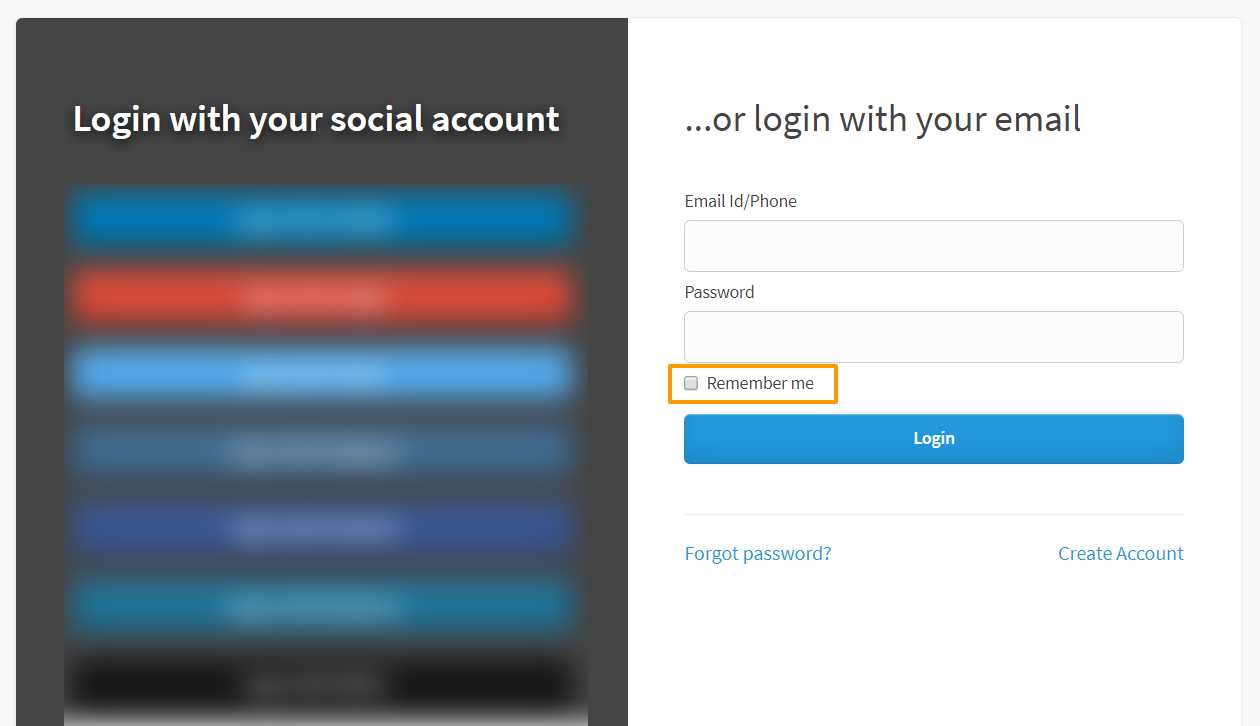
Remember me feature allows your customers to stay logged in until the access token expires, even after the browser is closed. By enabling this option, a Remember Me checkbox will show up on your IDX - Login Page.
Remember Me Configuration
The following explains how you can configure the remember me:
Step 1: Login to your Admin Console account and navigate to Platform Security > Account Protection > Session Management > Remember Me.
The following screen will appear:
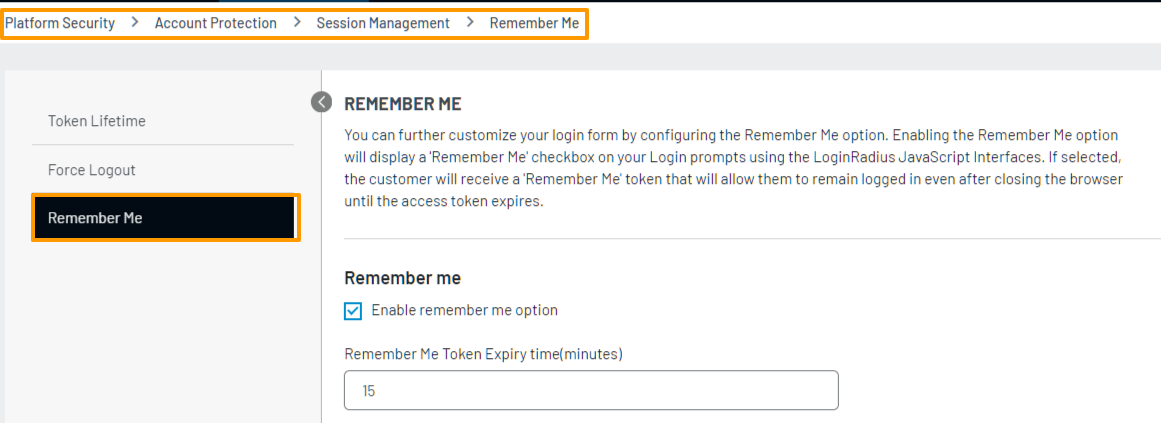
Step 2: Select the Remember me checkbox, as highlighted in the following screen:
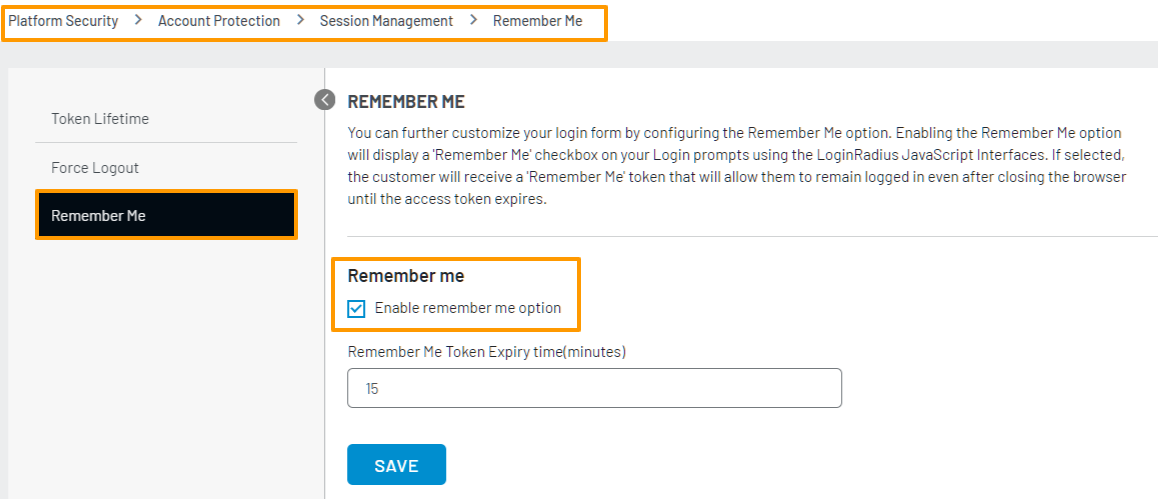
Step 3: Enter the Remember Me Token Expiry time and click the Save button, as highlighted in the following screen:
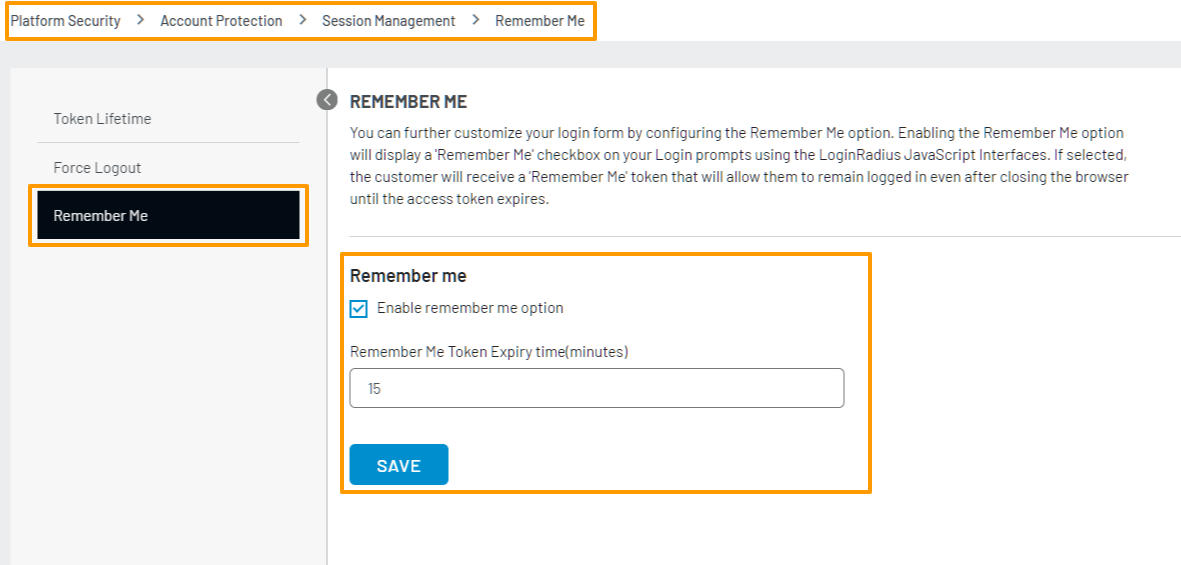
Note:
- The Remember Me expiration token time should always be less than the Access Token expiration time.
- You can deploy the Remember Me feature on your IDX (Hosted) as explained here.
The following displays the Identity Experience Framework page with the Remember Me button:
Part 4 - Next Steps
The following is the list of features you might want to add-on to the above implementation: