Roles, Permissions and Context
A common addition to customer registration systems is the ability to define roles for customers and restrict access to portions of your application based on customers permissions. As part of the LoginRadius customer registration system, we have the following three ways to define access:
-
Role: The role is the title given to the set of permissions that you will grant the customer. For example, the role of John Doe (customer) is Admin and Moderator on an internet forum. To achieve this, you are required to create the Role (Moderator) in the LoginRadius Admin Console.
-
Permission: Permissions are used to define what type of access you want to grant each role. For example, to set the Moderator role on the web forum who can edit the posts but cannot delete them, you are required to create a Role (Moderator) and add Edit permission for the same in LoginRadius Admin Console.
-
Context: - Contexts are used to give additional permissions to your customer on a case by case basis (the Context). Context is independent of the basic Roles and Permissions, and it can be useful when combined with Roles and Permissions.
For example, you have roles (Student and Teacher) and permissions set, but for a particular scenario, you are required to give additional permission to a user who is a student. In this case, context allows you to provide additional permissions only for the user rather than giving that permission to the Student role.
Note: Role, Permission and Context are configured in the LoginRadius Identity Platform. The respective actions should be implemented in your application.
For example, in your application code, you should define what actions can be performed by a customer with the Edit permission. While the **Edit **permission or respective role is configured in the LoginRadius Identity Platform.
This guide will take you through the process of configuring the following:
You can configure the above using the LoginRadius Admin Console and APIs.
Note: It is also important to figure out the required customer roles and permissions or context you want to assign to a customer role.
Part 1 - Roles and Permissions Configuration
You can configure the Roles and Permissions for your application in the following three ways:
LoginRadius Admin Console
This section will take you through the configuration steps for managing the Roles and Permissions:
Step 1: Login to your Admin Console account and navigate to Platform Configuration > Access Configuration > Roles And Membership.
The following screen will appear:
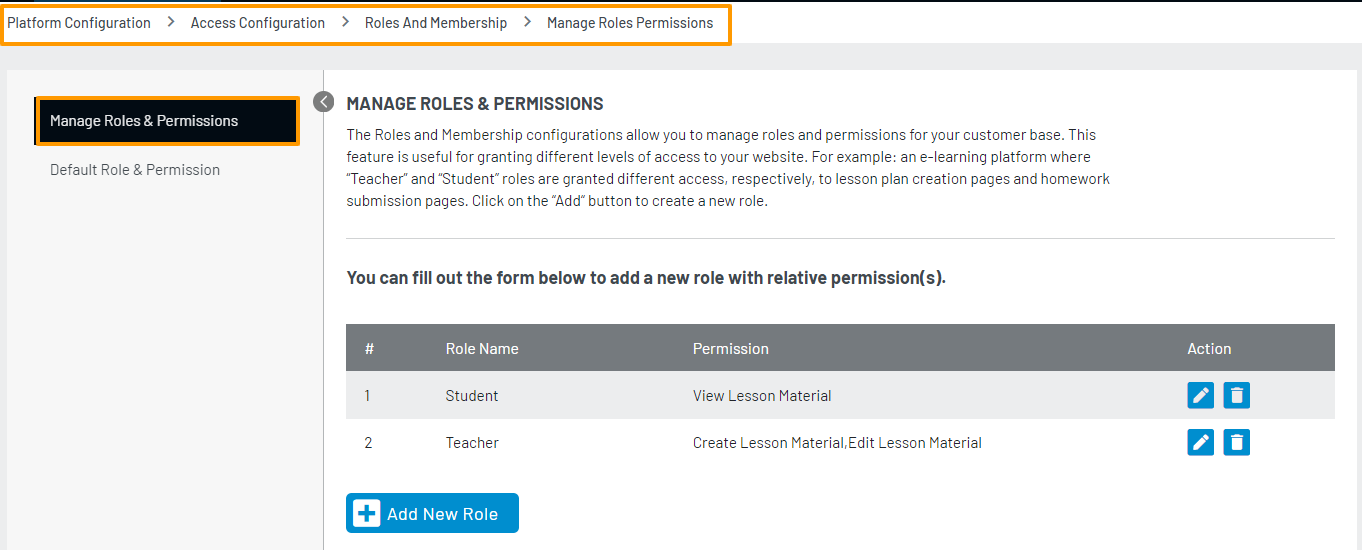
Step 2: Click the Add New Role button from the above screen, and it displays the following section to add the role name and its permission:
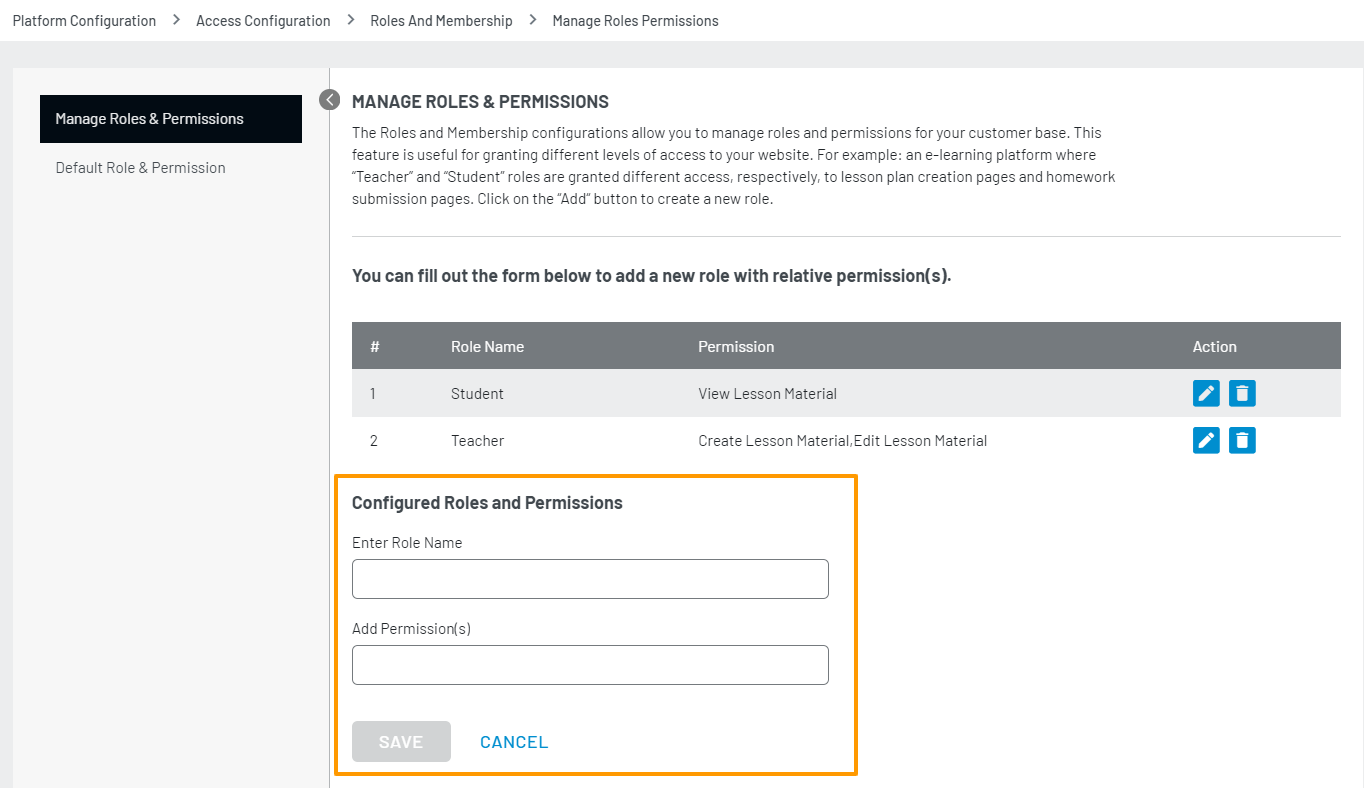
Step 3: Enter the name of the Role and its associated Permission(s) in the respective text boxes. You can add multiple permissions against one role by clicking the + button displayed next to the entered permission name.
Note: It is required to enter at least 1 permission.
**Step 4: ** Click the **Save **button to save the entered Role and Permission(s). Similarly, you can create other required roles and their permission.
Note: You have successfully configured the name of Roles and their Permission(s), use them as a key-value to define the Role and Permission logic in your application’s code.
For example, where required the customer profile will be retrieved using our Account API and then stored in the cookies or session. The customer profile will have the Role(s) info in it. On the other hand, the code of your application will handle role wise permission(s) and the logged-in customer will be able to access the application features accordingly.
Once you have configured desired Roles and their Permissions, you can also configure the default Role(s) and Permission(s) that will be applicable to all of the customers registering on the application.
To configure the same, select the Default Role & Permission from the left navigation panel and the following screen will appear:
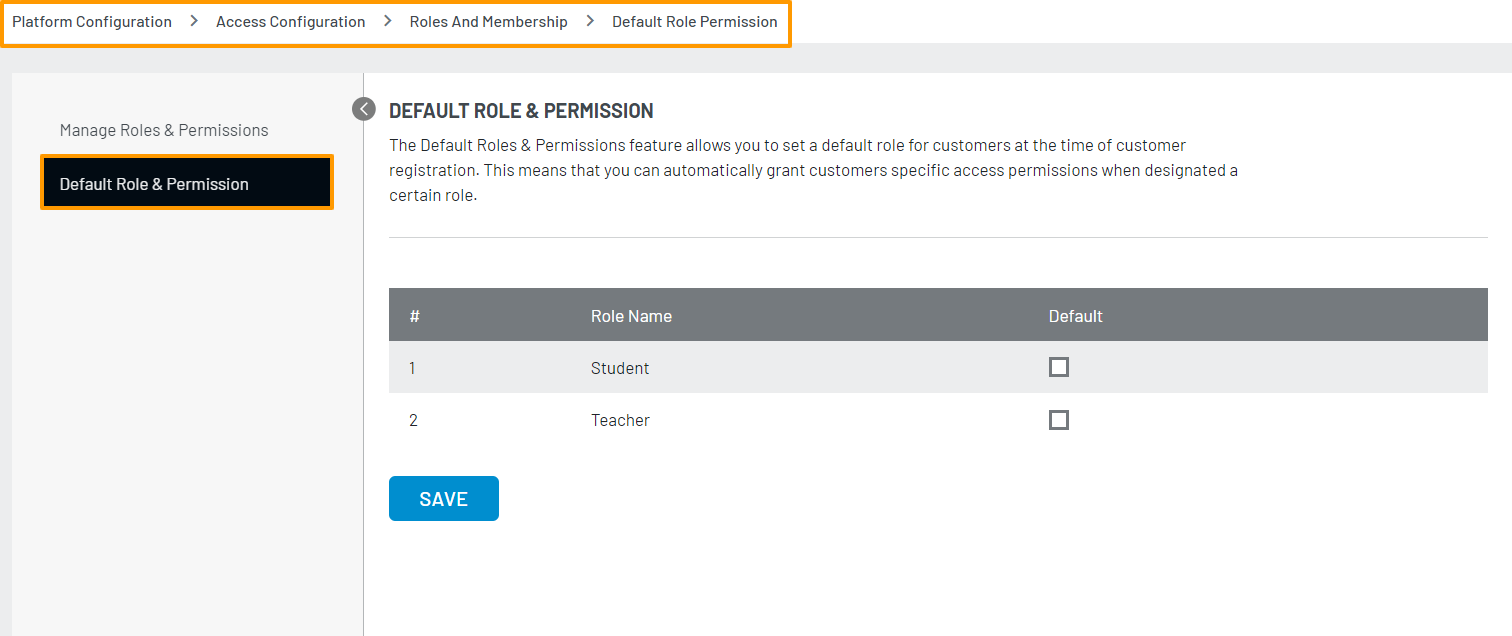
**Note: ** The roles in the above screen are the one created in the Manage Roles & Permission section.
To mark the role(s) as default, select the respective **Default **checkbox and click the **Save **button.
LoginRadius API
For details regarding the APIs implementation of Roles and Permissions please refer here.
LoginRadius Custom Fields
This section will take you through the configuration steps for displaying the roles in a drop-down during the registration using the custom fields. So that your customers can select a desired role during the registration process.
Step 1: Login to your Admin Console account, navigate to Platform Configuration > Authentication Configuration > Standard Login and add a custom field (Role).
Step 2: Upon adding the **Role **custom field, click that field and select the **Advanced **tab. Now, mark the field **Mandatory **and select the **Options **in the Field Type drop-down as displayed in the following screen:
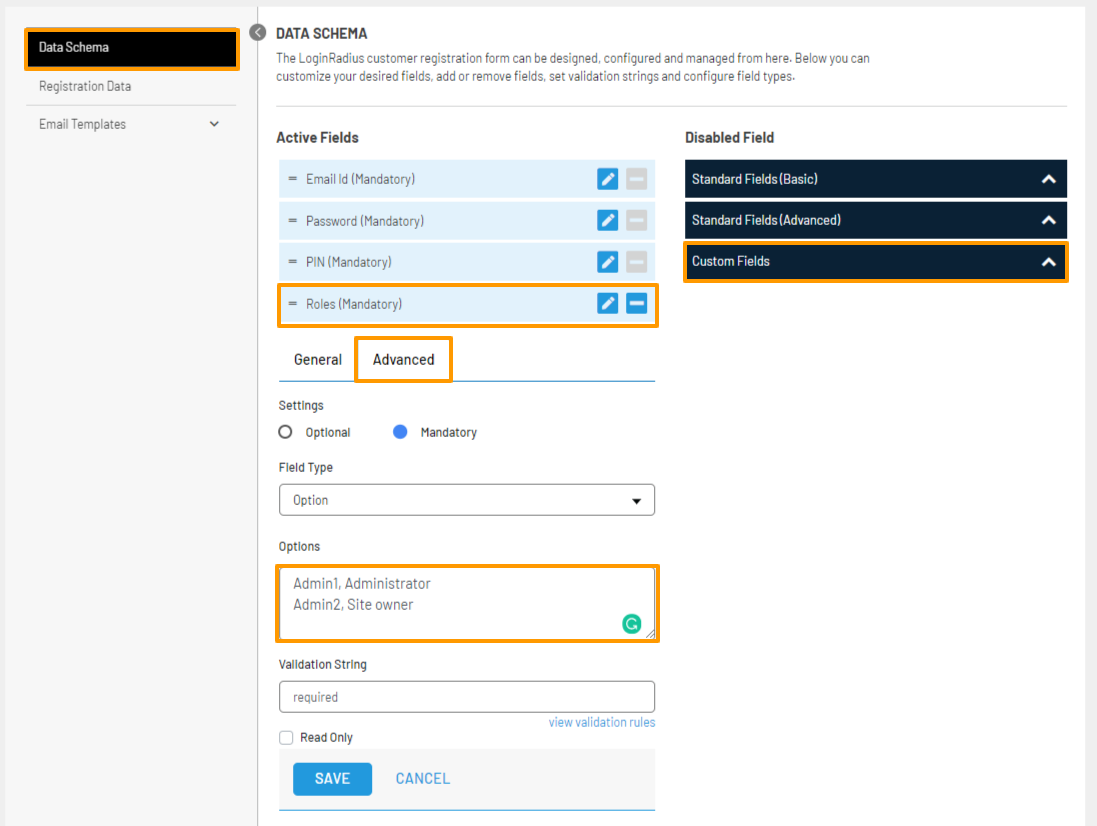
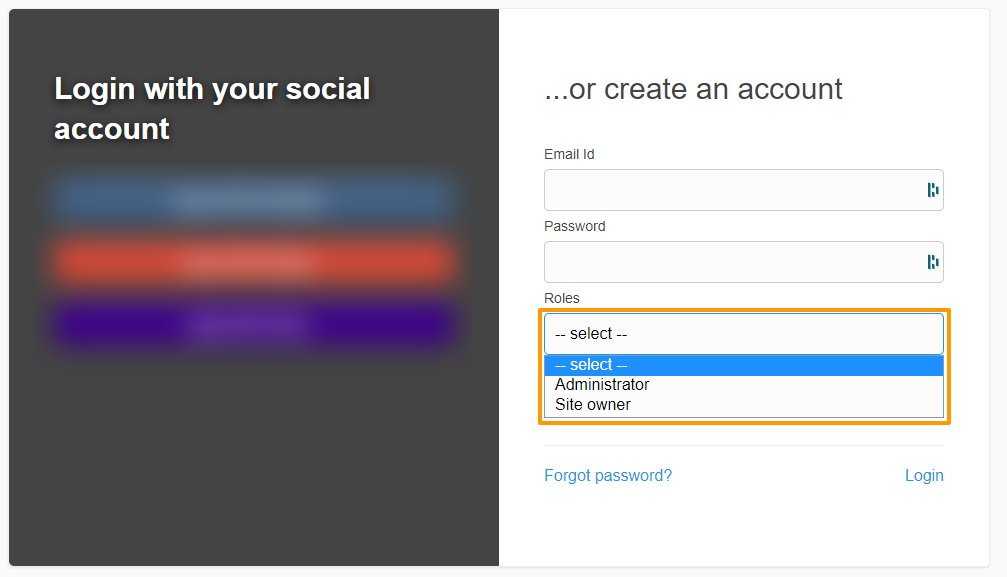
Enter the Role Name Key and Role Display Name as comma-separated values. To add the multiple roles, click enter and add another role in the same format. This way you can add multiple desired roles. In the above screen, Admin1 and Admin2 are role name keys (configured in the LoginRadius) and **Administrator **and Site owner are the respective role display names for your customers.
Step 3: Click the **Save **button to save the configurations.
Step 4: Visit your hosted page to check the appearance of the roles during registration. The following screen displays the added Administrator and Site Owner roles in the drop-down:
Part 2 - Context Configuration
You can configure the Context for your application in the following two ways:
LoginRadius Admin Console
The following explains how you should configure context considering the scenario of a school, where students (role) are categorized as attending classes in school and online.
Step 1: Login to your Admin Console account, navigate to Profile Management > Customer Management.
The following screen will appear:
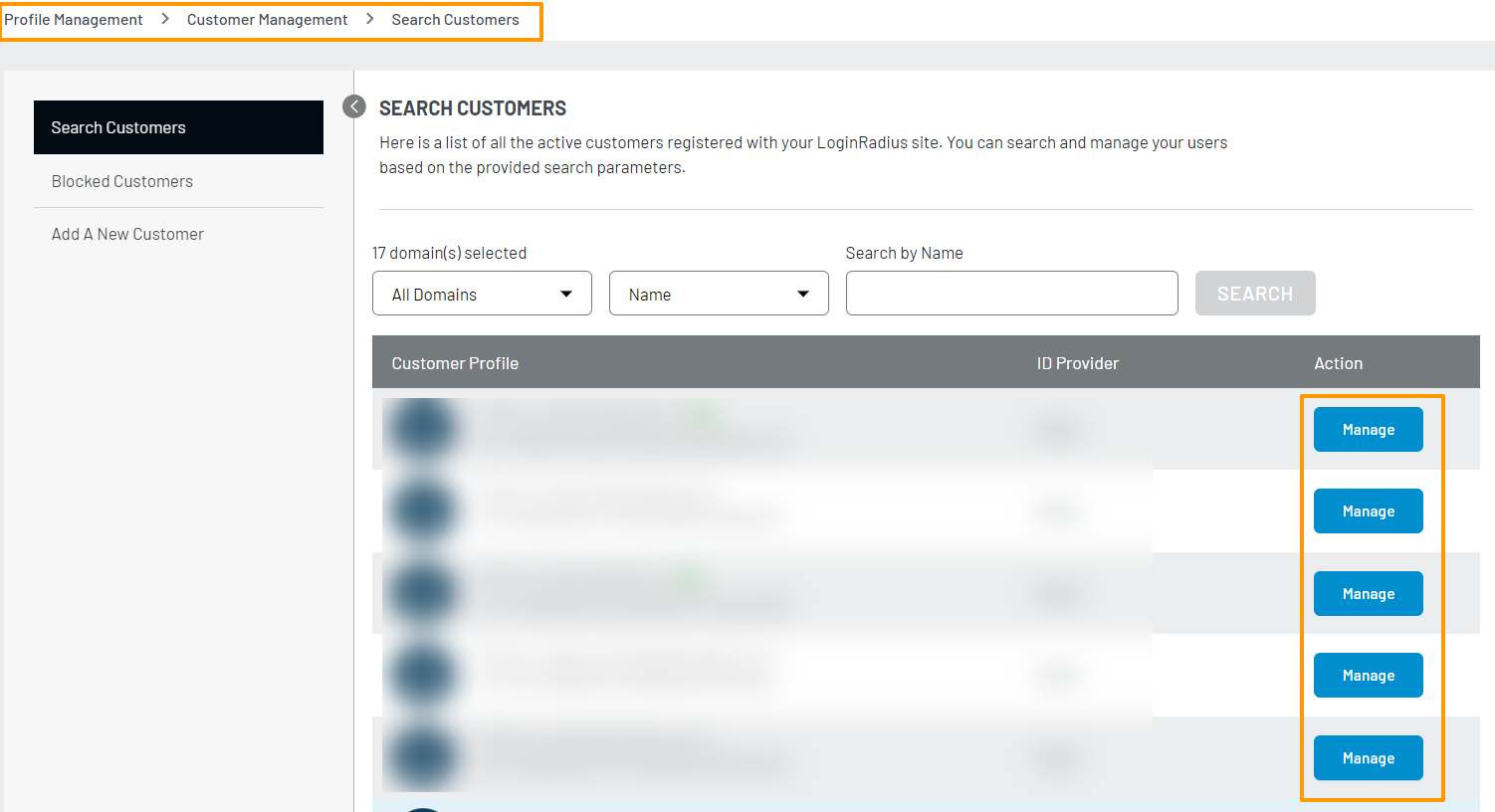
Step 2: Click the **Manage **button given next to the user/customer from the above list for which you want to set the context. The following pop-up will appear:
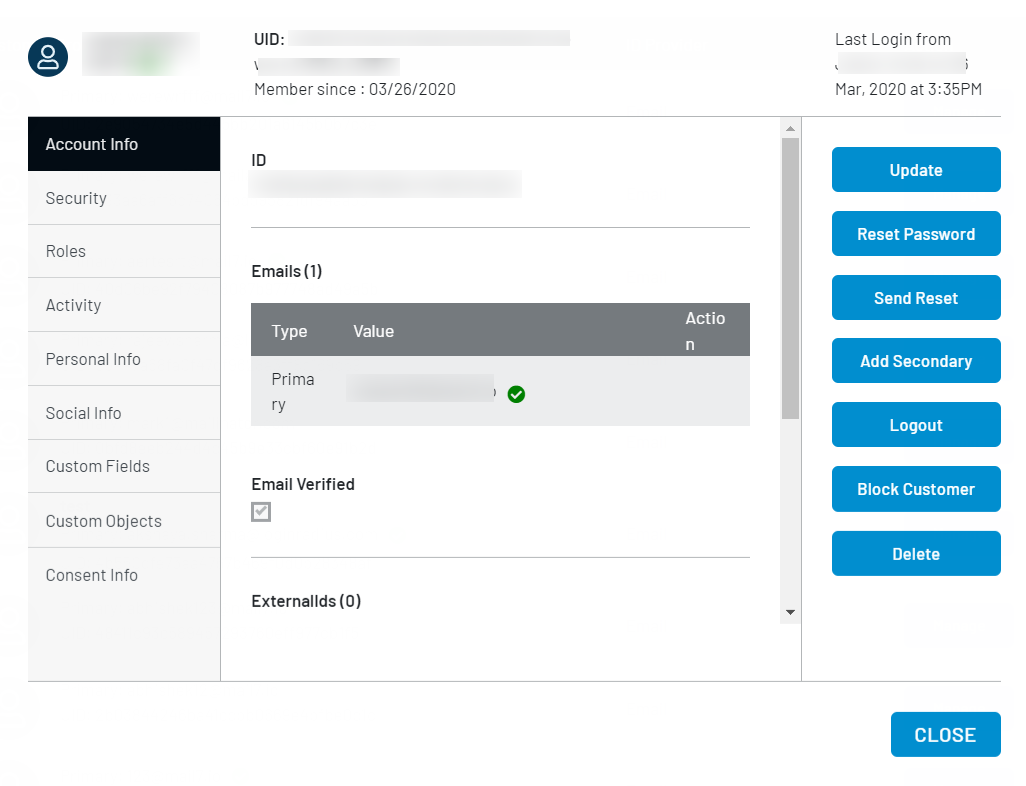
Step 3: Select the **Roles **option from the left navigation panel. The following details will appear on the pop-up:
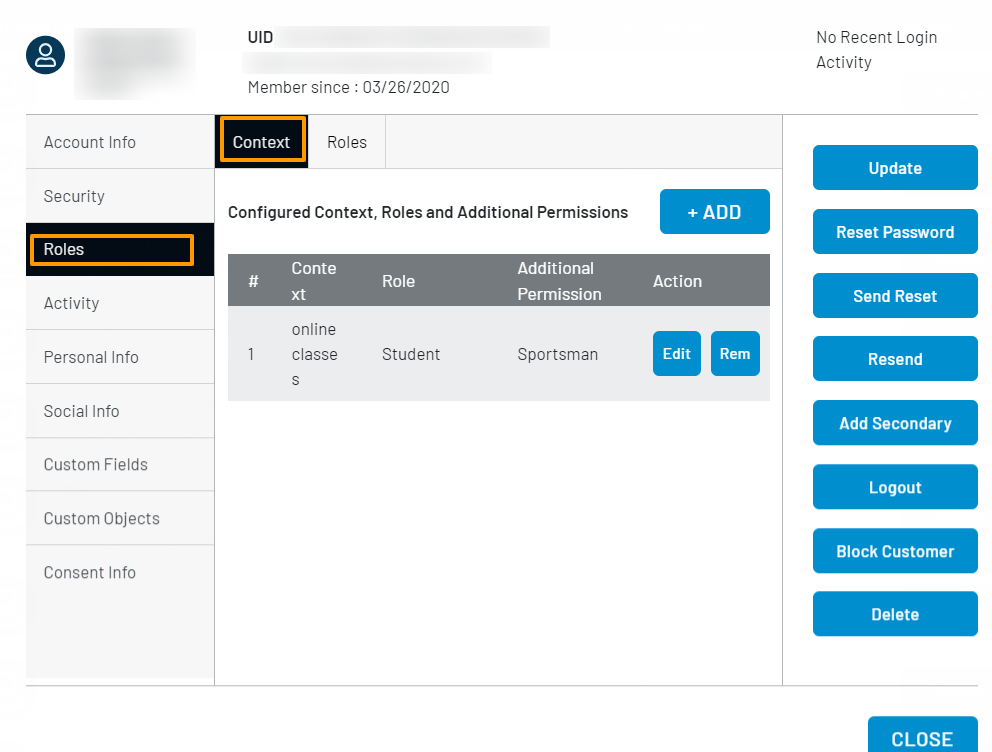
Step 4: Click the **Add **button to add a context. The following section appears on the screen:
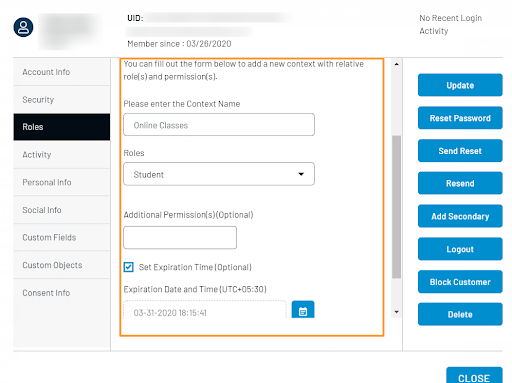
Step 5: Enter the context name. Considering the above scenario, let’s name it **Online Classes **(considering that the Student Role by default works for the School context) and only the students with online classes need some contextual access.
Step 6: Next, select a Roles for the Context from the drop-down list. Considering our scenario that the role name is Student. Similarly, multiple roles can be involved in one context.
Note: The drop-down displays the already created roles. If you have not created any roles yet, refer to the Roles and Permission Configuration section for the details.
Step 7: You can add the permission name in the Additional Permission(s) text box to assign additional permission(s) to the Online Classes context. This is an optional step. For example, the permission for Students with online classes contexts to access the classes 24/7.
Step 8: If desired, you can set up the expiration time for the context (Student Classes). This is an optional step.
The following screen displays the added information from Steps 5 to 8:
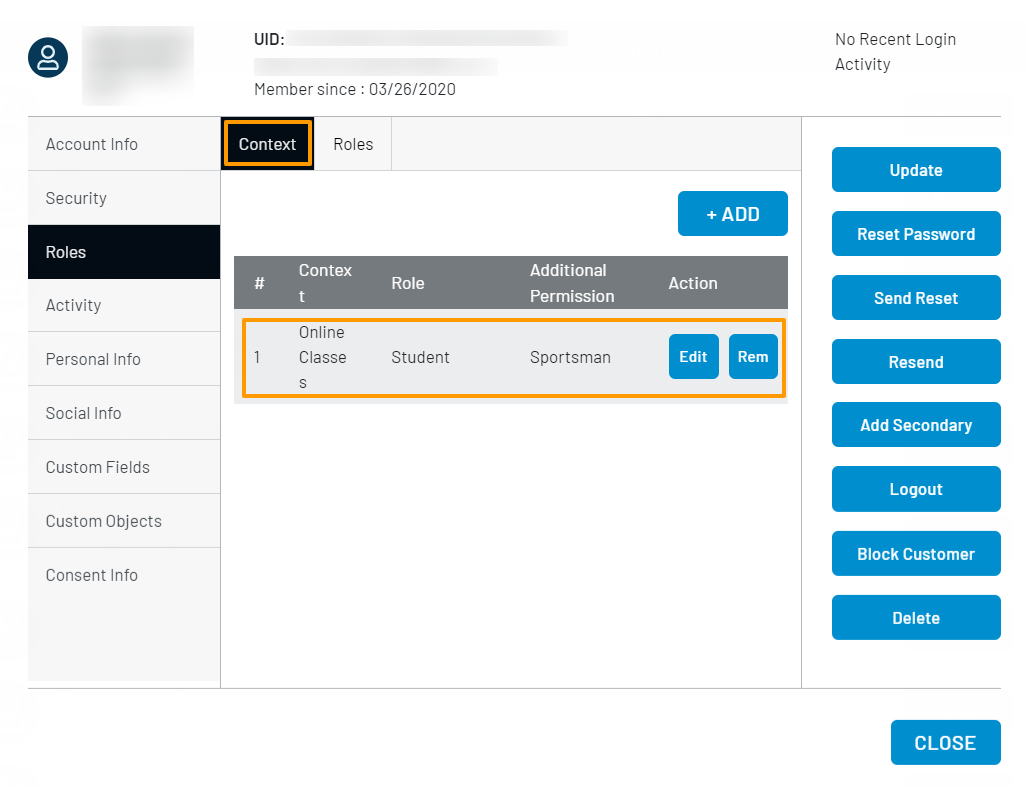
Step 9: Click the save button to save the context configuration for the user. Similarly, you are required to set up the context for every user/customer who needs the privileges linked with the Online Classes context.
LoginRadius API
For details regarding the APIs implementation of Context, kindly refer to this document.