Password Policy
The Password Policy feature allows you to enhance security by defining the password rules. This guide will help you in setting up Password Policy by configuring the following in the LoginRadius Admin Console:
In addition, you can find the details of
Part 1 - Password Expiration
You can set the password expiry configuration to periodically request an updated password from your customers. This feature allows you to customize how often you want your customers to reset their passwords. The following explains how you can configure the password expiration in your LoginRadius Admin Console account:
Step 1: Login to the Admin Console and navigate to the Platform Security > Password Policy > Password Expiration section.
The following screen appears:
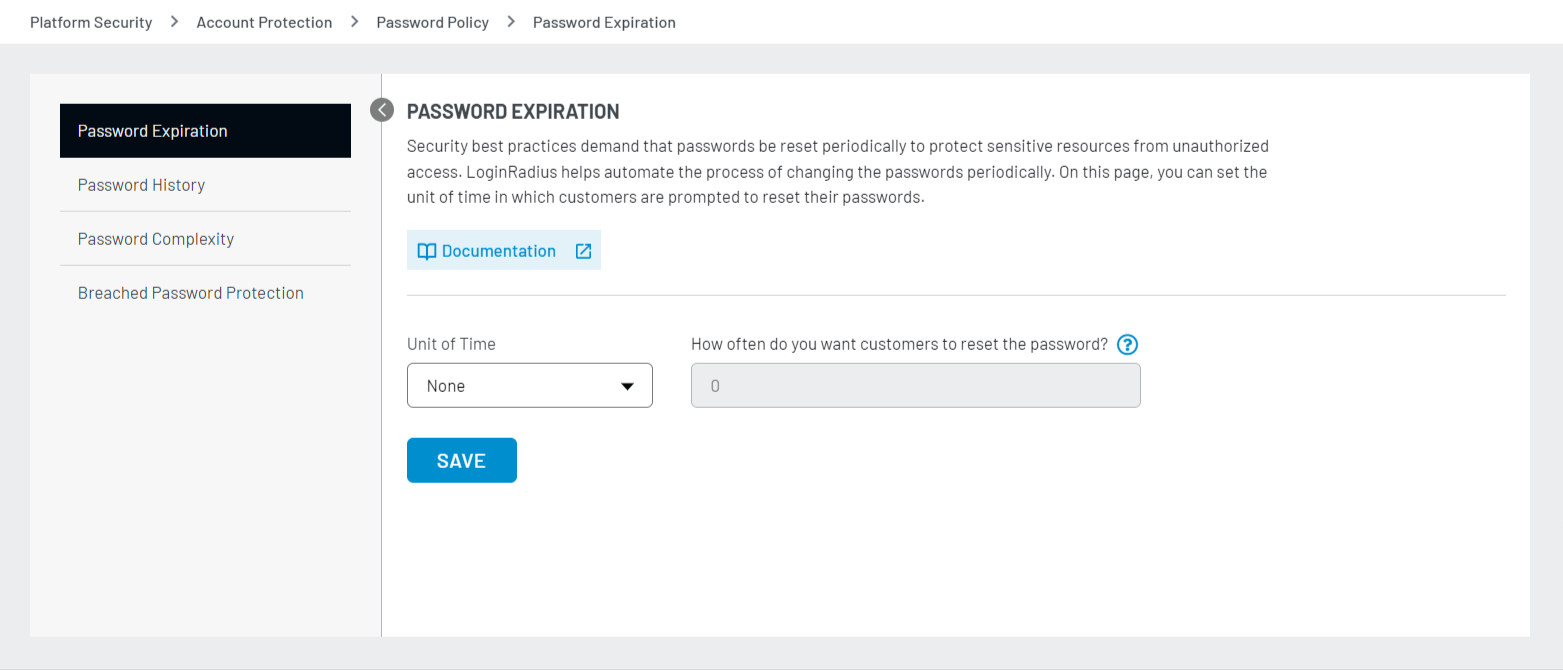
Step 2: Select Unit of Time (Day/Month/Year), enter the value and click the Save button as displayed in the screen below:
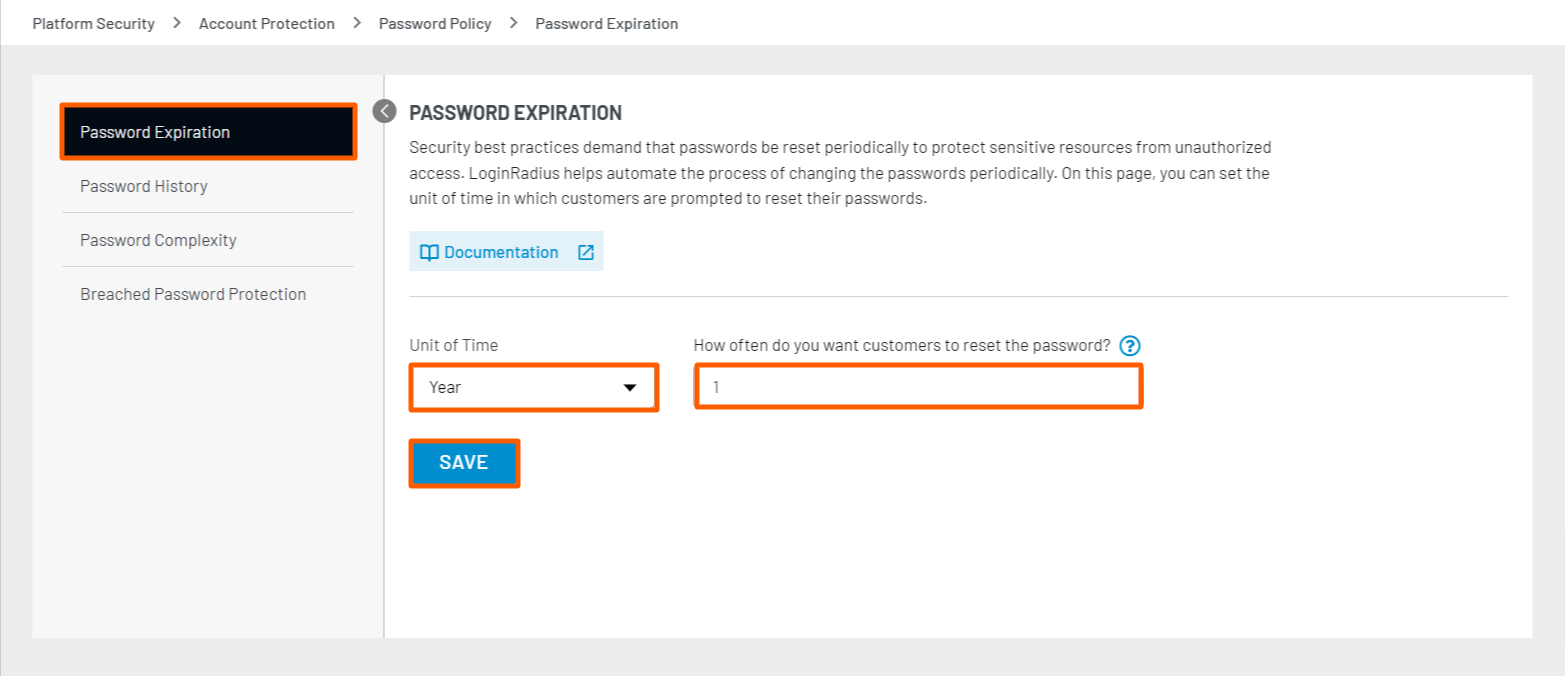
For example, if you have selected Day from drop-down and entered 7 in the text box, your customer's account password will expire in every 7 days. Once expired, the customers are required to reset their account password.
Part 2 - Password History
You can configure the number of unique passwords a customer must set before reusing an old password. This enables you to enhance security by ensuring that old passwords are not reused continually.
The following explains how you can configure the password history in your LoginRadius Admin Console account:
Step 1: Login to the Admin Console and navigate to the Platform Security > Password Policy > Password History section.
The following screen appears:
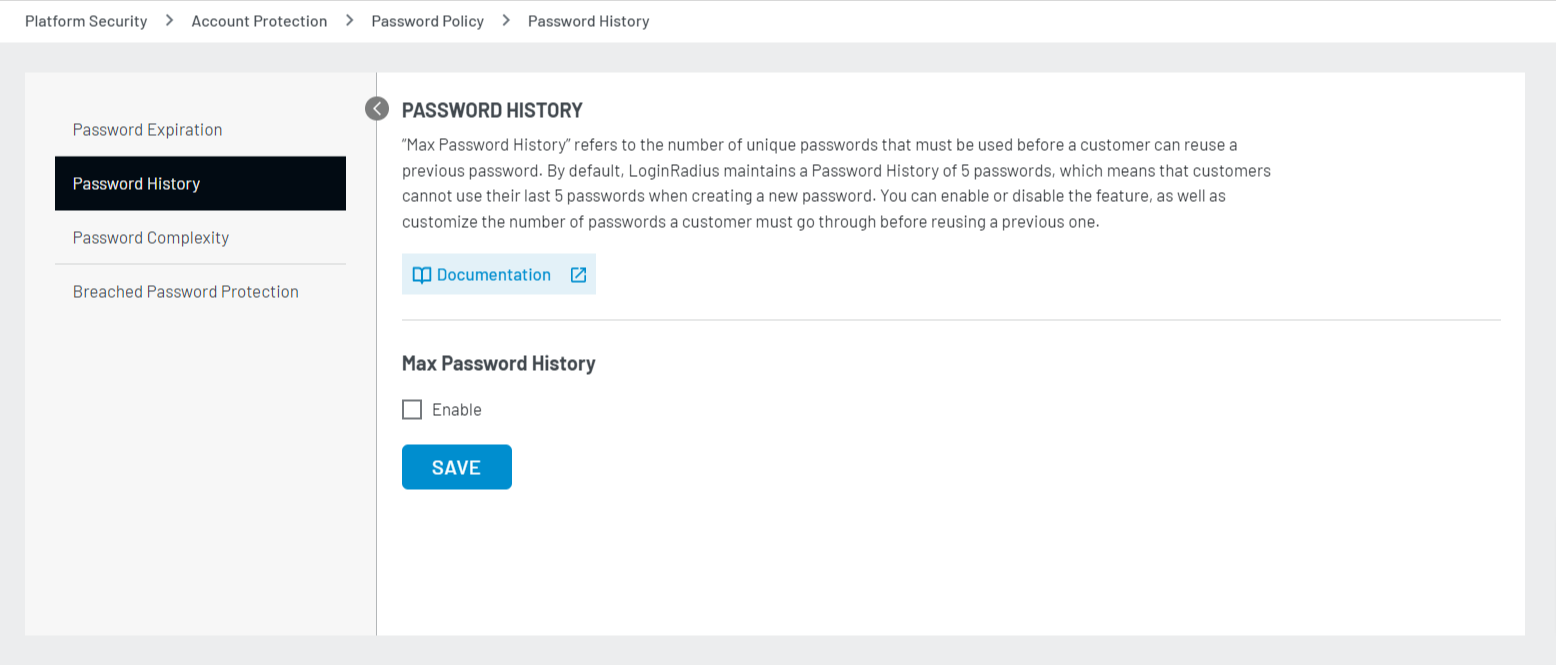
Step 2: Select the Enable option to enable the max password history. The Number of Past Passwords User isn’t allowed to use text box appears:
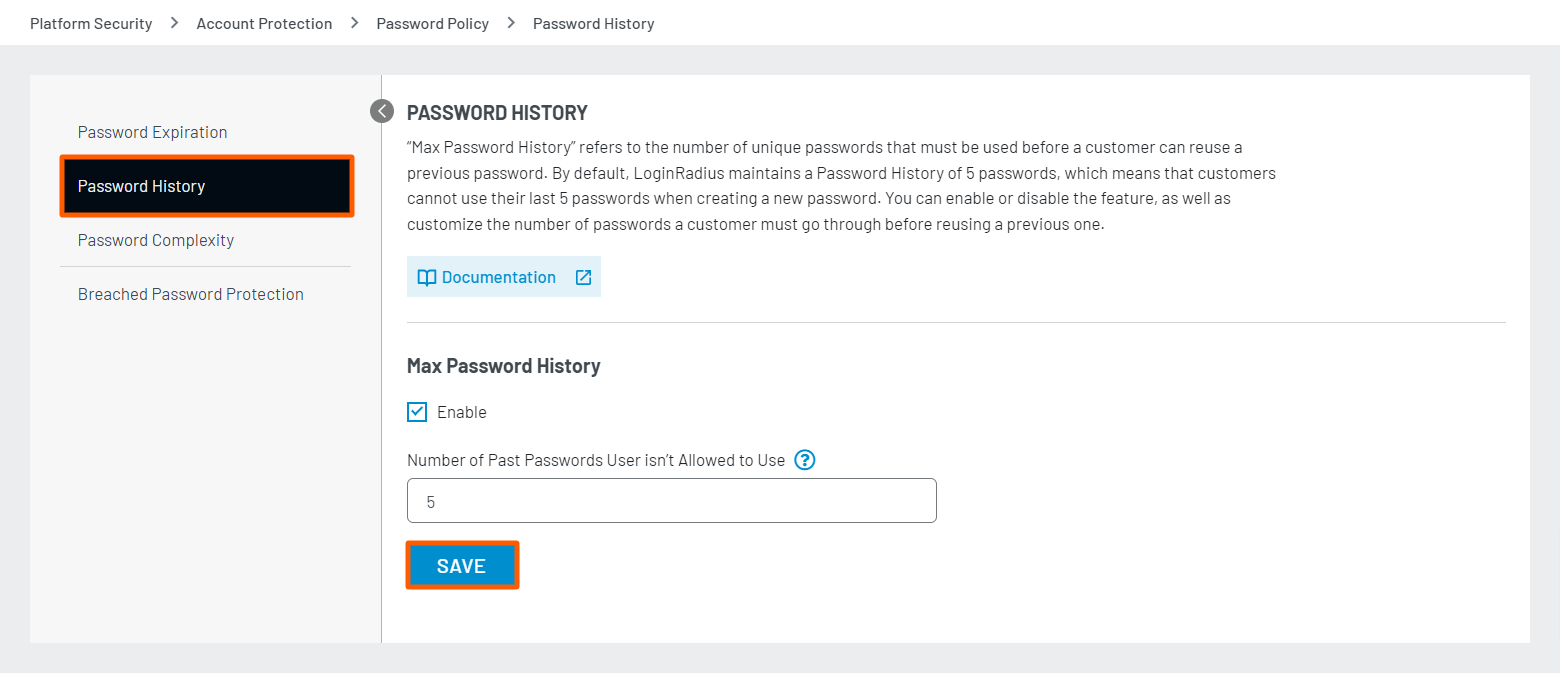
Enter the desired password history number and click the Save button.
Example: Let's suppose you enabled the password history feature and set the value equal to 1 then it will work as below:
-
Let a consumer during the registration time set the password as 123456.
-
After sometime the consumer tries to update his password as the same 123456 API will not allow this and shows the error.
-
Now again the consumer tries to update his password to 1234567 this time the API will allow thid and set it as a new password.
-
But after sometime the consumer tries to update his password to 123456 again and the API will throw an error.Because password history is set to 1.
-
Again the consumer trries to update his password to 12345678 this time the API will allow this and set it as anew password.
-
Now consumer again tries to update password to 123456 this time API will allow the user to set this as a new password.
Part 3 - Password Complexity
You can configure password complexity by defining the validation rules, and preventing the customer from using common passwords, dictionary passwords and profile fields as a password.
The following explains how you can configure the password complexity in your LoginRadius Admin Console account:
Step 1: Login to the Admin Console and navigate to the Platform Security > Password Policy > Password Complexity section.
The following screen appears:
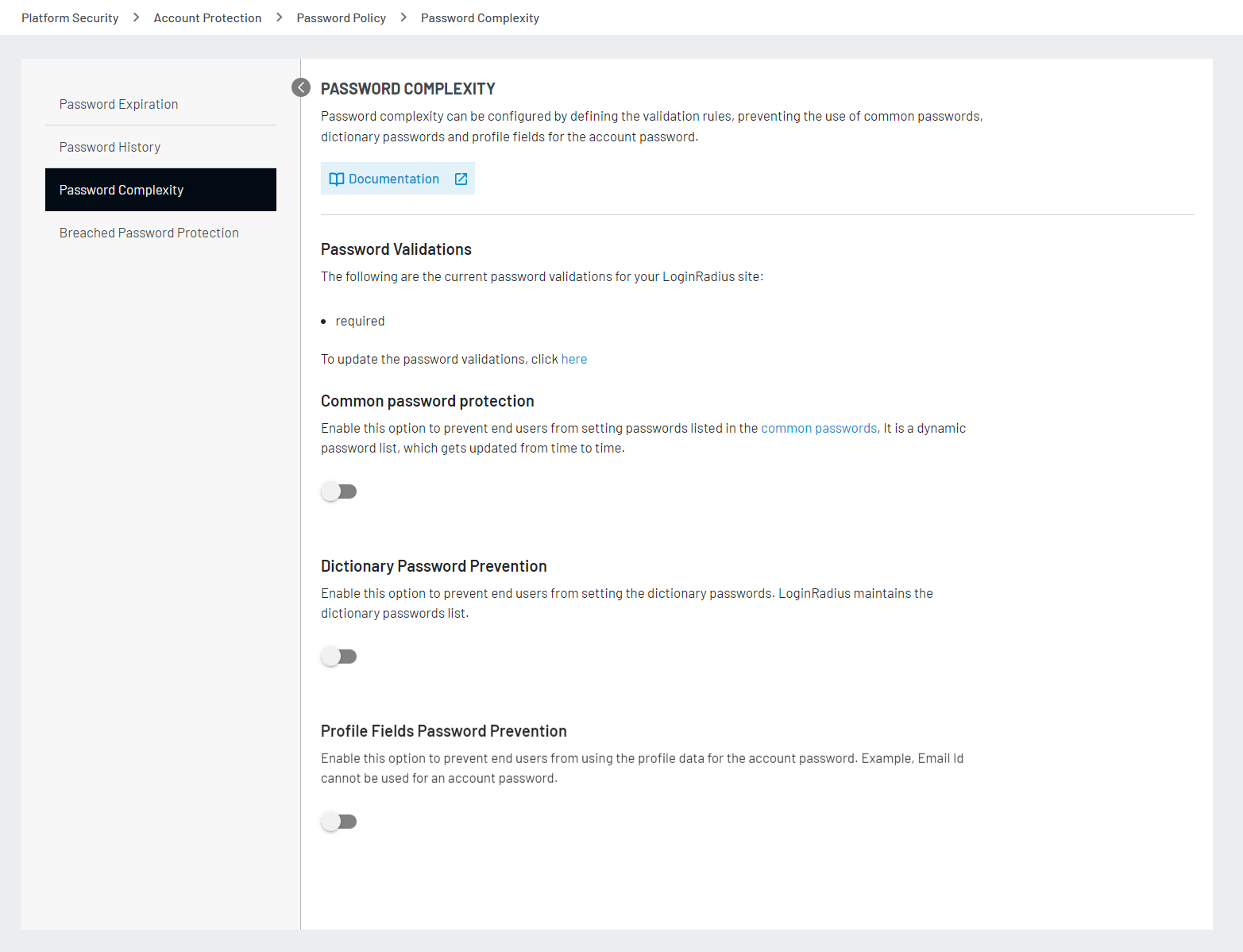
Password complexity has the following subsections:
- Password Validations
- Common Password Protection
- Dictionary Password Prevention
- Profile Fields Password Prevention
Note: The Password Complexity rules configured in the LoginRadius Admin Console are only the front-end validations. To enable the same password complexity configurations with the back-end, please contact the LoginRadius Support Team.
The following explains the usage and configuration of these subsections:
Password Validations
It displays the list of current applicable password validations. These validations can be configured as explained below:
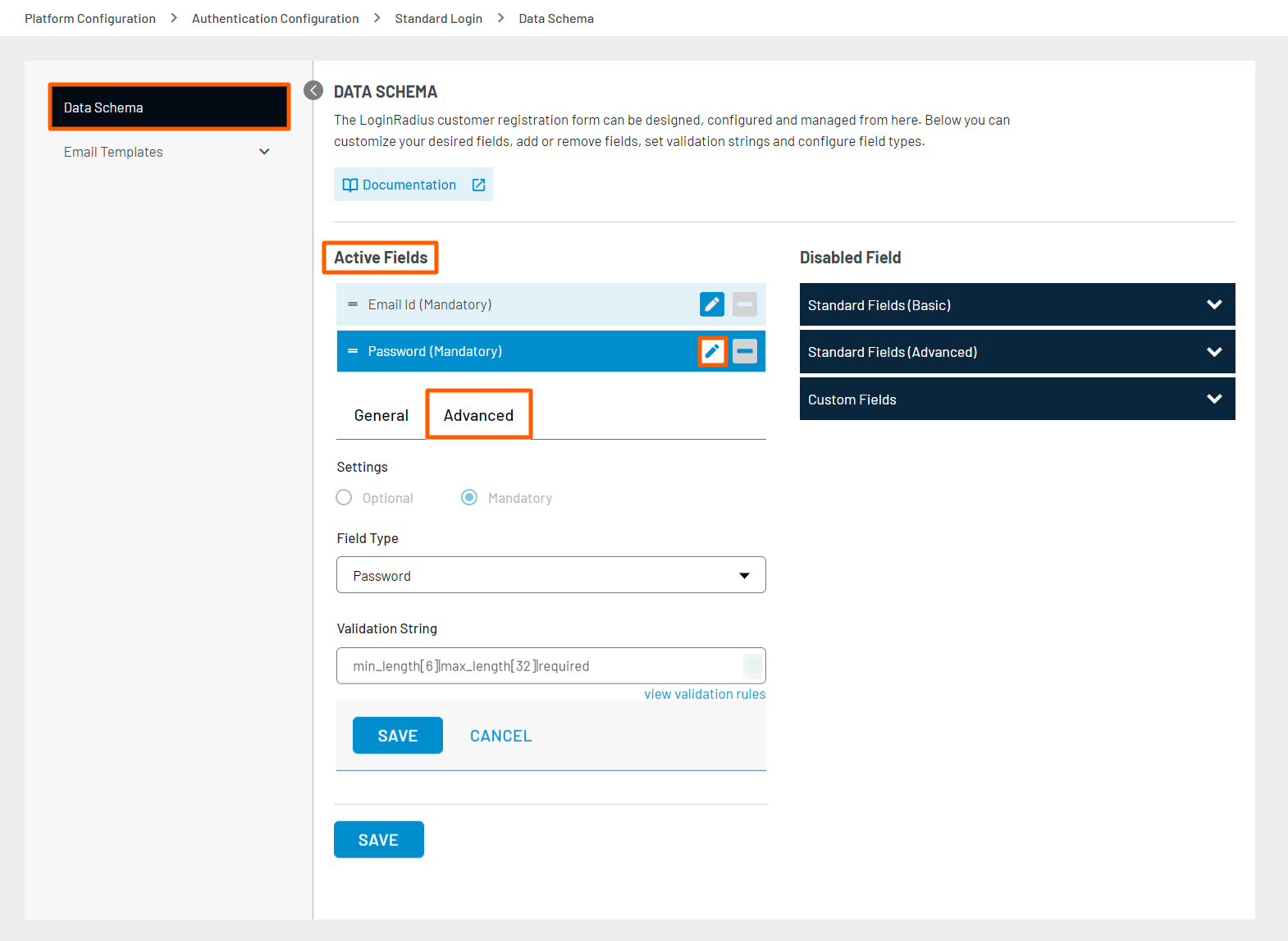
Step 1: To configure Password Validations, navigate to the Platform Configuration > Standard Login > Data Schema section of the Admin Console.
Step 2: In the Active Fields section, click the Edit sign given against the Password field and select the Advanced tab as displayed in the screen below:
Step 3: Enter the desired validation rule in the Validation String field and click the Save button to save the settings as displayed in the screen below:
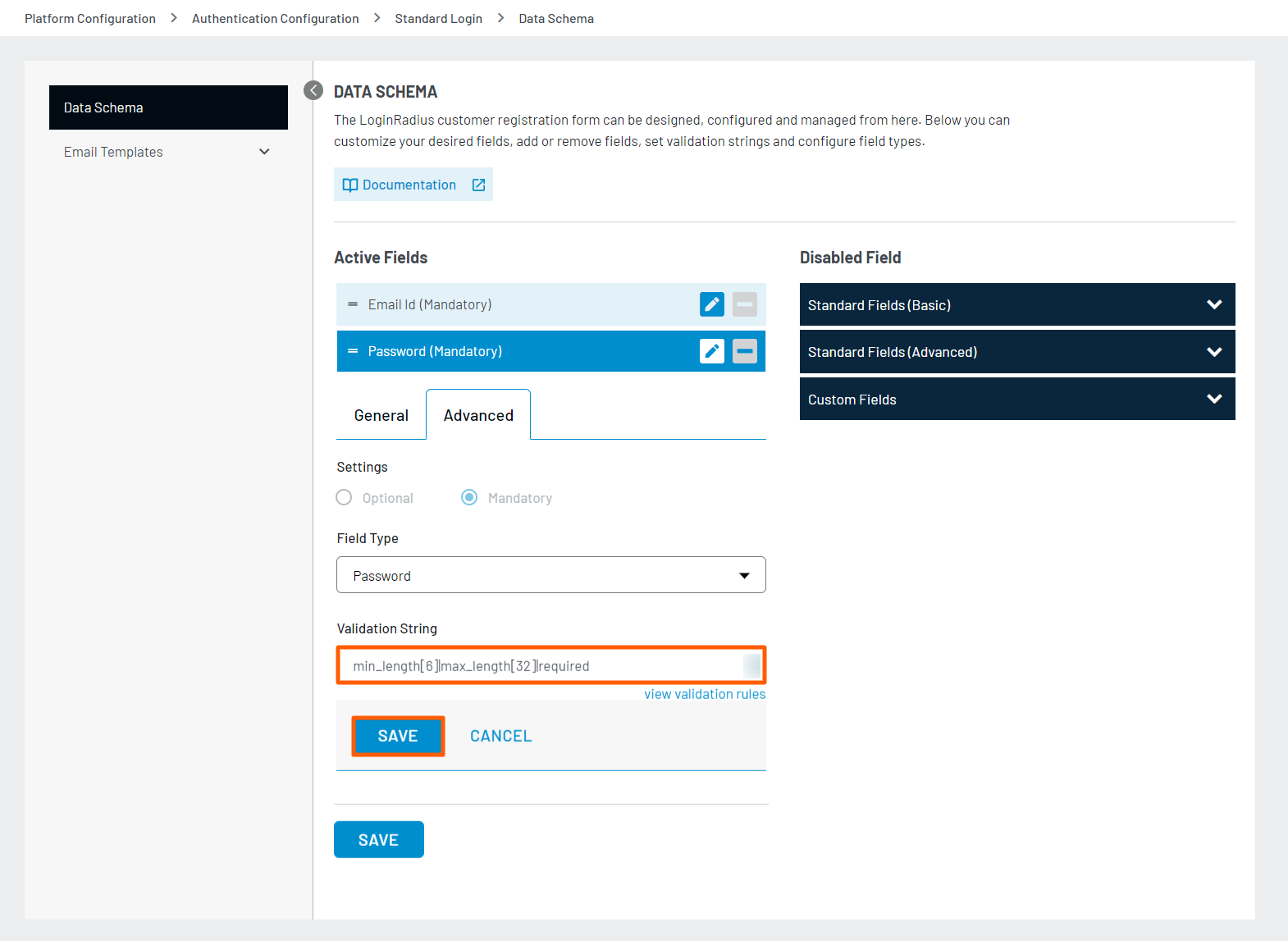
For more details on the password validations, refer to the validation rules list.
Common Password Protection
This feature prevents your customers from setting a common password for their account. It checks passwords against a predefined list of common passwords maintained by LoginRadius.
To enable this feature, navigate to the Platform Security > Password Policy > Password Complexity section of the Admin Console and click the Common Password Protection toggle button to turn on the common password protection.
The following screen displays that the Common Password Protection option is enabled:
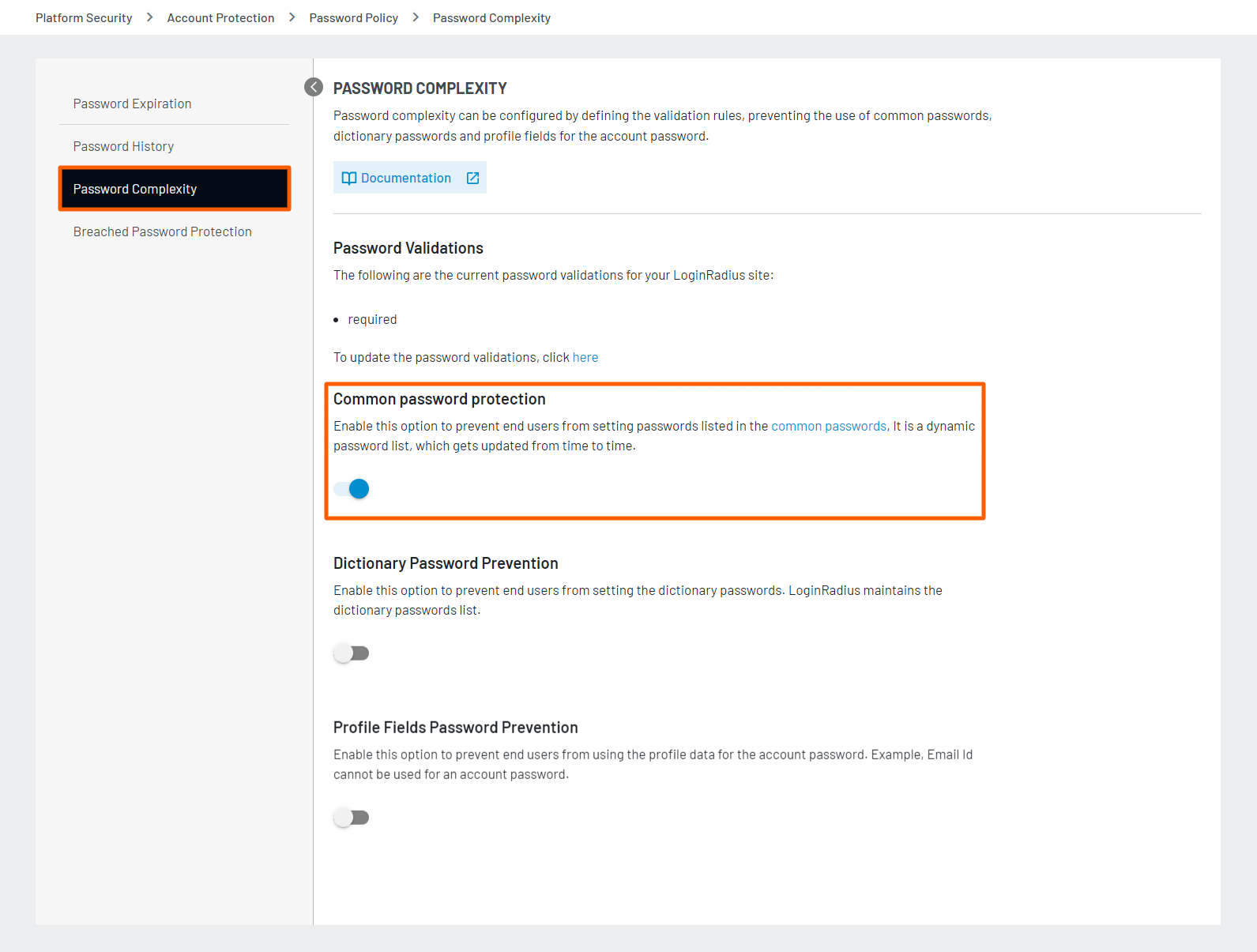
Note: You can refer to this document for a common password list maintained by LoginRadius and this list is dynamic and it gets updated from time to time.
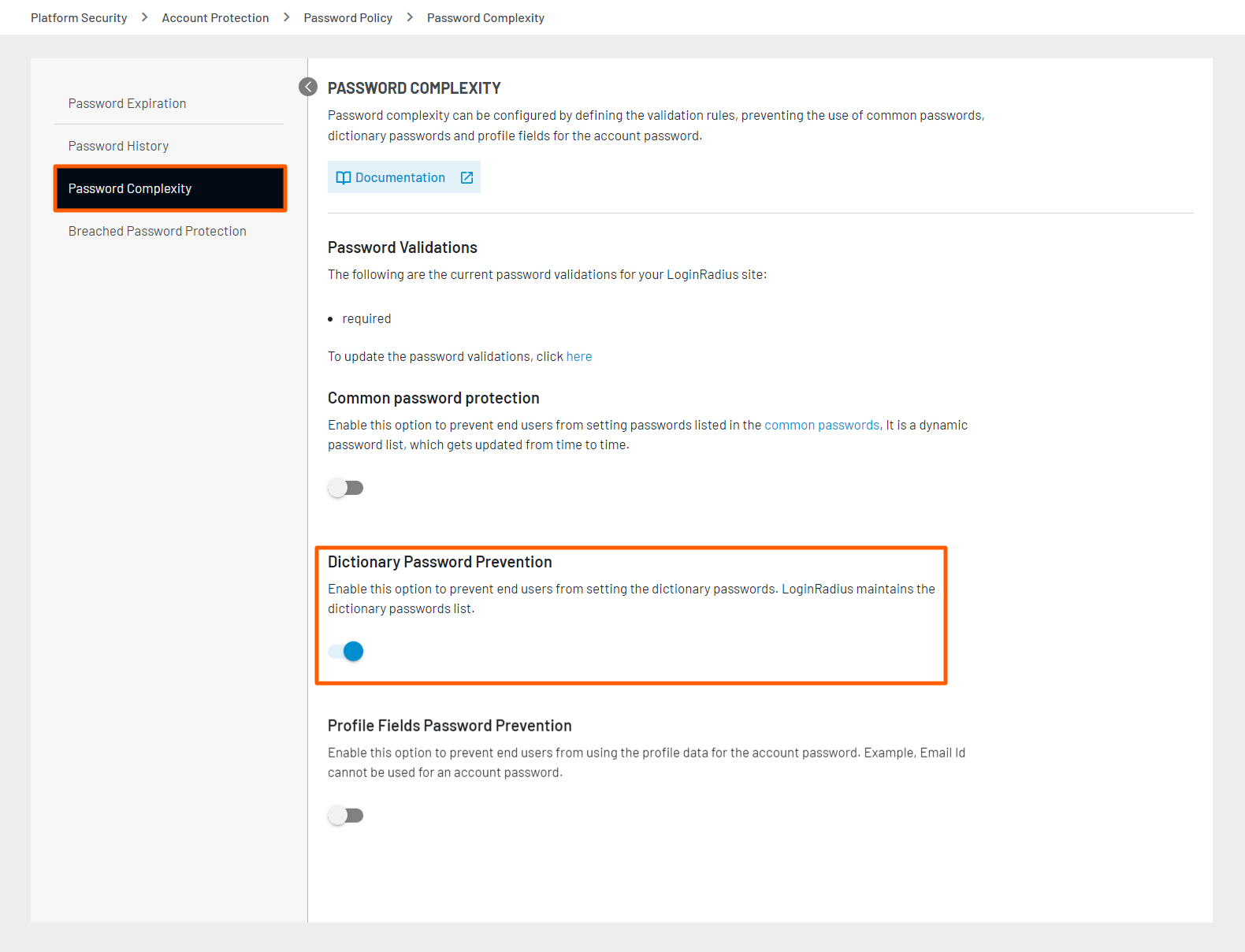
Dictionary Password Prevention
This feature prevents your customers from setting a password available in the dynamic password dictionary. LoginRadius uses this dynamic Password Dictionary to prevent the use of dictionary passwords.
To enable this feature, navigate to the Platform Security > Password Policy > Password Complexity section of the Admin Console and click the Dictionary Password Protection toggle button to turn on the dictionary password prevention.
Profile Fields Password Prevention
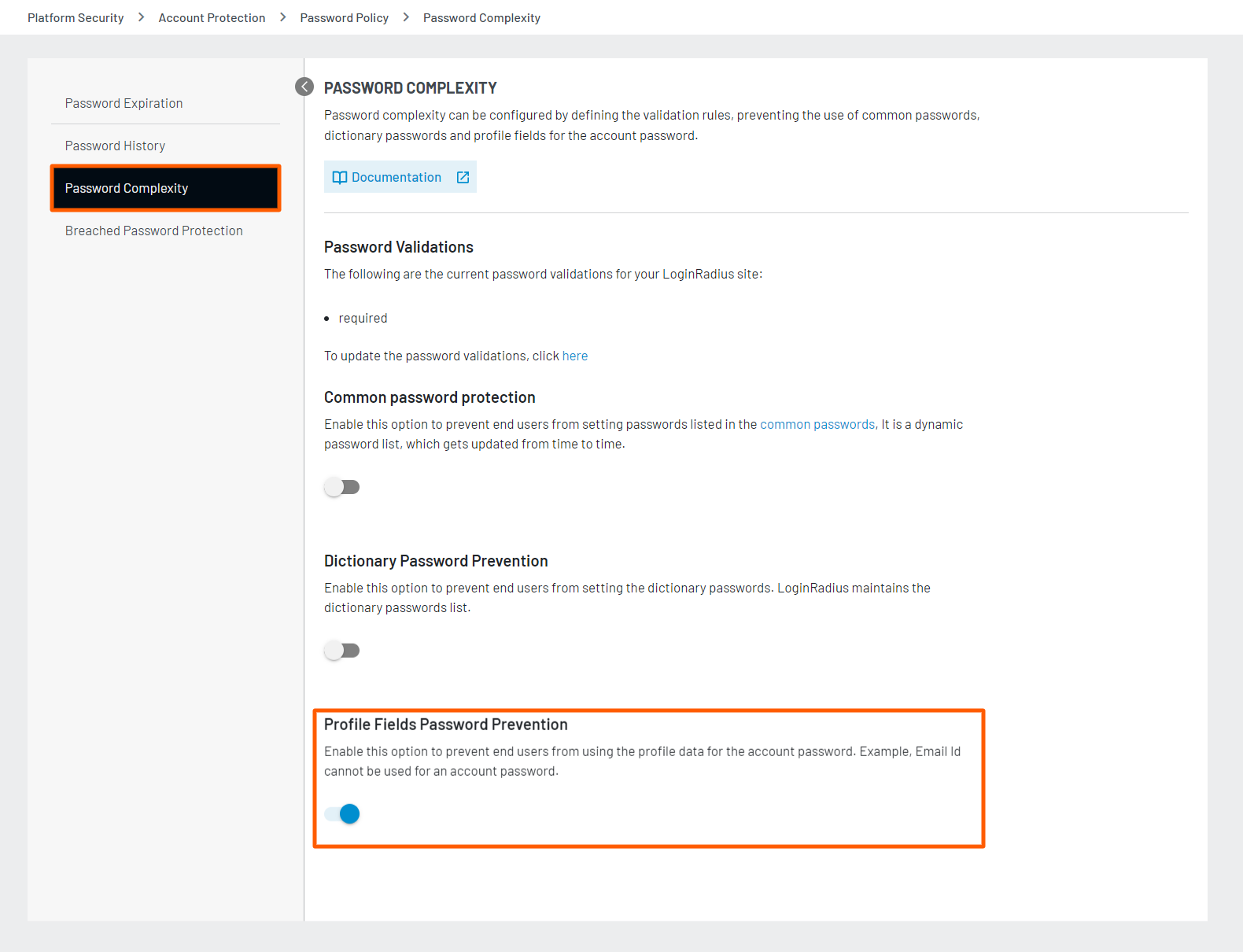
This feature prevents your customers from using the profile data for the account password. For example, if your customer profile has the Username, Email Id, First Name, Last Name and Date of Birth fields, the values of these fields cannot be used as an account password.
To enable this feature, navigate to the Platform Security > Password Policy > Password Complexity section of the Admin Console and click the Profile Field Password Prevention toggle button to turn on the profile field password prevention.
Password Complexity with Update Event
In order to apply Password Complexity configurations when a password is updated, please use our JavaScript hook as displayed below:
Sample code:
LRObject.$hooks.call('formValidationRules',{
	"newpassword":"required|min_length[8]|max_length[32]",
	"confirmnewpassword":"required|min_length[8]|max_length[32]",
});
For additional information on the usage of custom validation hooks, validation rules, and custom validation rules, please see this documentation.
Note: The Password Complexity rules configured on the Admin Console are front-end validations only. To enable the same Password Complexity configurations with the back-end, please contact the LoginRadius Support Team.
Part 4 - Default Password Policy Settings in LoginRadius
LoginRadius provides the following default settings for your site/app for enforcing Password Policy:
- Password Length and Complexity: Minimum 10 characters with at least one number and symbol.
- Password History: Customers can't use the new password from the last 5 passwords.
- Maximum Password Age: The maximum password age is 90 days i.e. it expires after 90 days.
In addition to the above password policy features, LoginRadius Identity Platform also supports following password requirements:
Part 5 - Password Compliance Check
You can identify customers who comply with newly configured password complexity requirements, this feature will set a flag on the customer's profile, which can then be used to segment customers via either the Admin Console or Cloud API.
LoginRadius can add an additional field to your customer profile called IsSecurePassword as a flag to indicate if the account is complying with the set of rules. This is particularly useful if you have a new set of rules in regards to password strength and would like to enforce these rules on existing users.
You can contact the LoginRadius Support Team to enable the Password Compliance Check.
Part 6 - Password Hashing Algorithm
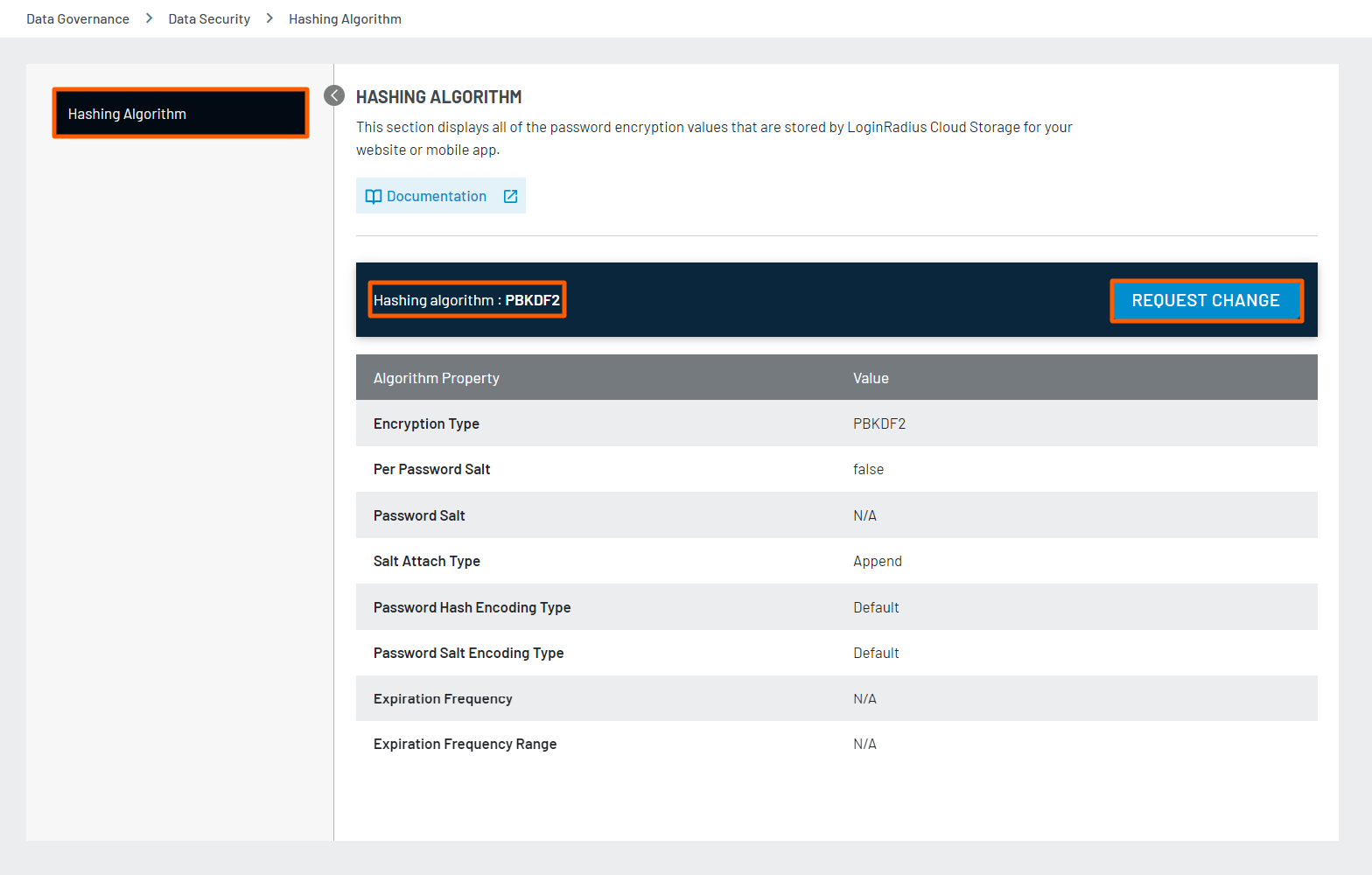
You can view the hashing algorithm currently used with your site/app for password encryption. It also displays password-encryption values that are stored by LoginRadius Cloud Storage for your web application or mobile app. LoginRadius provides one-way encryption, it means that it will never be the case that the password’s ciphertext is decrypted at all.
To view these details, navigate to Data Governance > Data Security > Hashing Algorithm section of the Admin Console.
The following screen appears:
For more details on password hashing, password salting and upgrading the hashing algorithms , you can refer to this document.
If you want to change the Hashing Algorithm, click the REQUEST CHANGE button and raise the support ticket. This document explains how LoginRadius will handle hashing of existing and new customers password in case of hashing algorithm upgrade.
Part 7 - Password Visibility
You have the option to view the typed password by clicking a button while entering it. This feature can be implemented using JavaScript, as illustrated below:
To enable the show/hide password option for the password field, set the "passwordVisibilityControl" flag to true using common options:
commonOptions = {};
commonOptions.passwordVisibilityControl = true;
Similarly, to enable the show/hide password option for the confirm password field, set the "confirmPasswordVisibilityControl" flag to true using common options:
commonOptions = {};
commonOptions.confirmPasswordVisibilityControl = true;
This allows users to toggle between displaying and hiding the password input for improved usability and security.
Part 8 -Breached Password Protection
Breached password prevention is a vital component of cybersecurity strategy, designed to safeguard your user accounts from being compromised. The Breached Password Protection feature ensures that passwords exposed in data breaches cannot be used, providing an added layer of protection for your account.
Step 1: Login to the Admin Console and navigate to the Platform Security > Password Policy > Breached Password Protection section. The following screen appears:
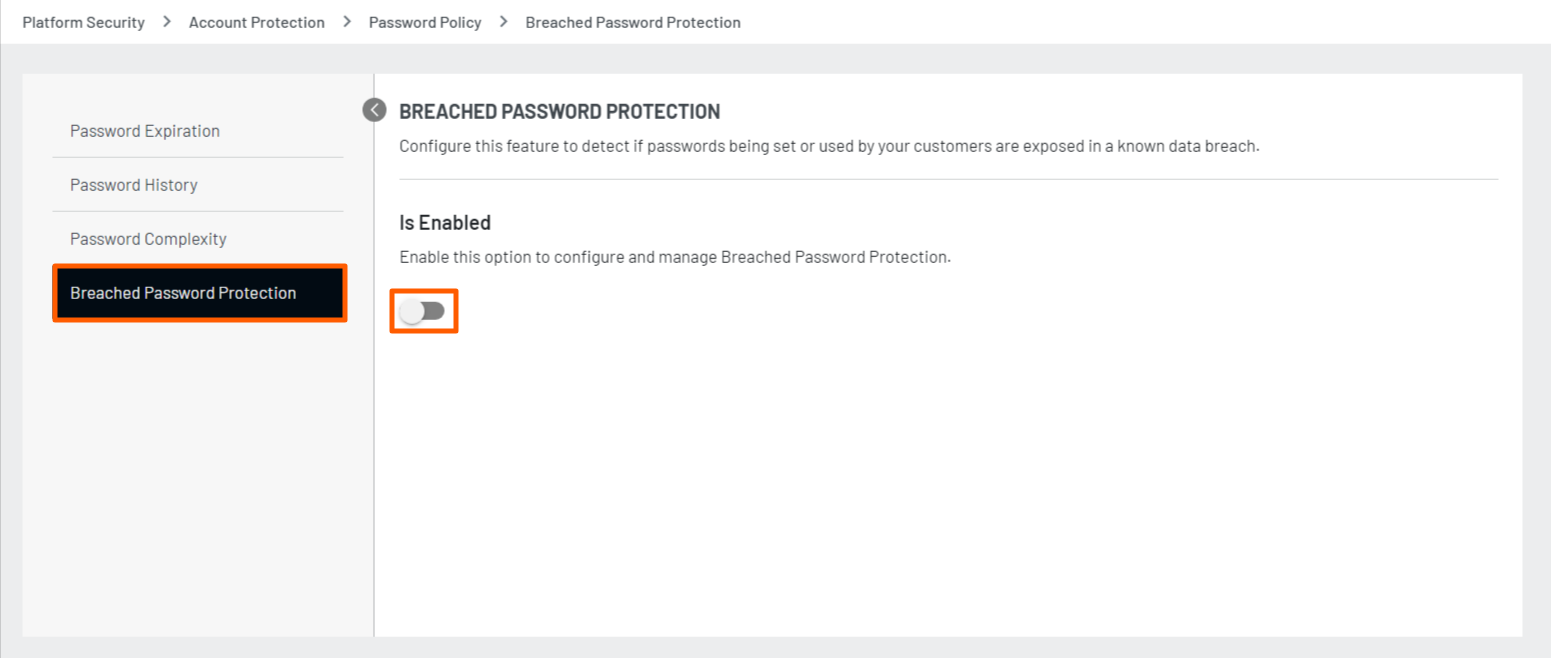
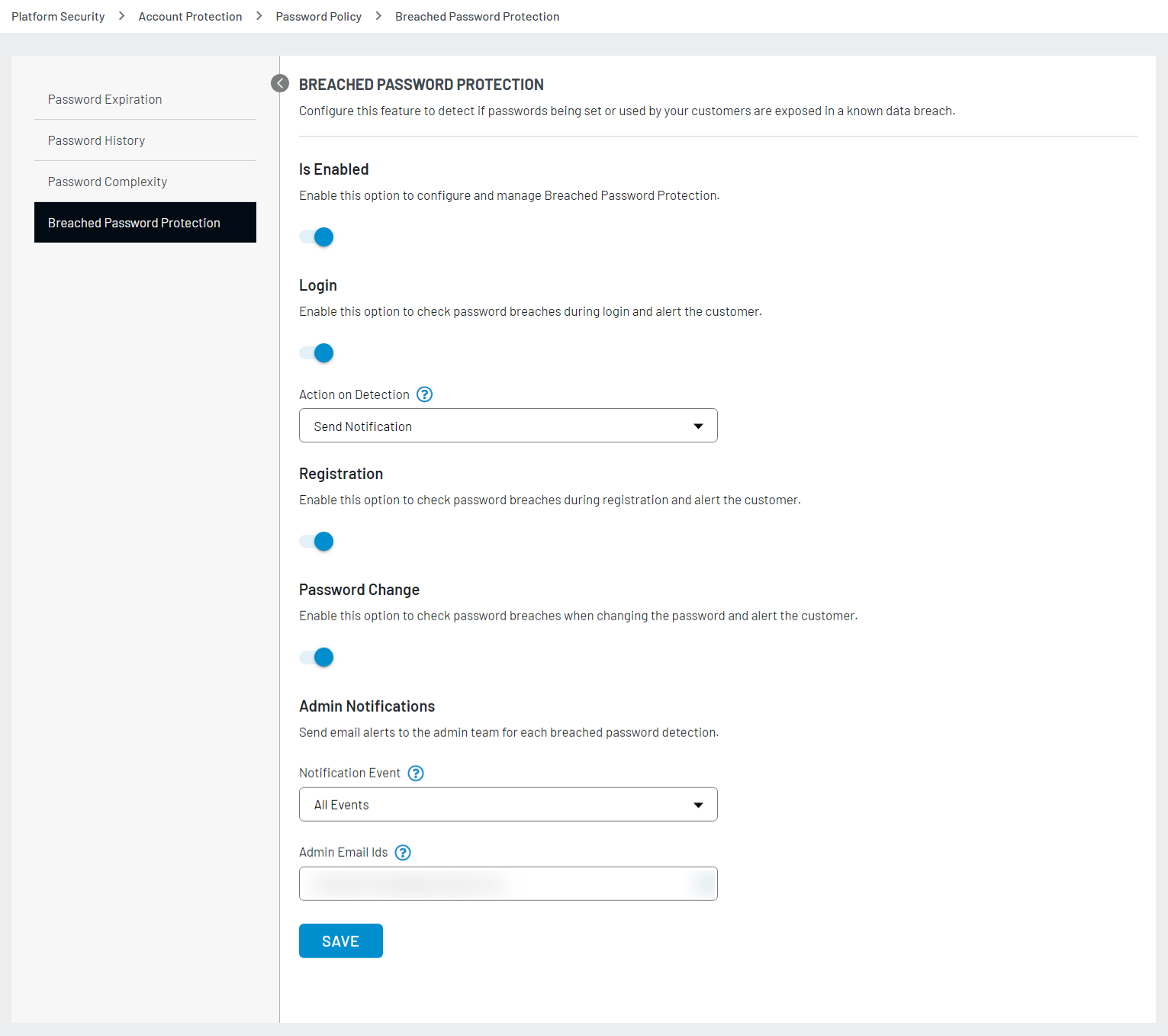
Step 2: Enable the feature to display the following screen with multiple options.
-
Login: It checks for password breaches during login and alerts the user. You can then select the desired action upon detecting a password breach. The following actions are available.
- Ask For Password Change: The user is prompted to change their password via email/ SMS.
- Send Notification: An email/ SMS notification about the password breach is sent to the user.
- Record Breach: If you don't want to take any action and just want to set a flag indicating that a password breach has been detected, then this field will be used.
-
Register: It checks for password breaches during registration and alerts the user.
-
Password Change: It checks for password breaches when a user changes their password and sends an alert.
-
Admin Notifications: Email alerts are sent to the admin for each breached password detection based on the selected Notification Event.
- Notification Event: An alert will be triggered to the admin based on the events selected.
- Admin Email Ids: Enter the email address(es) where you want to receive the alerts. You can add multiple emails separated by commas.
Note: Ensure there are no spaces after the comma while separating multiple email IDs.
Once you have selected the events as per your requirements, click on the Save button.
Part 9 - Next Steps
The following is the list of features you might want to add-on to the above implementation: