Phone Login
The Phone Login feature allows your customers to register and login using their Phone Number. LoginRadius Identity Platform requires you to verify these customers after the registration via a One-Time Password (OTP). In the case of Phone Login, your customers can login only after the phone number verification.
The following displays the functional flowchart of registration, verification, and log in using the Phone Number:

LoginRadius Identity Platform allows you to implement the Phone Login feature in the following two ways:
- With Password: The customer will require to set the account password during registration and then provide the same while login.
- With OTP: If the Passwordless Login is enabled for your account, the customer will be able to login using the OTP even if the registration was done using the password.
Phone Login Guide
This guide will take you through the process to set up and implement Phone Login. It covers everything you need to know on how to configure Phone Login in the LoginRadius account and deploy it onto your web application.
Pre-requisites:
- Phone Registration should be enabled on your account.
- Basic knowledge of HTML/JavaScript
Enable Phone Registration
Login to your Admin Console account and navigate to Platform Configuration > Identity Workflow > Auth Workflow.
The following screen will appear:

The above screen displays that the Phone Registration is enabled for your account, since the Phone Registration box is in green with the enabled text. If not enabled for your account, raise a request to the LoginRadius Support Team.
Note: In addition to this feature if you also want to disable the use of Login APIs, where password is required field, such as Auth Login By Email, Auth Login By Username or Auth Login By Phone, and etc., please raise a request to the LoginRadius Support Team.
Part 1 - Configuration
This section covers the required configurations that you need to perform in the LoginRadius Admin Console to implement the Phone Login functionality.
Step 1: To configure the Phone ID,navigate to Platform Configuration > Authentication Configuration > Standard Login > Data Schema.
Expand the Standard Fields (Basic) and click the + sign given next to the Phone ID field. The field will appear under Active Fields.
The following screen will display the added Phone ID field:

To update the Field Name/ label of the PhoneID, click the edit sign and change it in the General tab. The following screen will display the editable Field Name:

To allow the customer to login using the Phone Number, the Phone ID should be mandatory for your customers during the registration process.
To make it mandatory, navigate to the Advanced tab, select the Mandatory option in settings and click the Save button.
In addition, you can define validation rules for the Phone ID field from our validation rule list or by adding a custom regex.
The following screen will display the above-explained Settings and Validation String options of the Advanced tab:

You can also include other desired fields to the registration form. For more details, refer to the following:
Registration Form Fields Configurations
Once your customer is registered by providing the Phone Number, a verification OTP is sent on the phone number. The default OTP Settings and SMS Templates are used for sending the verification OTP. Step 2 and Step 3 respectively explain how you can manage them as per your requirements.
Step 2: To configure the OTP for Phone Login, navigate to Platform Configuration > Authentication Configuration > Phone Login
The following screen will appear:
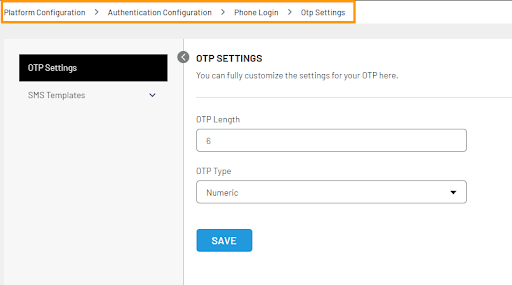
To make changes as per your requirement, enter the desired OTP Length, select the OTP Type (numeric, alphanumeric etc) from the drop-down list and click the Save button.
Step 3: To manage the SMS Template for Phone Login, navigate to Platform Configuration > Authentication Configuration > Phone Login and select the SMS Template option from the left navigation panel.
The following screen will appear:
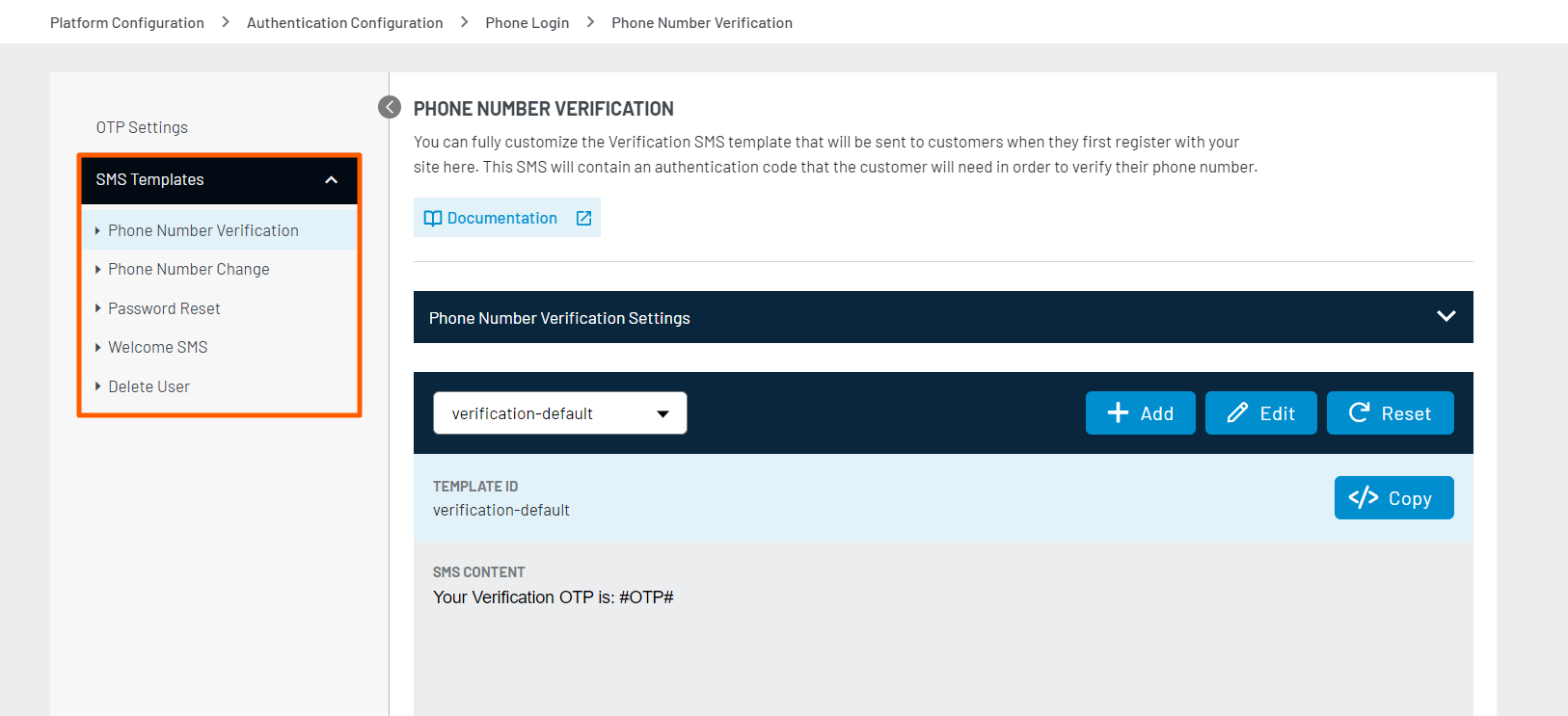
The SMS Template has the following sub-sections:
- Phone Number Verification: This is the default template to send the account verification OTP.
- Phone Number Change: This is the default template to send the OTP for the phone number change request.
- Password Reset: This is the default template to send the OTP for the password reset request.
- Welcome SMS: This is the default template to send the message on successful registration. To send a welcome SMS on registration, you are required to select the Enable Welcome SMS option that appears on the selection of the Welcome SMS template in LoginRadius Admin Console.
- Delete User: This is the default template that will be sent to users when they request the otp to delete their accounts.
Note: To use these templates within the implementation flow, you will need to use the given Template ID. For example, verification-default is key to use the default Phone Number Verification template.
You can customize these SMS templates or create a new template as per the requirement. The following are the available customization options:
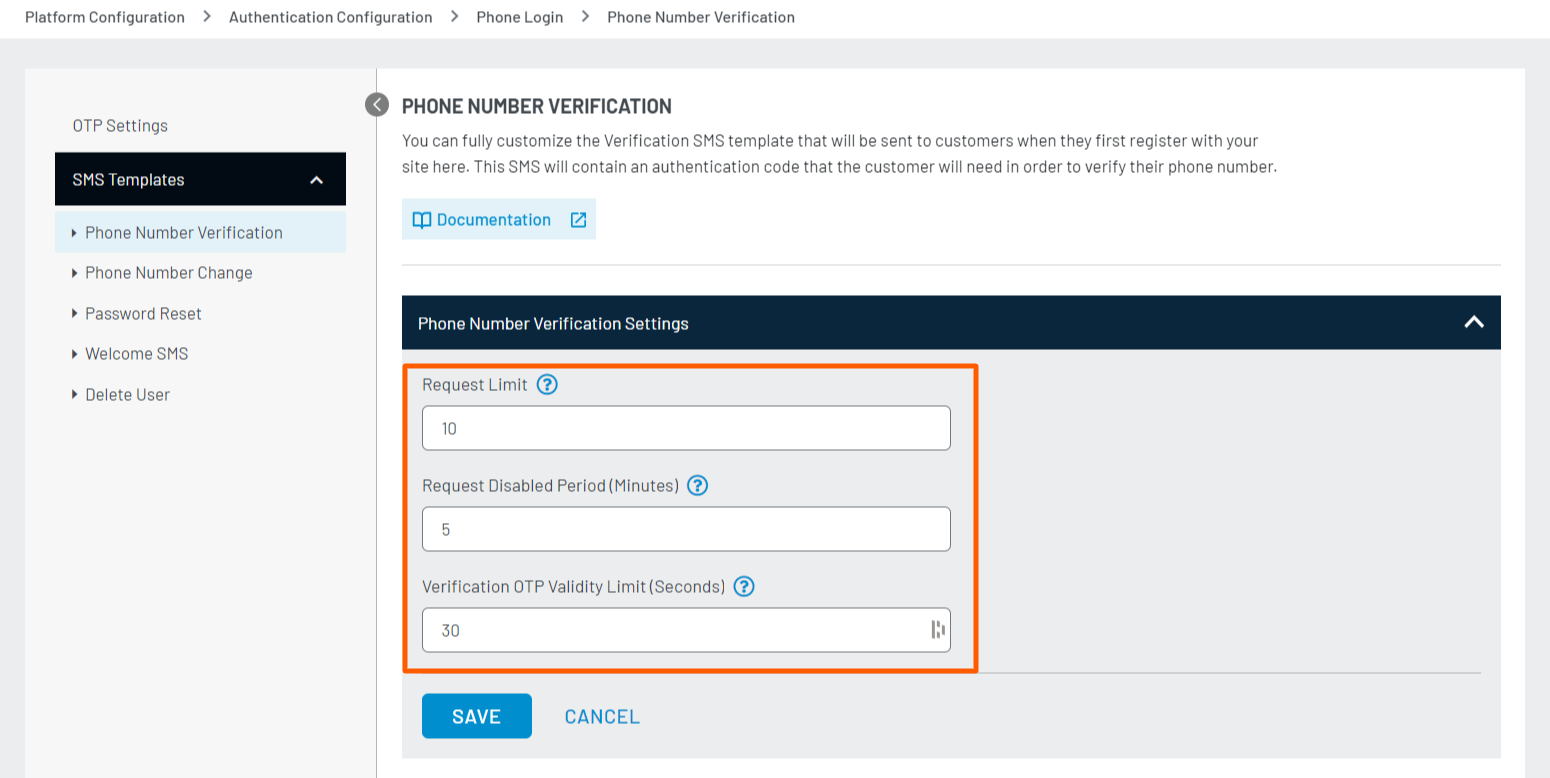
Template Settings
For all SMS templates of Phone Login, you can manage the following SMS template settings:
-
Request Limit: The number of times an SMS/OTP can be requested within a set timeframe, determined by the Request Disable Period (in minutes).
-
Request Disable Period: The duration (in minutes) a customer can request SMS/OTPs and the disabled duration after the request limit is reached.
-
OTP Validity Limit (Seconds): The amount of time (in seconds) for which an OTP is valid.
The following screen will display the above settings configured for the Phone Number Verification template:
Edit Template
For all SMS templates of Phone Login, you can edit the content or add/update placeholders as explained below:
Select the desired template from the left navigation panel and click the Edit Template button. For example, to edit the Phone Number Verification template, select it from the left navigation panel and then click the Edit button.
The following screen will appear in edit mode:
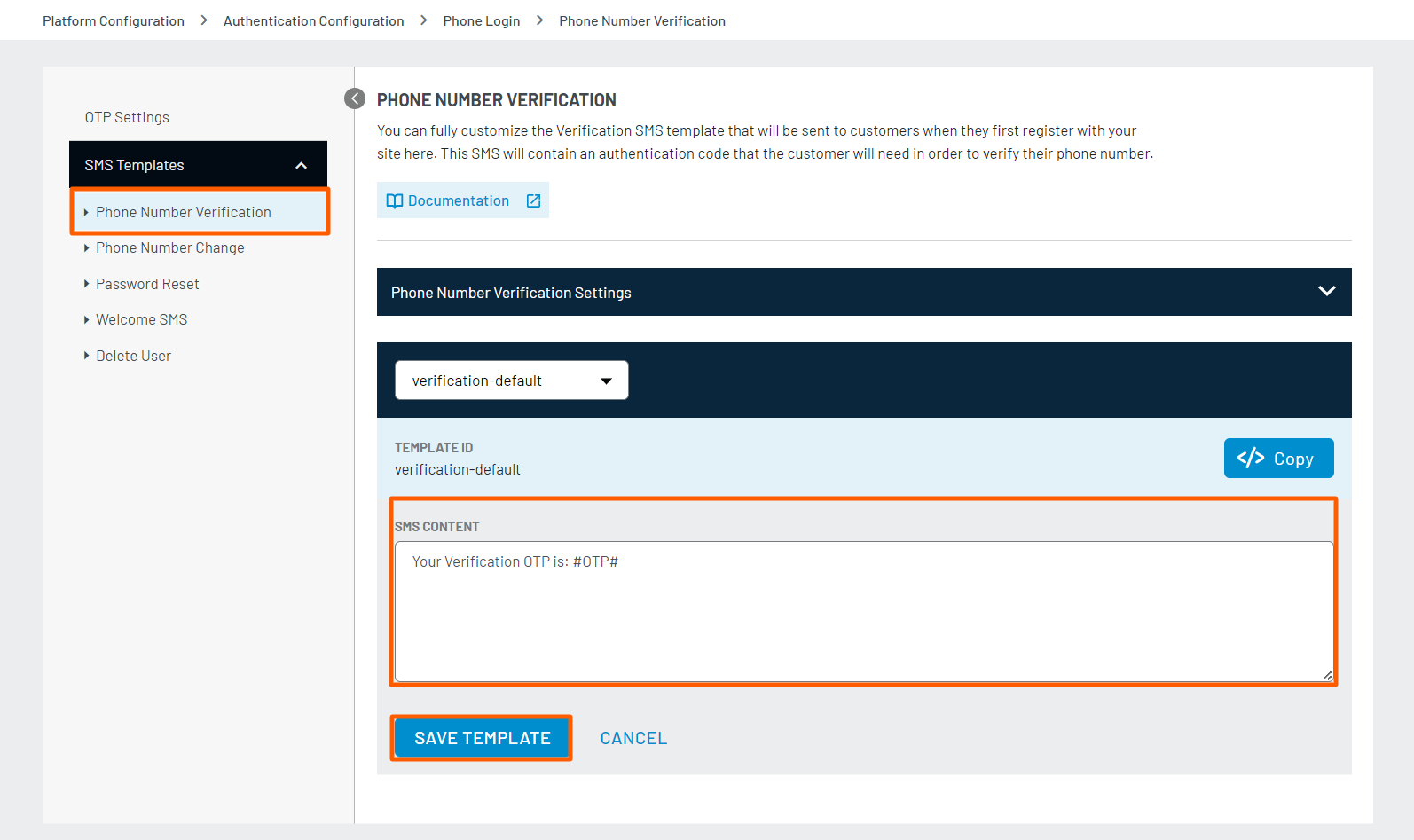
In the SMS Content section, you can update the given text or use Placeholder Tags from the predefined list. Save the template once you are done with the updates.
Add Template
Using this option, you can create a new SMS template option within the default SMS templates. For example, if you click the Add button from Phone Number Verification Settings SMS template screen, the following screen will appear:
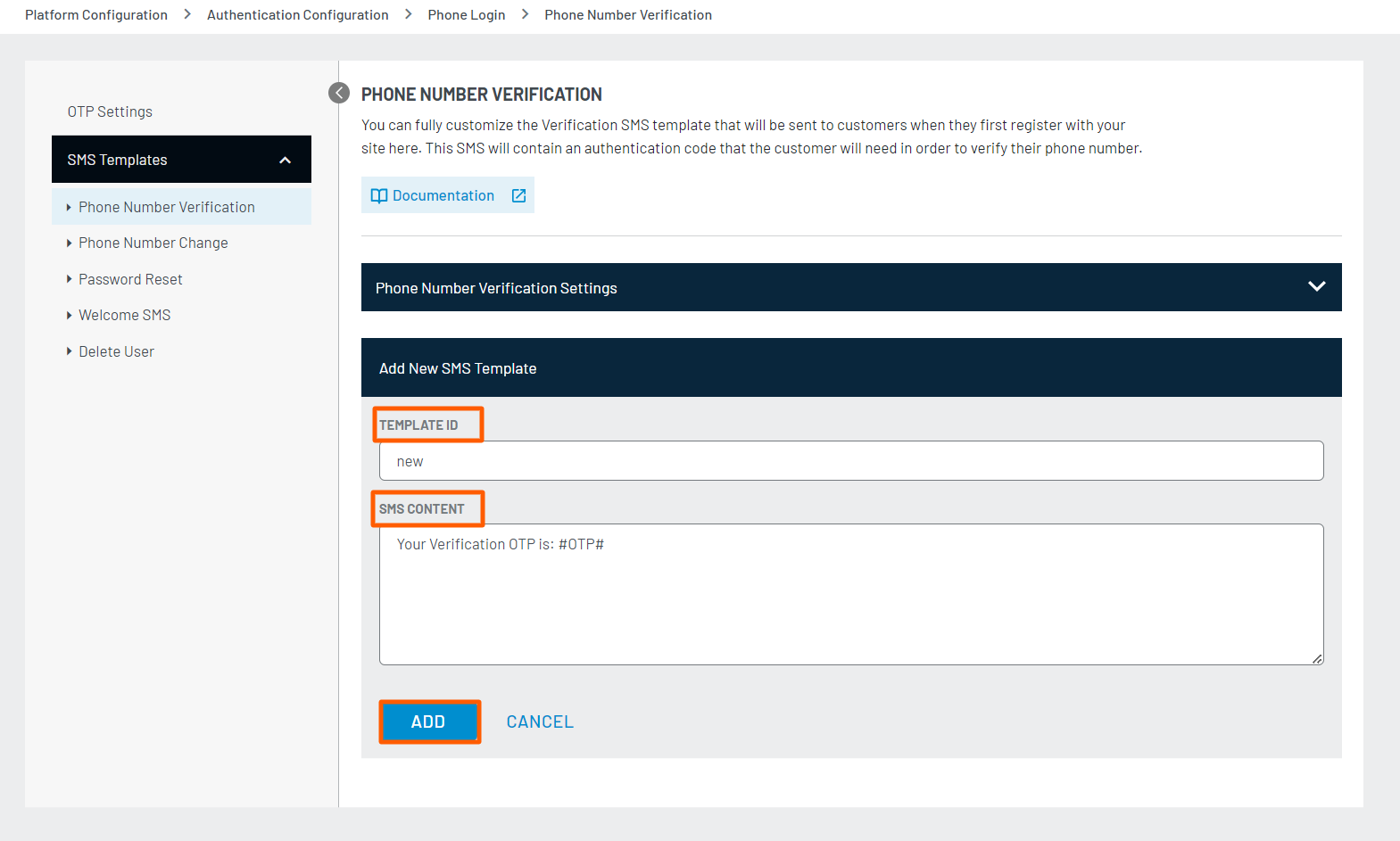
Add the desired Template ID, SMS Content in the respective sections and click the Add button to create the template.
The following screen will display the added Template ID in the drop-down list:
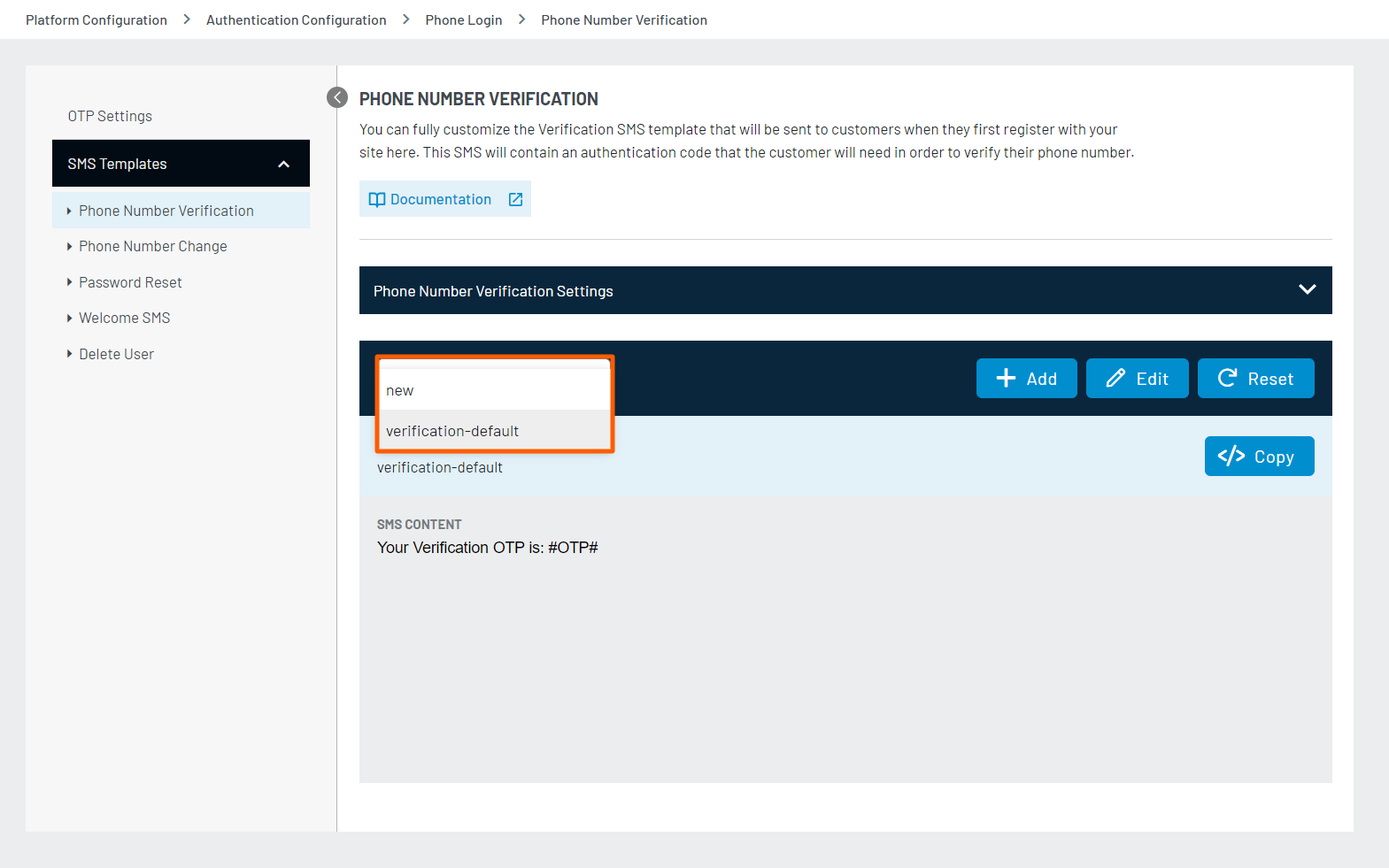
This way, you can maintain multiple sub-templates for a parent template and use the desired Template ID in the implementation.
Note: If required, you can add a sub-template. To delete, select the respective Template ID from the drop-down list, the following template screen will appear:
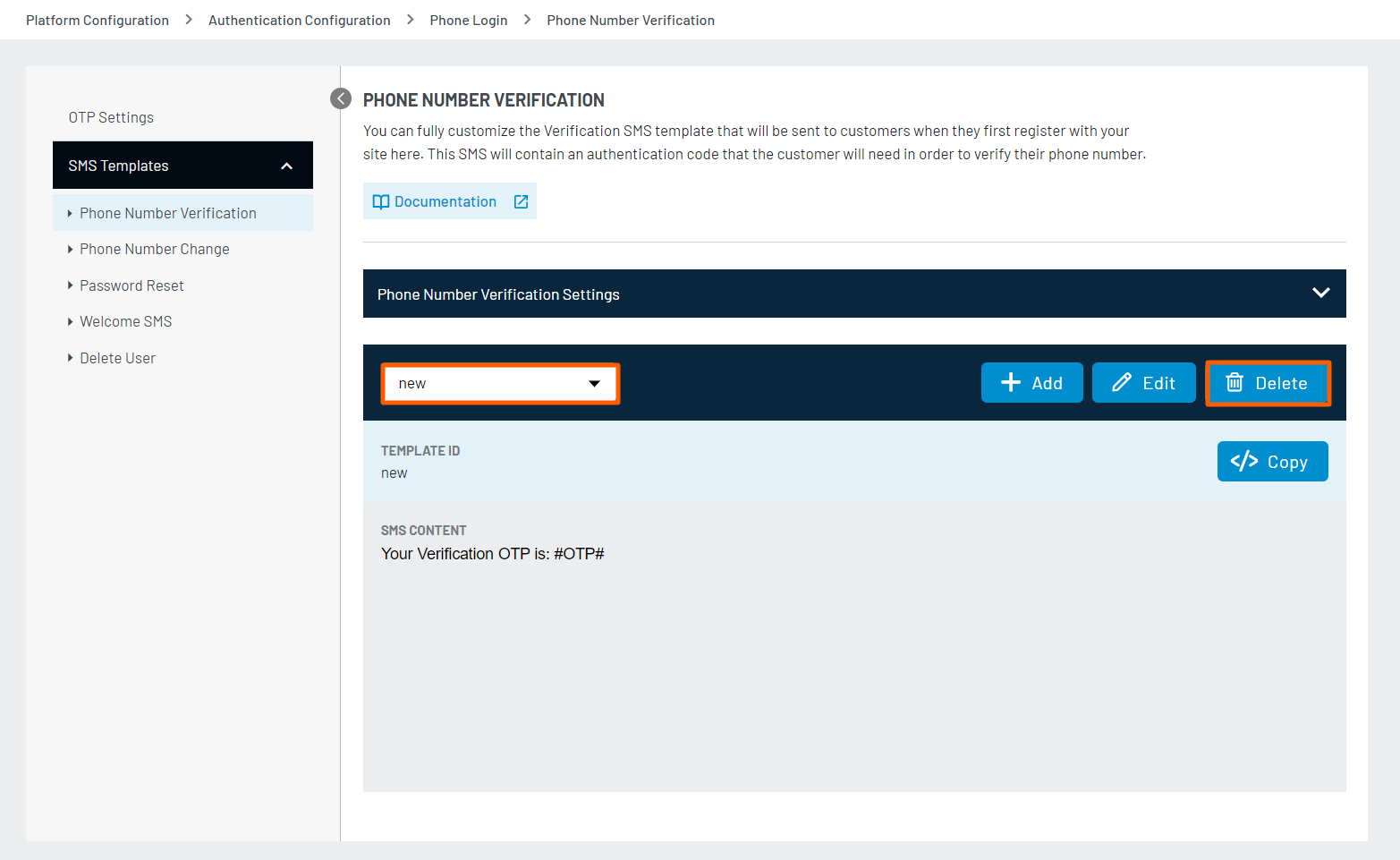
Click the Delete Template button and then confirm the action to delete the template.
You can only delete the new template(s) that you created i.e. you are not allowed to delete the default templates.
Reset Template
Use this option to reset the default templates in the original state. For example, if you have updated the content or placeholders tags in a default template, resetting the template will restore the original content and placeholders).
The reset template option is only available for the default templates that come with the LoginRadius Identity Platform.
Placeholder Tags
The following are the predefined placeholders that you can use in the SMS content:
 * #Name#: This gets replaced with the user's name as defined in the registration form.
 * #OTP#: OTP received in SMS for phone number verification.
 * #FirstName#: First name from the registered user's profile.
 * #LastName#: Last name from the registered user's profile.
 * #UserName#: If you enabled username login on your site, you may want to show the name when a user forgets his password.
 * #OTPExpiry#: Expiration time of an OTP in seconds. It will replace the value of the 'OTPExpire' field of particular SMS type settings. If there is no set value, then the default value will be '300' seconds.
 * #Email#: Email address from the registered user's profile.
Note: For details around SMS Gateway Configurations, refer to SMS Provider documentation.
Part 2 - Deployment
The LoginRadius Identity Platform supports a variety of implementation methodologies that allow you to customize the customer flows.
This guide focuses on the following deployment methods:
-
Identity Experience Framework: You should refer to these deployment steps if you are targeting LoginRadius Identity Platform implementation using IDX.
-
JavaScript Libraries: You should refer to these deployment steps if you are targeting LoginRadius Identity Platform implementation using JavaScript.
However, you can similarly accomplish the deployment with any of the implementation methodologies. Full details on these methodologies can be found here.
Note:
- To implement the Phone Login using API refer to this document.
- To implement the Phone Login using technology-specific SDK refer to this document
IDX Deployment
Make sure you have implemented the following redirects and callbacks from your web application.
Step 1: Locate the Auth Page URL as explained below:
Navigate to Deployment > Identity Experience Framework (Hosted) and the following screen will appear:
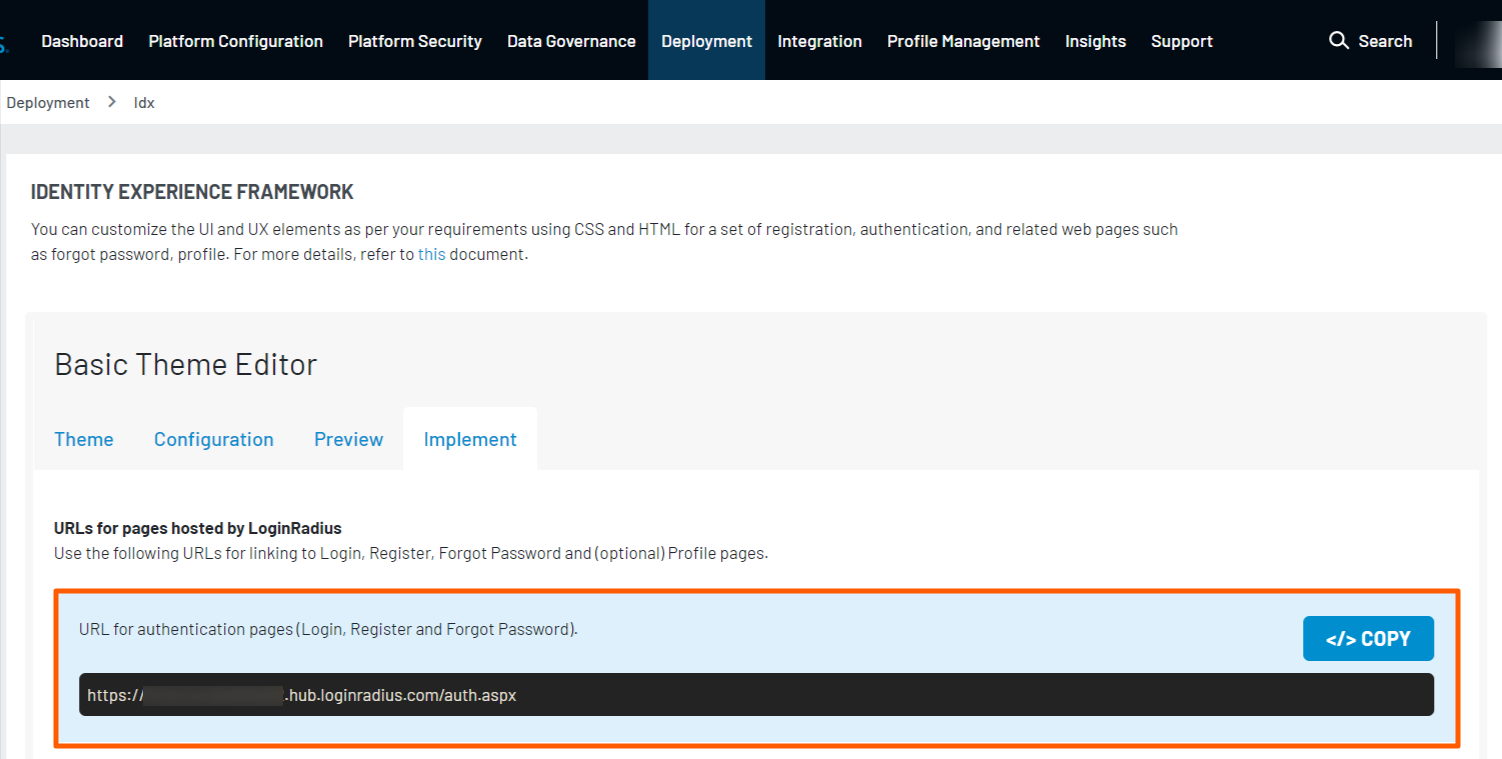
The Auth Page URL displays your unique hosted page domain in the following format:
<https://<sitename>.hub.loginradius.com/auth.aspx>
In the above URL, sitename is the name of your LoginRadius Site.
Step 2: Embed Authentication Pages in your Website as explained below:
Add a link on your webpage for redirecting customers to the Identity Experience Framework(Hosted) Page.
<a href="https://<LoginRadius Site Name>.hub.loginradius.com/auth.aspx?action=<Desired Action>&return_url=<Return URL>">Register</a>
In the above URL replace the following:
a. <LoginRadius Site Name>: Your unique LoginRadius sitename as found in step 1.
b. <Desired Action>: following are the action list you can use
- Login
- Register
- Forgot Password
- logout
Example:
Login Page
<a href="https://<LoginRadius Site Name>.hub.loginradius.com/auth.aspx?action=login&return_url=<Return URL>">Login</a>
Registration Page
<a href="https://<LoginRadius Site Name>.hub.loginradius.com/auth.aspx?action=register&return_url=<Return URL>">Register</a>
c. <Return URL>: The URL you would like to redirect customers after completing the selected action.
Try this link out on your page, You should be redirected over to the LoginRadius hosted page where you can register, login, and reset your password.
Note: Use the following URL link to display the profile page of the logged-in customer
<a href="https://<LoginRadius site name>.hub.loginradius.com/profile.aspx">View Profile</a>
Use the below JavaScript snippet to capture the access token on your page:
function getParameterByName(name) {
                name = name.replace(/[\[]/, '\\[').replace(/[\]]/, '\\]');
                var regex = new RegExp('[\\?&]' + name + '=([^&#]*)');
                var results = regex.exec(location.search);
                return results === null ? '' : decodeURIComponent(results[1].replace(/\+/g, ' '));
            }
var access_token = getParameterByName(“token”);
Note: We have additional language-specific examples here if you want to capture this token in other programming languages.
Step 3: Store the captured Access Token as explained below:
Once a customer has completed the login action the IDX page will redirect the customer back to the specified return URL and include an access token as a query parameter in the URL.
<Redirect URL>?token=<Access Token>
To get the access token, add this JavaScript snippet in your web page
function getParameterByName(name) {
                name = name.replace(/[\[]/, '\\[').replace(/[\]]/, '\\]');
                var regex = new RegExp('[\\?&]' + name + '=([^&#]*)');
                var results = regex.exec(location.search);
                return results === null ? '' : decodeURIComponent(results[1].replace(/\+/g, ' '));
            }
var access_token = getParameterByName(“token”);
If you have already added the getParameterByName function, call this function to get the access token in the access_token variable.
You can store the obtained access token in your cookie, local storage and more as per the use case. The following are the example codes for storing the access token in a cookie and local storage:
Storing in cookie:
 function setCookie(cname, cvalue, exdays) {
  var d = new Date();
  d.setTime(d.getTime() + (exdays * 24 * 60 * 60 * 1000));
  var expires = "expires="+d.toUTCString();
  document.cookie = cname + "=" + cvalue + ";" + expires + ";path=/";
}
Here cname is cookie name, cvalue is access_token and exdays is the expiry date of cookie where you need to pass the number of days.
setCookie(“lr-session-token”, access_token, “No days”)
Storing in local storage:
localStorage.setItem("lr-session-token", access_token);// First parameter will be the local storage name and 2nd parameter will be access_token
Step 4: You can use the Access Token as explained below:
Call the LoginRadius API to retrieve the customer profile using the Access Token. Alternatively, you can leverage any of our SDKs to accomplish this.
The following is the script example to retrieve the customer profile:
<script>
var xhr = new XMLHttpRequest();
url = "https://api.loginradius.com/identity/v2/auth/account?apiKey=************&access_token="+access_token
xhr.open("GET", url);
xhr.setRequestHeader('X-Requested-With', 'XMLHttpRequest');
xhr.setRequestHeader('Content-Type', 'application/json');
xhr.send();
 xhr.onreadystatechange = function() {
    if (xhr.readyState === 4) {
      console.log(xhr.response);
    }
  }
</script>
On executing the above deployment steps, you will see obtained customer profile data in the Console Log of your browser. You can then link the obtained data to your applications.
After the above configuration, Phone Login will reflect on your <https://<sitename>.hub.loginradius.com/auth.aspx> LoginRadius Site.
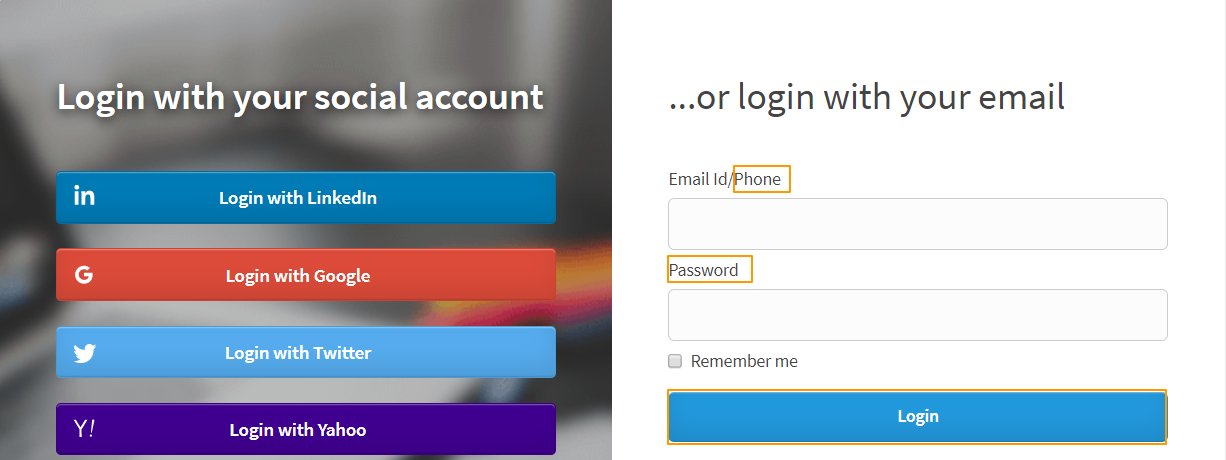
The following displays the Identity Experience Framework page with the Phone Login option with password:
JavaScript Deployment
The following are the sequential steps to deploy the Phone Login using the LoginRadius JavaScript Libraries:
Step 1: Include the LoginRadius JavaScript Libraries as explained below:
Add the following JavaScript to head tag just before closing the body tag of Index.html file:
https://auth.lrcontent.com/v2/js/LoginRadiusV2.js
Note: It is recommended to utilize the script from our CDN domain (https://auth.lrcontent.com/v2/js/LoginRadiusV2.js) rather than making a local copy.
Step 2: Initialize the LoginRadiusV2 Object as explained below:
Add this JavaScript code to initialize LoginRadiusV2 Object on your website.
var commonOptions = {};
commonOptions.apiKey = "<your loginradius API key>";
commonOptions.appName = "<LoginRadius site name>";
commonOptions.phoneLogin = True;
var LRObject= new LoginRadiusV2(commonOptions);
Step 3: Include the following code to load the Phone Login interface in your web application:
var login_options = {};
login_options.onSuccess = function(response) {
//On Success
console.log(response);
};
login_options.onError = function(errors) {
//On Errors
console.log(errors);
};
login_options.container = "login-container";

LRObject.util.ready(function() {
LRObject.init("login",login_options);
})
<div id="login-container"></div>
Part 3 - Next Steps
The following is the list of features you might want to add-on to the above implementation: