Progressive Profiling
Progressive Profiling automates the gradual gathering of data from your customers. It is done by capturing data from the customer at various stages, rather than requesting all at once. The following diagram explains the process of Progressive Profiling:
The following diagram explains the process of Progressive Profiling:

Progressive Profiling is built proportionally to the customer’s trust. During the registration process, you can collect essential information from the customer. Once trust is built, you can ask your customer for extended data. Later with time, when you keep winning your customer’s trust, you will be able to collect customer-specific information. With all the above data, you can create a detailed customer profile.
Progressive Profiling Guide
This guide will take you through the process of setting up and implementing progressive profiling. It describes the process of retrieving progressive profile information from the registration form. It covers everything you need to know on how to configuring Progressive Profile in the LoginRadius Identity Platform and deploying it onto your web application.
Pre-requisites:
- Progressive Profiling features should be enabled on your account.
- Basic knowledge of HTML and JavaScript.
Part 1 - Configuration
This section covers the required configurations you need to perform in the LoginRadius Admin Console to implement the Progressive Profiling functionality.
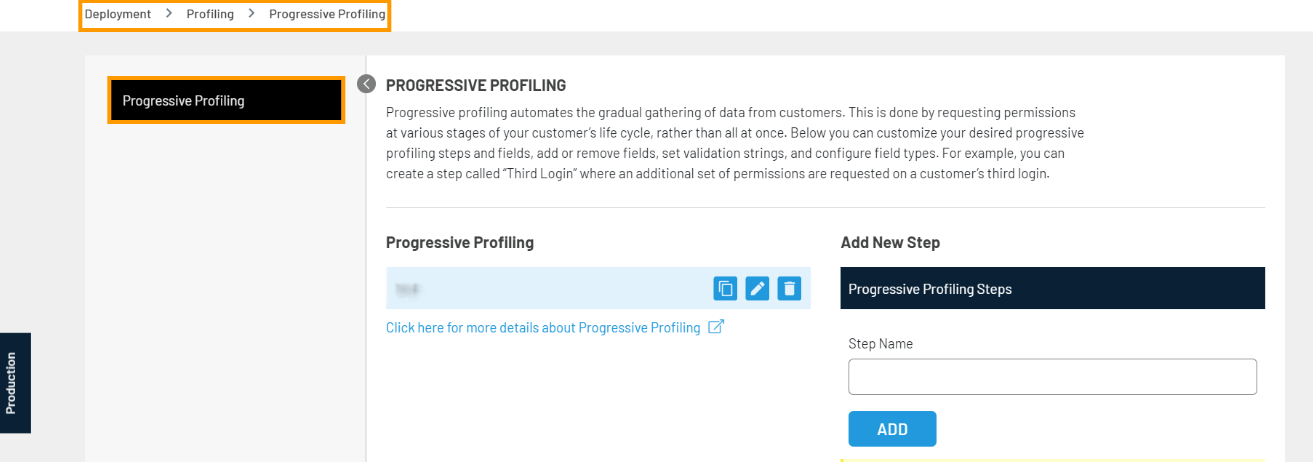
Step 1: Log in to your Admin Console account and navigate to Deployment > Progressive Profiling.
The following screen will appear:
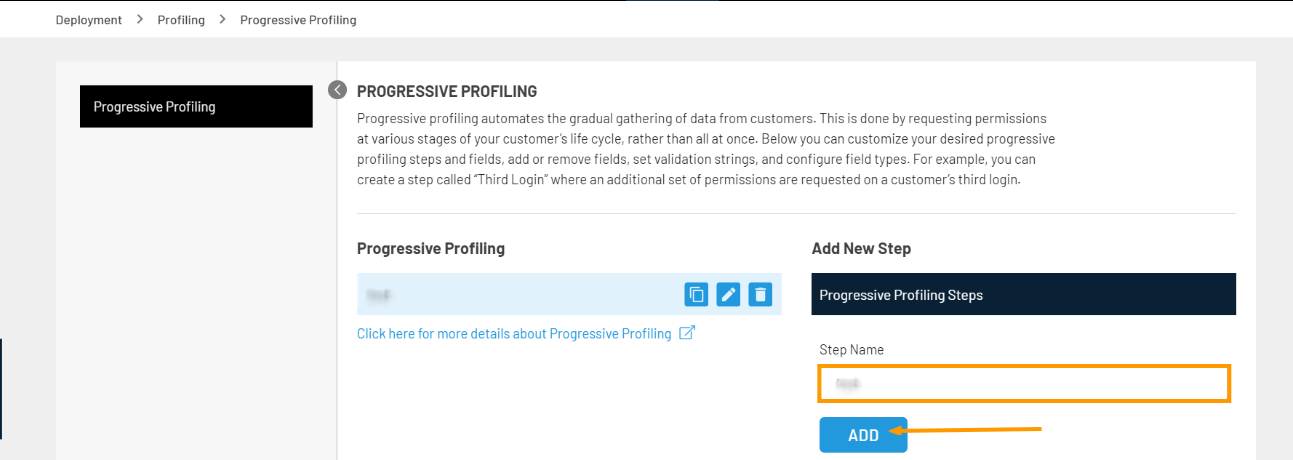
Step 2: Add a new step by entering the Step Name and then click the Add button, as highlighted in the following screen:
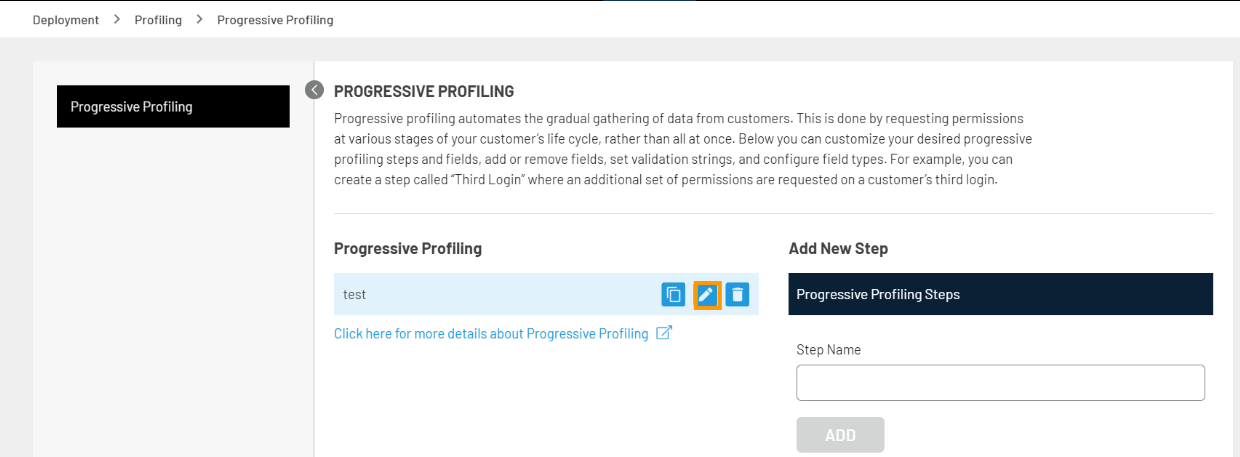
**Step 3:**Click the Edit sign to add or edit the fields for the Progressive profiling step, as highlighted in the following screen:
Step 4: All the fields available in the data schema will be displayed, as highlighted in the following screen:
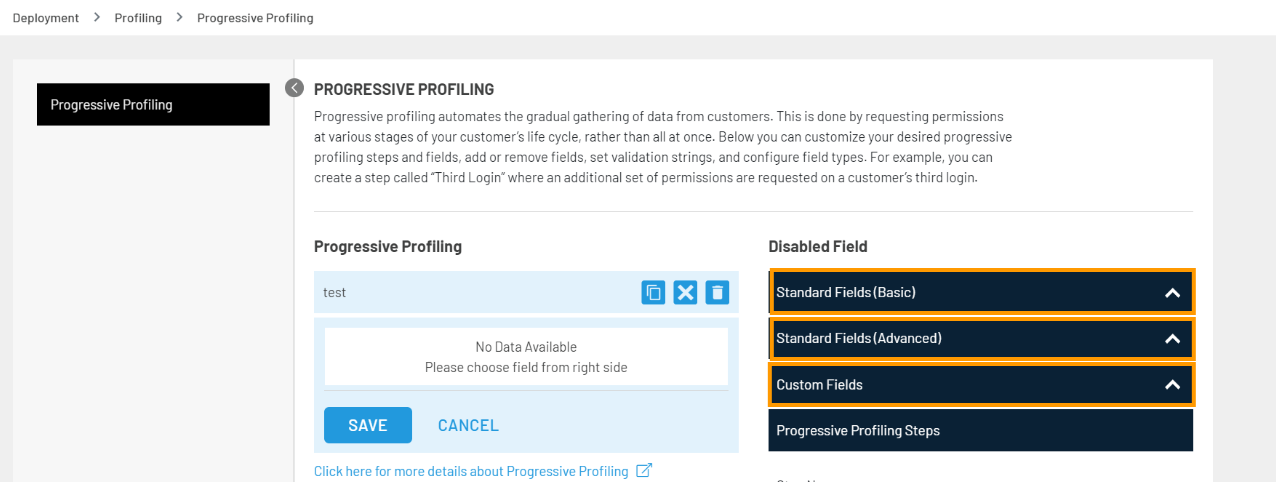
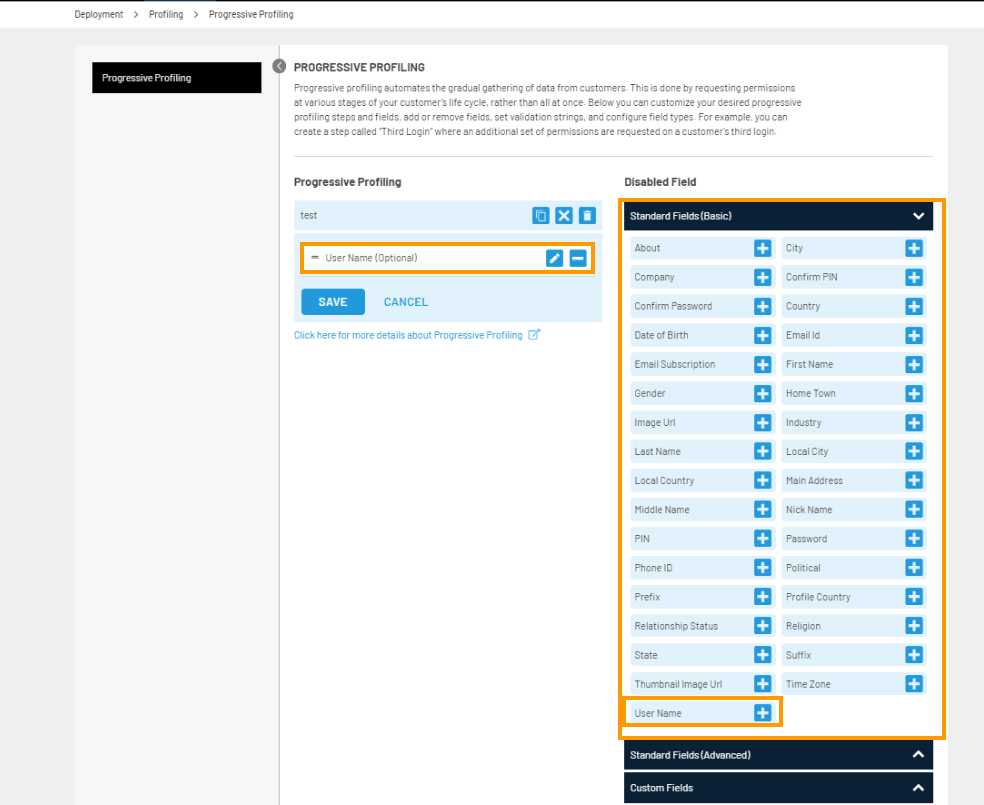
Step 5: Expand any of the field type panels i.e., Standard Fields(Basic), Standard Fields (Advanced), or Custom Fields. To add a field to your step, click the + sign given next to the field.
The following explains how to add fields from different field type panels:
The Standard Fields(Basic) panel allows you to add basic data fields. For example, in the following screen, upon clicking + button for UserName field, it is added to the progressive profiling step:
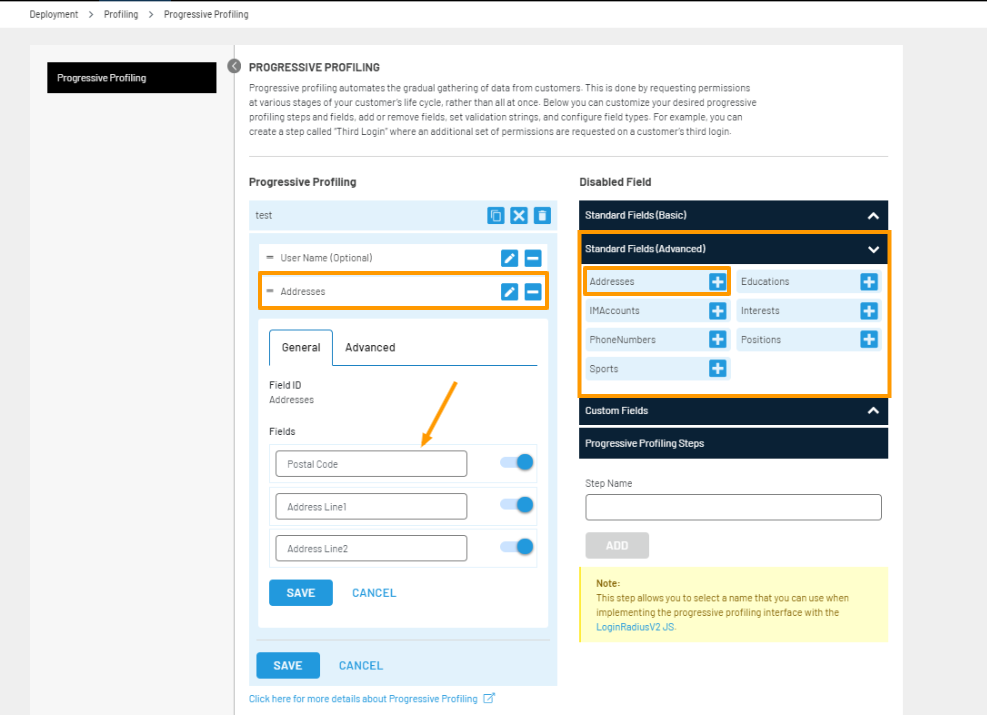
The Standard Fields(Advanced) panel allows you to add data fields that interact with more complex data structures in LoginRadius( Objects, Arrays), and include multiple related fields for the given entity.
For example, in the following screen upon clicking + button for Addresses field, it is added to the progressive profiling step along with the related fields:
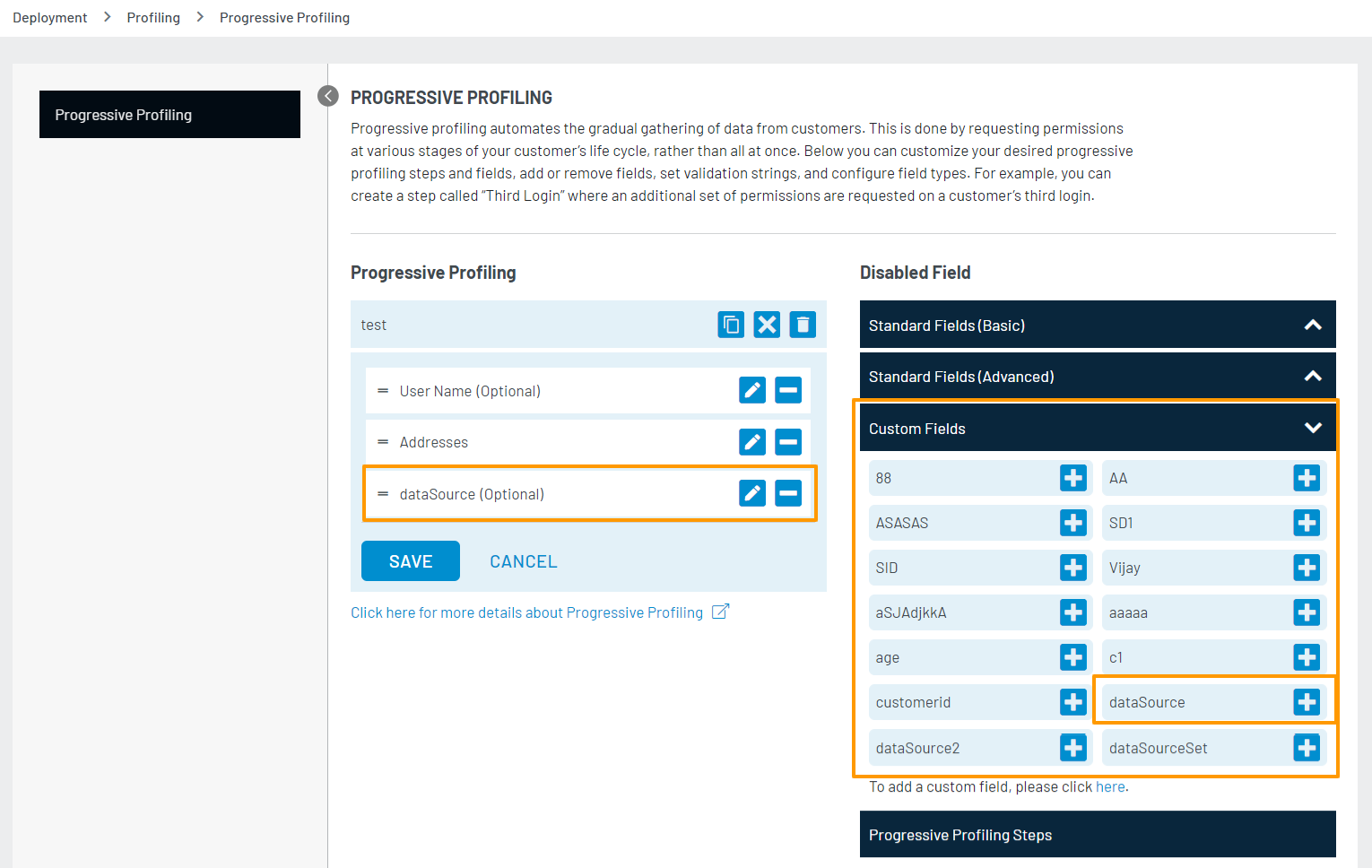
The Custom Fields panel allows you to add custom fields available in your account. For example, in the following screen upon clicking + button for dataSource field it is added to the progressive profiling step along with the related fields:
Note: For more information and field configuration settings, refer to this document.
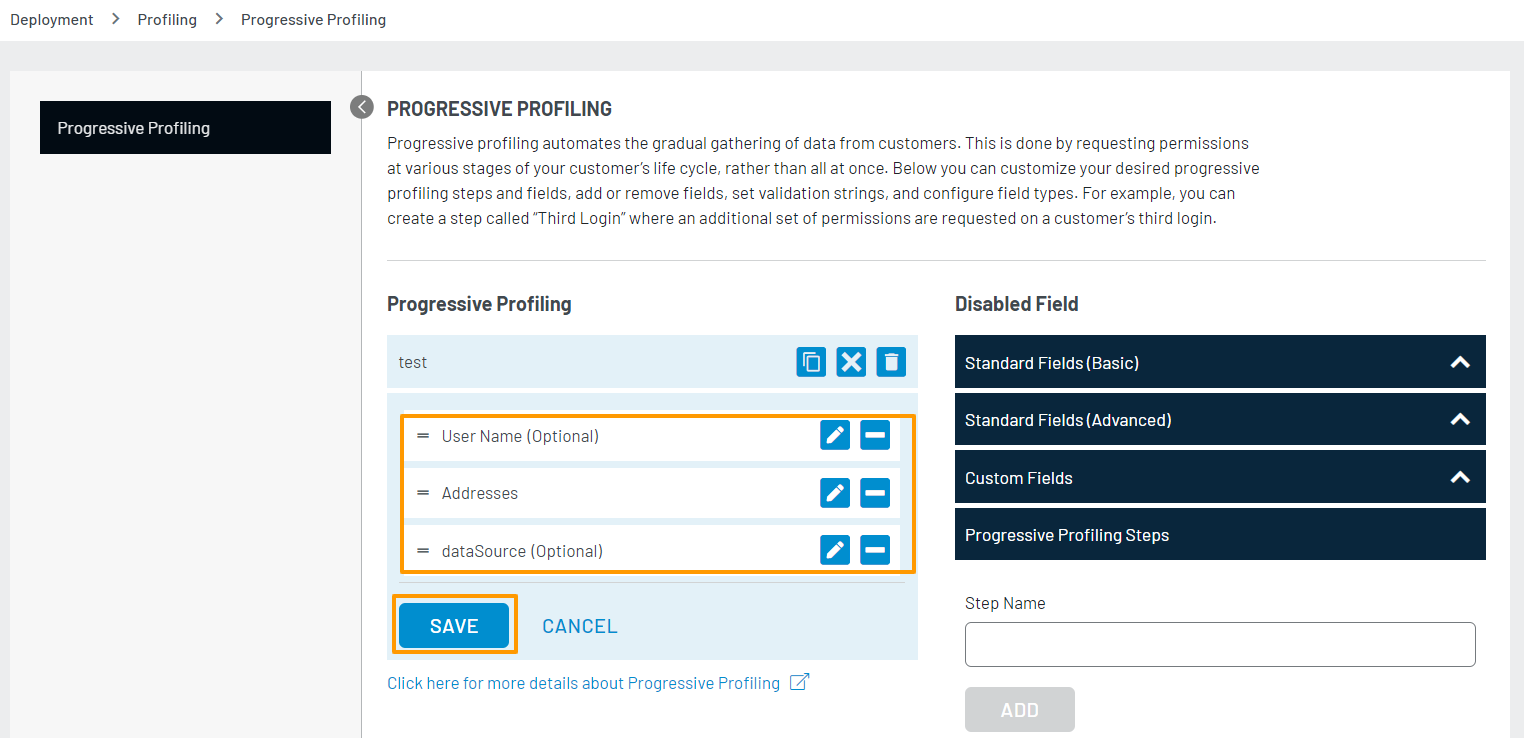
Step 6: Click the Save button to save the configurations, as highlighted in the following screen:
Part 2 - Deployment
The LoginRadius Identity Platform supports a variety of implementation methodologies that allow you to customize the customer flows.
This guide focuses on the following deployment methods:
-
Identity Experience Framework: You should refer to these deployment steps if you are targeting LoginRadius Identity Platform implementation using IDX.
-
JavaScript Libraries: You should refer to these deployment steps if you are targeting LoginRadius Identity Platform implementation using JavaScript.
However, you can similarly accomplish the deployment with any of the implementation methodologies. Full details on these methodologies can be found here.
IDX Deployment
Make sure you have implemented the following redirects and callbacks from your web application:
Step 1: Locate the Auth Page URL, as explained below:
Navigate to Deployment > Identity Experience Framework (Hosted), and the following screen appears:

The Auth Page URL displays your unique hosted page domain in the following format:
<https://<sitename>.hub.loginradius.com/auth.aspx>
In the above URL, the sitename is the name of your LoginRadius Site.
Step 2: Embed Authentication Pages in your Website as explained below:
Add a link on your webpage to redirect customers to the Identity Experience Framework (Hosted) Page.
<a href="https://<LoginRadius Site Name>.hub.loginradius.com/auth.aspx?action=<Desired Action>&return_url=<Return URL>">Register</a>
In the above URL replace the following:
a. <LoginRadius Site Name>: Your unique LoginRadius sitename as found in step 1.
b. <Desired Action>: following are the action list you can use
- Login
- Register
- Forgot Password
- logout
Example:
Login Page
<a href="https://<LoginRadius Site Name>.hub.loginradius.com/auth.aspx?action=login&return_url=<Return URL>">Login</a>
Registration Page
<a href="https://<LoginRadius Site Name>.hub.loginradius.com/auth.aspx?action=register&return_url=<Return URL>">Register</a>
c. <Return URL>: The URL you would like to redirect customers after completing the selected action.
Try this link out on your page, You should be redirected over to the LoginRadius hosted page where you can register, login, and reset your password.
Step 3: To load the Progressive Profiling interface, you are required to perform the following:
a. Navigate to Deployment > Identity Experience Framework (Hosted), and the following screen will appear:
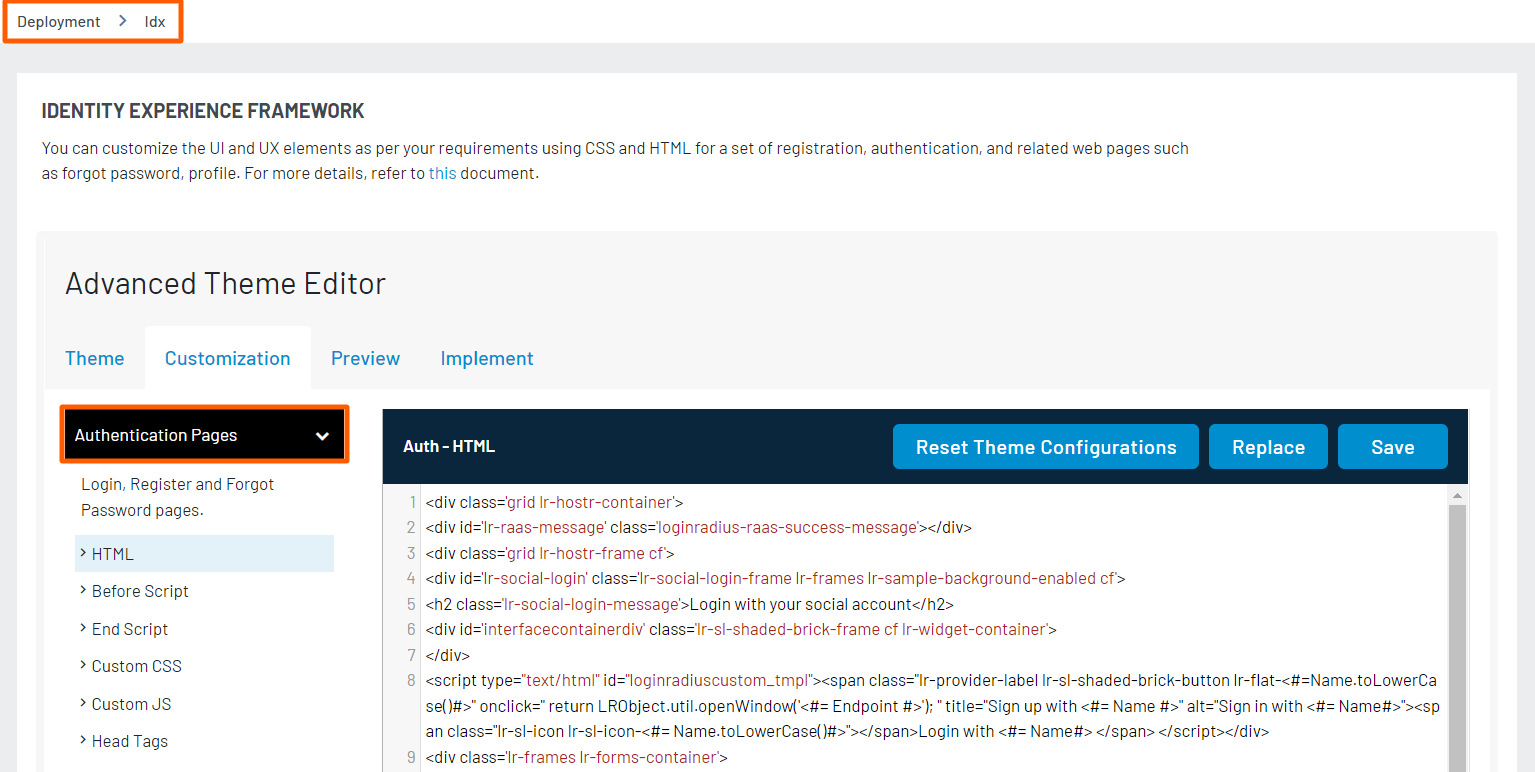
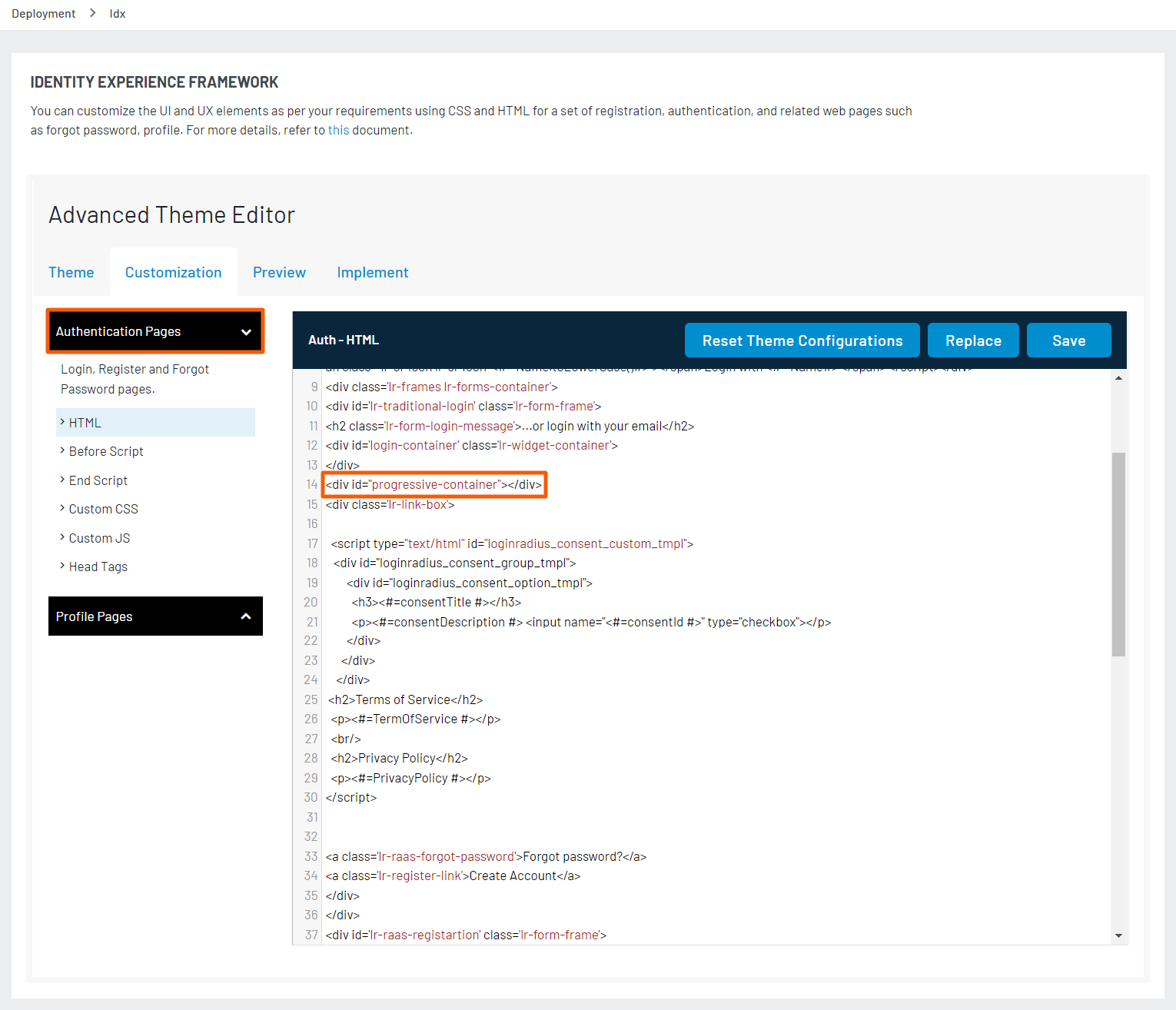
b. Add the following HTML Code to display Progressive Profiling Interface after closing "login-container" div of ** auth.aspx** page:
<div id="progressive-container"></div>
The following screen displays the added HTML Code:
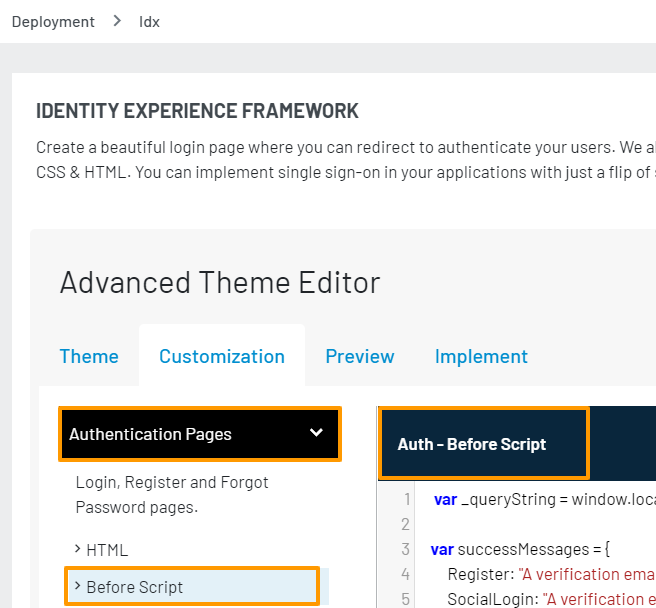
c. Click the Before Script folder and default Auth - Before Script file will be displayed as shown in the screen below:
d. Add the following JavaScript code to initialize the Progressive Profiling method:
 LRObject.util.ready(function() {
            LRObject.progressiveProfiling.init();
  });
e. Add the following code to implement the Progressive Profiling interface, and click the Save button.
var lr_raas_settings= {};
        lr_raas_settings.container = "progressive-container";
        // If this step is for Social Data Progressive profiling you will need to specify a template.
        // By specifying a template, a Social Login Interface will automatically be loaded in the progressive profiling container div.
        lr_raas_settings.templateName = "loginradiuscustom_tmpl_progressive";
        ///
        lr_raas_settings.onSuccess = function(response) {
            console.log(response);
        }
        lr_raas_settings.onError = function(response) {
            console.log(response);
        }
        LRObject.progressiveProfiling.execStep('Step Name', lr_raas_settings);
Note: You can use the following URL link to display the profile page of logged-in customer
<a href="https://<LoginRadius site name>.hub.loginradius.com/profile.aspx">View Profile</a>>Use the below JavaScript snippet to capture the access token on your page:
function getParameterByName(name) {
                name = name.replace(/[\[]/, '\\[').replace(/[\]]/, '\\]');
                var regex = new RegExp('[\\?&]' + name + '=([^&#]*)');
                var results = regex.exec(location.search);
                return results === null ? '' : decodeURIComponent(results[1].replace(/\+/g, ' '));
            }
var access_token = getParameterByName(“token”);
We have additional language-specific examples here if you want to capture this token in other programming languages.
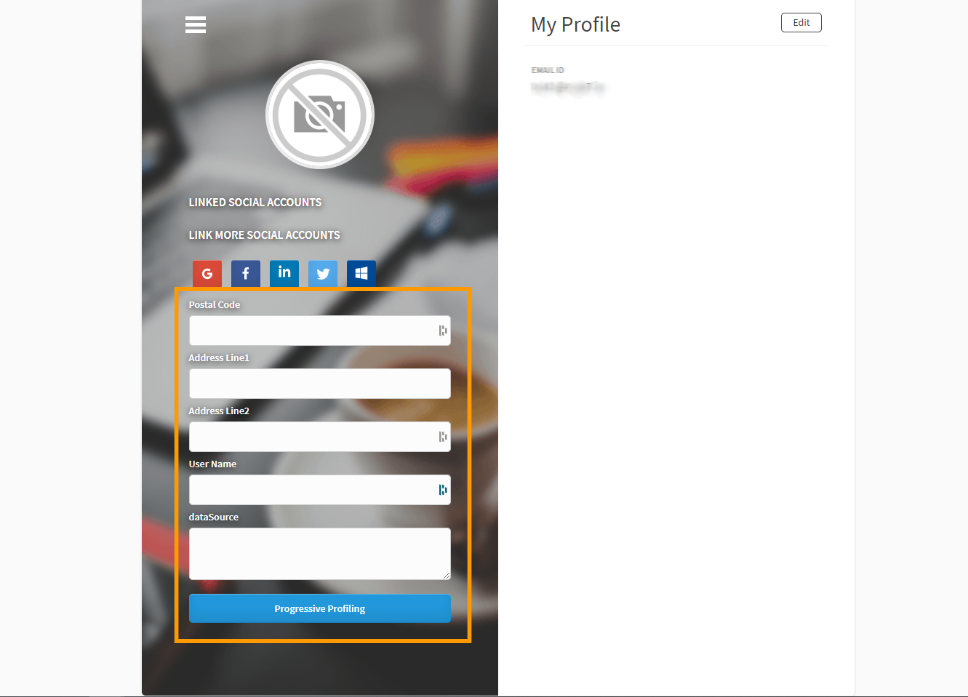
After the above configuration, Progressive Profiling will be reflected on https://<sitename>.hub.loginradius.com/profile.aspx where sitename is the name of your LoginRadius Site.
Note: Progressive Profiling Interface is displayed only after login.
The following displays the Progressive Profiling option on the IDX Profile page:
JavaScript Deployment
The following are the sequential steps to deploy the passwordless feature using the LoginRadius JavaScript Libraries:
Step 1: Include the LoginRadius JavaScript Libraries, as explained below:
Add the following JavaScript to head tag just before closing the body tag of Index.html file: https://auth.lrcontent.com/v2/js/LoginRadiusV2.js
Note: It is recommended to utilize the script from our CDN domain (https://auth.lrcontent.com/v2/js/LoginRadiusV2.js) rather than making a local copy.
Step 2: Initialize the LoginRadiusV2 Object as explained below:
Add this JavaScript code to initialize LoginRadiusV2 Object on your website.
var commonOptions = {};
commonOptions.apiKey = "<your loginradius API key>";
commonOptions.appName = "<LoginRadius site name>";
var LRObject= new LoginRadiusV2(commonOptions);
Step 3: Initialize the Progessive Profiling method as explained below:
LRObject.util.ready(function() {
           LRObject.progressiveProfiling.init();
 });
Step 4: Include the following code to implement the Progressive Profiling interface in your web application:
var poptions = {};
        poptions.container = "progressive-container";
        // If this step will be for Social Data Progressive profiling you will need to specify a template.
        // By specifying a template, a Social Login Interface will automatically be loaded in the progressive profiling container div.
        poptions.templateName = "loginradiuscustom_tmpl_progressive";
        ///
        poptions.onSuccess = function(response) {
            console.log(response);
        }
        poptions.onError = function(response) {
            console.log(response);
        }
        LRObject.progressiveProfiling.execStep('Step Name', poptions);

<div id="progressive-container"></div>
Use the following snippet in your code if you would like to show progressive profile fields to customers on the profile page. This will allow the user to edit the progressive profile fields.
var LRObject = new LoginRadiusV2(commonOptions);
LRObject.progressiveProfiling.showInEditor= true;
Note: The success callback will return a JSON object
{IsPosted: true}.
Part 3 - Next Steps
The following is the list of features you might want to add-on to the above implementation: