Email Communication and Configuration
This guide will take you through the following aspects of the email communication available in the LoginRadius Identity Platform:
-
SMTP Configuration: You can either configure your SMTP server or use the fully managed SMTP services offered by the LoginRadius Identity Platform.
-
Global Email Settings: You can view and manage various settings for event based emails.
-
Email Templates: You can view the existing list of default email templates available for various events like registration, forgot password and more. In addition, you can manage existing email templates or create a new email template based on the requirements.
-
Email Workflow: You can view the email workflow setup for your LoginRadius Account i.e. mandatory email, optional email and no email verification.
Use of SMTP in LoginRadius Identity Platform
SMTP stands for Simple Mail Transfer Protocol. This protocol can transfer emails from one email server to another. These email servers can be on the same or different networks.
LoginRadius allows you to communicate with your customers via emails. These emails are triggered when the customers perform predefined actions like registration, forgot password and more. Also, configuring the SMTP allows you to send these emails via your email SMTP server, which will ensure that email went through your company instead of LoginRadius.
The following is a sequence diagram for sending an event-based email using the LoginRadius Identity Platform:

- The customer initiates a login request in the application via LoginRadius' API.
- LoginRadius retrieves the message content and generates a token. LoginRadius then makes a call to your desired SMTP Service Provider with the message content and generated token to form the email.
- On success, a response is returned to LoginRadius, which is then relayed to the initiating application. The email containing the message content and token is sent by the SMTP Service Provider back to the customer.
- The customer clicks the link in the email to trigger the token authorization via LoginRadius' API.
- The token is authorized by LoginRadius and subsequently returns a success response back to the application.
Part 1: SMTP Configuration
This section will take you through the configuration of the SMTP provider in your LoginRadius Admin Console. Here you will get detailed information about how LoginRadius interacts with the SMTP Service Provider for sending the email to the customer.
You can setup SMTP in the following two ways:
- Configure with any of the default SMTP Providers supported by LoginRadius
- Configure SMTP Provider which are not in the default list.
Prerequisites: Email Registration should be enabled on your account.
The following explains the detailed configuration steps for the above options:
Configure with default SMTP Provider
The following are the configuration steps if you have decided to go ahead with the default SMTP provider:
-
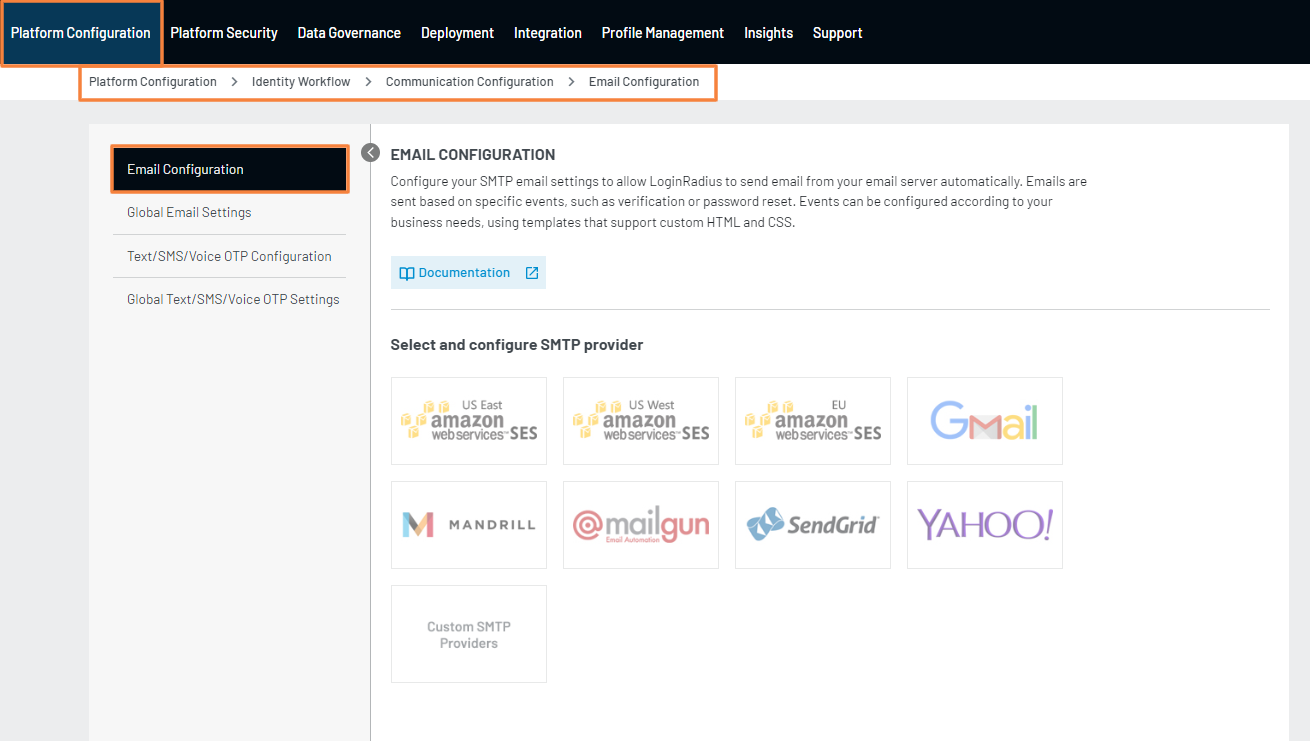
Navigate to Platform Configuration > Identity Workflow > Communication Configuration > Email Configuration and select a SMTP provider from the list of default SMTP providers.
-
For example, you can fill the following details in case of default SMTP such as SendGrid SMTP provider:
-
SMTP Provider: Select the SendGrid SMTP provider from the drop-down list.
-
SMTP User Name: Configure SendGrid to get the username.
-
SMTP Password: Configure SendGrid to get the password.
-
From Name: Enter the first name of the sender.
-
From Email Address: Enter the email of the sender.
-
Enable SSL: Select this option to make the email communication more secure.
Note: Use the same domain as verified for the SendGrid configuration.
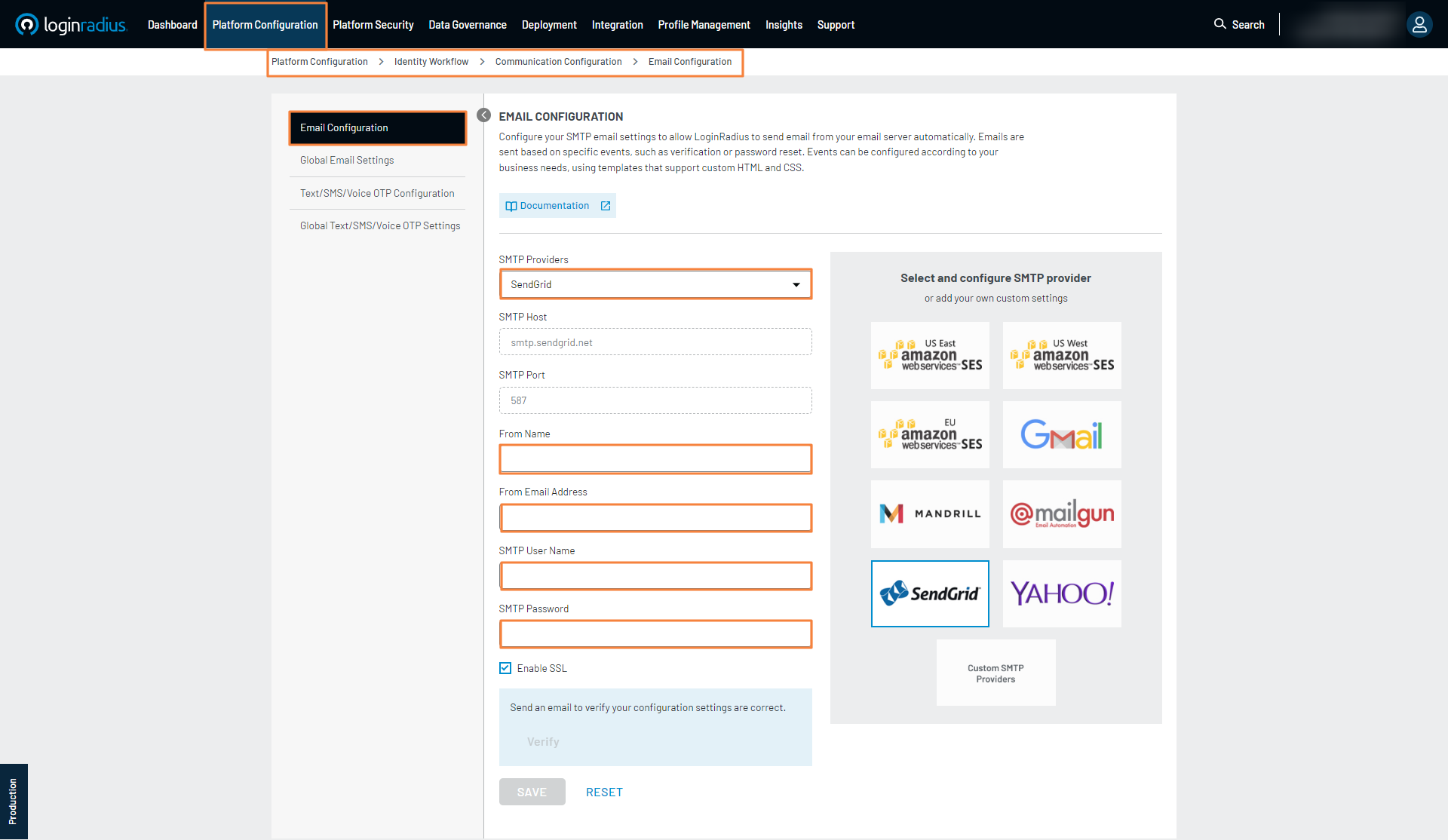
Kindly refer to SendGrid SMTP Configuration documentation for more details on configuring SendGrid as your SMTP provider.
-
-
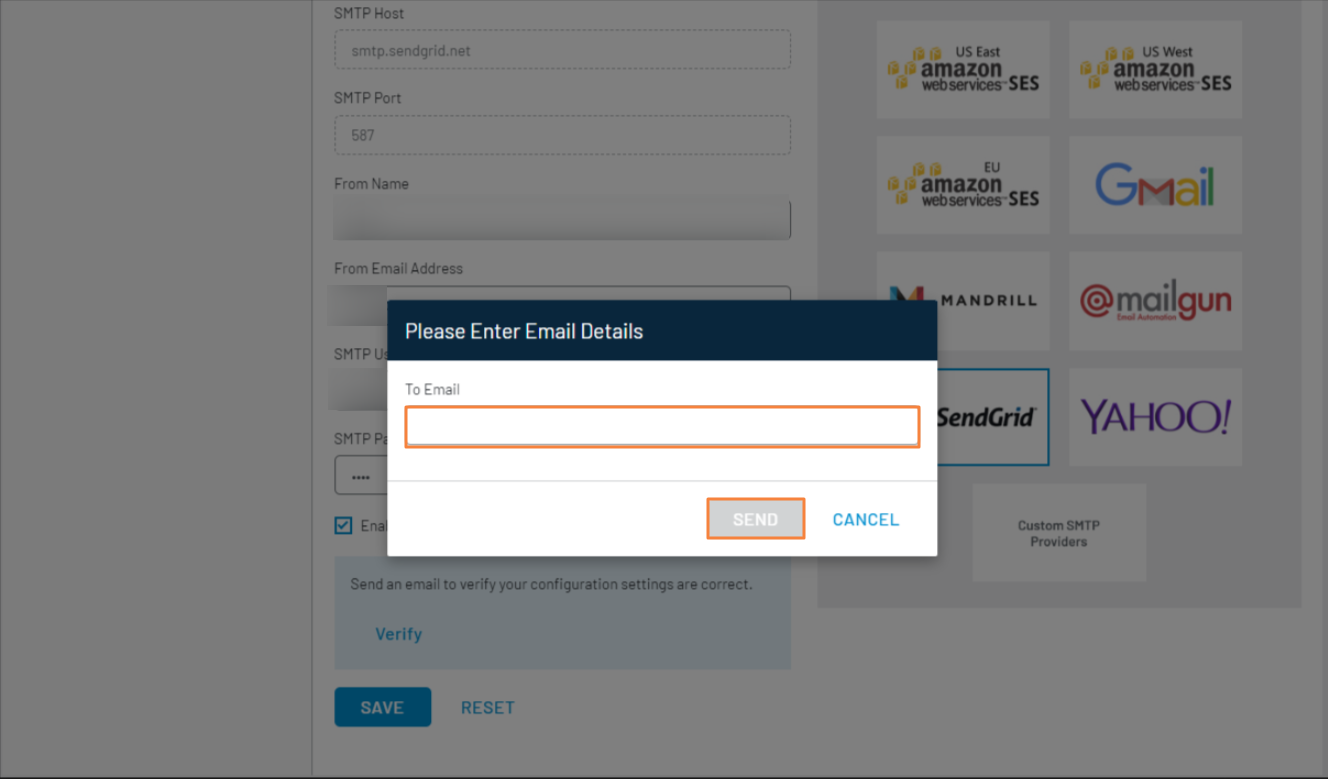
Verify your configuration by clicking the Verify button. The following screen will appear:
-
Enter the email address in the To Email field and click the Send button. If the email is sent successfully, a success message will be displayed on the screen.
-
Save the entered email configuration by clicking the Save button.
Note: The following is the list of default SMTP providers:
Configure your own Custom SMTP Provider
The following are the configuration steps if you have decided to go ahead with your own Custom SMTP provider:
-
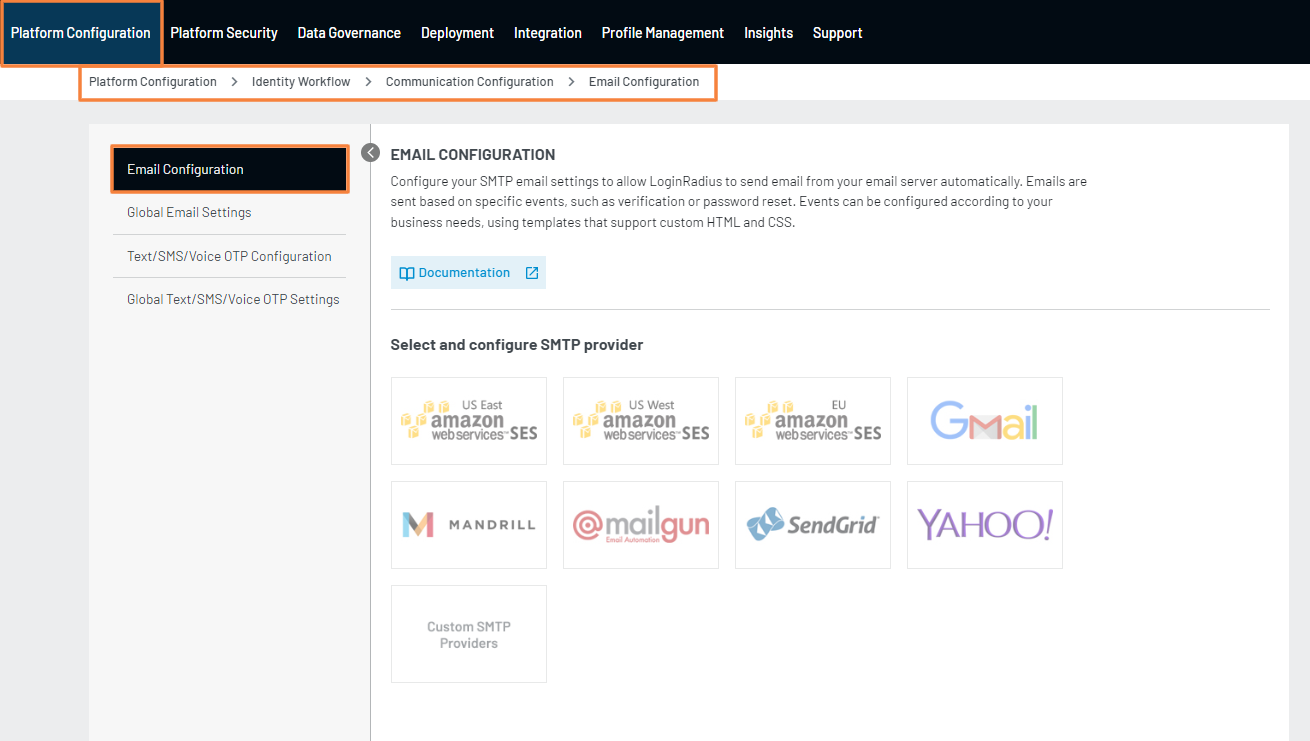
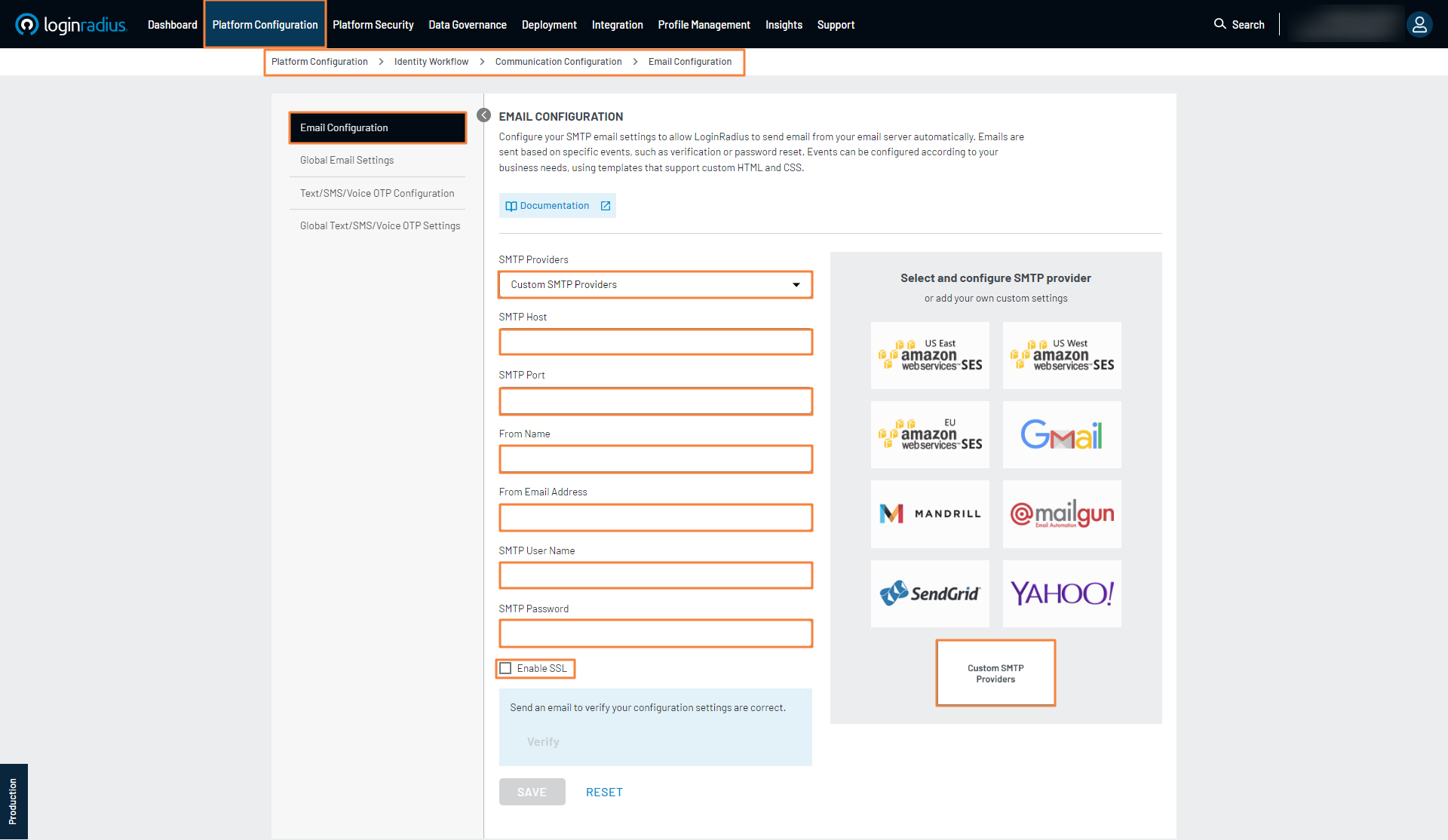
Navigate to Platform Configuration > Identity Workflow > Communication Configuration > Email Configuration and select the Custom SMTP Providers.
-
Fill the following details in the email configuration form:
-
SMTP Provider: Select the SMTP provider from the drop-down list.
-
SMTP Host: Enter the SMTP host.
-
SMTP Port: Enter the SMTP post.
-
From Name: Enter the first name of the sender.
-
From Email Address: Enter the email of the sender.
-
SMTP Username: Enter the SMTP username.
-
SMTP Password: Enter the password for the SMTP username.
-
Enable SSL: Select this option to make the email communication more secure.
Note:
-
LoginRadius does not support Port 25, non SSL email transactions for security reasons. Because this is the default port, it has been extensively used by the spammers too.
-
OutPorts 25: Port 25 is the default TCP port that comes in everyone's mind to connect SMTP and send emails, it is definitely not the recommended one.
-
-
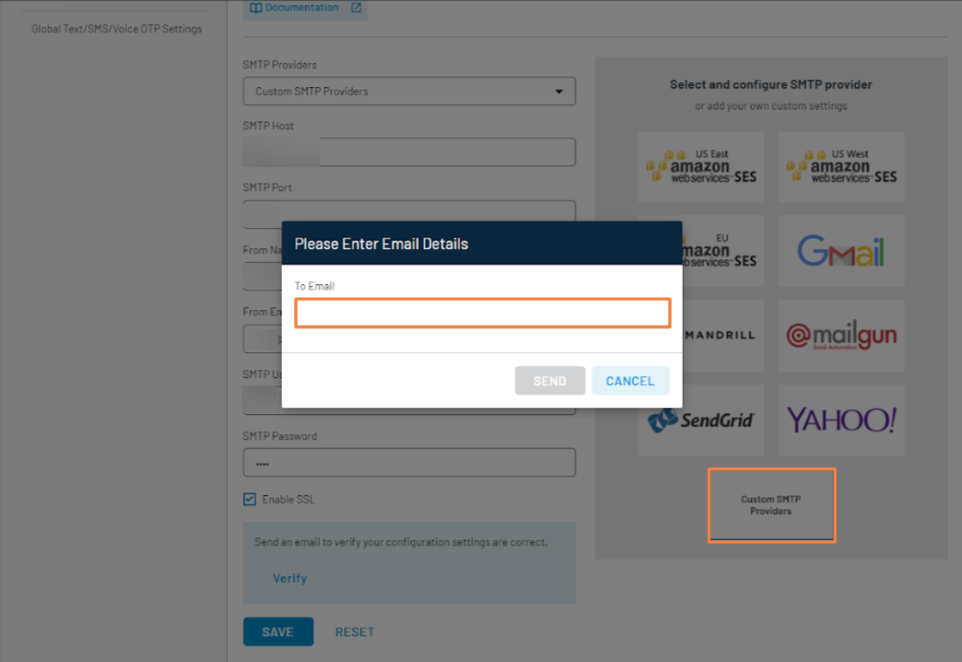
Verify your configuration by clicking the Verify button. The following screen will appear:
-
Enter the email address in the To Email field and click the Send button. If the email is sent successfully, a success message will be displayed on the screen.
-
Save the entered email configuration by clicking the Save button.
Part 2 - Global Email Settings
This section will take you through the configuration of the global email settings in your LoginRadius Admin Console. These settings can be used to limit the number of email requests in a predefined time for certain events and you can also manage the validity of email tokens (if used in an email template).
Note: The global email settings are applicable for all the email templates until these email settings are defined for individual email settings here.
The following explains how you can configure the global email settings:
Step 1: Login to your Admin Console account and navigate to Admin Console > Platform Configuration > Identity Workflow > Communication Configuration. From the left navigation panel select the Global Email Settings option.
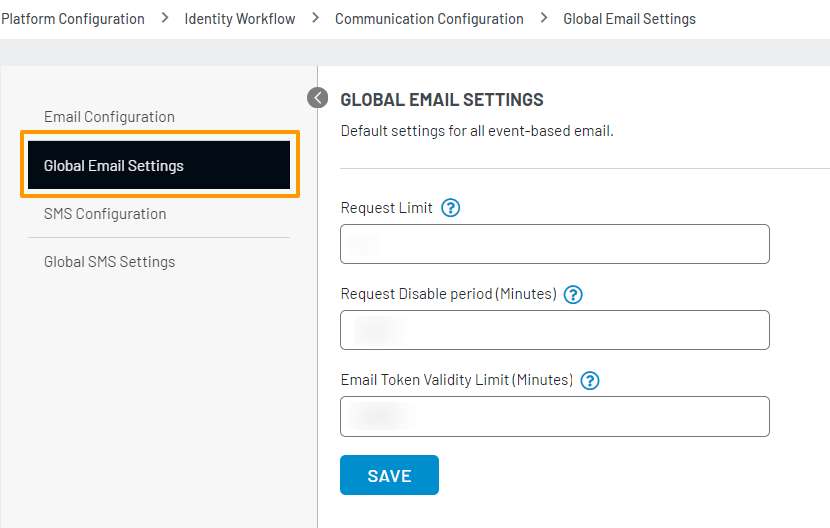
Step 2: You can update the default values for the following global email settings:
-
Request Limit: The number of times an email can be requested within a set timeframe, determined by the Request Disable Period (in minutes).
-
Request Disable Period: The duration (in minutes) a customer can request emails and the disabled duration after the request limit is reached.
-
Email Token Validity Limit (Minutes): The amount of time (in minutes) for which the link included in the given email is valid.
Step 3: Click the Save button to save the global email settings.
Part 3 - Email Templates
This section will take you through the available actions for managing and customizing the various email templates available in your account.
Email Template Management
The following explains how you can manage the email templates in the LoginRadius Admin Console:
Step 1: Navigate to Platform Configuration > Authentication Configuration > Standard Login.
Select the Email Templates option from the left navigation panel and then select the template that you would like to manage as displayed in the screen below:

The following are the default email templates provided by LoginRadius Identity Platform:
- Verification Email: Verification Email is sent to your customers when they first register from your site. This email will contain a link which needs to be followed in order to verify their email address.
- Forgot Password Email: Forgot Password Email is sent out to customers who request to reset their passwords. This email will contain a link which needs to be followed in order to reset their password.
- Welcome Email: Welcome Email is sent to newly registered customers, if the respective setting is on in LoginRadius Admin Console.
- Delete Account Email: Delete Account confirmation is sent out to confirm a customer’s request to delete their account within your web or mobile application.
- Add Email: Add Email email is sent out to customers who requested to add a new email.
- Password Reset Email: Password Reset Email is sent out to customers who request to retrieve/reset their passwords, if the respective setting is on in LoginRadius Admin Console. This email will contain a which needs to be followed in order to reset or retrieve the password.
Note: To use these templates within the implementation flow, you will need to use the given template ID. For example, verification-default is key to use the default Verification Email template.
Step 2: Once selected, you can perform the following actions on a default email template:
- Add: Use this option to create a new email template within the selected default email template.
- Edit: Use this option to edit the existing email template.
- Reset: Use this option to reset the default templates in the original state.
- Send Test: Use this option to send a test email of the selected email template.
The following displays the actions available for the default email templates:

Step 3: When adding or editing a template you can configure the following:
-
TEMPLATE ID: The unique template ID that is used to identify the template in our JavaScript and related APIs.
-
SUBJECT: The subject line of the template.
-
FROM NAME : The Sender's name applicable to the Template
-
FROM EMAIL : The Sender's email applicable to the Template
Note: If you want to customize the sender's name and email instead of utilizing the global values from your configured SMTP, you can raise a request to LoginRadius support to enable the Multiple SMTP Domain feature for your account. This will enable the FROM NAME and FROM EMAIL field for every email template available in your account. For more details, refer to Multiple SMTP Domain document.
-
HTML BODY: The HTML body of the template can be added here. The content added here will appear in the email client which supports HTML content in the email. Additional details on customizing the body of the template can be found in the next section.
-
TEXT BODY: A plain text version of the template can be added here. This template will appear in the email client which supports only plain text emails. You will be able to send a test email only if the required email configuration has been done as explained in the SMTP Configuration.
Note: You can add multiple email templates to the same email workflow using the above steps. If required, you can delete an added template. To delete, select the respective Template Id from the drop-down list and the following template screen appears:
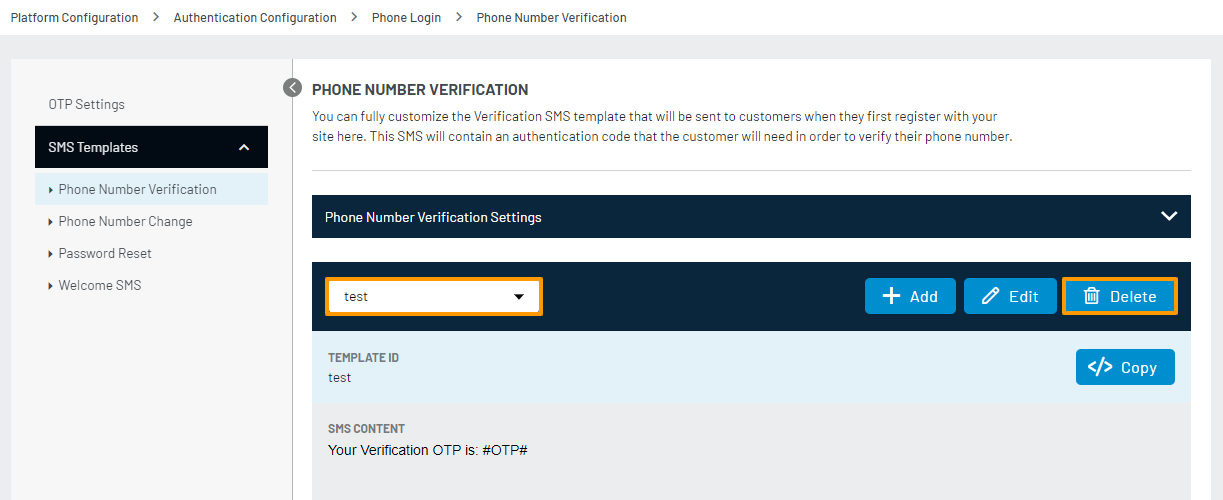
Click the Delete button and then confirm the action to delete the template.
You can only delete the new template(s) that you created i.e. you are not allowed to delete the default templates.
Email Template Customization
The LoginRadius Email Templates allow you to set any custom CSS and HTML content to be sent with the email templates. You can use some of our predefined tags
The following explains how you can customize the email templates:
Step 1: Select the template that you would like to manage and the content of respective email template will appear as displayed in the screen below:
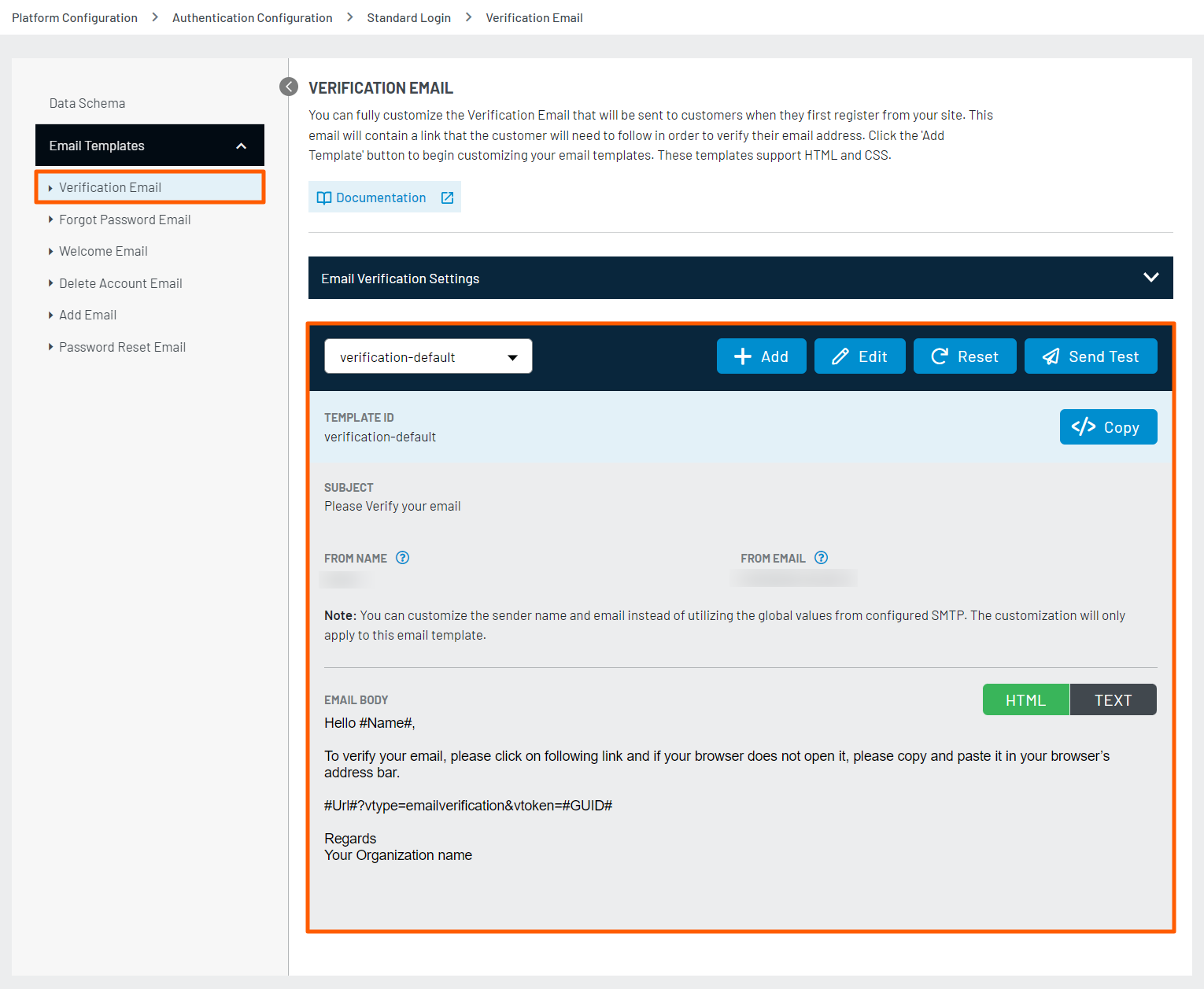
Step 2: Update the EMAIL BODY with the HTML content and you can use the placeholder tags listed below to customize your email template.
Placeholder Tags
You can use the following predefined placeholders in your email messages:
- #Name#: Displays the customer's name as defined in the registration form.
- #GUID#: Appended to the query parameter vtoken in order to identify the customer after clicking on the link.
- #Url#: Displays the URL passed in JavaScript options. For email verification, it is commonOptions.verificationUrl, and for reset password it is commonOptions.resetPasswordUrl.
Check the Customer Registration Getting Started document for more information.
- #Providers#: Displays the social provider name through which your customer logged in.
- #Email#: Displays the email address of your registered customer’s profile
- #FirstName#: Displays the first name of your registered customer’s profile
- #LastName#: Last name of your registered customer’s profile
- #Address1#: Address line one of your registered customer’s profile
- #Address2#: Address line two of your registered customer’s profile
- #City#: City of your registered customer’s profile
- #Country#: Country of your registered customer’s profile
- #PostalCode#: Postal code of your registered customer’s profile
- #Region#: Region of your registered customer’s profile
- #State#: State of your registered customer’s profile
- #Name of custom field#: The field value from the registered customer's profile. Here you should use the name of the respective custom field
- #IpAddress#: IP address of the registered customer
- #UserAgent#: User agent string of the registered customer
- #UserName#: Displays the username of the registered customer.
Note: In the case of otp_email_verification flow, you need to make the following changes so that the link received in the mail works for the customer:
- Pass verifyEmailByOTP option true using the common option, this is mandatory as shown in the following code:
commonOptions.verifyEmailByOTP = true;
- The verification email template should be modified in such a way that the verification link should contain the user email in the query string as shown in the following code:
#Url#?vtype=emailverification&vtoken=#GUID#&email=#Email#
Once the above changes are implemented the link received in the email will work and verify the user.
Section Tags
For forgot password and forgot provider emails, either the password reset link, social ID provider list, or both can be appended to the email. In the case of only the password reset link or only social ID provider list, you will be required to remove the other section. For making these section removable we have two section tags:
- #FPass < password reset link section > FPass#: Password reset link should be inside of this section tag. This should be removed for sites that only offer Social Registration and Login.9
- #FProv < Forgot provider section > FProv#: The #Providers# tag should be inside of this section tag. This should be removed for sites that only offer traditional email registration.
- #FUName < email content for customer name > FUName#: The #UserName# tag should be inside of this section tag. This should be removed for sites that do not offer username in registration.
Examples:
The following are examples for the Email Verification and Forgot Password emails.
- Email Verification
  Hello #Name#, <br/>
  To verify your email, please click on the following link and if your browser does not open it, please copy and paste it in your browser’s address bar. <br/><br/>
  <Site_URL>?vtype=emailverification&vtoken=#GUID# <br/><br/>
  Regards<br/>
Note: If you pass commonOptions.verificationUrl option through customer Registration Getting Started than you should use
#Url#tag instead of static URL<Site_URL>
- Reset Password
  Hello #Name#,

  Please reset your password by clicking on the link.

  To Reset your password, please click on the following link and if your browser does not open it, please copy and paste it in your browser’s address bar.


  **#FPass**
  <Site_URL>?vtype=reset&vtoken=#GUID# <br/><br/>
  FPass#

  **#FProv**
  You are logging in through the following social provider: #Providers#
  FProv#

  **#FUName**
  Your customername is #customerName#
  FUName#

  Regards
Email Template Deployment
The LoginRadius Email Templates do not require additional deployment settings if you have implemented the solution using IDX or JavaScript Libraries.
However, if your implementation has been done using the API, refer the following APIs:
- Welcome Email API
- Resend Email Verification
- Password reset by mail
- Passwordless Login by email
- One-touch login By email
- Smart login by email
- Delete an account with email confirmation
- Add email
Note: While sending the template directly via API, make sure template name is used inside the email template parameter field.
If no template name is used in the API call, it will send the default email template for the respective action.
Similarly, refer to this document, if the implementation has been done using the technology-specific SDK.
Part 4 - Email Workflow
The section will take you through the ways to automate and customize the email verification flows. LoginRadius provides the following email verification workflow options:
- Mandatory Email Verification: Your customers will receive an email verification link on successful registration. They will be required to verify their email id before accessing their account on your application.
- Optional Email Verification: Your customers will receive an email verification link on successful registration. However, the email id verification will be optional to access the account on your application.
- No Email Verification: Your customers will not receive an verification email on successful registration and can access their account post registration.
To know more about the working and configuration of the Email Workflows, you can refer to this document.