Customer Profile Editor
In a user account life cycle, your customer may need to update their profile information. There might be several reasons behind changing profile information, such as:
- Change in the personal information shared earlier
- Additional information required due to the new compliance
Using the profile editor feature, you can make all the registration form fields editable for your customers except Password and Confirm Password fields. That means, your customer can edit data of fields which you have configured at the time of registration.
Note: Password and Confirm Password fields cannot be made editable under this feature. However, it can be achieved through different flows like reset password or forgot password.
This feature is enabled by default for all the instances of the LoginRadius Identity Platform for the Hosted IDX. However, to enable this feature for self-hosted cases, you need to do custom JS implementations.
Profile Editor Configuration
This guide will take you through the process to configure Profile Editor using the following options:
Part 1 - Via Admin Console
This section will take you through the configuration steps for the making the desired profile fields editable:
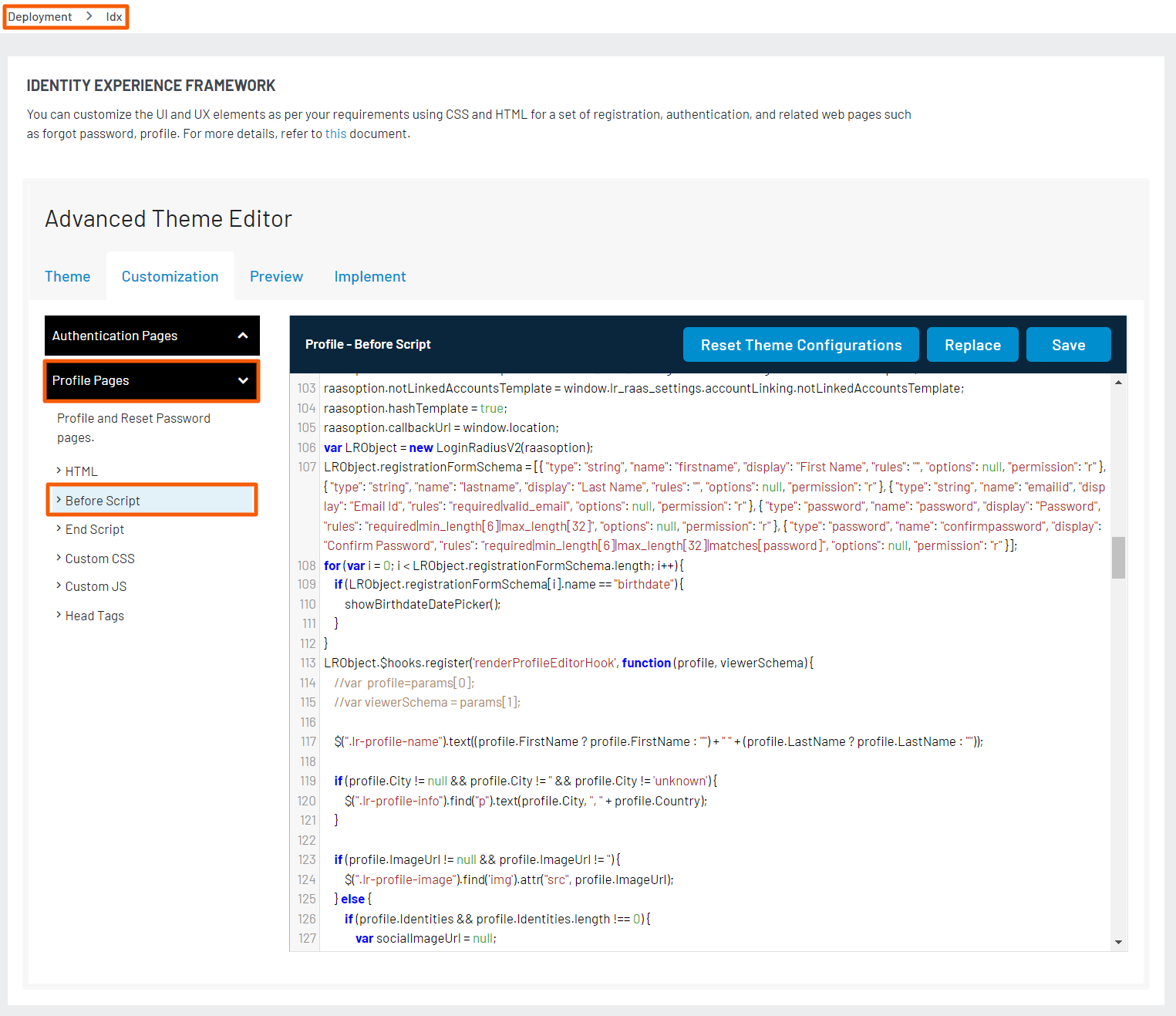
Step 1: Navigate to Admin Console > Deployment > Identity Experience Framework(Hosted). Make sure that the Profile Pages option is selected in the left navigation panel and then select Before Script option.
The following screen will appear:
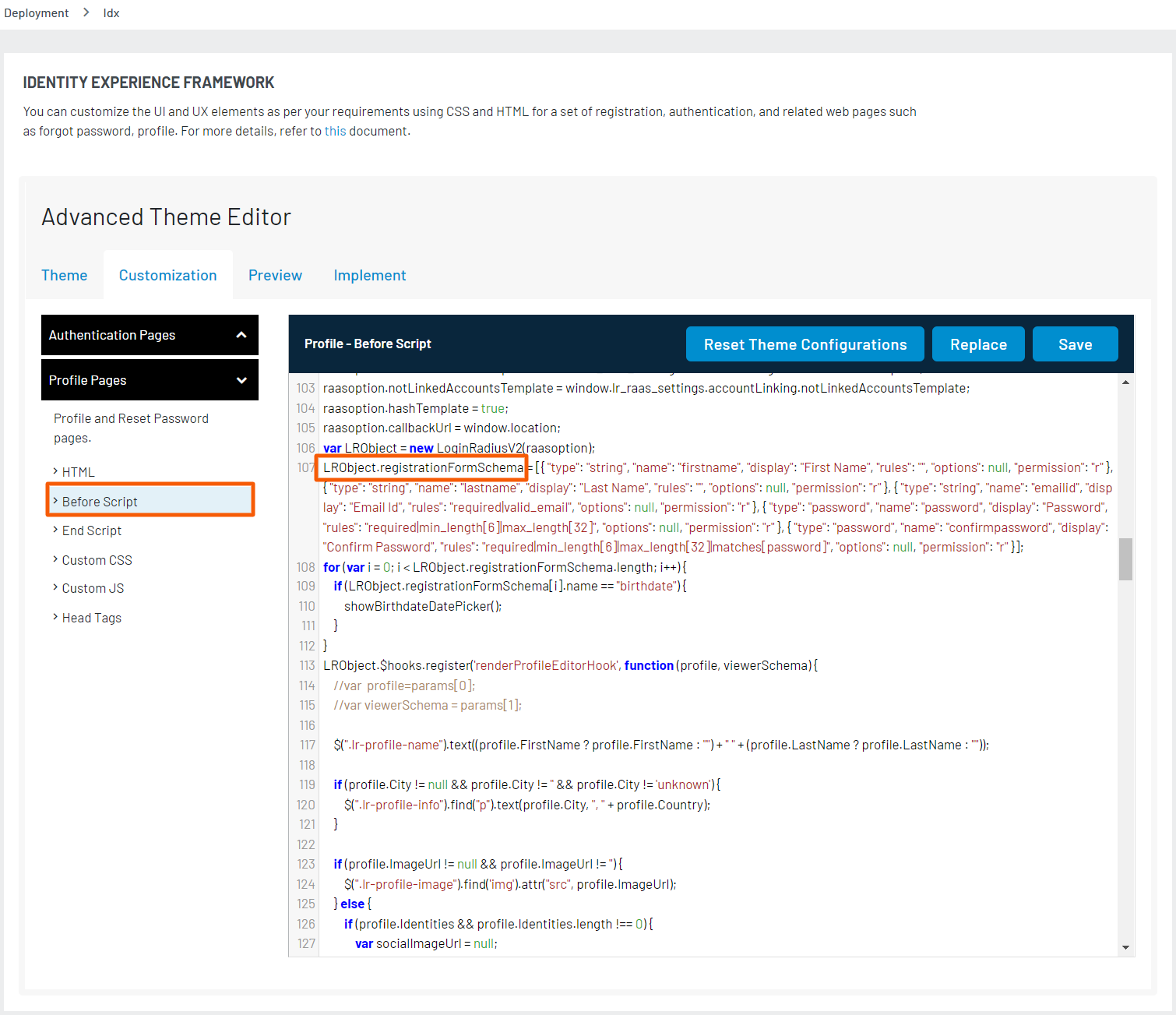
Step 2: Search for the LRObject.registrationFormSchema function inside the before script.
The following screen displays the LRObject.registrationFormSchema function:
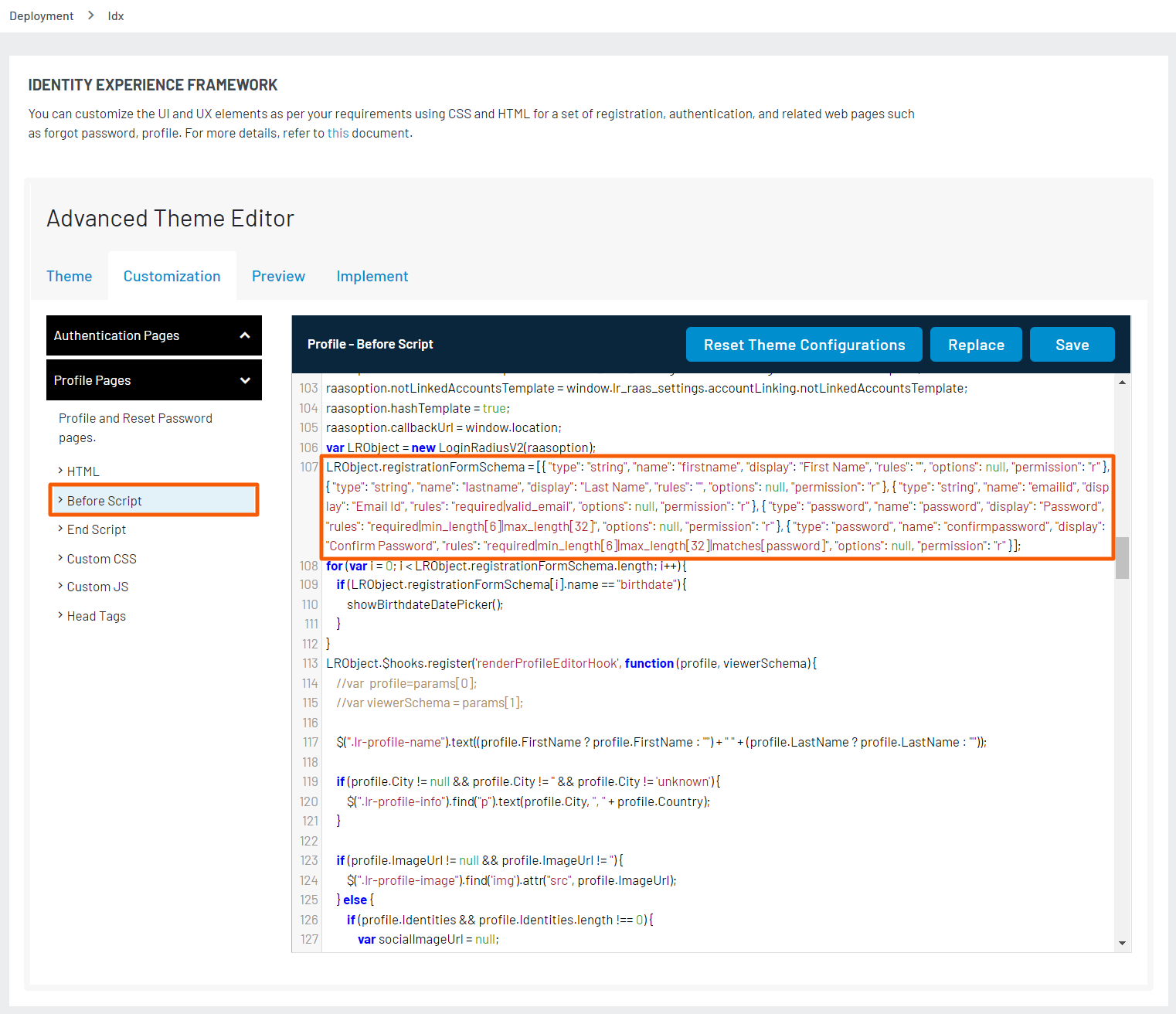
Step 3: Insert your desired field schemas for which you want to enable the edit option in profile. The following screen displays the added field schema:
Step 4: Save the configuration after making the required changes.
Part 2 - Via LoginRadius V2JS
This section will take you through the configuration steps for making the desired profile fields editable in JS implementation:
Step 1: Include the LoginRadius JavaScript Libraries, as explained below:
Add the following JavaScript to head tag just before closing the body tag of Index.html file: https://auth.lrcontent.com/v2/js/LoginRadiusV2.js.
Note: It is recommended to utilize the script from our CDN domain
(https://auth.lrcontent.com/v2/js/LoginRadiusV2.js)rather than making a local copy.
Step 2: Initialize the LoginRadiusV2 Object as explained below:
Add this JavaScript code to initialize LoginRadiusV2 Object on your website.
<script>
var commonOptions = {};
commonOptions.apiKey = 'your API key';
commonOptions.appName = 'your App name';
commonOptions.formValidationMessage=true;
commonOptions.debugMode=true;
var  LRObject = new LoginRadiusV2(commonOptions);
</script>
Step 3: Include the following code to load the Profile Editor feature in your web application:
<script>
var profileeditior_options = {};
profileeditior_options.container = 'profileeditor-container';
profileeditior_options.onSuccess = function(response) {
console.log(response);
};
profileeditior_options.onError = function(errors) {
console.log(errors);
};
LRObject.util.ready(function() {
LRObject.init('profileEditor',profileeditior_options);
});</script>
Step 4: Copy the below code and paste it after the < body> tag.
<div id="profileeditor-container"></div>
By following the above steps, you can enable the edit profile feature on the customer’s profile page via the custom JS.
Note: When the Profile Editor is initialized, it loads all of the fields specified in your Registration Form Schema, excluding the password fields. The schema is located within the LRObject: LRObject.registrationFormSchema can be hardcoded to any custom schema that you would like to present the customer for profile editing.