OpenID Connect
LoginRadius provides a way to integrate your OpenID Connect client with LoginRadius, it supports standard OpenID Connect specs.
OpenID Connect 1.0 is a user-friendly identity layer built on top of the OAuth 2.0 protocol. It allows Clients to authenticate End-Users by leveraging the Authorization Server's verification process while also providing access to key profile details of the End-User, such as name and email. By combining authentication with authorization, OpenID Connect simplifies the process of managing user identity in web and mobile applications, ensuring secure and seamless user experiences across different platforms.
Configuration
Following the below steps, you can configure your OpenID Connect settings in the LoginRadius Admin Console.
- Navigate to the Platform Configuration > Federated SSO > OpenID Connect
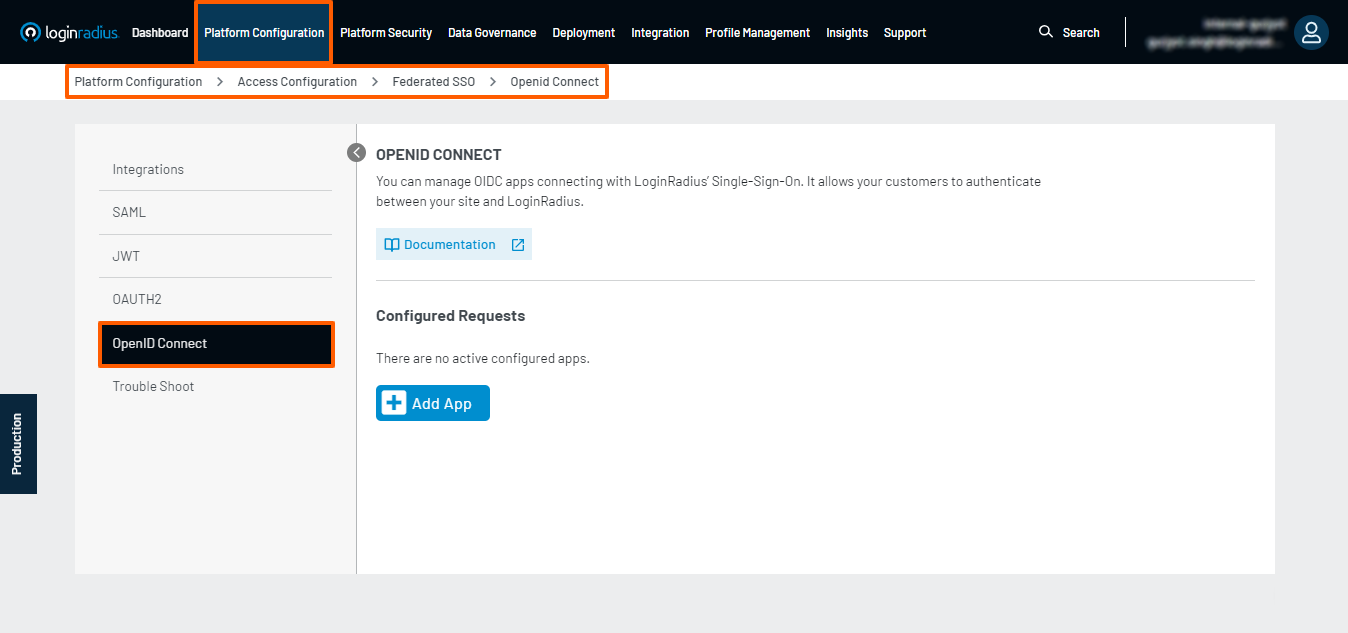
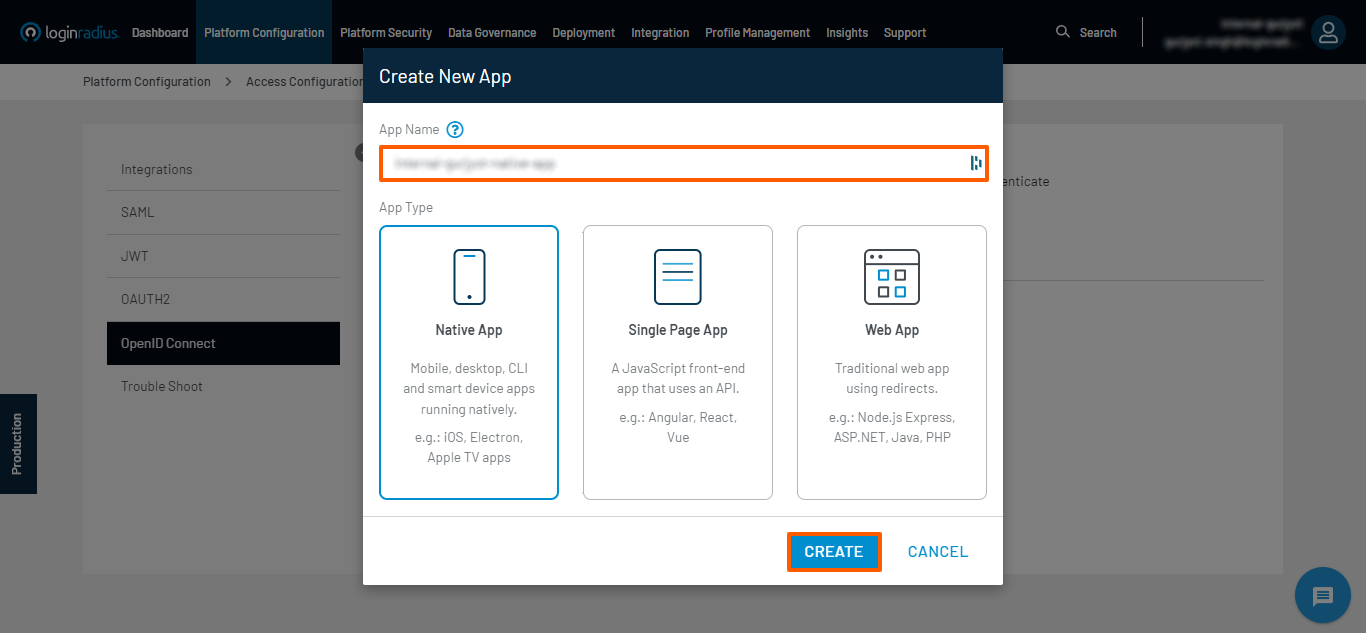
- Click on the Add App button, followed by entering an App Name, i.e., the name of your OpenID Connect App, selecting an App Type, and clicking the CREATE button.
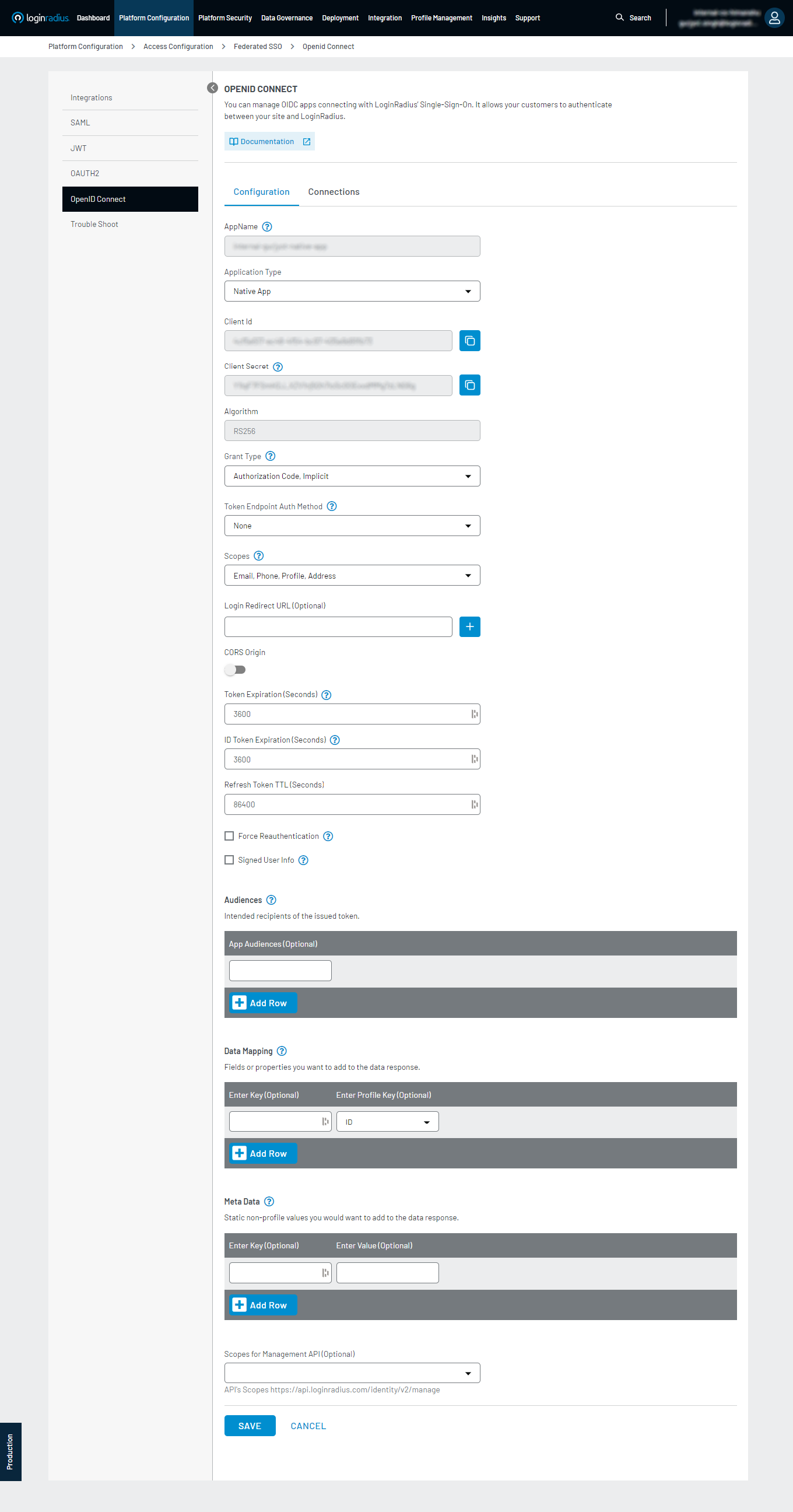
- To begin configuration, you must fill out the form referring to the glossary below.
-
App Name: The name of your OpenID Connect App.
-
App Type:
- Native App
- Single Page App
- Web App
-
Client Id and Client Secret is uniquely generated OIDC App-specific Client Id (GUID) and Client Secret (HASH)
Note: Make sure to copy your Client Secret as it is visible only for the first time.
-
Algorithm: The algorithm you would like to use for OpenID Connect (RS256 is currently the only algorithm supported).
-
Grant Type: Select any of the following option by using which the app will obtain the access token.
- Authorization Code
- Implicit
- Password Credentials
- Refresh Token
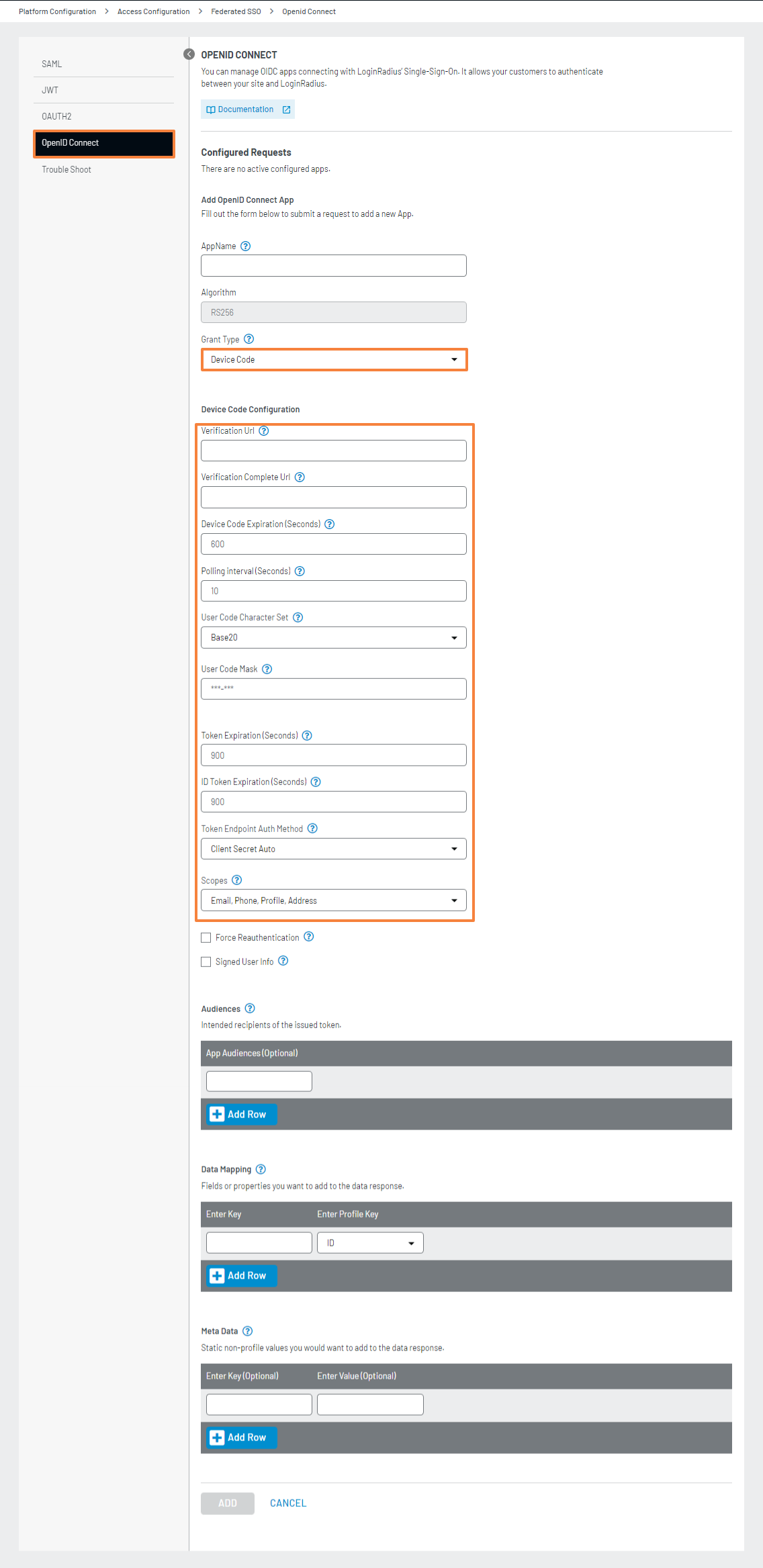
- Device Code: The following fields would appear when opting for the Device Code flow.
- Verification URL
- Verification Complete URL
- Device Code Expiration (Seconds)
- Polling interval (Seconds)
- User Code Character Set
-
Token Endpoint Auth Method: Select the client authentication method to authenticate the Authorization Server while using the token endpoint.
-
Scopes: Select the access privileges requested for Access Tokens.
-
Login Redirect URL (Optional): Whitelisted Callback Redirect URI.
Note: If left blank, the redirect_uri will be validated against the globally whitelisted list found in the Deployment > Apps > Web Apps section of the Admin Console. If a value is provided in this field, the redirect_uri will be validated only against the specified values and will not check the globally whitelisted URLs.
-
CORS Origin: For Single Page Applications, Native apps, and cases where the Client Secret cannot be kept confidential, the JavaScript web origin will be whitelisted here for the OIDC REST API.
-
Token Expiration (Seconds): Specify the Access Token lifetime, after which the Access Token will expire and require re-authentication or a refresh to obtain a new one.
-
ID Token Expiration (Seconds): Specify the ID token lifetime, and after that time, the ID Token will expire.
-
Refresh Token TTL (Seconds): Specify the Refresh Token lifetime, and after that time, the Refresh Token will expire.
-
Force Reauthentication: If checked, reauthentication is required for the authorization request. Otherwise, reauthentication will not be enforced.
-
Signed User Info: If checked, user info is returned as a signed JWT Token otherwise, it is in JSON format.
-
Audiences: Enter the resource server, which will accept the OIDC.
-
Data Mapping: Enter your desired fields and specify how they should map. The left column represents how the fields will appear in the JWT, while the right column contains the corresponding field names from the LoginRadius profile. You can either select from the list or search for the profile key. Keep in mind that for certain profile fields, you may need to use dot notation to access nested data.
-
Meta Data: Specify the key-value pair of static non-profile data you want to receive in the ID Token payload.
-
Scopes for Management API (Optional): Only allowed scope with respect to the Management API will work with the Client ID and Client Secret
-
Now, click on the SAVE button.
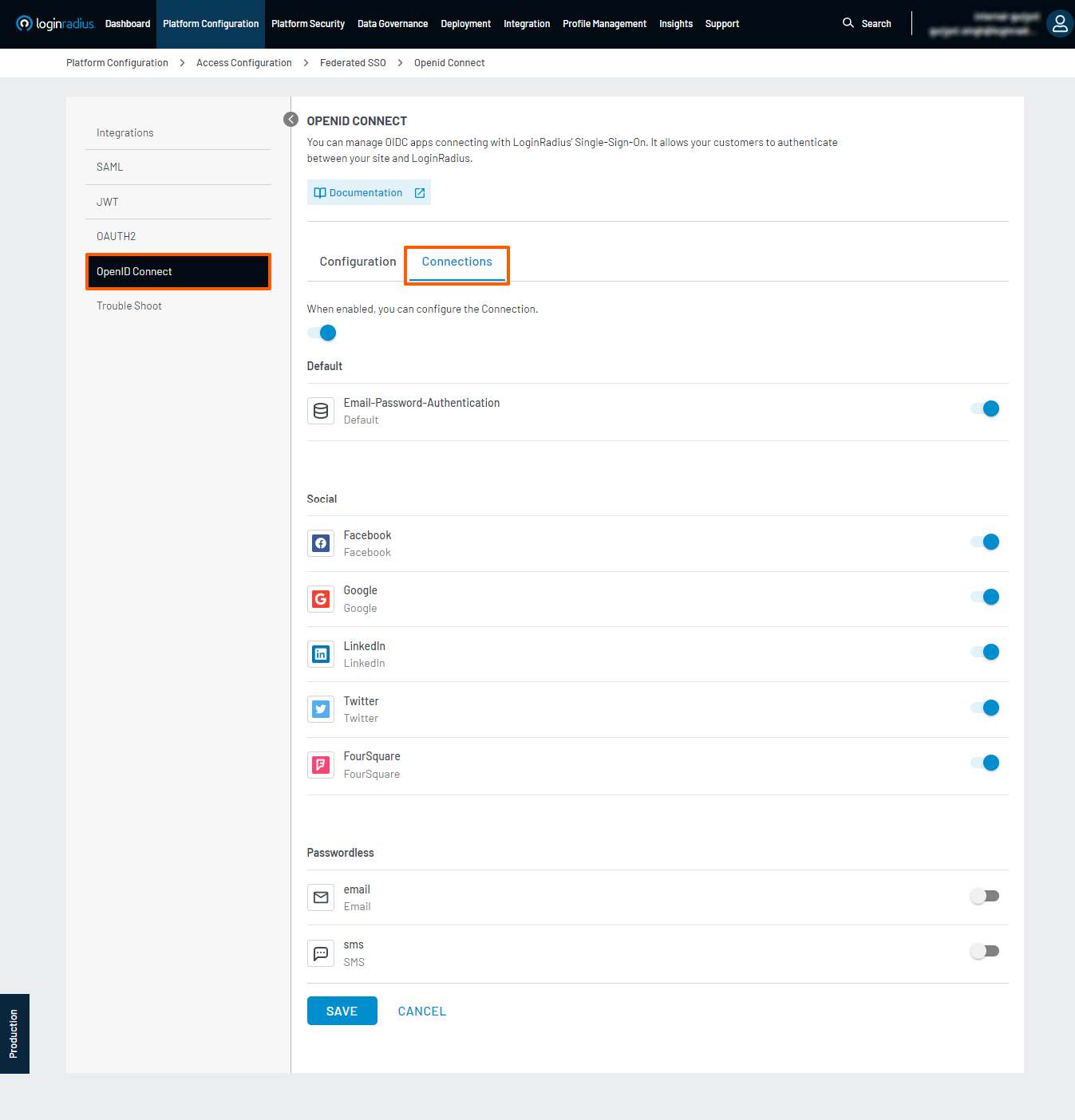
- In addition to configuring the application, when enabled, you can configure the Connection.
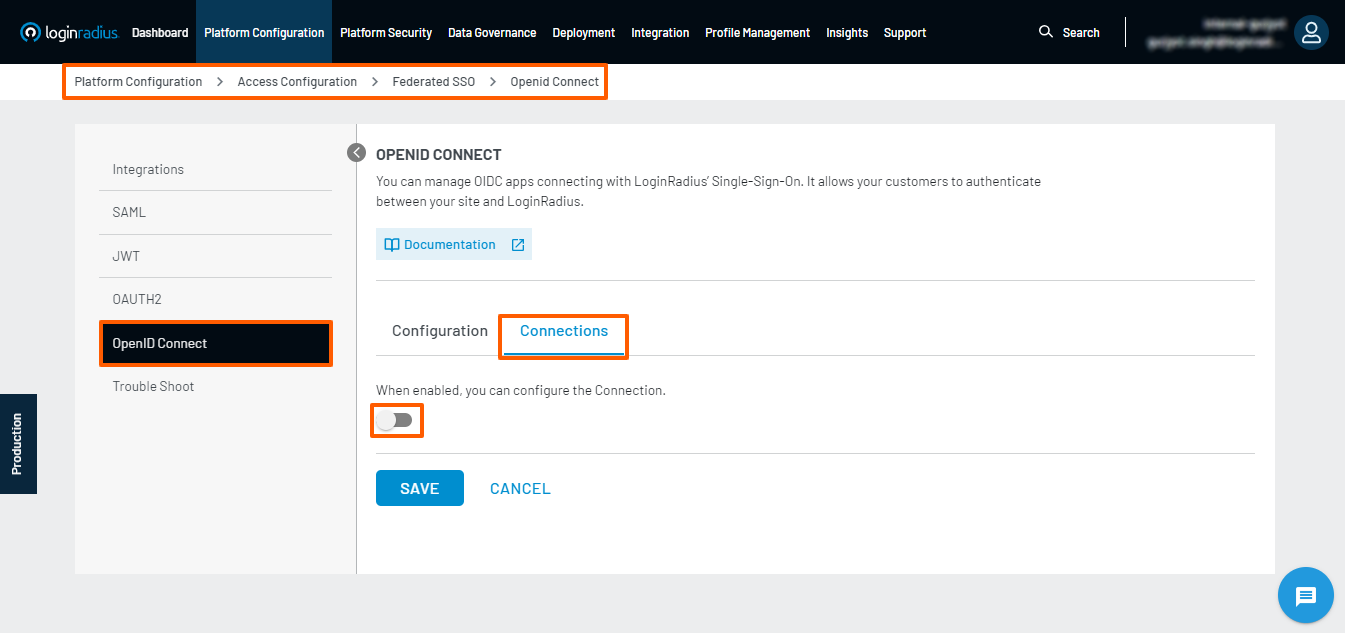
- The OIDC App can enable or disable the connection for the flow from the existing global Social/Custom IDP providers.
OpenID Connect Flows
In the OpenID Connect standard There are 3 types authentication flows.
Each flow requires going through an Authorization Endpoint, essentially the page where the customer is prompted to Login. Depending on the workflow you choose to leverage, you will need to add different query parameters to the URL that points to the Login page, you can use the table below for an overview of all of the different parameters that can be passed to the Authorization Endpoint.
| client_id | (required) OIDC Client ID |
| redirect_uri | (required) This is the URI to which the response should be sent. This must be whitelisted in the App Section in Admin Console. Note: URL added under Login Redirect URL in the OIDC configuration in LoginRadius Admin Console will be given precedence. |
| response_type | (required) This defines the processing flow to be used when forming the response. Authorization Flow: response_type: code Implicit Flow: response_type: id_token response_type: token id_token Hybrid Flow: response_type: code token response_type: code id_token response_type: code token id_token |
| state | (optional) It is recommended that the client’s use this parameter to maintain state between the request and the callback. Typically, Cross-Site Request Forgery (CSRF, XSRF) mitigation is done by cryptographically binding the value of this parameter with a browser cookie. |
| scope | (required) This is a space-delimited list of the scopes requested by the client. It must contain the value openid to indicate that the application intends to use OIDC. This may also contain other values e.g. openid, profile,email, phone, address . If you pass only the required parameter openid in scope then the id_token in the userinfo API response will contain only the mapped fields under the OIDC configuration in Admin Console.If you are looking to get additional profile fields in the id_token in the userinfo API rsponse, you can pass the additional scopes with openid. The list of supported scopes and claims in the id_token can be found here. |
| nonce | (optional) This serves as a token validation parameter, used to associate a client authentication with an ID Token for mitigating replay attacks. If this value is used, it will be included as a Claim in the ID Token. Clients should verify that this nonce Claim value is equal to the value set in the Authorization Request. |
| response_mode | (optional) Informs the Authorization Server of the mechanism to be used for returning parameters from the Authorization Endpoint There are three types of response mode query → Authorization response will be append in the redirect_uri as the query string. (Ex→ example.com&state=fgfgfg&code=ffgfgfgfgf) fragment → Authorization response will be append in the redirect_uri using the fragment (Ex→ example.com#state=fgfgfg&code=ffgfgfgfgf). form_post → Authorization response will be posted on the redirect uri, Default Response Mode if not provided Authorization code flow → query Implicit Flow → fragment Hybrid Flow → fragment |
| ui_locales | (optional) End-User's preferred languages and scripts for the user interface, represented as a space-separated list of BCP47 [RFC5646] language tag values, ordered by preference. For instance, the value "fr-CA fr en" represents a preference for French as spoken in Canada, then French (without a region designation), followed by English (without a region designation) |
| display | (optional) specifies how the Authorization Server displays the authentication and consent user interface pages to the End-User. The defined values are 1. page - authentication will be open in the page 2. popup- authentication will be open in the popup These parameter is send over the hosted page as query string, and hosted page will handle the display type |
| prompt | (optional) specifies the Authorization Server prompts the End-User for reauthentication and consent. The defined values are 1. login - it will asked for the reauthentication 2. none - The Authorization Server MUST NOT display any authentication or consent user interface pages. An error is returned if user is not authenticated. These parameter is send over the hosted page as query string, and hosted page will handle the display type |
| claims | (optional) Client applications can alternatively request claims via the optional claims parameter. which needs - Setting the exact names of the requested claims - Which claims should be delivered at the UserInfo endpoint and which in the ID token The claims request parameter is represented by a simple JSON object that has two members -- userinfo and id_token, which content indicates which claims to return { "id_token" : { "email" : null, "email_verified" : null }, "userinfo" { "email" : null, "email_verified" : null, "name" : null } } or { "id_token" : { "email" : { "essential" : true }, "email_verified" : { "essential" : true }}, "userinfo" { "email" : { "essential" : true }, "email_verified" : null, "name" : { "essential" : true }} } { "essential" : true } means the claim should be available in the token but also it should be in the user profile. |
| id_token_hint | (optional) ID Token previously issued by the Authorization Server being passed as a hint about the End-User's current or past authenticated session with the Client. If the End-User identified by the ID Token is logged in or is logged in by the request, then the Authorization Server returns a positive response; otherwise, it will return a login_required error, and invalidate the current access token. |
| login_hint | (optional) Hint to the Authorization Server about the login identifier (Email or PhoneId) the End-User might use to log in (if necessary). If the End-User profile matches that of the login identifier, Authorization Server will return a positive response. Otherwise, it will return a login_required error and invalidate the associated access token. In the future, support could be added to pass this value as a hint to the authorization service. It is RECOMMENDED that the hint value match the value used for discovery. |
| max_age | (optional) Maximum Authentication Age. Specifies the allowable elapsed time in seconds since the last time the End-User was actively authenticated by the OP. If the elapsed time is greater than this value, the OP MUST attempt to actively re-authenticate the End-User. When max_age is used, the ID Token returned MUST include an auth_time Claim Value. |
| acr_values | (optional) If this optional parameter is set to loginradius:nist:level:1:re-auth the user will be forced to re-authenticate regardless of their current session state. This value will also be returned in the acr claim of the ID Token. |
Authorization Code Flow
The authorization code flow, as the name implies, returns an authorization code that can be exchanged for an identity token and/or access token. This process requires client authentication using a client_id and a client_secret to retrieve tokens from the backend, offering the advantage of not exposing tokens to the user agent (e.g., a web browser). This flow supports long-lived access through the use of refresh tokens, and clients using this flow must be able to securely maintain a secret.
In this flow, the authorization code is obtained from the authorization endpoint, and all tokens are returned from the token endpoint.
Opening the Login Dialog / Authorization Endpoint - Authorization Code Flow
Redirect your user to the following URL to get the login prompt:
https://<siteurl>/service/oidc/{OIDCAppName}/authorize?client_id={OIDC Client ID}&redirect_uri={Callback URL}&scope={Scope}&response_type={one of the response_types available}&state={random long string}&scope=openid&nonce={Unique generated nonce}
Note: This siteurl field contains the LoginRadius IDX/Custom Domain URL. For example, if your LoginRadius app name is "Company Name," then the siteurl will be companyname.hub.loginradius.com. If you are using a custom domain for your IDX page, replace the siteurl with your custom domain value.
Available Query Parameters
-
client_id: OIDC Client ID
-
redirect_uri: Callback URL of your site where you want to redirect back your users
-
response_type : possible value is only 'code' to specify that you are doing the Authorization Code flow.
-
state: random string that returned with the access_token in the redirect callback. this parameter will be returned as it is, part of the response.
-
scope: To get values mapped in the admin console configuration you must need to pass the openid as value. If you are looking to get additional profile fields in the id_token, you can pass the additional scopes with openid. The list of supported scopes and claims in the id_token can be found here
-
nonce: a unique generated nounce.
Receiving the Code - Authorization Code Flow
Should the customer authenticate successfully the code will be returned as follows:
Response of login dialog if response_type=code
REDIRECT_URI?code={unique code}&state={Same value which is passed in request}
If the response_mode=from_post is passed then the response will be in post body of the redirect_url
e.g.
{
    state: {state}
    code: {authorization code}
}
Once you have the code you can request an access_token via the Access token by OpenID Code API.
OpenID PKCE Flow
PKCE is an extension of the Authorization Code flow designed to prevent certain attacks and securely perform the OAuth/OIDC exchange from public clients. It is primarily used by mobile and JavaScript applications, but the technique can also be applied to any client.
Implementation Steps
The following explains the implementation sequence for the Authorization Code with PKCE:
Step 1: Get the Authorization code
In the OpenID Authorization flow, we need to have the code verifier and code challenge to start with the authentication and an OpenID provider to connect.
The code_challenge and code_challenge_method parameters are only required in PKCE Flow.
API Endpoint:
https://<siteurl>/service/oidc/{oidcAppName}/authorize?client_id={client_id}&redirect_uri={Callback URL}&scope={Scope}&response_type=code&state={random long string}&code_challenge={code challenge}&code_challenge_method=SHA256
API Method: GET
Available Query Parameters
-
client_id: [required] oidc Client ID
-
redirect_uri: [required] This will be the callback URL of your site where you want to redirect back your users for e.g https://abc.com.
-
state: [optional] A random string that returned with the
access_tokenin the redirect callback. This parameter will be returned as it is and as part of the response. -
scope: [optional] Should be set to one of the values, e.g.,
openid. -
response_type: [required] Possible value is only 'code' to specify that you are doing the Authorization Code flow.
-
code_challenge: A BASE64-URL-encoded string of the SHA256 hash of the code verifier.
Note: Follow the steps below to generate a code challenge
-
code_challenge_method: SHA256 (For code_challenge_method currently, we are supporting the SHA256 Hash algorithm, If this parameter will not be passed, then the default method SHA256 will be used)
LoginRadius also supports some additional query parameters that can be used in the authorization endpoint.
Steps for using code_challenge and code_challenge_method in PKCE flow.
-
Generate a Code Verifier: The code verifier will be passed in the code_verifier parameter while exchanging the code with Access Token in Step 2
-
Generate the code challenge: This is passed in the code_challenge as a query parameter in the Authorization process and will be generated with the help of the code_verifier value.
We provide the ready-to-use code to generate the code_verifier and code_challenge, please refer to this document
The provider will redirect you to the authentication/login page and you'll get the code after successful authentication.
Step 2: Exchange Code with Access Token
In the code exchange request, we need to pass the code we have received through the above request, and the code verifier that we have is generated in Step 1.
API Endpoint:
https://<siteurl>/api/oidc/{oidcAppName}/token
API Method: POST
Request Body:
{
"client_id":"<oidc Client ID>",
"redirect_uri":"redirect_uri",
"response_type":"token",
"grant_type": "authorization_code",
"code":"code value", // That we have received in authorization request
"code_verifier": "code verifier value" // generated in the first step
}
Available Request Body Parameters
Here is an explanation of the Request Body Parameter :
-
client_id: [required] oidc Client ID,
-
redirect_uri:[required] callback url passed in the authorization API,
-
grant_type:[required] Value for this flow must be 'authorization_code' always.
-
response_type: [required] token,
-
code:[required] Authorization code received in the Authorization API
-
code_verifier: [required if not using client secret] code verifier (generated in the first step)
Note: If you are passing code_challenge and the code_challenge_method in the authorization request then only the PKCE flow would work and in this case, code_verifier would be required to get the token in Exchange the authorization code request.
Once the code verifier hash matches with the code challenge of the authorization request, You will get the token in the response with status code 200 OK.
API Response containing the access_token:
{
"access_token": "c5a****b-****-4*7f-a********e4a",
"token_type": "access_token",
"refresh_token": "5*****82-b***-**82-8c*1-*******7ce",
"expires_in": 11972
}
That's it and you've implemented PKCE flow in your application.
Implicit Flow
The implicit flow requests tokens without explicit client authentication, using the redirect URI to verify the client's identity instead. Because of this, refresh tokens are not allowed, and this flow is not suitable for long-lived access tokens. From the client application's perspective, this is the simplest implementation, as there is only one round trip to the openid&nonce={Unique Generated nonce}.
Available Query Parameters
- client_id: OIDC Client ID
- redirect_uri: Callback URL of your site where you want to redirect back your users
- response_type : possible values are
token,id_tokenortoken id_token. - state: random string that returned with the
access_tokenin the redirect callback. this parameter will be returned as it is, part of the response. - scope: To get values mapped in the admin console configuration you must need to pass the openid as value. If you are looking to get additional profile fields in the id_token in the userinfo API response, you can pass the additional scopes with openid. The list of supported scopes and claims in the id_token can be found here.
- nonce: a unique generated nounce.
#####Receiving Tokens - Implicit Flow
Should the customer authenticate successfully the tokens will be returned as follows:
- Response of login dialog if response_type=token
REDIRECT_URI?token={LoginRadius access token}&state={Same value which is passed in request} - Response of login dialog if response_type=id_token
REDIRECT_URI?id_token={JWT token}&state={Same value which is passed in request} - Response of login dialog if response_type=token id_token
REDIRECT_URI?{unique code}&token={LoginRadius access token}&id_token={JWT token}&state={Same value which is passed in request}
Hybrid Flow
The hybrid flow combines aspects from the previous two flows. This flow allows the client to immediately use an identity token and retrieve an authorization code through a single round trip to the authentication server. This enables long-lived access (again, through the use of refresh tokens). Clients using this flow must be able to securely maintain a secret.
In this flow, an authorization code and tokens can be obtained from the authorization endpoint, and tokens can also be requested from the token endpoint.
Opening the Login Dialog / Authorization Endpoint - Hybrid Flow
Redirect your user to the following URL to get the login prompt:
https://<siteurl>/service/oidc/{OIDCAppName}/authorize?client_id={OIDC Client ID}&redirect_uri={Callback URL}&scope={Scope}&response_type={one of the response_types available}&state={random long string}&scope=openid&nonce={Unique Generated nonce}
Note: This siteurl field contains the LoginRadius IDX/Custom Domain url. E.g., if your LoginRadius app name is company name then the siteurl will be companyname.hub.loginradius.com. If you are using a custom domain for your IDX page, then use custom domain value in place of siteurl.
Available Query Parameters
- client_id: OIDC Client ID
- redirect_uri: Callback URL of your site where you want to redirect back your users
- scope: To get values mapped in the admin console configuration you must need to pass the openid as value. If you are looking to get additional profile fields in the id_token in the userinfo API response, you can pass the additional scopes with openid. The list of supported scopes and claims in the id_token can be found here.
- response_type : possible values are
code token,code id_tokenorcode token id_token. - state: random string that returned with the access_token in the redirect callback. this parameter will be returned as it is, part of the response.
- nonce: a unique generated nounce.
#####Receiving Tokens - Hybrid Flow
Should the customer authenticate successfully the tokens will be returned as follows:
-
Response of login dialog if response_type=token
REDIRECT_URI?token={LoginRadius access_token}&state={Same value which is passed in request} -
Response of login dialog if response_type=id_token
REDIRECT_URI?id_token={JWT token}&state={Same value which is passed in request} -
Response of login dialog if response_type=token id_token
REDIRECT_URI?{unique code}&token={LoginRadius access_token}&id_token={JWT token}&state={Same value which is passed in request}
Note: We have a 10 minutes limitation on SSO login after initializing the Federated SSO request. If the user is not logged in within 10 minutes, the Federated SSO Session will expire, and after that login will return the error, this is for the security reasons to restrict the session to a limited time.
List of Scopes and Claims
Below are the Supported Scops and its claims:
| Scope | Claim Name | LoginRadius Profile Field |
|---|---|---|
| Email.Value | ||
| email_verified | EmailVerified | |
| phone | phone_number | PhoneId |
| phone_number_verified | PhoneVerified | |
| profile | name | FullName |
| family_name | LastName | |
| given_name | FirstName | |
| middle_name | MiddleName | |
| nickname | NickName | |
| preferred_username | UserName | |
| profile | Profileurl | |
| picture | GravatarImageUrl | |
| website | Website | |
| gender | Gender | |
| birthdate | BirthDate | |
| zoneinfo | TimeZone | |
| locale | LocalLanguage | |
| updated_at | ModifiedDate | |
| address | street_address | Addresses.Address1 |
| locality | Addresses.City | |
| region | Addresses.Region | |
| postal_code | Addresses.PostalCode | |
| country | Addresses.Country |
Scopes are passed in the Authorization Request as a query string, For the openID flow it's required to pass the openid scope,
We can pass the multiple scopes separated by space for example:
https://<siteurl>/service/oidc/{OIDCAppName}/authorize?scope=openid%20email&client_id=94fa4f2xxxxxxxxxxxxf4124753841bd&redirect_uri=https://example.com&response_type=code&state=7d3dfb2dfgdfgdfdfdf
Device Code Flow
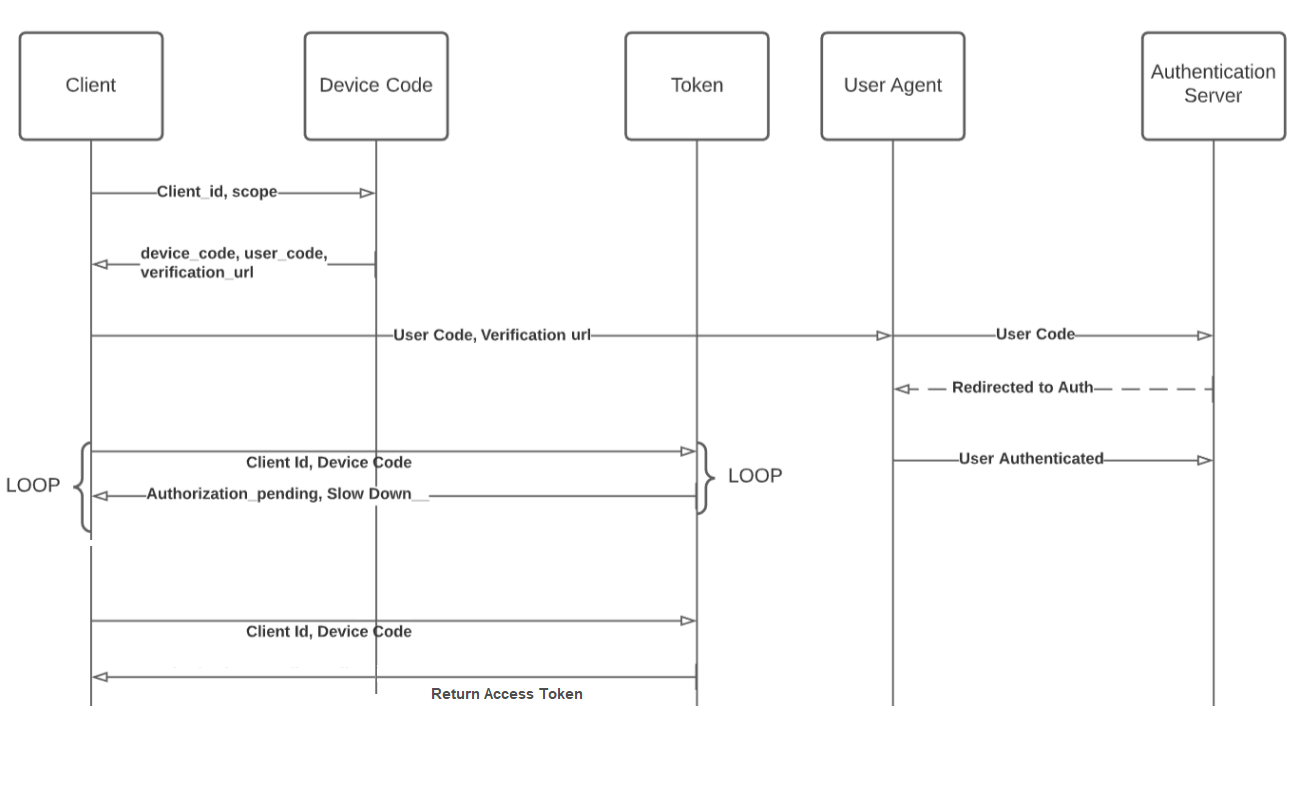
This flow enables OIDC clients on such devices (like smart TVs, media consoles, digital picture frames, and printers) to obtain user authorization to access protected resources without using an on-device user agent.
Flow Diagram
Usage
Used in internet-connected devices that either lack a browser to perform a user-agent based authorization or are input-constrained to the extent that requiring the user to input text to authenticate during the authorization flow is impractical. When signing into apps and services on devices such as a Playstation or an Apple TV.
Workflow
There are two devices ( one input restricted device and other browser-based device) are involved in this workflow.
Input restricted devices like Smart TVs
-
When a consumer comes to input restricted device, the Device Code API will be called to get the device_code and user_code.
-
After that, the Device Code Exchange Token Ping API will be called with a certain internal, PollingInterval and wait till the access token is returned by the Device Code Exchange Token Ping API.
Browser-based Device
-
On the verification URL, the consumer will enter the device_code, the customer will be redirected to the Device Code Confirm URL with the user_code
(https://<siteurl>/service/oidc/<OidcAppName>/device/authorize?client_id=<OIDC Client ID>&user_code=<User Code Genertaed from the Get Device Code API>) -
The Device Code Confirm URL with the user_code
(https://<siteurl>/service/oidc/<OidcAppName>/device/authorize?client_id=<OIDC Client ID>&user_code=<User Code Genertaed from the Get Device Code API>)will show the IDX page to login. -
After login, the consumer will be redirected to the afterverificationURL.
Configuration
To activate the device code flow functionality for your account, you can easily choose the Device Code option from the Grant Type drop-down menu and proceed to provide the required information in the designated fields.
- Device Code App Name: Please provide a name for the app used in your Device code API calls.
- Verification Url: Enter the verification URL where users can manually enter the user code.
- Verification Complete Url: Enter the URL where users will be redirected after successful authentication.
- Device Code Expiration (Seconds): Specify the duration of the device code's validity in seconds..
- Polling interval (Seconds): Enter the minimum time interval in seconds that the client should wait between polling requests to the token endpoint.
- User Code Character Set: Select the character set for the user code.
- User Code Mask: Enter the pattern for the user code, for example, "-" generates a user code like "ASD-QWE".
- Token Expiration (Seconds): Specify the expiration time of the Access Token in seconds.
- ID Token Expiration (Seconds): Specify the lifetime of the ID Token in seconds.
- Token Endpoint Auth Method: Select the client authentication method used to authenticate the Authorization Server when using the token endpoint.
- Scopes: Select the access privileges requested for Access Tokens by selecting the desired scopes.
- Force Reauthentication: Check this option if reauthentication is required for the authorization request; otherwise, leave it unchecked.
- Signed User Info: If checked, user info is returned as a signed JWT Token otherwise, in JSON format.
- Audiences: Enter the resource server that will accept the OIDC (OpenID Connect) tokens.
- Data Mapping: Specify the key-value pairs of LoginRadius profile data points you want to receive in the ID Token payload.
- Meta Data: Specify the key-value pairs of static non-profile data you want to receive in the ID Token payload.
Implementation Steps
The following explains the implementation sequence for Device Code Flow:
Step 1: Use the Request Device Code API to request a new device code, user code from the Device code Endpoint ( you could show a message to ask the consumer to open the verification URL to complete the authetnicaiton on the browser-base device).
| Method | POST |
| Endpoint | https://{siteurl}/api/oidc/{OidcAppName}/device Note: where siteurl is the LoginRadius IDX domain url, e.g., <LR appname>.hub.loginradius.com. If you are using a custom domain for your IDX page, then use custom domain value in place of siteurl. |
| Header | application/json OR application/x-www-form-urlencoded |
| Body (json content type) | { "client_id": <OIDC Client ID>, "scope": "openid email profile" } Note: 1. Scope: [optional] (e.g email profile) |
| Response | { "interval": 10, "expires_in": 1800, "device_code": "1522d771f27b408baca35eca7d81c37d", "user_code": "MXD-TPV", "verification_uri":"https://example.com/federation/device/activate.php, "verification_uri_complete":"https://example.com/federation/device/activate.php?user_code=MXD-TPV" } |
Step 2: Use the device_code and keep calling Device Code Exchange (Ping API) till you get the access token.
| Method | POST |
| Endpoint | https://{siteurl}/api/oidc/{OidcAppName}/token |
| Header | application/json OR application/x-www-form-urlencoded |
| Body (json content type) | { "client_id": <OIDC Client ID>, "grant_type":"urn:ietf:params:oauth:grant-type:device_code", "response_type": "token", "device_code": <Device Code generated from the Get Device Code API> } |
| Response | { "expires_in": 3598, "refresh_token": "d87cc355cdc61a6b...507", "access_token": "eyJhbGciOiJSUzI1NiIsImtpZCI6IjkzMWVlYz...Vn33edUA0hQCSA", "token_type": "Bearer", "id_token": "eyJhbGciOiJSUzI1NiIsImtpZCI6IjkzMWVlYzU2OD...2BTNoyTPC0dAzw" } |
Step 3: Once the consumer enters the user_code value on the verificationURL on the browser-based device, redirect the consumer to the Device Code Confirm URL with the device_code (https://<siteurl>/service/oidc/<OidcAppName>/device/authorize?client_id=<OIDC Client ID>&user_code=<User Code Genertaed from the Get Device Code API>)
Step 4: LoginRadius will show IDX page and the consumer logs in successfully on the IDX. After successful authentication, the consumer will be redirected to AfterVerificationURL.
Step 5: You can show a static page with a success message on the AfterVerificationURL.
The following are some of the error response that you might get during Device Code Flow setup:
| Error Name | Error Response | Error Description |
|---|---|---|
| Authorization Pending | {"error":"authorization_pending","error_description":""} | The authorization request is still pending as the end-user hasn't yet completed the user code authentication. The client should repeat the Access Token Request to the token endpoint using polling. |
| Slow Down | {"error":"slow_down","error_description":""} | Before each new request, the client MUST wait at least the number of seconds specified by the "interval" parameter of the Device Authorization Response. |
| Expire Token | {"error":"expired_token","error_description":"" } | When an access token is expired |
| Access Denied | { "error":"access_denied","error_description":"" } | If the user denied the authorization |
Additional Steps
Once you have obtained a code or access_token (depending on the workflow you've followed) you can take additional steps shown below.
#####Exchanging Code for an Access Token
If you've obtained an authorization code, you're able to exchange it for an access_token.
Use the Access token by OpenID Code API to get the access_token, JWT Token and the refresh_token.
Revoke Refresh Token
You can use the Revoke Refresh Token API Call to expire a Refresh Token.
Refresh Access Token
You can use the Refresh Access Token API Call to expire a Refresh Token.
Getting the UserInfo
The UserInfo of a logged in user can be retrieved with the UserInfo by Access Token API call which will return the UserInfo in a JWT Token.
Note: The RSA algorithm is currently the only supported encryption type for the JWT tokens.
Other OpenID functionality
Here's some other endpoints you will need in your OpenID workflow.
Getting The JSON Web Key Set
Our JSON Web Key Set API Call provides the JWKS that can be used to verify any JWT token with the returned JSON Web Key Set (JWKS).
OIDC Discovery Endpoint
The OIDC Discovery API Endpoint provides a client with configuration details about the OpenID Connect metadata of Loginradius App.
URL Format:
https://{siteurl}/service/oidc/{OIDCAppName}/.well-known/openid-configuration