Web SSO
Web SSO is a method of browser-based session management that utilizes browser storage mechanisms like sessionStorage, localStorage, cookies to maintain the user’s session across your applications. A centralized domain managed by LoginRadius IDX is utilized to perform the authentication. When requested, this centralized domain shares the session with authorized applications.
So that the users logged in to one application automatically logs into other applications, independent of technology, platform or domain the user is using.
The following displays the logical flow of the Web SSO process and it’s Login/Logout processes:

The following displays the sequence diagram of the Web SSO process:
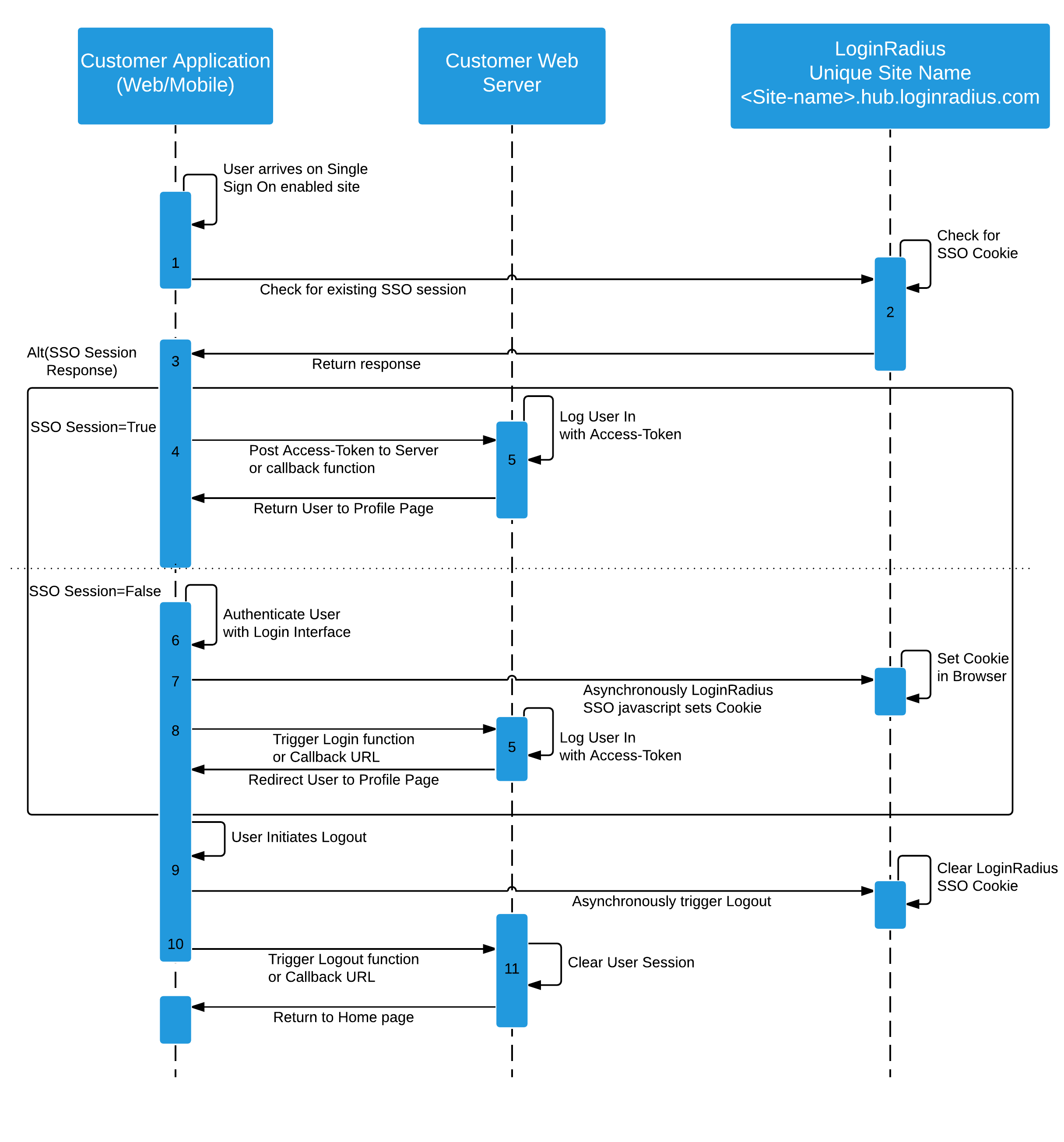
The following explains the working of above sequence diagram:
-
When your customer lands on a page included in the SSO grouping, the first step is to check for an active SSO session. It is handled by the ssoNotLoginThenLogout function, which checks the presence of a browser cookie on the [LoginRadius SiteName].hub.loginradius.com domain. If a cookie is present, it goes into either the success handler (function) or the error handler.
-
The function triggers the AJAX call that returns a response based on the presence of the 'lr-user--token' cookie.
-
You will access either the Login or Logout SSO functions to trigger the login or logout process, which directs the user into the handler function.
-
In an active SSO session, you now have a valid access token that you can send to your authentication server or handle this via client-side authentication procedures.
-
Retrieve the customer profile with the access token, use the returned data to authenticate your customer and set your site's session.
-
If the SSO session was not present, then it either goes into the logout function or redirects the page to the logout URL. Here, you can display a message or the authentication interface where the user can log in.
-
A successful login sets the cookie in your browser on [LoginRadius SiteName].hub.loginradius.com.
-
You can include the Login function to redirect the customer to your authentication procedures through the function handler or callback URL.
-
To log out your customer, add a Logout button. This button would call the Logout function, clear the SSO browser session, and redirect the user to either the function handler or callback URL.
-
Trigger your logout procedure with either the function handler or callback URL.
-
Clear any user sessions/storage that you had initiated during login and direct the user to your home page.
Web SSO Guide
This is a step by step guide to implement Web SSO on your Web Applications using the LoginRadius JavaScript Library.
Pre-requisites: Basic knowledge of HTML and JavaScript.
Part 1 - Configuration
-
Login into your LoginRadius Admin Console.
-
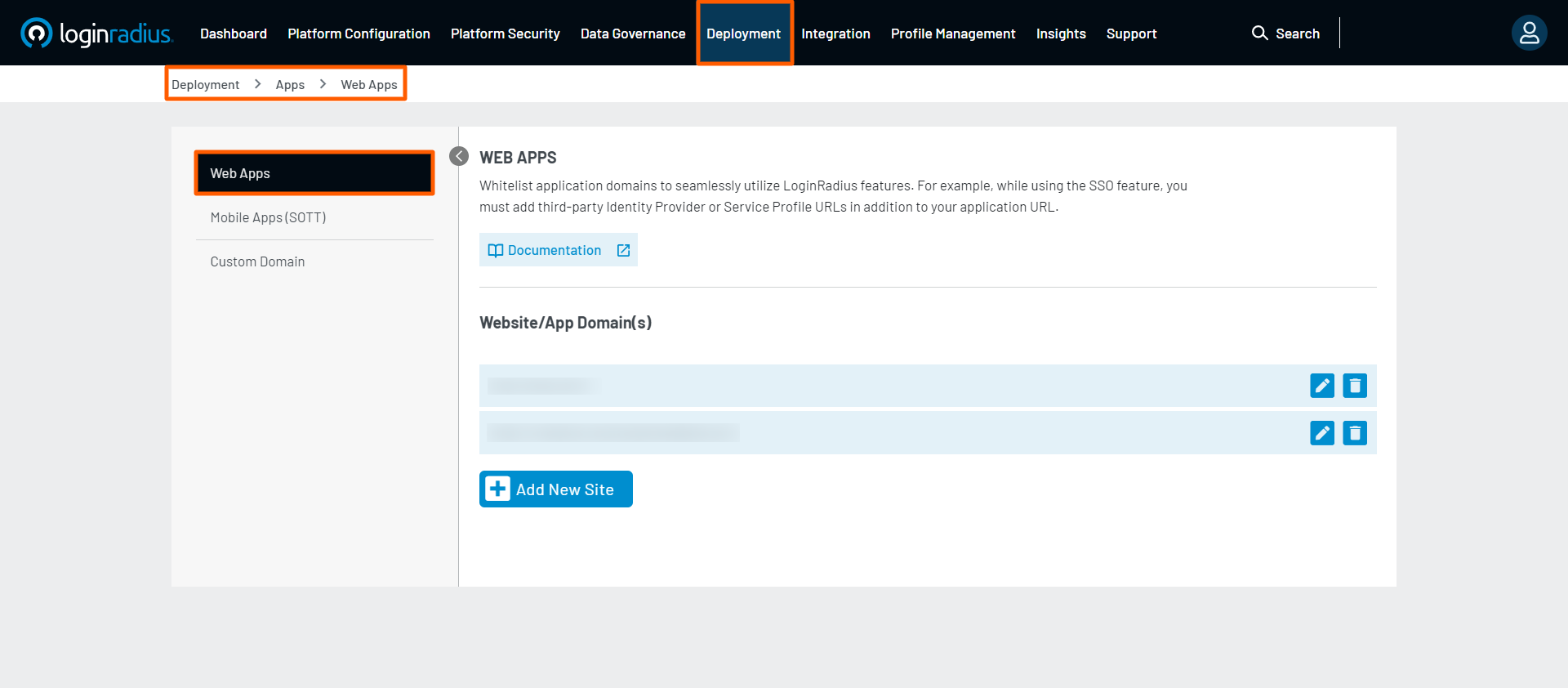
Navigate to Deployment > Apps > Web Apps.
-
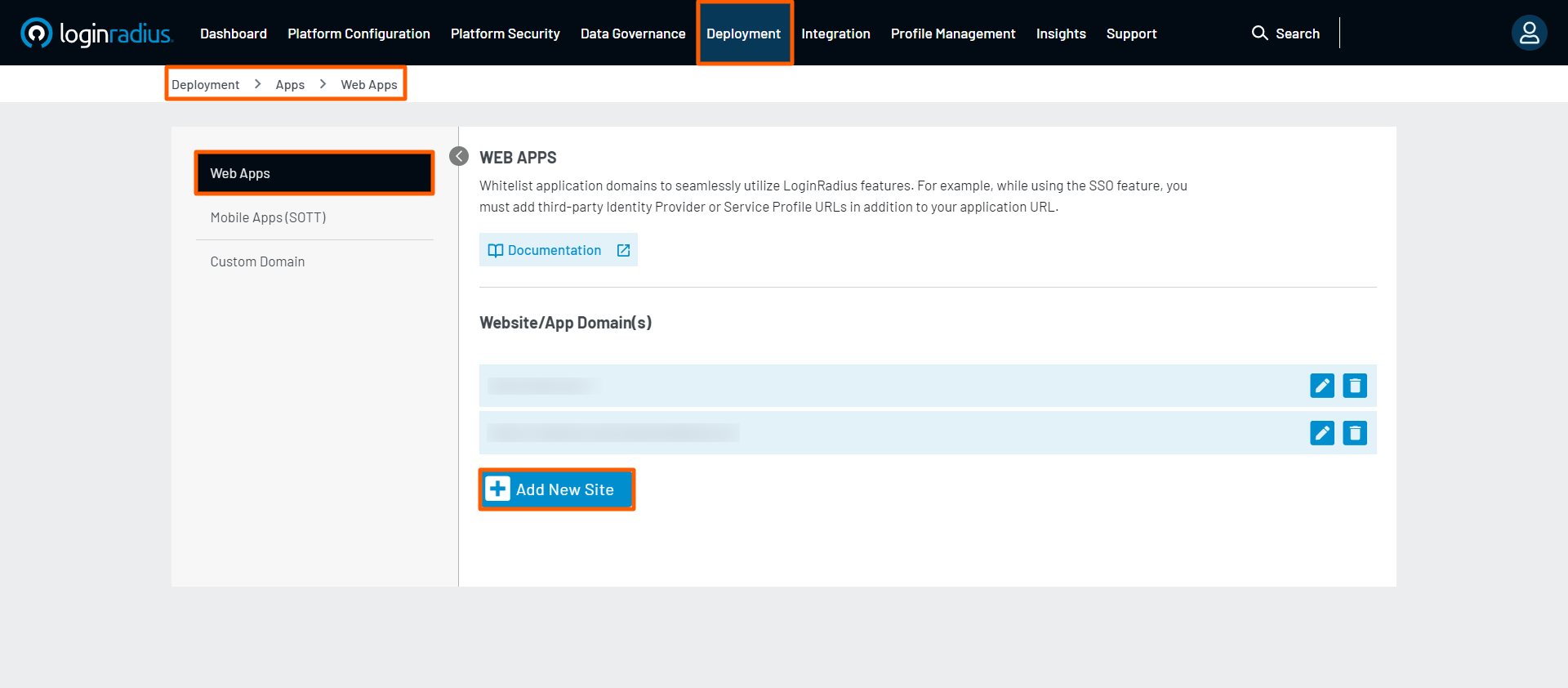
Click on Add New Site button.
-
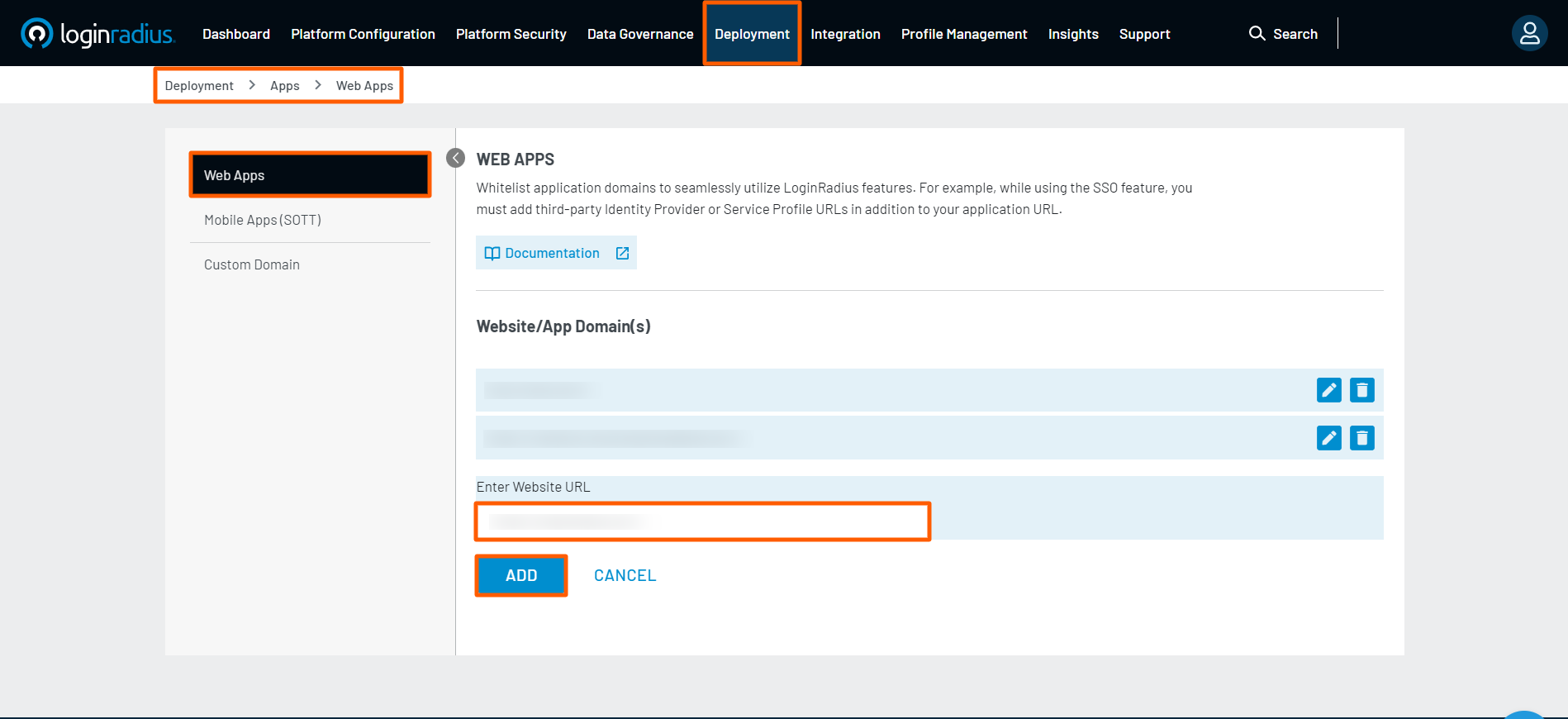
Add the domains of the web application, where you want to implement the Web SSO and hit the Add button.
Part 2 - Deployment
To understand the SSO deployment via LoginRadius JavaScript Libraries refer the following example:
Let's say, you have two websites; Web Application A and Web Application B. You will need to complete the following steps to allow the logged-in customers of Website A to be recognized on Website B (without logging here explicitly) and vice versa.
-
LoginRadius JavaScript Libraries inclusion and object initialization on Website A and B as explained in Step 1 and Step 2 respectively.
-
Implement the following actions on Web Application A as explained in Step 3
a. ssoLogin: This action to set the SSO session on a centralized domain managed by LoginRadius (IDX).
b. logout: This action logs out the customer from all the websites connected for SSO.
c. ssoNotLoginThenLogout: This action checks the active SSO session, and verifies whether the customer is logged in or logged out on another website.
-
Implement the above actions on Web Application B as well.
Upon completing the above steps, the SSO using the LoginRadius Identity Platform will be implemented between Web Application A and Web Application B.
Both web applications will communicate with the centralized domain managed by LoginRadius (IDX) to check the access token for the login and logout requests.
The following is the sequential execution of the above example:
Step 1: Include the LoginRadius JavaScript Libraries as explained below:
Add the following JavaScript to head tag just before closing the body tag of Index.html file:
https://auth.lrcontent.com/v2/js/LoginRadiusV2.js
Note: It is recommended to utilize the script from our CDN domain (https://auth.lrcontent.com/v2/js/LoginRadiusV2.js) rather than making a local copy.
Step 2: Initialize the LoginRadiusV2 Object as explained below:
Add this JavaScript code to initialize LoginRadiusV2 Object on your website.
var commonOptions = {};
commonOptions.apiKey = "<your loginradius API key>";
commonOptions.appName = "<LoginRadius site name>";
var LRObject= new LoginRadiusV2(commonOptions);
Step 3: Configure the SSO as explained below:
The actions described below are to be executed on page load, thus it is recommended to add these actions in the common section that applies to all your web application pages (before and after the login).
Step 3.1: SSO Login
Use the SSOLogin action to set the SSO session on a centralized domain managed by LoginRadius (IDX). ssologin_options.onSuccess will return the token if a valid access token is already available at the centralized LoginRadius domain. You can write your custom code in ssologin_options.onSuccess to handle the successful SSO call.
Add the following code to the Index.html file of your Web Application:
 // If found activated session, go to the callback/onsuccess function
var ssologin_options= {};

ssologin_options.onSuccess = function(response) {
// On Success
//Write your custom code here
console.log(response);
};

LRObject.util.ready(function() {
LRObject.init("ssoLogin", ssologin_options);

});
var login_options = {};
login_options.onSuccess = function (response) {

		//On Success
		console.log(response);


	};
	login_options.onError = function (errors) {
		//On Errors
		console.log(errors);
	};
	login_options.container = "login-container";

	LRObject.util.ready(function () {
		LRObject.init("login", login_options);
	})
Note: You can visit the below URL to manually check whether you are logged in or not: https://<LoginRadius Site Name>.hub.loginradius.com/ssologin/login
The following JSON response in the console log of your browser will indicate the successful login and active SSO session:
{"token":"xxxxxxx-xxxx-xxxx-xxxx-xxxxxxxxxxxxx","isauthenticated":true}
Setting Up SSO Token Manually
When using the Login Interfaces provided by LoginRadiusV2.js the access_token obtained after the successful login is automatically set for SSO and can be accessed at: https://<LoginRadius Site Name>.hub.loginradius.com/ssologin/login. This section covers how you can manually set a LoginRadius access_token for SSO if the access_token was obtained by other means.
Refer the below section for setting the SSO token via Ajax call (Chrome, Firefox, Internet Explorer, Edge, Safari)
Setting The SSO Token via Ajax Call
To manually set the access_token for SSO via AJAX, simply makes an AJAX call to the following endpoint:
https://<LoginRadius Site Name>.hub.loginradius.com/ssologin/setToken
Query Parameters:
- token: Pass in the access_token that you desire to set for SSO.
- apikey: Your LoginRadius API Key.
Example of an AJAX Call function:
$.ajax({
            type: "GET",
            url: "https://<LoginRadius Site Name>.hub.loginradius.com/ssologin/setToken",
            dataType: "json",
            data: $.param({
                token: token,
                apikey: "your-API-key"
            }),
            xhrFields: {
                withCredentials: true
            },
            success: function (response) {
                console.log(response);
//write your code here after setting the token successfully
            },
            error: function (xhr, status, error) {
                console.log(error);
//write your code here for error handling
            }
        });
The following JSON response in the console log of your browser will indicate the successful setting of token:
{
ok: true,
istokenvalid: true/false
}
Similarly, to Set custom token cookies with the remember me expire time for SSO via AJAX, simply make an AJAX call to the following endpoint: https://<LoginRadius Site Name>.hub.loginradius.com/ssologin/setcustomtoken
Query Parameters:
- token: Pass in the access_token that you desire to set for SSO.
- apikey: Your LoginRadius API Key.
Example of an AJAX Call function:
$.ajax({
   type: "GET",
   url: "https://<your lr app name>.hub.loginradius.com/ssologin/setcustomtoken",
   dataType: "json",
   data: $.param({
      token: token,
      apikey: "your-API-key",
      Isrememberme: “true/false”
   }),
   xhrFields: {
      withCredentials: true
   },
   success: function (response) {
      console.log(response);
      //write your code here after setting the token successfully
   },
   error: function (xhr, status, error) {
      console.log(error);
      //write your code here for error handling
   }
});
The following JSON response in the console log of your browser will indicate the successful setting of custom token:
{
ok: true,
istokenvalid: true/false
}
Setting the SSO Token via HTTPs Redirect
In Safari browsers there is an additional security layer preventing cookies from being modified externally. As a solution, you can simply use an HTTPS redirect for your Safari customers.
Simply do a redirect to the following endpoint:
https://<LoginRadius Site Name>.hub.loginradius.com/ssologin/setSafariToken
Query Parameters:
token: Pass in theaccess_tokenthat you desire to set for SSO.apikey: Your LoginRadius API Keycallback: The callback url, where you would like the customer to be redirected.
Example of a redirect method:
if(safari){ // This is for safari browser, you need to check if your user is using safari or not
window.location="https://<LoginRadius Site Name>.hub.loginradius.com/ssologin/setSafariToken?token=<accesstoken>&callback=<callbackURL>"
}else{
   Ajax function provided previously
}
Whitelisting Domains for Cross-Domain Ajax Calls
To whitelist the desired domains for cross-domain AJAX call, login to your LoginRadius Admin Console account and navigate to Deployment -> Apps -> Web Apps.
In this section, you can add the desired domains to the Production Website URL(s) or Dev/Staging/Sandbox Website URL(s).
Step 3.2: SSO Logout
Use the Logout action to handle the logout process, implement this if you want to logout customers by invalidating the browser session. Add the following code to the Index.html file of your website:
var logout_options= {};

logout_options.onSuccess = function() {
// On Success
//Write your custom code here
};
LRObject.util.ready(function() {

LRObject.init("logout", logout_options);

});
Note: You can visit the below URL to manually check whether you are logged out or not: https://<LoginRadius Site Name>.hub.loginradius.com/ssologin/logout
The following JSON response in the console log of your browser will indicate the successful logout:
{"ok" : true}
Step 3.3: SSO Not Login Then Logout :
Use the ssoNotLoginThenLogout action to check for the active SSO session on a centralized domain managed by LoginRadius (IDX). If the SSO session is not active, it will log out the customer.
var check_options= {};

check_options.onError = function() {
// On Error
// If customer is not log in then this function will execute.
};

check_options.onSuccess = function(response) {
// On Success
// If a customer is logged in then this function will execute.
console.log("Acsess token is ", response)
// Access token is "xxxxxxx-xxxx-xxxx-xxxx-xxxxxxxxxxxxx"
};

LRObject.util.ready(function() {
LRObject.init("ssoNotLoginThenLogout", check_options);

});
Note:
- The LoginRadius web SSO uses the cross-domain API call to set, remove or retrieve the token from the cookie on the centralized domain. Safari's newer version is blocking cross-domain API calls to manage cookies. Hence, it is recommended to leverage the LoginRadius Custom Domain feature to make the same domain API calls to manage cookies on the centralized domain (hub.loginradius.com).
- You can use the Access Token obtained from the above steps to call the LoginRadius API and retrieve the customer profile. Alternatively, you can leverage any of our SDKs to accomplish this.
The following is the script example to retrieve the customer profile:
var xhr = new XMLHttpRequest();
url = "https://api.loginradius.com/identity/v2/auth/account?apiKey=<API KEY>&access_token="+access_token
xhr.open("GET", url);
xhr.setRequestHeader('X-Requested-With', 'XMLHttpRequest');
xhr.setRequestHeader('Content-Type', 'application/json');
xhr.send();
 xhr.onreadystatechange = function() {
    if (xhr.readyState === 4) {
      console.log(xhr.response);
    }
  }
</script>
On executing the above, you will see obtained customer profile data in the Console Log of your browser. You can then link the obtained data to your applications.
Part 3 - Implementation examples
Login
Below is a sample of the login implementation:
<!DOCTYPE html>
<html>
  <head>
  <title>Your Awesome Site</title>
<script src="//auth.lrcontent.com/v2/js/LoginRadiusV2.js" type="text/javascript"></script>
    <script>
//This function checks the session and submit the token if exist to your given URL.
    function ssoLogin(url){
      var options= {};

options.onSuccess = function(response) {
var form = document.createElement('form');
  form.action = url;
  form.method = 'POST';

  var hidden = document.createElement('input');
  hidden.type = 'hidden';
  hidden.name = 'token';
  hidden.value = response;

  form.appendChild(hidden);
  document.body.appendChild(form);
  form.submit();
};

LRObject.util.ready(function() {

LRObject.init("ssoLogin", options);

});
    }
    </script>
  </head>

  <body>
    <button onclick="ssoLogin('REDIRECT-URL-AFTER-LOGIN')">Login</button>
  </body>
</html>
Logout
Below is a sample of the logout implementation:
<!DOCTYPE html>

<html>
  <head>
  <title>Your Awesome Site</title>
<script src="//auth.lrcontent.com/v2/js/LoginRadiusV2.js" type="text/javascript"></script>
  </head>
  <body>
  <script>
  var options= {};

options.onSuccess = function() {
// On Success
//Write your custom code here

};

LRObject.util.ready(function() {

LRObject.init("logout", options);

});
  </script>
  </body>
</html>
Secured/After Login
Below is a sample of the secured or after login implementation:
HTML
 <!DOCTYPE html>

<html>
  <head>
  <title>Your Awesome Site</title>
<script src="//auth.lrcontent.com/v2/js/LoginRadiusV2.js" type="text/javascript"></script>
  </head>

    <body>
    <script>
var options= {};

options.onError = function() {
// On Error
// If user is not log in then this function will execute.
};
options.onSuccess = function() {
// On Success
// If user is log in then this function will execute.

};
LRObject.util.ready(function() {
LRObject.init("ssoNotLoginThenLogout", options);

});
    </script>
  </body>
</html>