OAuth 2.0
Overview
OAuth is an open-standard authorization protocol and provides clients secure delegated access to server resources on the behalf of the owner of a resource.
Using OAuth 2.0 the resource owners can authorize the third-party clients to access their server resources without providing credentials.
The authorization server issues an access_token to a third-party client with the approval of the resource owner and the third party then uses the access_token to access the protected resources hosted by the resource server.
Oauth 2.0 with LoginRadius
LoginRadius Identity Platform supports standard OAuth 2.0 specs to integrate your OAuth client with LoginRadius. Thus, you can allow your application's customers to log in to an OAuth-enabled application without creating an account. This document goes over the full process of getting the SSO feature implemented with OAuth 2.0.
This section covers the basic knowledge of OAuth Roles that you need to know before configuring the OAuth 2.0 in the LoginRadius Identity Platform.
OAuth Roles
OAuth 2.0 has the following four roles:
-
Resource Owner: The resource owner is the consumer who authorizes an application to access their account. The application’s access to the customer’s account is limited to the scope of the authorization granted (e.g., read or write access).
-
Client (Service Provider): The client is the application that wants to access the consumer account. Before it may do so, the consumer must authorize the application, and the API must validate the authorization.
-
Resource Server (Identty Proivder LogingRadius) : The server hosts the protected resources and this will handle the authenticated request after the client or application obtained an access token.
-
Authorization Server (Identity Provider, LoginRadius): The server that authenticates the Resource Owner, and issues a token after authorization.
Setup Guide of Oauth 2.0 With LoginRadius
Following is the step-by-step guide to Implementing Oauth 2.0 with LoginRadius
LoginRadius Admin Console Configuration
Following the steps, you can configure your OAuth 2.0 settings in the LoginRadius Admin Console.
-
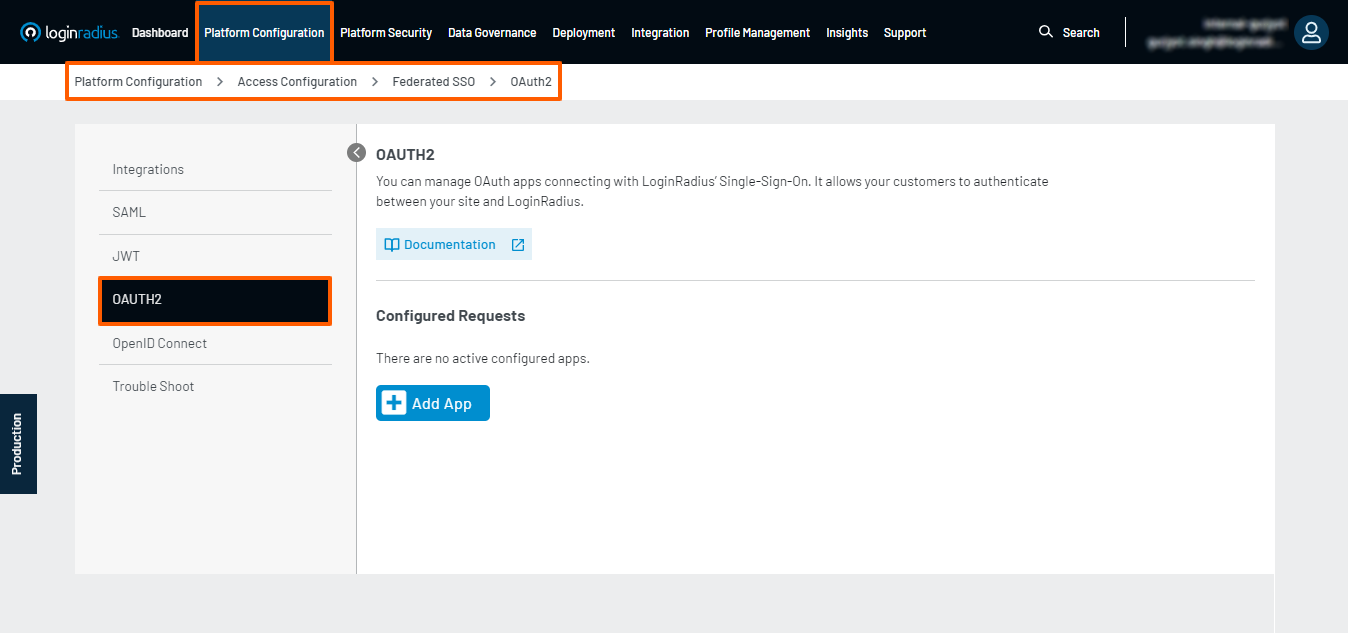
Navigate to the Platform Configuration > Federated SSO > OAUTH2
-
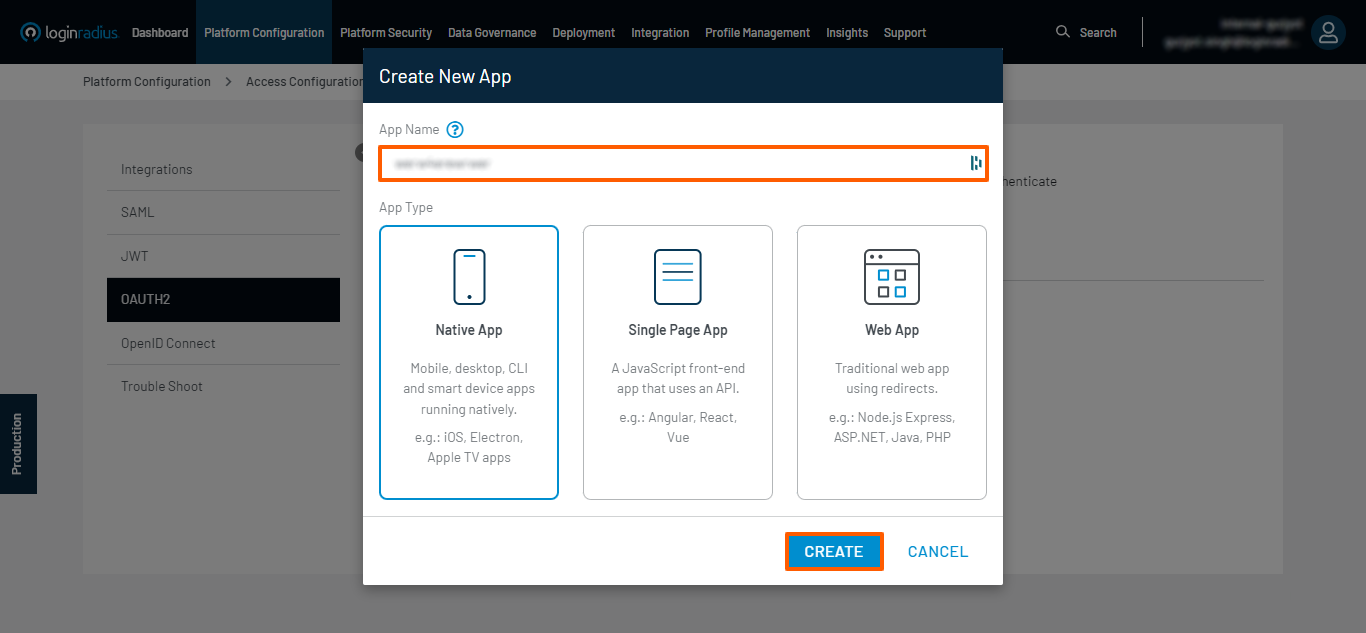
Click on the Add App button, followed by entering an App Name, i.e., the name of your OpenID Connect App, selecting an App Type, and clicking the CREATE button.
-
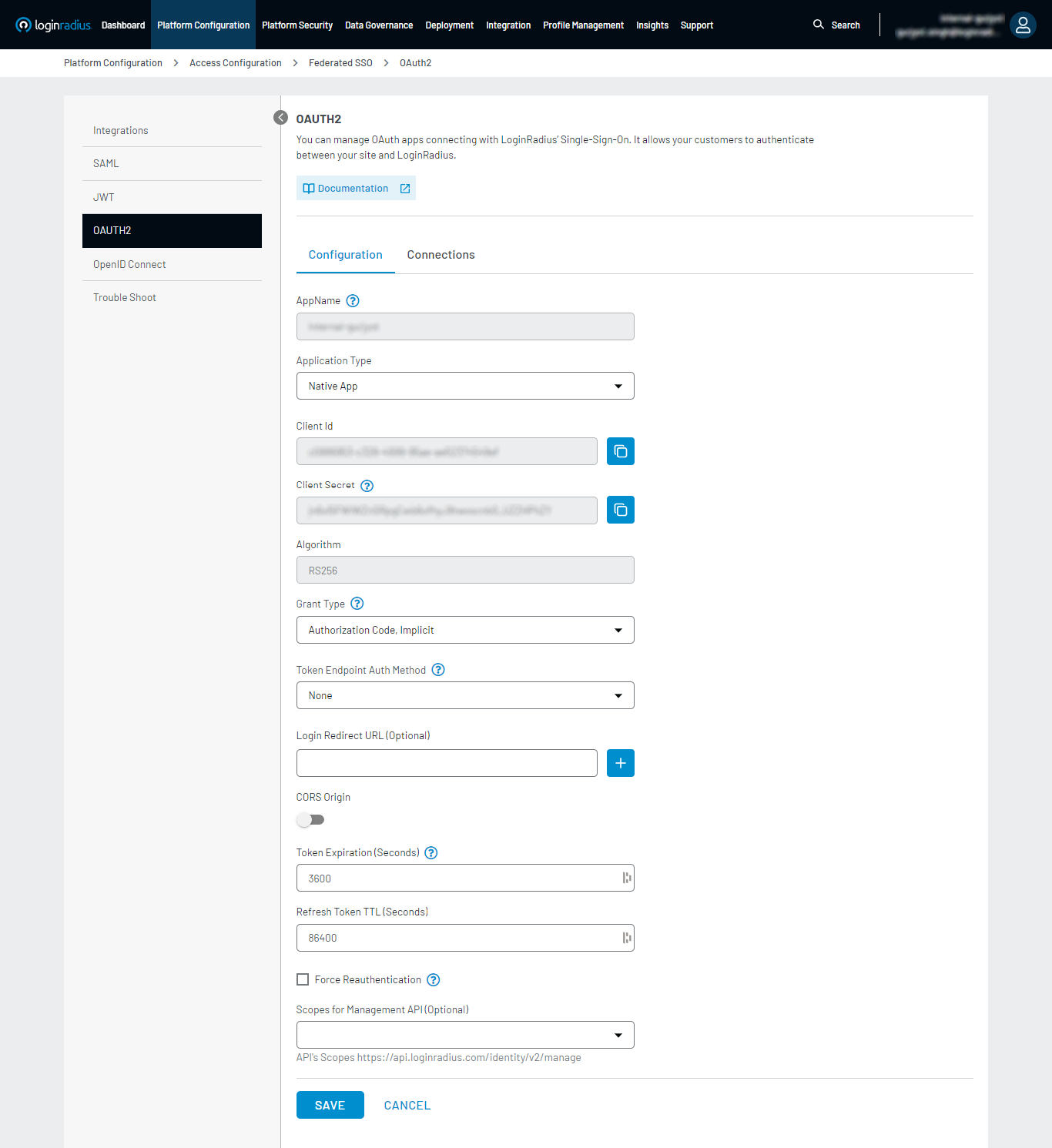
To begin configuration, you must fill out the form referring to the glossary below.
-
App Name: The name of your OAuth App.
-
App Type:
- Native App
- Single Page App
- Web App
-
Client Id and Client Secret is uniquely generated OIDC App-specific Client Id (GUID) and Client Secret (HASH)
Note: Make sure to copy your Client Secret as it is visible only for the first time.
-
Algorithm: The algorithm you would like to use for OpenID Connect (RS256 is currently the only algorithm supported).
-
Grant Type: Select any of the following option by using which the app will obtain the access token.
- Authorization Code
- Implicit
- Password Credentials
- Refresh Token
- Device Code: The following fields would appear when opting for the Device Code flow.
- Verification URL
- Verification Complete URL
- Device Code Expiration (Seconds)
- Polling interval (Seconds)
- User Code Character Set
-
Token Endpoint Auth Method: Select the client authentication method to authenticate the Authorization Server while using the token endpoint.
-
Login Redirect URL (Optional): Whitelisted Callback Redirect URI.
-
CORS Origin: For Single Page Application, Native, and where Client Secret can not be kept confidential, JavaScript web origin will be whitelisted here for OAuth API.
-
Token Expiration (Seconds): Specify the Access Token lifetime, and after that time, the Access Token will expire.
-
Refresh Token TTL (Seconds): Specify the Refresh Token lifetime, and after that time, the Refresh Token will expire.
-
Force Reauthentication: If checked, reauthentication is required for the authorization request. Otherwise, reauthentication is not applicable.
Note: Now you don't have to provide Secret Key as LoginRadius automatically generates for you.
-
Scopes for Management API (Optional): Only allowed scope with respect to the Management API will work with the Client ID and Client Secret
-
Now, click on the SAVE button.
-
-
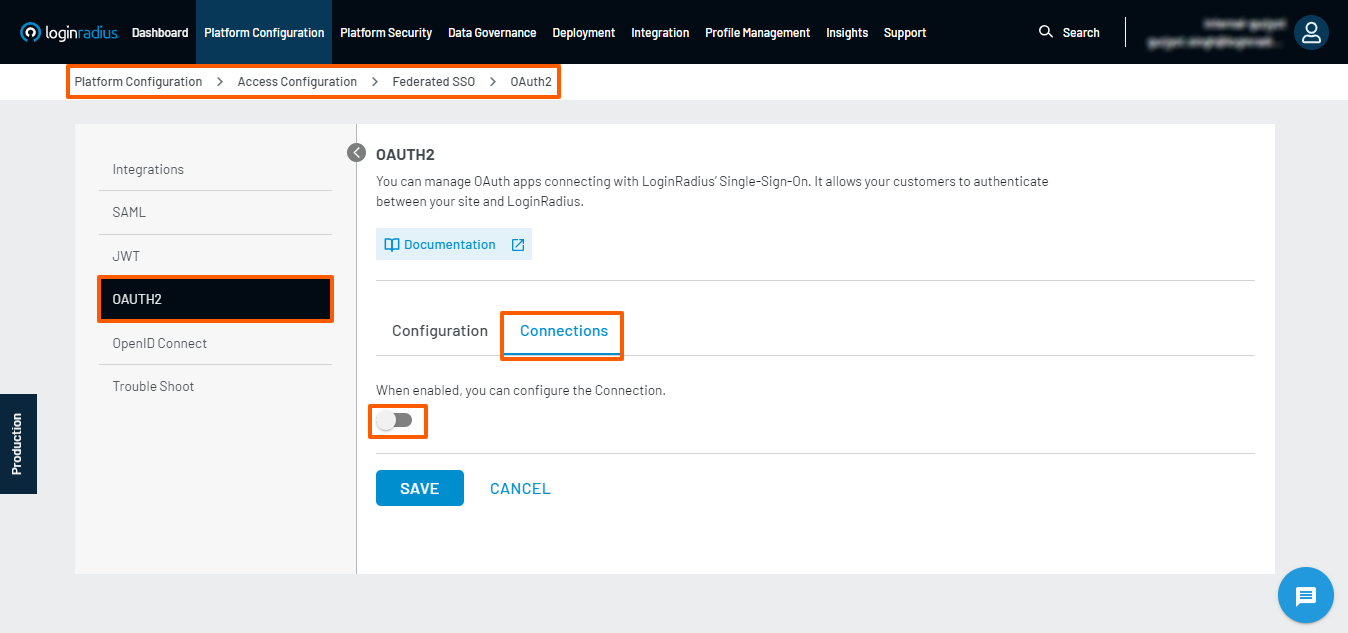
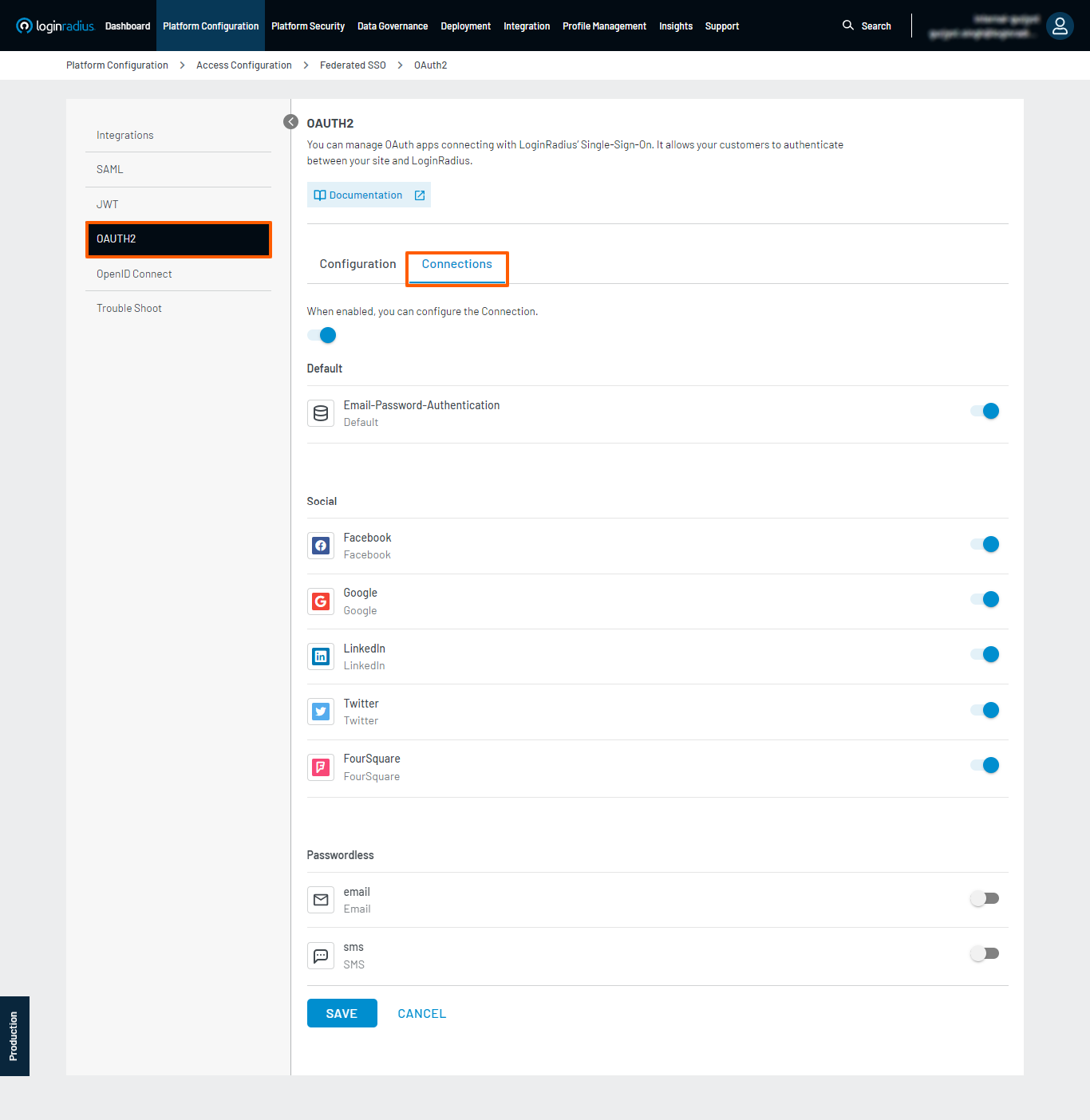
In addition to configuring the application, when enabled, you can configure the Connection.
-
The OAuth App can enable or disable the connection for the flow from the existing global Social/Custom IDP providers.
OAuth 2.0 Implementation
This guide will take you through the implementation of OAuth 2.0 and flow with LoginRadius. It covers everything you need to know on how to configure OAuth 2.0 in your LoginRadius account and deploy it onto your web application.
The OAuth 2.0 authorization protocol specification defines the following flows supported by LoginRadius to get an Access Token, these flows are called grant types. This helps in deciding which one is suited for the case depends mostly on the type of application.
Authorization Code Flow (Explicit)
This flow is best used by server-side applications where the source code is not publicly exposed. The applications should be server-side because the request that exchanges the authorization code with a token requires a client secret, which will have to be stored in Client(SP).
Flow diagram

-
The client(SP) requests authorization from the authorization server (LoginRadius IDP).
-
After successful authorization, the end-user will be redirected back to the redirect URL with the code parameter.
-
The client then sends the code to the LoginRadius authorization server for exchanging the code with the access token.
-
The authorization server will return the access_token and refresh_token to the client (SP)
-
The client can access the protected resource on Resource Server using the access token.
Used By: Web Applications (that have a server-side component that can keep the client secret confidential), native apps (with a public client and PKCE).
Implementation Steps
The following explains the implementation sequence for Authorization Code Flow:
Step 1: Get Authorization Code
To begin with Authorization Code flow, your application should redirect the consumer to the following authorization URL:
Api Endpoint:
https://{HD/CD}/service/oauth/{OauthAppName}/authorize?client_id={OAuth Client ID}&redirect_uri={Callback URL}&scope={Scope}&response_type=code&state={random long string}
Note:
- HD: In the above endpoint, HD will be a hosted domain, and the final authorization endpoint will be something like this, e.g.:
https://<LoginRadius Site Name>.hub.loginradius.com/service/oauth/{OauthAppName}/authorize- CD: Custom Domain
API Method: GET
Available Query Parameters
-
client_id: OAuth Client ID
-
redirect_uri: [required] Callback URL of your site where you want to redirect back your customers after an authorization code is granted.
Note: Make sure to whitelist the redirect_uri, which you are using to redirect your users on your website from your Admin Console. For more information refer to this document.
-
scope: [optional] The value under scope will be sent on the IDX Page.
-
state: [optional] This parameter will be returned as it is, part of the response.
-
response_type:[required] Set to code to indicate an authorization code flow. Find responses below:
- Response of login dialog if
response_type=code: YOUR_CALLBACK_URI?code={unique code}
- Response of login dialog if
LoginRadius also supports some additional query parameters that can be used in the authorization endpoint, to know more about this please click here.
Step 2: Exchanging the Code for an Access Token
The authorization code is an intermediate credential, which encodes the authorization obtained at Step 1.
To retrieve the access token, the client must submit the code generated in Step 1 to the authorization server, using the Access token by OAuth 2 token API.
API Endpoint:
https://{HD/CD}/api/oauth/{OAuthAPPName}/token
Note:
- HD: In the above endpoint, HD will be a hosted domain, and the final authorization endpoint will be something like this, e.g.:
https://<LoginRadius Site Name>.hub.loginradius.com/service/oauth/{OauthAppName}/authorize- CD: Custom Domain
API Method: POST
Request Body:
Available Request Body Parameters
Here is an explanation of the Request Body Parameter :
-
client_id: OAuth Client ID
-
redirect_uri: [required] Callback URL of your site where you want to redirect back your customers.
-
grant_type: [required] Value for this flow must be 'authorization_code' always.
-
client_secret: [required] LoginRadius API secret
-
code: [required] The parameter received from the Login Dialog redirect above.
-
response_type: [optional] Value must be 'token' always.
API Response containing the access_token:
{
"access_token": {Loginradius Access Token},
"token_type": {type},
"expires_in": {seconds till expiration},
"refresh_token" : {Refresh Token}
}
Step 3: Using the obtained LoginRadius access_token in Step 2:
You can use the obtained access_token with any of LoginRadius APIs supporting the access_token until the token expires or is revoked.
OAuth 2.0 PKCE Flow
PKCE is an extension to the Authorization Code flow to prevent certain attacks and to be able to securely perform the OAuth/OIDC exchange from public clients. It is primarily used by mobile and JavaScript apps, but the technique can be applied to any client as well.
Implementation Steps
The following explains the implementation sequence for Authorization Code with PKCE:
Step 1: Get the Authorization code
In the OAuth Authorization flow, we need to have the code verifier and code challenge to start with the authentication and an OAuth provider to connect.
The code_challenge and code_challenge_method parameters are only required in PKCE Flow.
API Endpoint:
https://<siteurl>/service/oauth/{OauthAppName}/authorize?client_id={client_id}&redirect_uri={Callback URL}&scope={Scope}&response_type=code&state={random long string}&code_challenge={code challenge}&code_challenge_method=SHA256
API Method: GET
Available Query Parameters
-
client_id: [required] OAuth Client ID
-
redirect_uri: [required] This will be the callback URL of your site where you want to redirect back your users for e.g
https://abc.com. -
state: [optional] A random string that returned with the
access_tokenin the redirect callback. This parameter will be returned as it is and as part of the response. -
scope: [optional] Should be set to one of the values, e.g.,
openid. -
response_type: [required] Possible value is only 'code' to specify that you are doing the Authorization Code flow.
-
code_challenge: A BASE64-URL-encoded string of the SHA256 hash of the code verifier.
Note: Follow the steps below to generate a code challenge
-
code_challenge_method: SHA256 (For code_challenge_method currently, we are supporting the SHA256 Hash algorithm, If this parameter will not be passed, then the default method SHA256 will be used)
LoginRadius also supports some additional query parameters that can be used in the authorization endpoint, to know more about this please click here.
Steps for using code_challenge and code_challenge_method in PKCE flow.
-
Generate a Code Verifier: The code verifier will be passed in the code_verifier parameter while exchanging the code with Access Token in Step 2
-
Generate the code challenge: This is passed in the code_challenge as a query parameter in the Authorization process and will be generated with the help of the code_verifier value.
We provide the ready-to-use code to generate the code_verifier and code_chalange, please refer to this document
Note:
The client_secret": OAuth Client Secret
The provider will redirect you to the authentication/login page and you’ll get the code after successful authentication.
Step 2: Exchange Code with Access Token
In the code exchange request, we need to pass the code we have received through the above request and the code verifier that we have is generated in Step 1.
API Endpoint:
https://<siteurl>/api/oauth/{OAuthAppName}/token
API Method: POST
Request Body:
{
"client_id":"<OAuth Client ID>",
"client_secret":"<OAuth Client Secret>",
"redirect_uri":"redirect_uri",
"response_type":"token",
"grant_type": "authorization_code",
"code":"code value", // That we have received in authorization request
"code_verifier": "code verifier value" // generated in the first step
}
Available Request Body Parameters
Here is an explanation of the Request Body Parameter :
-
client_id: [required] OAuth Client ID,
-
client_secret: [optional if using code verifier] OAuth Client Secret,
-
redirect_uri:[required] callback url passed in the authorization API,
-
grant_type:[required] Value for this flow must be 'authorization_code' always.
-
response_type: [required] token,
-
code:[required] Authorization code received in the Authorization API
-
code_verifier: [required if not using client secret] code verifier (generated in the first step)
Note: If you are passing code_challenge and the code_challenge_method in the authorization request then only the PKCE flow would work and in this case, code_verifier would be required to get the token in Exchange the authorization code request.
Once the code verifier hash matches with the code challenge of the authorization request, You will get the token in the response with status code 200 OK.
API Response containing the access_token:
{
"access_token": "c5a****b-****-4*7f-a********e4a",
"token_type": "access_token",
"refresh_token": "5*****82-b***-**82-8c*1-*******7ce",
"expires_in": 11972
}
That's it and you've implemented PKCE flow in your application.
Implicit Flow
This section covers using the Implicit flow with LoginRadius. It is similar to Authorization Code flow except that the response_type can be a token or both code and token.
If you are building a Single-Page Application that runs in older browsers that don't support Web Crypto for PKCE, then the Implicit flow is the recommended method for controlling access between your Single-Page Application and a resource server. The Implicit flow is intended for applications where the confidentiality of the customer’s secret can't be guaranteed.
In this grant type flow, the authorization server returns an access token directly when the user is authenticated rather than issuing an authorization code first.
Used By: Mobile apps and web apps(applications that run in a web browser)
Note: Because it is intended for less-trusted clients, the Implicit flow doesn't support refresh tokens.
Implementation Steps
The following explains the implementation sequence for Implicit Flow:
Step 1: Opening the login dialogue/authorization endpoint to get Authorization from LoginRadius CIAM.
To begin with Implicit flow , your application should redirect the consumer to the following authorization URL:
API Endpoint:
https://<siteurl>/service/oauth/{OauthAppName}/authorize?client_id={OAuth Client ID}&redirect_uri={Callback URL}&scope={Scope}&response_type=token&state={random long string}
API Method: GET
Required Parameters
The access token request will contain the following parameters. Here is an explanation of the URL Parameter:
-
client_id: [required] OAuth Client ID
-
redirect_uri: [required] Callback URL of your site where you want to redirect back the customers after an authorization code is granted.
Note: Make sure that you have whitelisted the Redirect_uri in your LoginRadius Admin Console. For more information, refer to this document.
-
scope: [optional] The value under scope will be sent on the IDX Page.
-
state: [optional] this parameter will be returned as it is, part of the response
-
response_type: [required] Set to token, or it could be both code and token. The following are the response structures for both cases:
-
Response of login dialog if
response_type=token: YOUR_CALLBACK_URI?token={LoginRadius access token} -
Response of login dialog if
response_type=code,token: YOUR_CALLBACK_URI?code={unique code}&token={LoginRadius access token}&state={Same value which is passed in request}:
Step 2: Utilize Access Token:
Now you can use the obtained access_token with any of LoginRadius APIs supporting the access_token until the token expires or revokes.
LoginRadius also supports some additional query parameters that can be used in the authorization endpoint, to know more about this please click here.
Resource Owner Password Credential Flow
The Resource Owner Password Credentials flow help the client to fetch access_token and refresh_token using the username and password. In this flow, the user’s password is accessible to the application so it requires strong trust in the application by the user.
This flow doesn't require redirects like the Authorization Code or Implicit flows and involves a single authenticated call to the /token endpoint.
Used By: It is used by consumer where user has strong trust in the application
Implementation Steps
The following explains the implementation sequence for Resource Owner Password Credentials Grant flow:
The Resource Owner Password Credentials Grant flow allows you to obtain an access_token by utilizing the customer’s traditional username/email/phoneid and password credentials.
Step 1: Use the Access Token by Account Password to obtain an access_token.
API Endpoint:
https://<siteurl>/api/oauth/{OauthAppName}/token
Note: This siteurl field contains the LoginRadius IDX/Custom Domain url. E.g., if your LoginRadius app name is company name then the siteurl will be companyname.hub.loginradius.com. If you are using a custom domain for your IDX page, then use custom domain value in place of siteurl.
API Method: POST
Request Body:
{
"client_id": "<OAuth Client ID>",
"grant_type": "password",
"username": "<Should be, email/phoneid/username of the customer>",
"password": "<The password of the account to login>",
"response_type": "<'token' for this flow>"
}
Available Request Body Parameters:
Here is an explanation of the Request Body Parameters :
-
client_id: [required] OAuth Client ID
-
grant_type: [required] Value must always be 'password'.
-
username: [required] You must provide the customer's email/username/phoneid, depending on how you have configured LoginRadius for authentication.
-
password: [required] The customer's account password.
-
response_type: [optional] Value must be 'token' always.
API Response containing the access token
{
     "access_token": {JWT Access Token},
     "token_type": {type},
     "expires_in":  {seconds til expiration},
     "refresh_token" : {Refresh Token}
     "id_token": {JWT Token}
}
Step 2: Using the obtained LoginRadius access_token in Step 1:
You can use the obtained access_token with any of LoginRadius APIs supporting the access_token until the token expires or revokes.
Device Code Flow
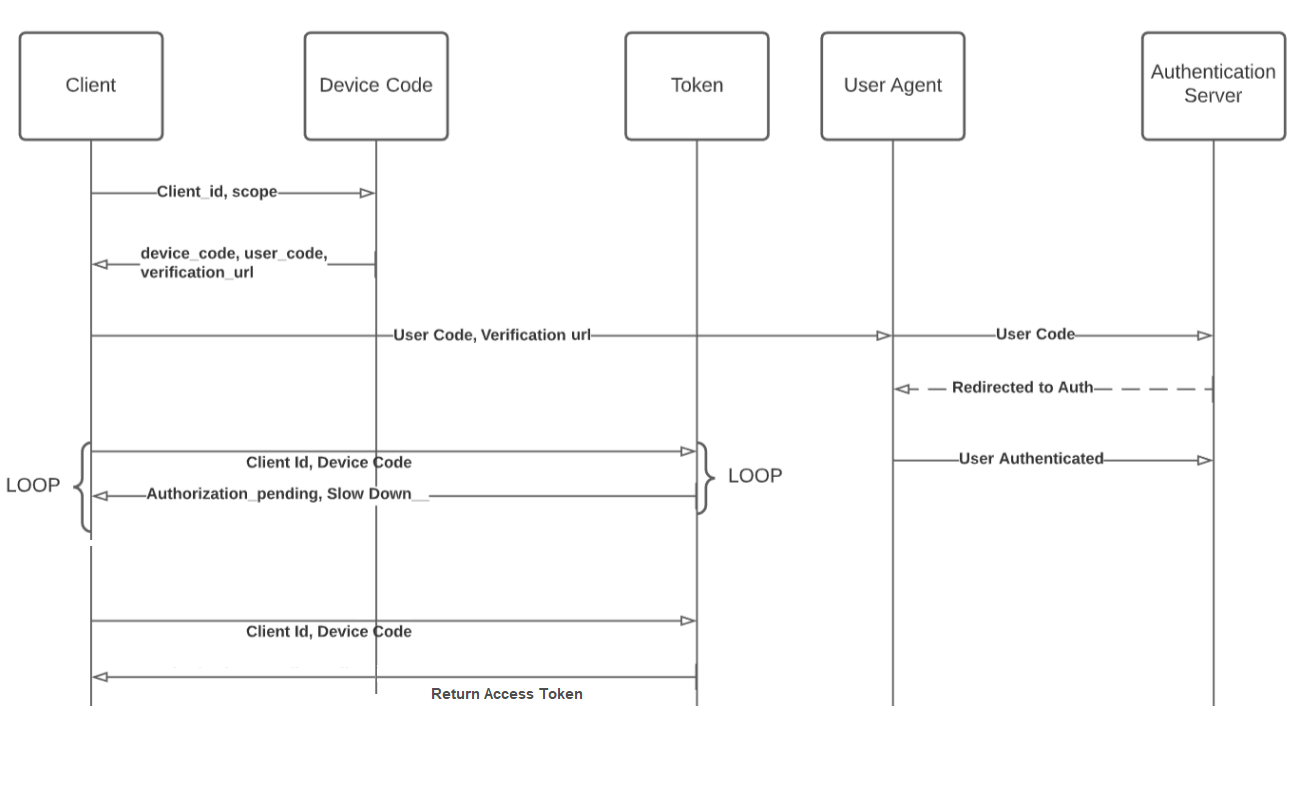
This flow enables OAuth clients on such devices (like smart TVs, media consoles, digital picture frames, and printers) to obtain user authorization to access protected resources without using an on-device user agent.
Flow Diagram:
Usage
Used in internet-connected devices that either lack a browser to perform a user-agent based authorization or are input-constrained to the extent that requiring the user to input text to authenticate during the authorization flow is impractical. When signing into apps and services on devices such as a Playstation or an Apple TV.
Workflow
There are two devices ( one input restricted device and other browser-based device) are involved in this workflow.
Input restricted devices like Smart TVs
-
When a consumer comes to input restricted device, the Device Code API will be called to get the device_code and user_code.
-
After that, the Device Code Exchange Token Ping API will be called with a certain internal, PollingInterval and wait till the access token is returned by the Device Code Exchange Token Ping API.
Browser-based Device
-
On the verification URL, the consumer will enter the device_code, the customer will be redirected to the Device Code Confirm URL with the user_code
(https://<siteurl>/service/oauth/{OauthAppName}/authorize?client_id=<OAuth Client ID>&user_code=<User Code Genertaed from the Get Device Code API>) -
The Device Code Confirm URL with the user_code
(https://<siteurl>/service/oauth/{OauthAppName}/authorize?client_id=<OAuth Client ID>&user_code=<User Code Genertaed from the Get Device Code API>)will show the IDX page to login. -
After login, the consumer will be redirected to the afterverificationURL.
Configuration
To enable the device code flow feature for your account, you need to create a support ticket to the LoginRadius Support team. You should provide the following details at the time of configuration :
-
Device Code App Name: Please provide any name you want to use in your Device code API calls.
-
PollingInterval: When device_code is returned by the Device Code API to the input restricted device, the device will start pinging the Device Code Exchange Token Ping API on the Device, so this Poll Internal is the minimum time between two pings,e.g. the poll interval is set 10 (in second), after first ping if another ping in the 7 seconds, API will return an error of slow_down and if the second ping is called after 10s, then it will return an appropriate response (error authorization_pending in case of token not attached to device code yet or onsuccess will return the access token, etc.)
-
Expiry time for device_code (in seconds) Specify the device code lifetime, and after that time, the device code will expire.
-
Expiry time for access_token (in seconds): Specify the Access Token lifetime, and after that time, the access token will expire.
-
Expiry time for Id_token (in seconds): Specify the ID token lifetime, and after that time, the ID token will expire.
-
VerificationUrl: Please provide the URL of page where the user will enter the user code
-
AfterVerificationUrl: Please provide the URL of page where after successful authentication, user will be redirected.
-
UserCodeMask: The pattern which will be used to generate the device_code, e.g.,
***-*** => ACS-Q23, **-**-** => AX-4R-AW, etc.
Implementation Steps
The following explains the implementation sequence for Device Code Flow:
Step 1: Use the Request Device Code API to request a new device code, user code from the Device code Endpoint ( you could show a message to ask the consumer to open the verification URL to complete the authetnicaiton on the browser-base device).
| Method | POST |
| Endpoint | https://{siteurl}/api/oauth/{OAuthAppName}/device Note: where siteurl is the LoginRadius IDX domain url, e.g., <LR appname>.hub.loginradius.com. If you are using a custom domain for your IDX page, then use custom domain value in place of siteurl. |
| Header | application/json OR application/x-www-form-urlencoded |
| Body (json content type) | { "client_id": "<OAuth Client ID>" } |
| Response | { "interval": 10, "expires_in": 1800, "device_code": "1522d771f27b408baca35eca7d81c37d", "user_code": "MXD-TPV", "verification_uri":"https://example.com/federation/device/activate.php, "verification_uri_complete":"https://example.com/federation/device/activate.php?user_code=MXD-TPV" } |
Step 2: Use the device_code and keep calling Device Code Exchange (Ping API) till you get the access token.
| Method | POST |
| Endpoint | https://{siteurl}/api/oauth/{OAuthAppName}/token |
| Header | application/json OR application/x-www-form-urlencoded |
| Body (json content type) | { "client_id": <OAuth Client ID>, "grant_type":"urn:ietf:params:oauth:grant-type:device_code", "response_type": "token", "device_code": <Device Code generated from the Get Device Code API> } |
| Response | { "expires_in": 3598, "refresh_token": "d87cc355cdc61a6b...507", "access_token": "eyJhbGciOiJSUzI1NiIsImtpZCI6IjkzMWVlYz...Vn33edUA0hQCSA", "token_type": "Bearer" } |
Step 3: Once the consumer enters the user_code value on the verificationURL on the browser-based device, redirect the consumer to the Device Code Confirm URL with the device_code (https://<siteurl>/service/oauth/{OauthAppName}/authorize?client_id=<OAuth Client ID>&user_code=<User Code Genertaed from the Get Device Code API>)
Step 4: LoginRadius will show IDX page and the consumer logs in successfully on the IDX. After successful authentication, the consumer will be redirected to AfterVerificationURL.
Step 5: You can show a static page with a success message on the AfterVerificationURL.
The following are some of the error response that you might get during Device Code Flow setup:
| Error Name | Error Response | Error Description |
|---|---|---|
| Authorization Pending | {"error":"authorization_pending","error_description":""} | The authorization request is still pending as the end-user hasn't yet completed the user code authentication. The client should repeat the Access Token Request to the token endpoint using polling. |
| Slow Down | {"error":"slow_down","error_description":""} | Before each new request, the client MUST wait at least the number of seconds specified by the "interval" parameter of the Device Authorization Response. |
| Expire Token | {"error":"expired_token","error_description":"" } | When an access token is expired |
| Access Denied | { "error":"access_denied","error_description":"" } | If the user denied the authorization |
Supported Query Parameter
Depending on the workflow you choose to leverage, you will need to add different query parameters to the Authorization URL that points to the Login page.
Note: In the Authorization Code Flow (Explicit) the authorization endpoint will be used for authentication and authorization and will return an authorization grant to the client.
You can use the table below for an overview of all of the different parameters that can be passed to the Authorization Endpoint.
Authorization Endpoint Supported Parameters
| client_id | (required) OAuth Client ID |
| redirect_uri | (required) This is the URI to which the response should be sent.Note: This must be whitelisted in the App Section in the LoginRadius Admin Console. |
| response_type | (required) This defines the processing flow to be used when forming the response. Authorization Code Flow or PKCE Flow: response_type: code Note: LoginRadius also supports adding multiple response types and the value must be separated by space, like response_type: code token. Implicit Flow: response_type: token response_type: code token Exchanging the Code for an Access Token response_type: token |
| state | (optional) It is recommended that you use this parameter to maintain the state between the request and the callback. Typically, Cross-Site Request Forgery (CSRF, XSRF) mitigation is done by cryptographically binding the value of this parameter with a browser cookie. |
| scope | optional) Specifies the scope of the requested token. If omitted, the authorization server may assume some default scope. |
Note: While passing the URL with query param in the scope you need to double encode the URL and then use it in the scope.
Javascript Example
var registrationUrl = encodeURIComponent(encodeURIComponent("https://www.abc.com/plus?" +encodeURIComponent("param1=aaa¶m2=bbb")))
var scope = encodeURIComponent("profile&action=login®istration_url=" + registrationUrl);
var authorizationEndpoint = "https://<siteurl>/sso/oauth/redirect?scope=" + scope + "&state=ddd&response_type=coderedirect_uri=https%3A%2F%2Fabc.com&client_id=";
Request url:
"siteurl": This field contains the LoginRadius IDX/Custom Domain url. E.g., if your LoginRadius app name is company name then the siteurl will be companyname.hub.loginradius.com. If you are using a custom domain for your IDX page, then use custom domain value in place of site URL
Additional Steps in Oauth 2.0
Refresh access token
Once you have obtained an access_token, you can use the Refresh Access Token API to refresh the access_token.
Available Request Body Parameters:
Here is an explanation of the Request Body Parameter:
-
client_id: [required] OAuth Client ID
-
grant_type: [required] The grant_type needs to be a refresh_token.
-
refresh_token : [required] This is the refresh_token you received when you used the 'Access token by OAuth 2 token' and 'Access Token by Account Password' API call
API Response containing the refresh access_token:
{
"access_token": "Loginradius Access Token",
"token_type": "type",
"expires_in": "seconds till expiration",
"refresh_token": "Refresh Token"
}
Troubleshooting & FAQs
Troubleshooting
-
I am getting the error “The code has expired” in the Authorization code flow how to fix this?
- "The code has been expired" error comes when the auth code is expired. For security concerns, the expiry time is 50 sec, so the code needs to be utilized within 50 sec.
-
I am getting an invalid_request error while calling Authorization Endpoint?
- This error usually occurs when the client Id (OAuth Client secret) is invalid.
-
While using the Additional API Secret it through error
unauthorized_clienthaving message Theclient_secretis not valid, check yourclient_secretagain?- When the Oauth API is hit, we are having caching of AppConfig for 15 min for better Performance. So if the new APISecret is generated in that time (15 min), that will not be able to be used till the cache is expired.
So it is recommended to wait till 15 Min after generating Additional Secret and after 15 Min Appconfig gets a new configuration and Additional API Secret will work.
-
I am getting the error The host is not whitelisted while calling OAuth Authorization Url, how to fix this?
- This error occurs when the redirect URL that is being used under Authorization URL is not whitelisted so to resolve this issue the redirect URL needs to be whitelisted under Deployment>Apps>Web Apps.
Faqs
-
What is the maximum number of configured Authorization Server APIs or a maximum number of redirect URIs supported by LoginRadius?
- There is no limit to adding the Authorization Server API or redirect URLs.
-
While calling the OAuth Authorization endpoint can we open this inside popup instead of redirection?
- You can refer to this document for a step by step guide to implement the Popup feature.
-
Can we share Access Token or code generated in Oauth workflow with a third party application?
- Due to security reasons we never recommend sharing a user Access token or Code with a third party.
Next Steps
The following is the list of documents you might want to look into: