LoginRadius as IdP with SharePoint as SP
This document describes the step by step process to integrate office365 as an SP and LoginRadius as an IDP in service provider-initiated WS Federation workflow.
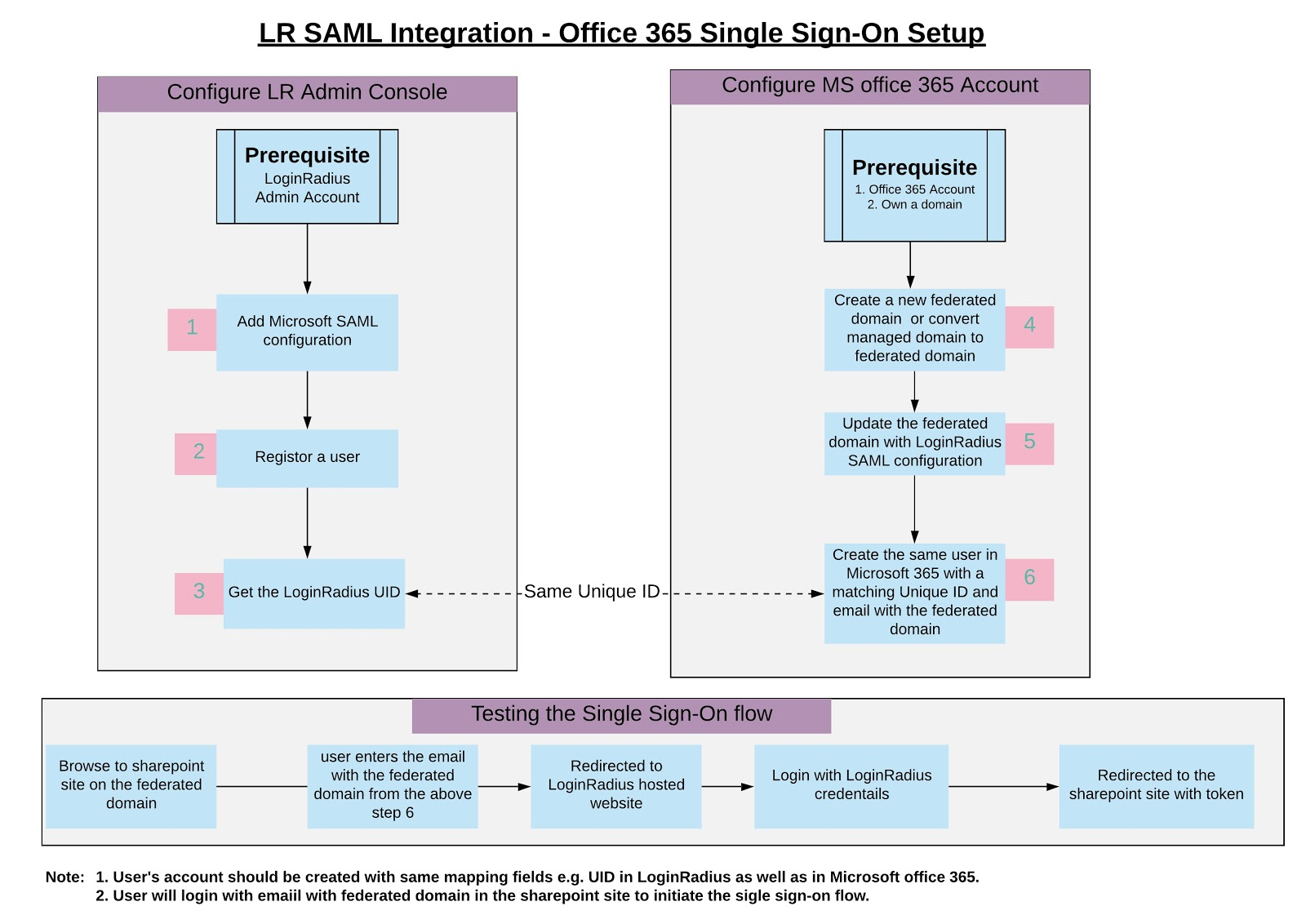
Prerequisites
Before you get started you should ensure that you have the following prerequisites:
- An administrator account for Office 365
- SAML feature is enabled for your account in LoginRadius Admin Console
- A domain name that you own for Office 365
- Windows PowerShell with the Azure AD PowerShell module installed
- A public certificate and private key pair are required to successfully connect applications with LoginRadius. Learn how to manage certificates and private keys.
- You must generate a public certificate and private key pair to connect an application to LoginRadius.
Limitation
- To enable single sign-on using WS Federation workflow between LoginRadius and SharePoint, users can only login with the email address with the federated domain of SharePoint site in Office365.
- The ImmutableId and email address for the user in Office365 should match Uid and email address in LoginRadius respectively.
Configure Sharepoint SAML settings
Download and install the Windows Azure Active Directory Module for Windows PowerShell. Once installed, you will use the cmdlets to configure your Windows Azure AD domains as federated domains. For instructions about how to download and install the cmdlets, see http://technet.microsoft.com/library/jj151815.aspx
Create a Federated Domain on Office 365
Before configuring federation on an Azure AD domain, it must have a custom domain configured. You cannot federate the default domain that is provided by Microsoft. The default domain from Microsoft ends with “onmicrosoft.com”.
- Create a managed domain on https://admin.microsoft.com/AdminPortal/Home -> Setup -> Domains -> Add domain
- Follow steps to verify ownership of the domain.
- Ensure that the created domain is NOT the default domain.
Configuring a Federated Domain on Office 365
- Open PowerShell and run the command
‘Connect-MsolService’
and log in using Office 365 Login credentials.
- Run command
‘Get-MsolDomain’
in the PowerShell and ensure the newly created managed domain is listed there.
- Use the following values for setting up the federated domain:
    $domainname = "<your domain name>"
    $logoffuri = "https://<LoginRadius Site Name>.hub.loginradius.com/auth.aspx?action=logout"
    $passivelogonuri = "https://cloud-api.loginradius.com/sso/wsfed/login/<WS Federation App Name>/<LoginRadius API Key>"
    $cert = "<Your loginradius certficate>"
    $issueruri = "https://<LoginRadius Site Name>.hub.loginradius.com/"
    $protocol = "WSFED"
Note: You should remove the following from
<Your loginradius certficate> content: new-line character, -----BEGIN CERTIFICATE----, -----END CERTIFICATE----
- Run the following command to assign the listed values from the previous step to the federatd domain :
Set-MsolDomainAuthentication -DomainName $domainname -FederationBrandName $domainname -Authentication Federated -IssuerUri $issueruri -LogOffUri $logoffuri -PassiveLogOnUri $passivelogonuri -SigningCertificate $cert -PreferredAuthenticationProtocol $protocol’
- Verify that the domain is now set to federated using
‘Get-MsolDomain’ - To modify any of the parameters already set for the domain, switch the domain back to ‘Managed’ by using the command:
‘Set-MsolDomainAuthentication -DomainName “<your domain name>” -Authentication Managed’ After which (assuming the constants $domainname, $issueruri
etc. have already been set, update whichever constant you need to by reassigning a value to it, and call the command:
‘Set-MsolDomainAuthentication -DomainName $domainname -FederationBrandName $domainname -Authentication Federated -IssuerUri $issueruri -LogOffUri $logoffuri -PassiveLogOnUri $passivelogonuri -SigningCertificate $cert -PreferredAuthenticationProtocol $protocol’ again.
- Verify your changes with
‘Get-MsolDomainFederationSettings -DomainName “<your domain name>” | Format-List *’
Create a user in office 365 corresponding LoginRadius user account
Before you can authenticate your users to Office 365 you must provision Azure AD with user principals that correspond to the assertion in the SAML 2.0 claim. If these user principals are not known to Azure AD in advance then they cannot be used for federated sign-in.
- Create a new MsolUser with an immutableid corresponding to a LoginRadius UID and with an email using the newly created domain name:
New-MsolUser
 -UserPrincipalName john.doe@companydomain.com
-ImmutableId 2e28f6ce-4e3b-4538-b284-1461f9379b48
-DisplayName "John Doe"
-FirstName “John”
-LastName “Doe”
-AlternateEmailAddresses "john.doe@company.com"
-UsageLocation “CA”’
Note: -ImmutableId and -UserPrincipalName in Office365 should match Uid and email in LoginRadius. 2. Assign a license to the newly created user, using ``` ‘Set-MsolUserLicense -UserPrincipalName “john.doe@company.com” -AddLicenses “licensename”
    **Note**: You can view the currently available license using **Get-MsolAccountSku**
3. Verify the User details using
Get-MsolUser -UserPrincipalName john.doe@companydomain.com | select UserprincipalName,ImmutableID,WhenCreated,isLicensed```