Password Delegation API
The Password Delegation feature allows you to authenticate a user for which password is stored with a third-party application during the initial login. This process allows you to provide a seamless authentication process when migrating customer bases to LoginRadius without needing to provide passwords to LoginRadius during the data migration process.
Password Delegation Guide
This guide will take you through the process to set up and implement the Password Delegation feature for a third party application that doesn't want you to migrate passwords away from their platform.
For example, if you are using a BigCommerce application, which doesn't allow you to migrate passwords or password hashes from BigCommerce to LoginRadius, you can leverage the Password Delegation API to validate the login credentials. Once you receive a success message in the response, you can ask the customer to create a password in LoginRadius/ your application. Once the password is updated in LoginRadius, you can use the Auth Login By Email to authenticate the user using LoginRadius API.
Part 1 - Configuration
This section covers the required configurations that you need to perform in the LoginRadius Admin Console to configure your password delegation request. The following are the configuration steps:
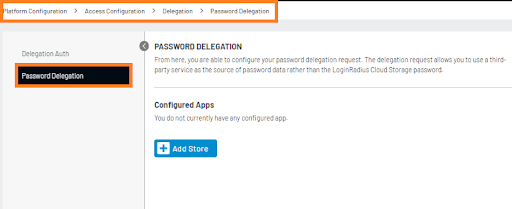
Step 1: Log in to your Admin Console account, navigate to Platform Configuration > Delegation > Password Delegation
The following screen will appear:
Step 2: Click the Add Store button from the above screen. The app configuration fields will appear on the same screen:
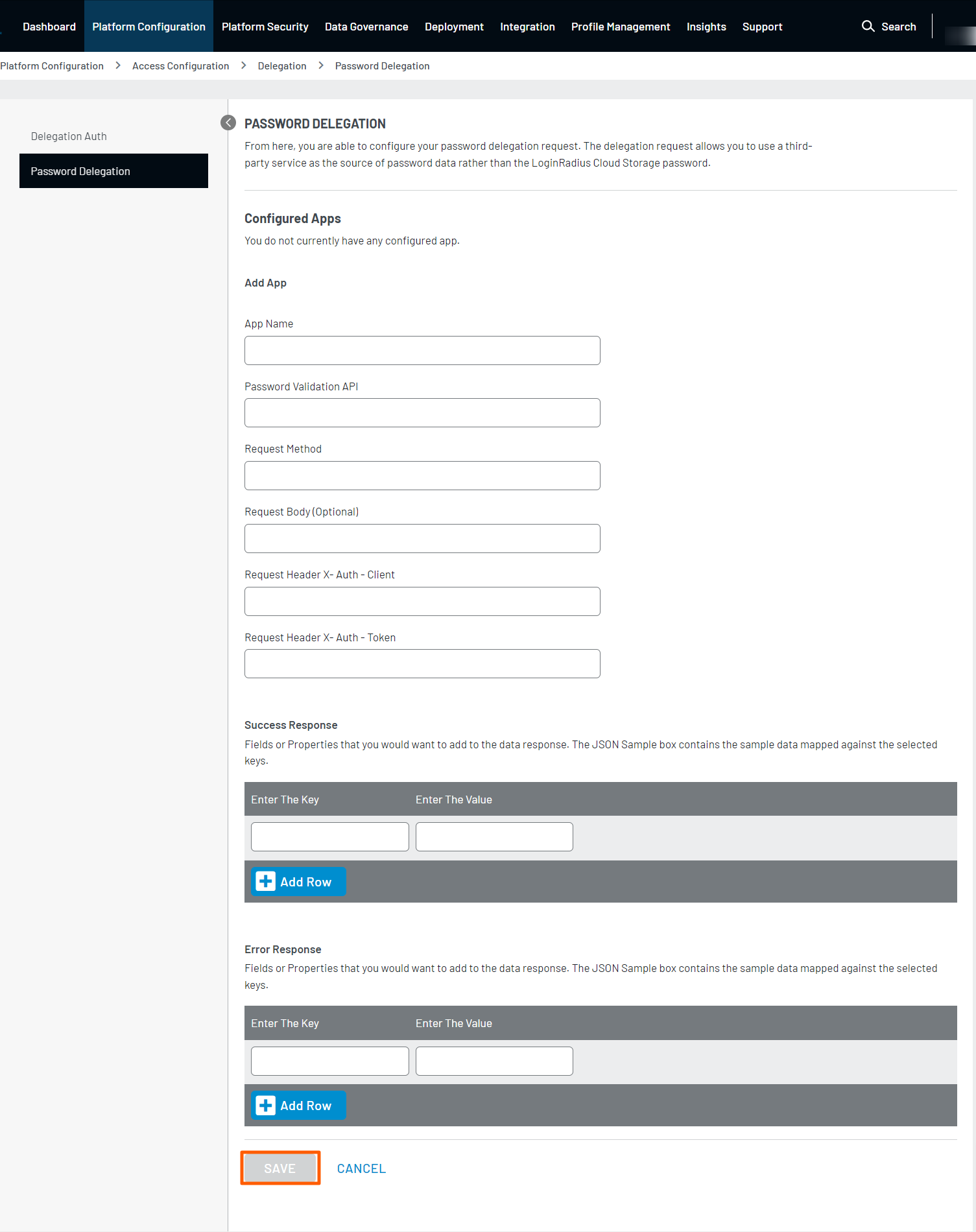
Step 3: Add the following information in the respective fields:
- App Name: This will be the name used to identify the specific Password Delegation app. It is a required field as LoginRadius supports multiple parallel delegations if you are migrating customers from various properties.
- Password Validation API Endpoint: This is set as the API's endpoint to handle the password verification.
- Request Methods: Method used by the password validation API. For example, Get and Post.
- Request Headers: (Optional) If the Password Validation API requires any headers, you can add that here.
- Request Body: If password delegation requires a body (payload) to be submitted in the request, it can be added here.
- Success Response Mapping: Enter the success message field name as the key, and response as value. To add multiple success message Keys and Values, click the Add Row button, a new row appears where you can add the details.
- Error Response Mapping: Enter the Error message field name enter the key and the value in the response. To add multiple error message Keys and Values, click the Add Row button, a new row appears where you can add the details.
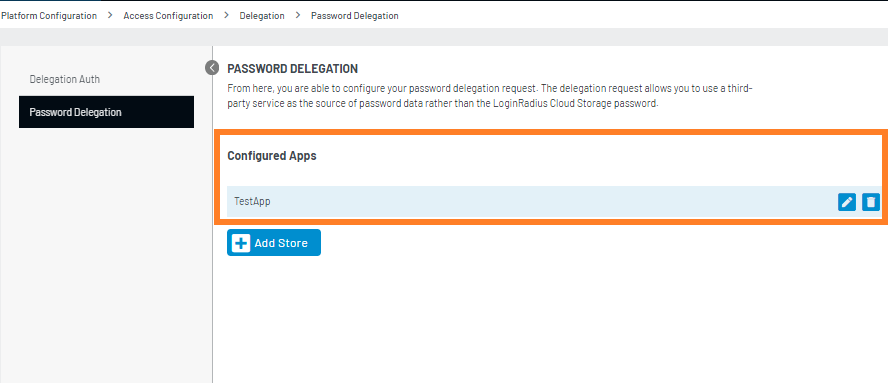
Step 4: Click the Save button to configure the password delegation API for your desired third-party app, and it will be added as displayed in the below screen.
Part 2 - Password Delegation Configuration for BigCommerce
This section explains how you can configure the LoginRadius Password Delegation API for BigCommerce to validate the login credentials. The following are the configuration steps:
Step 1: Add the following requested information in the respective fields:
- App Name: Enter your Password Delegation App name, it should be the store Id of Bigcommerce.
- Password Validation API Endpoint: Enter
https://api.bigcommerce.com/stores/<Your Bigcommerce Store Id>/v2/customers/#CUSTOMERID#/validate - Request Methods: POST
- Request Body:
{"password":"#PASSWORD#"} - Request Header X-Auth-Client: Enter your BigCommerce X-Auth_Client from the BigCommerce account.
- Request Header X-Auth-Token: Enter your BigCommerce X-Auth_Token from the BigCommerce account.
- Success Response: Enter 'SuccessMessage' in Key and 'Success' in Value.
- Error Response Mapping: Enter 'ErrorMessage' in Key and 'Error' in Value.
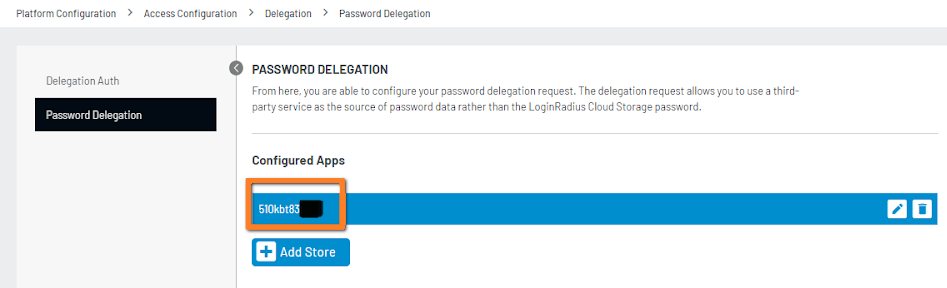
Step: 2 Click the Add button to create a Password Delegation API configurations and the created app will be displayed as highlighted in the screen below:
Note: Important for Data Migration
To enable BigCommerce for Password Delegation, after exporting customer data from big commerce during migration customerid and storeid will be migrated with LoginRadius User Profile. You can also update the ExternalIds through the Account Update API
"ExternalIds": [
    {
        "Source": "BigCommerce-{storeId}",
        "SourceId": "Bigcommerce CustomerId"
    }
]
Part 3 - More Information on API Call
The following table displays the Password Delegation API’s endpoint and related information:
| Data | Value |
|---|---|
| Endpoint | https://cloud-api.loginradius.com/sso/passworddelegation/api |
| HTTP method | POST |
| Query Parameters | apikey (LoginRadius API Key) and apisecret (LoginRadius Secret Key) |
| POST body | {"Passworddelegationapp":" < LoginRadius Password Delegation App Name >","loginid":"< emailid or phone no of migrated user >", "Password":"< Bigcommerce Password >"} |
| Header | Content-type:application/json |
Part 4 - Next Steps
The following is the list of documents you might want to look into: