Delegation Authentication
This concept is useful when you want to establish SSO among applications that have different login form fields. The Delegation Auth API is used to integrate the LoginRadius Authentication APIs with the existing login setup on your application(s). This is achieved as described below:
- Map the existing login inputs into a format recognized by the LoginRadius Authentication APIs, as explained in the Configuration section.
- And then map the Authentication API's JSON profile output into a format that your application’s existing configuration can consume.
The Delegation Login API works the same way as the Auth Login By Email API and requires the same input parameters.
Delegation Auth Guide
This guide will take you through the process to set up and implement the Delegation Authentication feature for login at a third-party or your own application that doesn't want to customize the existing login setups.
For example, let’s suppose you have separate login forms for each of your applications xyz.com, abc.com, and 123.com.
- For the above websites, the login fields are different, i.e., the combination of User Id - Password for xyz.com, Login Id - Password for abc.com, and Email Id - Password for 123.com.
- In the LoginRadius Admin Console, you can create a Delegation Login app for each form and map the input fields on the forms with the Delegation Login API input parameters as per your login requirements.
- Similarly, you can map the response to return fields with desired names to the forms.
This way, you can leverage the Delegation Login API to authenticate a customer with the current field names and implement the LoginRadius API seamlessly on your forms for establishing the SSO among these three applications.
Part 1 - Configuration
This section covers the required configurations that you need to perform in the LoginRadius Admin Console to configure your login delegation request.
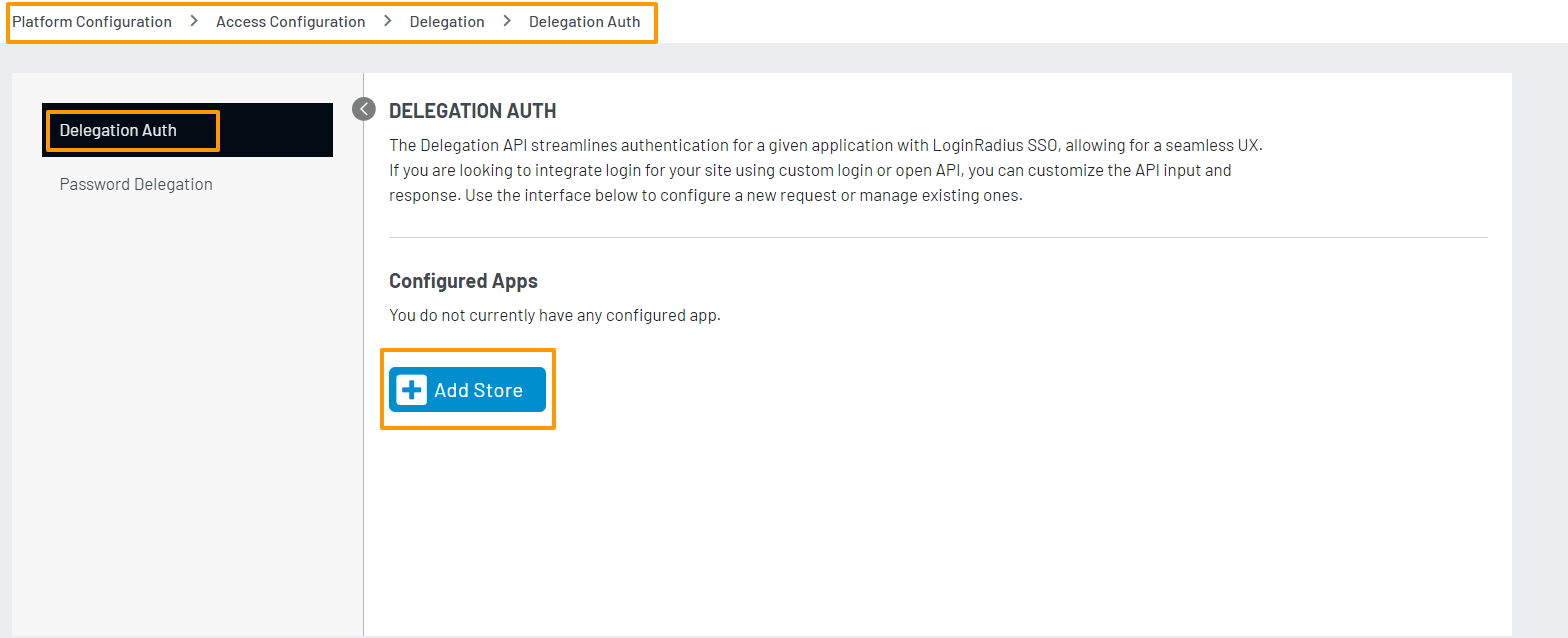
Step 1: Log in to your LoginRadius Admin Console and navigate to Platform Configuration > Delegation >Delegation Auth
The following screen will appear:
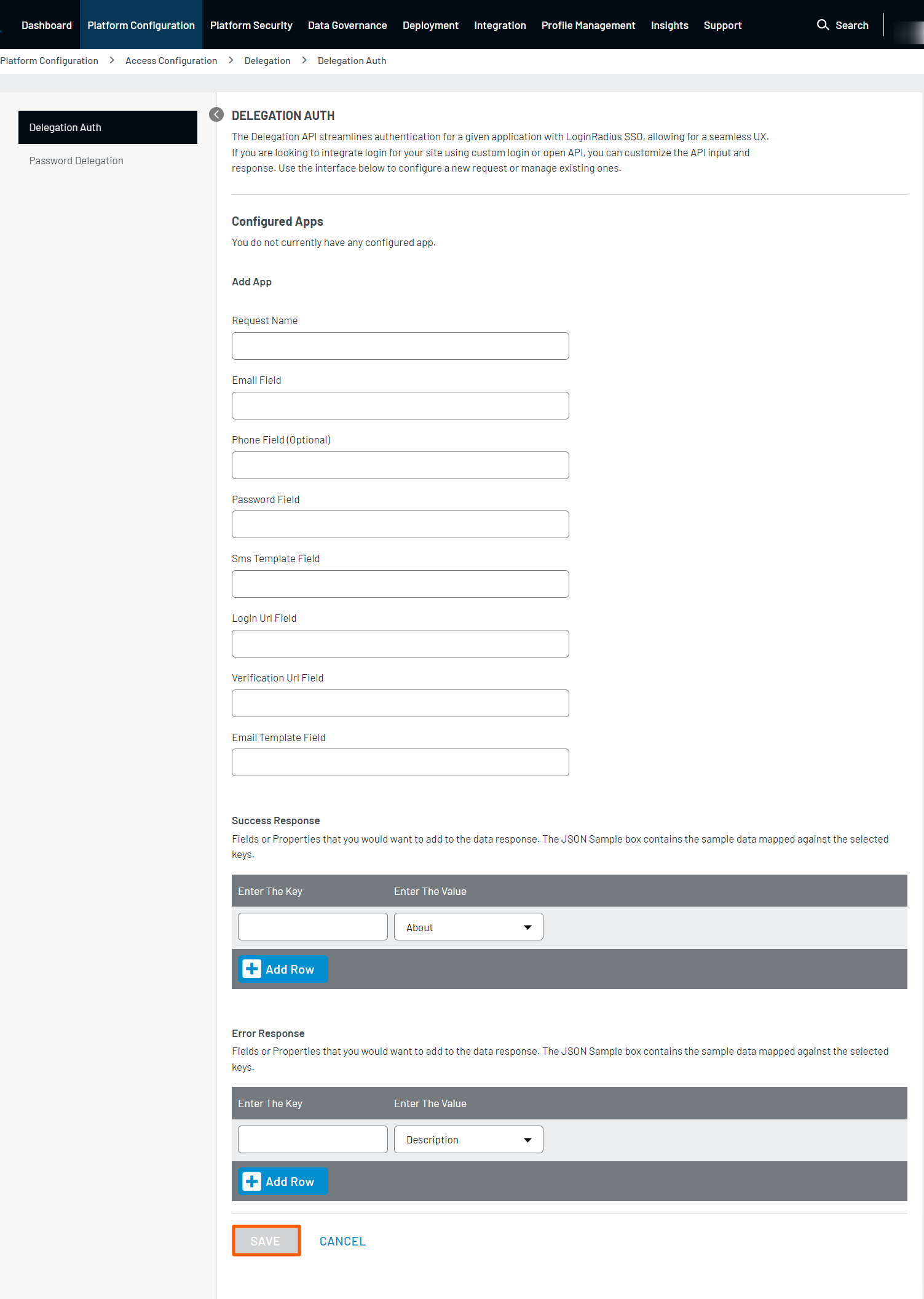
Step 2: Now add the following requested information in the respective field container.
 ]
]
-
Request Name: Enter a name for your delegation request. If you have multiple delegation requests, the name should be unique for each.
-
Request Field Mapping: Map the desired fields with the field key used in your application. The available list of fields is - Email Field, Phone Field, Password Field, SMS Template Field, Login URL Field, Verification URL Field, Email Template Field.
Note: These are the fields existing in the customer’s current application(s), which will be mapped with LoginRadius fields in further steps for delegation authentication.
- Success Response: Enter the fields and properties you would like to add to the success response sent back to the application. Where:
- Enter The Key: Mapped Field
- Enter The Value: LoginRadius Field Name
Similarly, by clicking the Add Row button, you can map multiple fields.
| Fields | Fields | Fields |
|---|---|---|
| ID | Favicon | Addresses |
| Provider | ProfileUrl | MainAddress |
| FirstName | HomeTown | Created |
| MiddleName | State | LocalCity |
| LastName | City | ProfileCity |
| FullName | Industry | LocalCountry |
| NickName | About | ProfileCountry |
| ProfileName | TimeZone | RelationshipStatus |
| BirthDate | LocalLanguage | Quote |
| Gender | CoverPhoto | Religion |
| Website | TagLine | Age |
| Language | Company | |
| Country | Verified | Uid |
| ThumbnailImageUrl | UpdatedTime | IsEmailSubscribe |
| ImageUrl | PhoneNumbers | NoOfLogins |
- Error Response: Enter the information for the fields and properties you would like to add to the error response. The allowed error response placeholders are Description, ErrorCode, IsProviderError, Message, and ProviderErrorResponse.
Step 3: Click the Save button to configure password delegation authentication for your desired third-party app.
After adding Delegation Login configurations in LoginRadius Admin Console, call the API from your page.
Here is the example for Get Delegation Login API :
https://cloud-api.loginradius.com/sso/logindelegation?apiKey=<YOUR LR APIKEY>&apiName=<Delegration apiname>&<map email-address name>=<email>&<map password field name>=<password>
Note: In the above API endpoint,
<map email-address name> and <map password field name>are the mapped fields of existing login setup for the email and password values.
If the delegation authentication is required for multiple applications with different login forms, you must perform the above three steps for all applications.
Part 2 - More Information on API call
The following table displays the Delegation API’s endpoint and related information:
| Data | Value |
|---|---|
| Endpoint | https://cloud-api.loginradius.com/sso/logindelegation |
| HTTP method | GET/POST |
| Parameters | apikey and apiName if Get: password and email |
| application/json | if post: { "password" : "password", "email" : email@loginradius.com" } |
Part 3 - Next Step
The following is the list of documents you might want to look into: