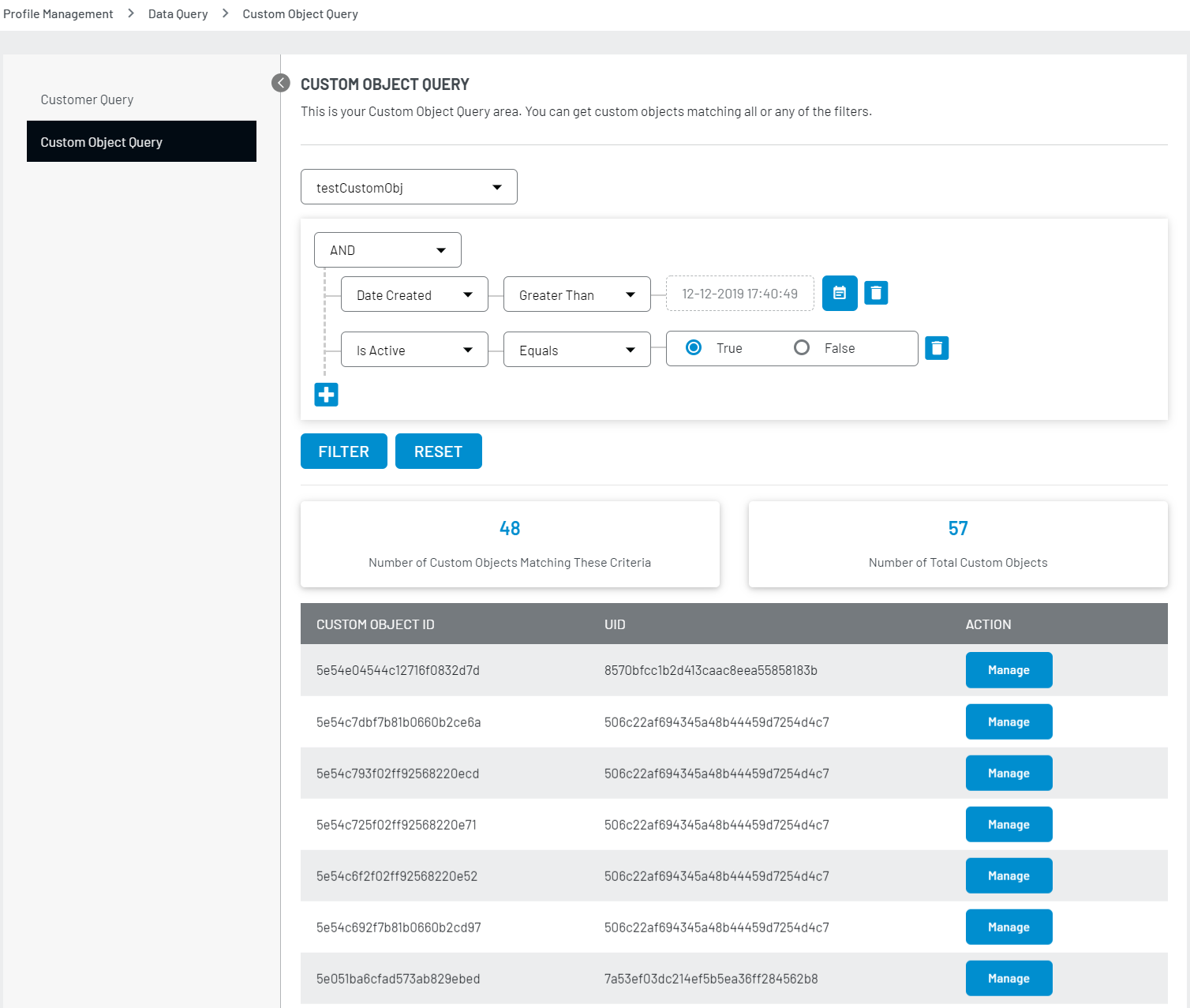
Custom Object Query
The Custom Object Query feature allows you to filter data of the customers based on the custom object fields. An example of a custom object query would be filtering through customers’ purchase history for a particular item and filtering for a related item on their wishlist.
The following explains how you can create a customer object query:
Step 1: Log in to your Admin Console account and navigate to Profile Management > Data Query and select Custom Object Query from the left navigation panel.
The following screen will appear:
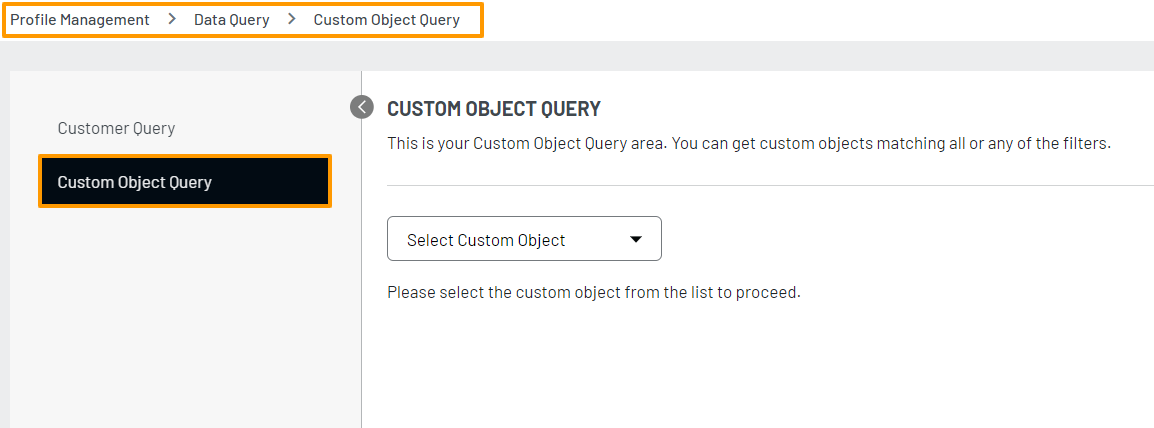
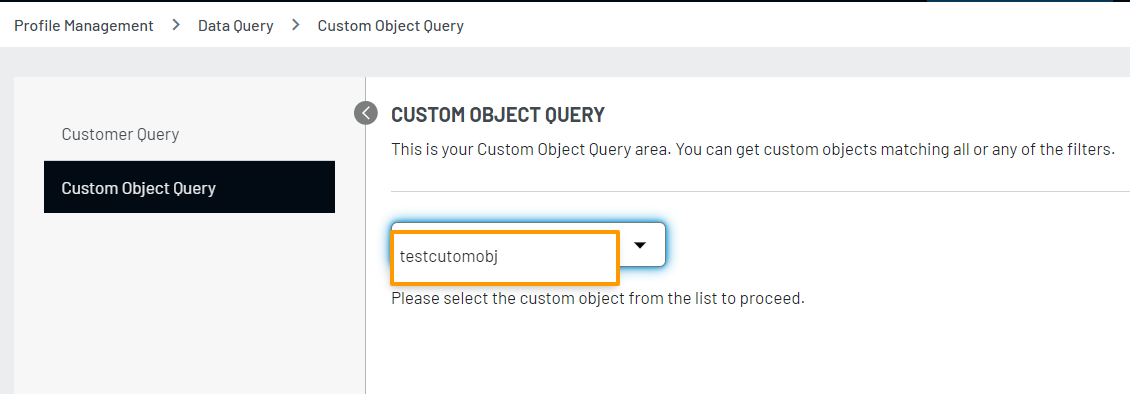
Step 2: Select the Custom object from the drop-down list for which you want to filter the customer data.
Step 3: Select the desired condition from the drop-down (And/OR) and click the + icon, the Rule and Operator selectors appears on the screen as displayed below:
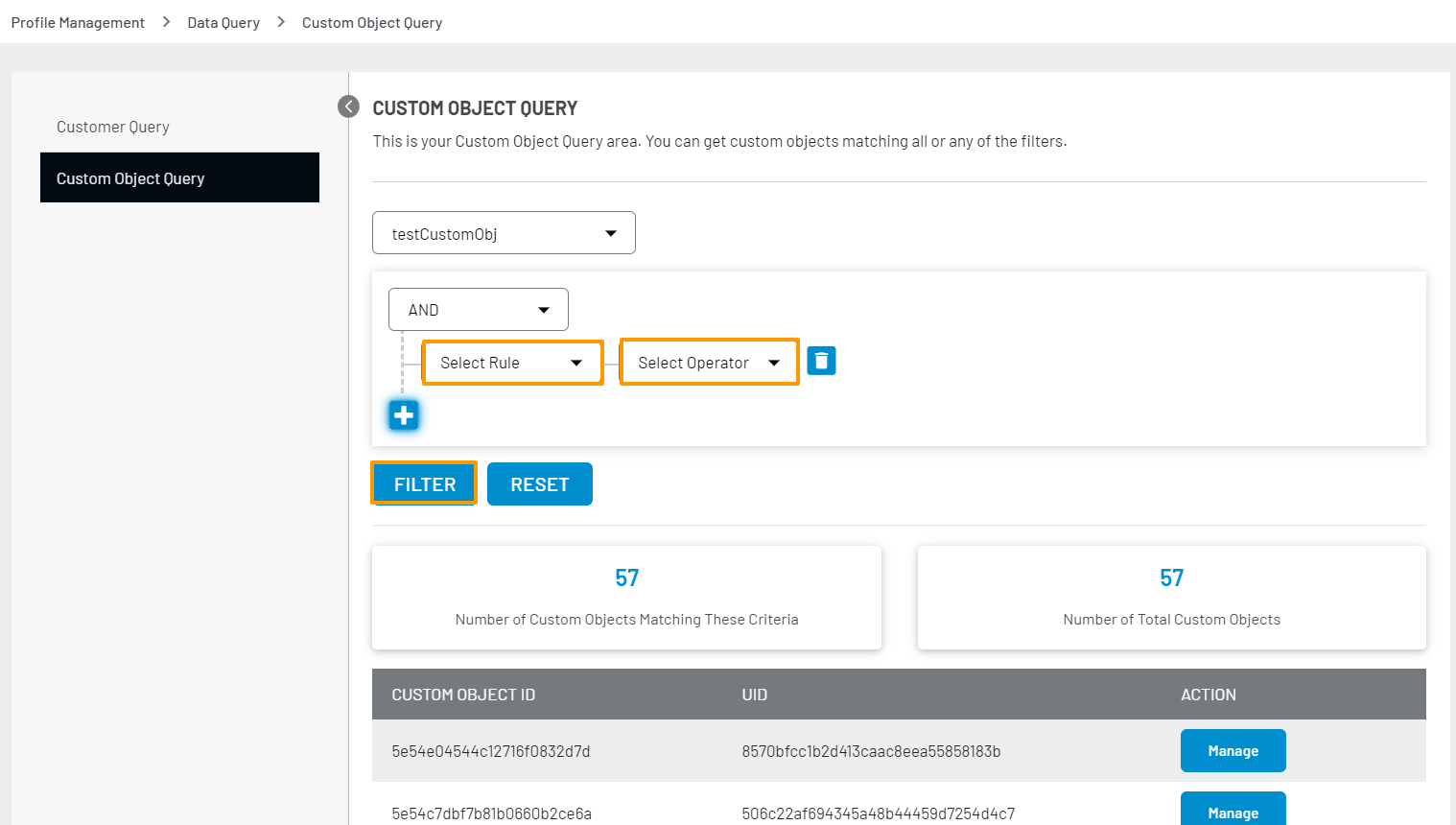
The selected And or OR logical operator is applied to the conditions created in step-4.
Step 4: Select the Rule, and the further conditions populate accordingly on the screen. Select the options as per your requirements.
Similarly, you can add multiple conditions by clicking the + icon.
Step 5: Once you are done with adding the condition(s), click the filter button to view the results. The following screen displays an applied filter and results: