Identity Orchestration (IO)
The Identity Orchestration feature in LoginRadius empowers businesses to design and implement identity workflows tailored to their unique requirements. This capability enables the creation of user workflows, which can be tested and refined using IDX.
The following screen displays the initial screen of Identity Orchestration when clicked from the menu option. It will also display the default workflow(s) list.
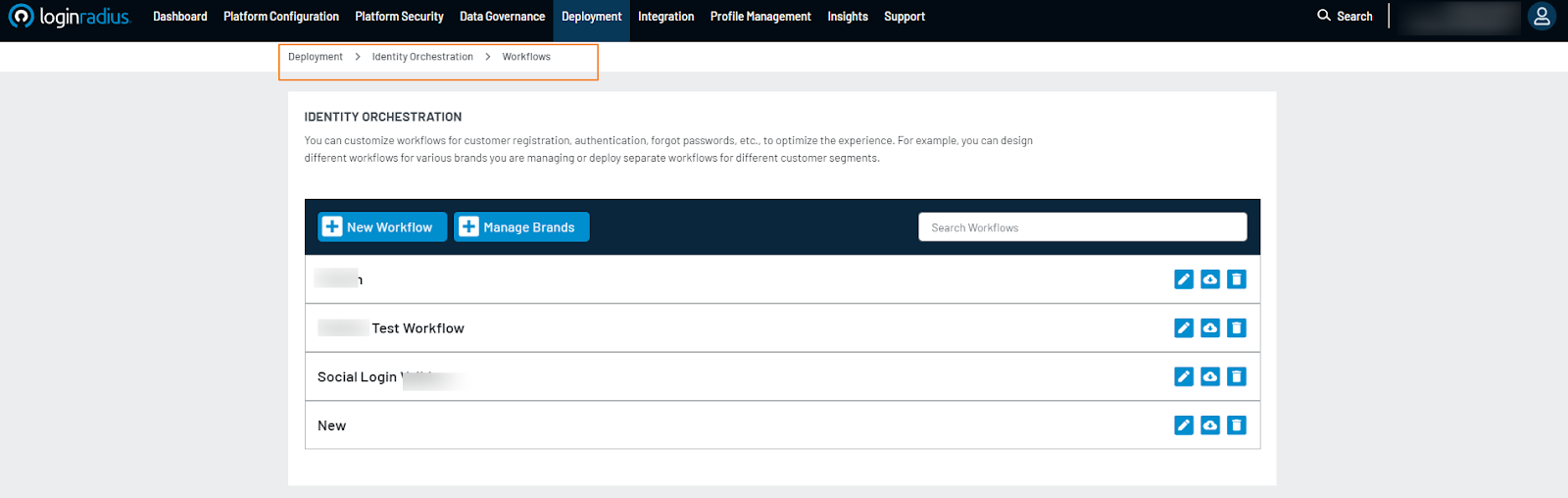
Key Features of the Screen:
- New Workflow: Allows you to create a new workflow by providing its Name and Description and choosing a brand. You can also select a template from the available options (such as eCommerce, Retail, or Utilities) to load the respective workflow templates.
- Manage Brands: Navigate to the brand configuration page.
- Search Option: Search for a workflow based on its name.
- Download Icon: Download the respective workflow in JSON format.
- Delete Icon: Delete the respective workflow, with additional confirmation required in the deletion confirmation pop-up.
- Edit Icon: Open the workflow in the editor. When clicked, it displays the workflow editor screen.
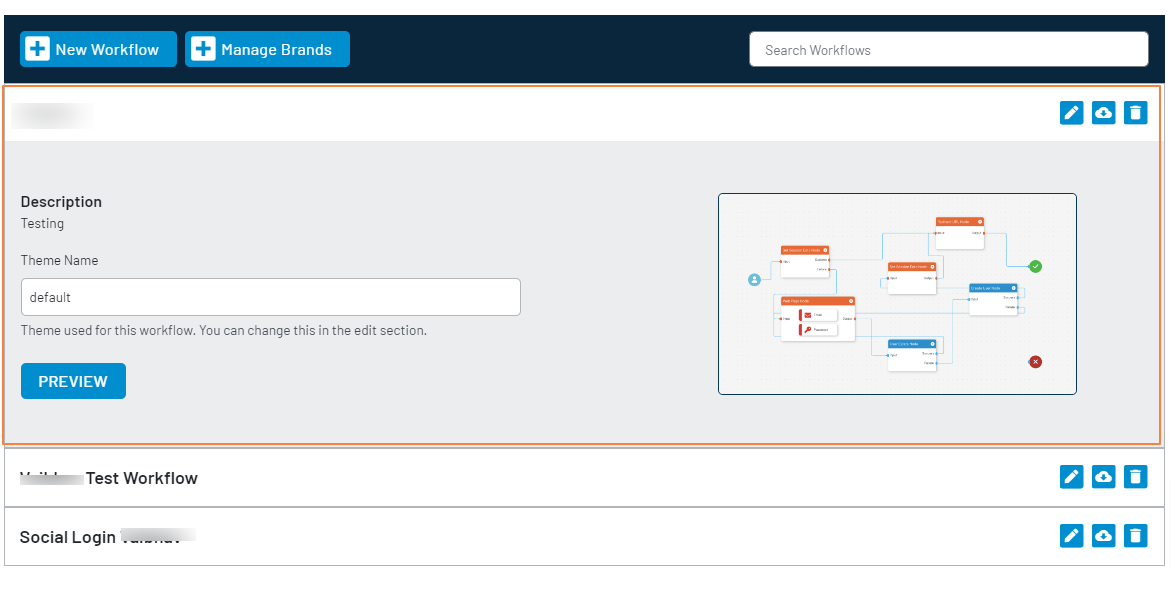
- Workflow Details: The accordion opens with workflow details when a workflow is clicked from the list.
New Workflow
This section allows you to create, test, and deploy a new workflow to optimize customer experience and security.
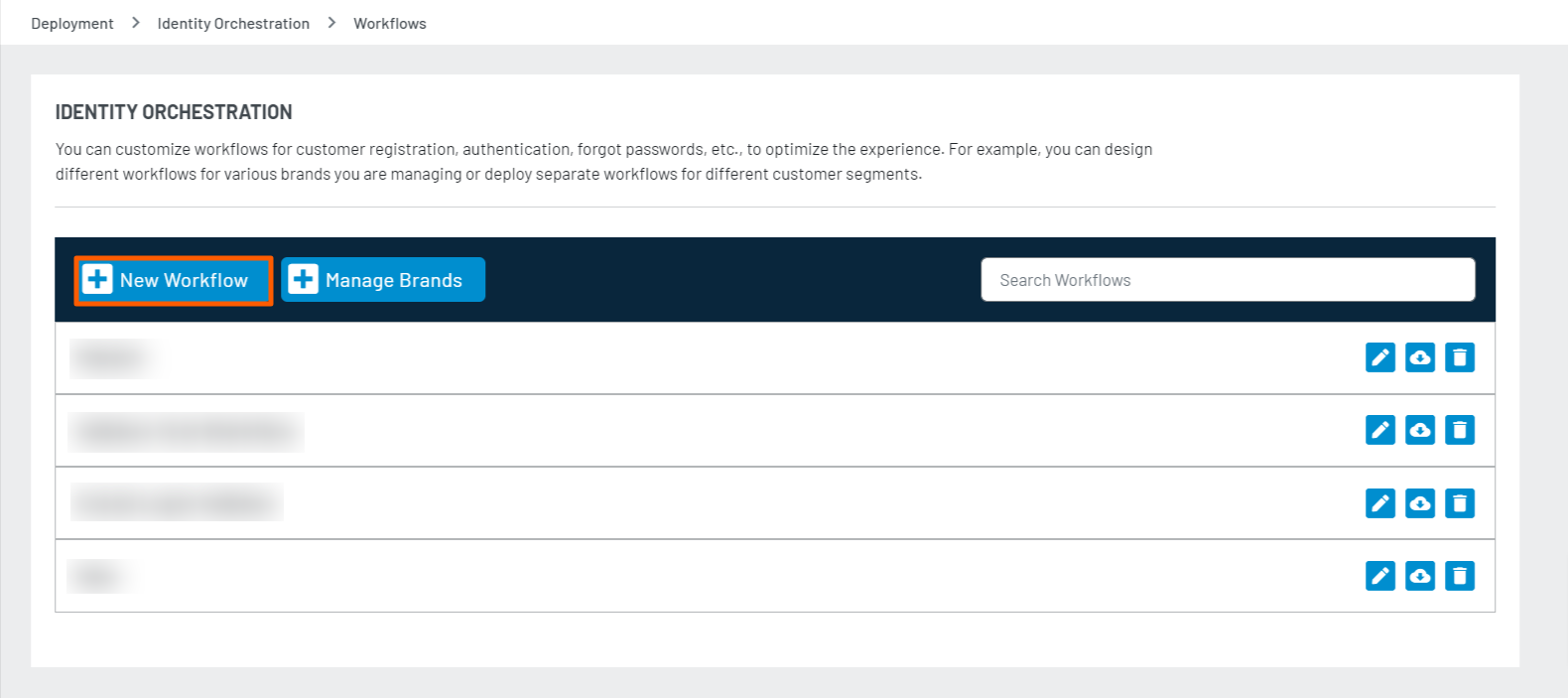
- Creating a New Workflow: You can create a new workflow by choosing from pre-made templates, uploading a JSON file, or starting from scratch in the Workflow Builder. The following screen appears when you click the New Workflow button from the Workflow List screen.
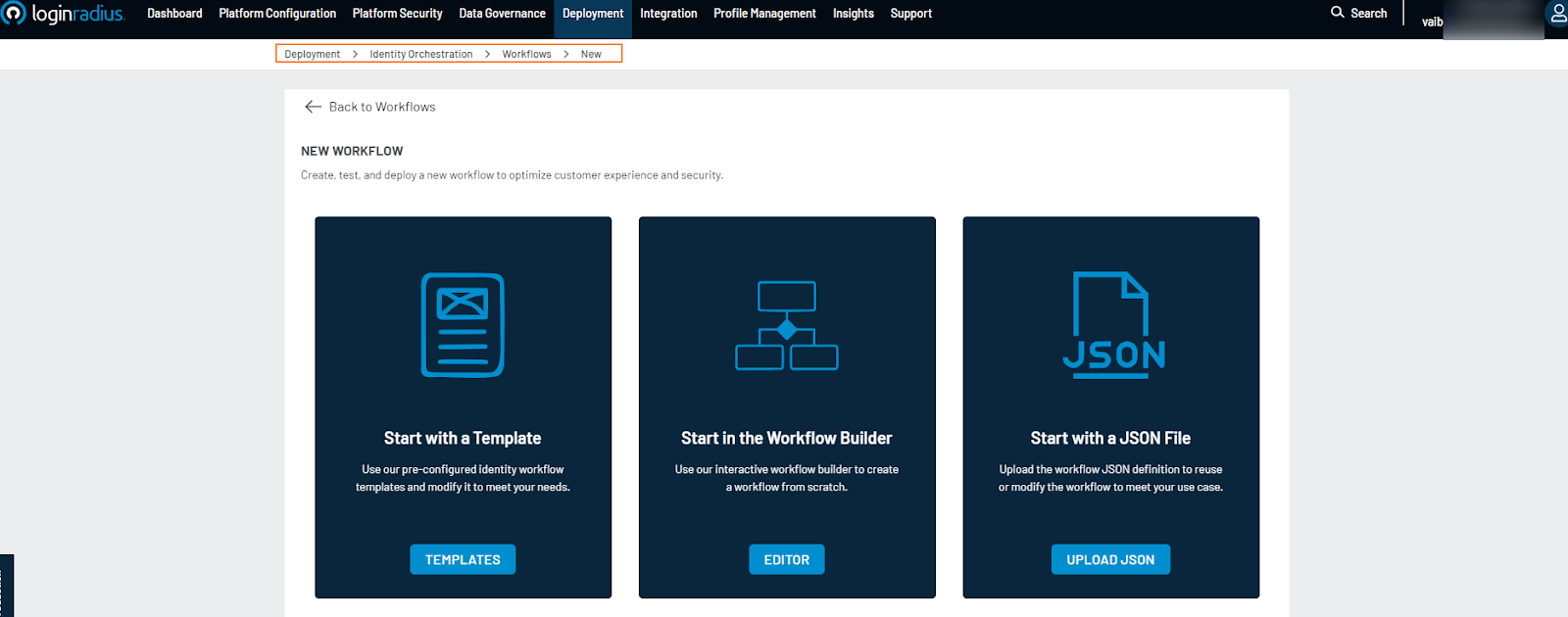
Workflow Creation Steps:
After selecting the desired option, you must provide a Workflow Name and Description and choose a brand according to your requirements.
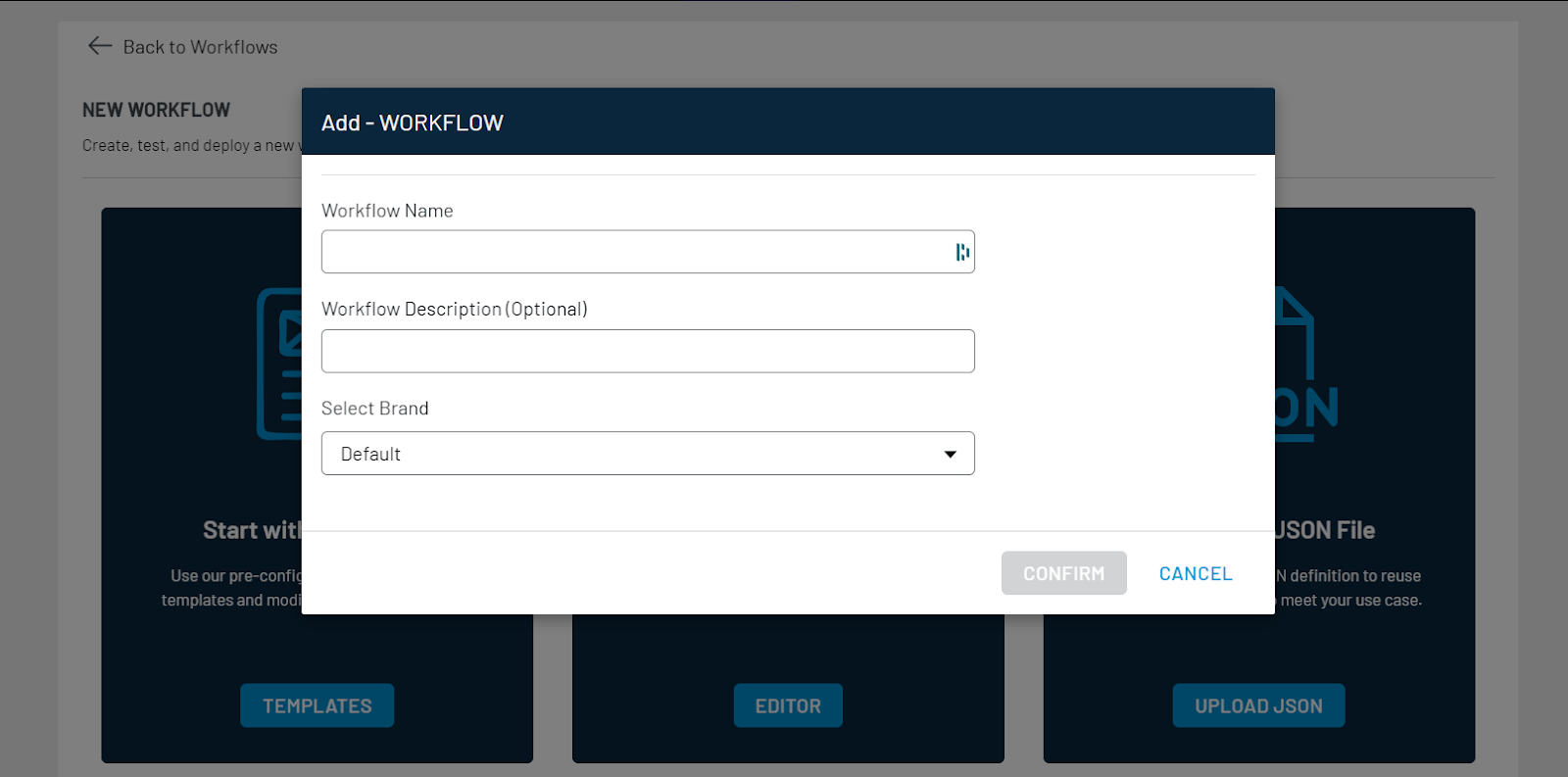
Once you click the Confirm button after providing the workflow-related details, you will be redirected to the workflow editor page.
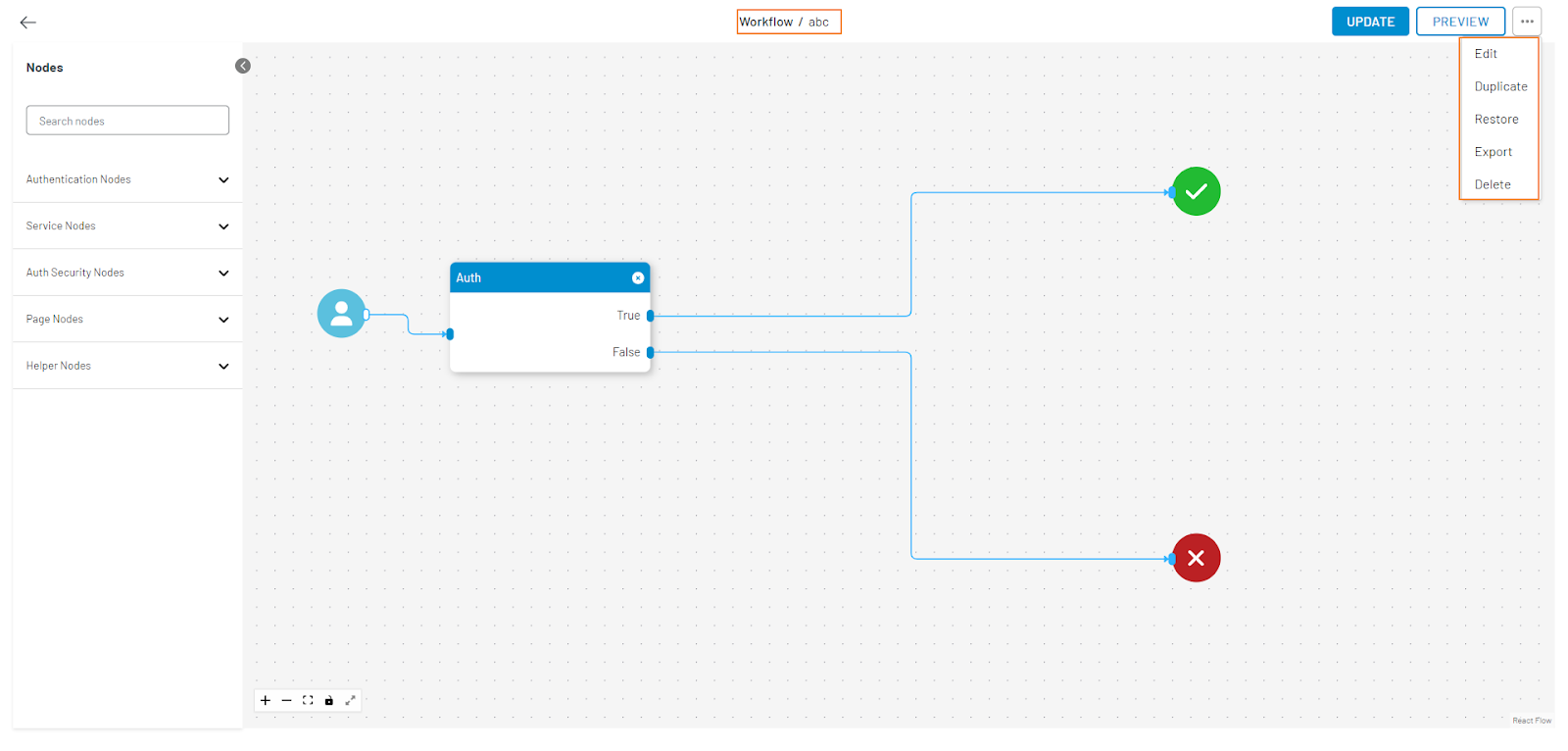
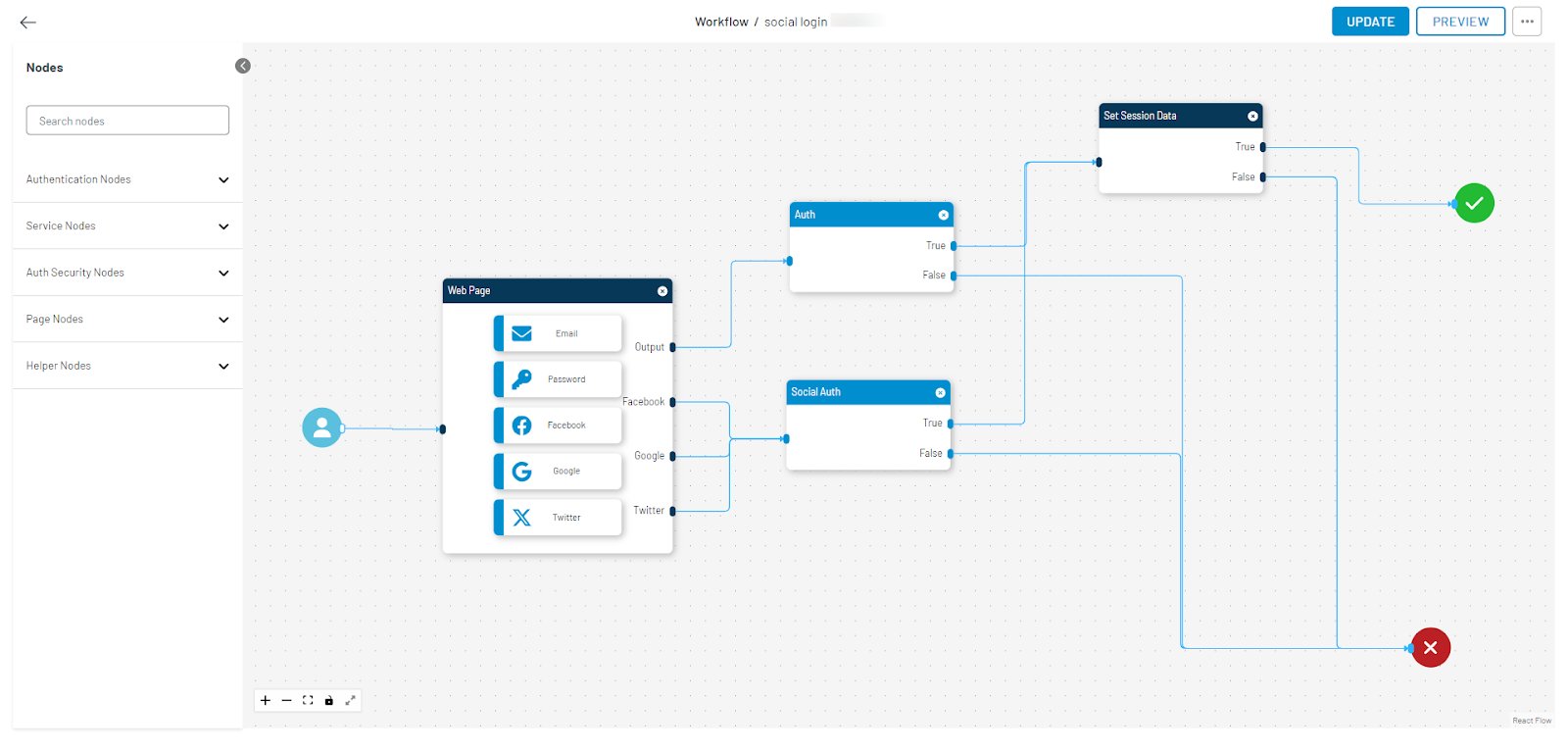
Workflow Editor Features:
- Workflow Label: Displays the current workflow name.
- Left Navigation: Displays the list of node tags, with the option to search for nodes based on the entered text. Each tag is expandable, displaying the list of all nodes within it.
- Zoom Options: Available to zoom in or out of the editor section.
- Fullscreen Option: Use the editor in full-screen mode or exit it.
- Delete Option: Remove a selected node from the workflow editor.
- Workflow Editor Section: Displays the workflow nodes in editable mode. You can save or activate the flow.
- Update Button: Saves the workflow and displays a generic error message if any node is not configured properly.
- Preview Button: When clicked, a pop-up will appear, where you must select the details requested from the available drop-down menu.
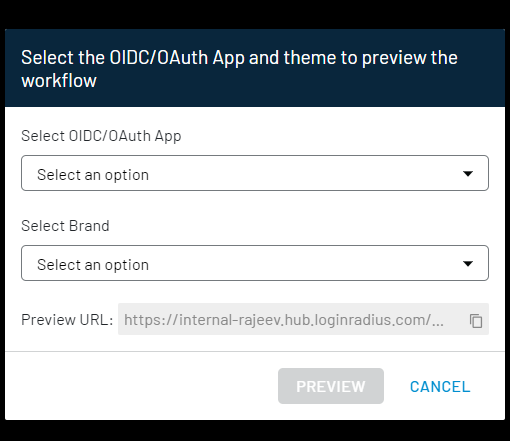
The preview URL displays the URL of the current workflow with the copy option to preview it in the browser. It is recommended that the workflow URL be previewed in incognito mode.
Additional Options in the Right-Side Top-Corner Dropdown:
- Edit: Edit the name and tag of the workflow.
- Duplicate: Duplicate the workflow.
- Restore: Reset the workflow to its initial stage.
- Export: Export the workflow, with a notification to download any dependent workflow (e.g., a child flow within the main workflow).
- Delete: Delete the workflow, with deletion only occurring after confirmation.
Node Properties
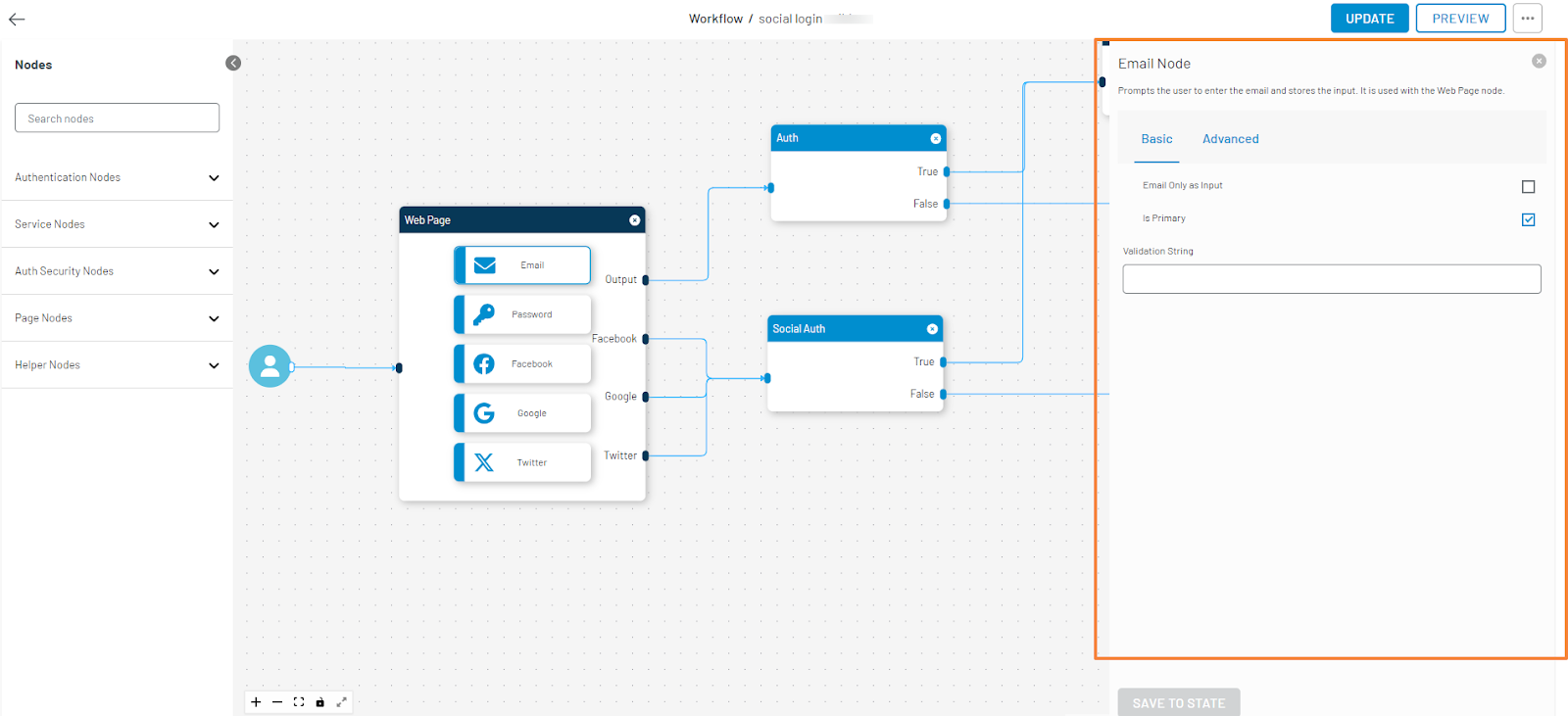
The following screen displays the properties of a selected node in the right section (highlighted). Only one property of one selected node is shown at a time.
Manage Brands
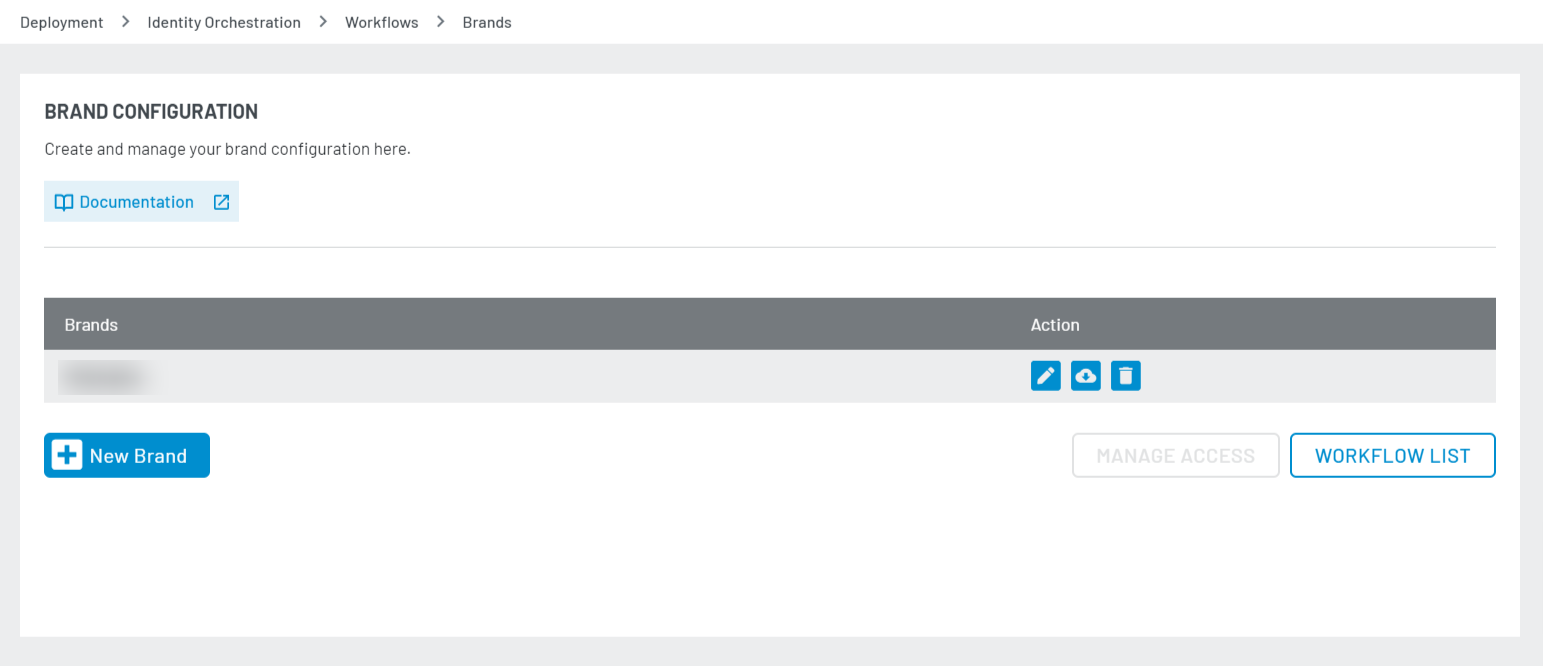
This section helps you create and manage your brand configurations. Below are the steps to create a new brand:
-
Brand Configuration Screen: The following displays when you click the Manage Brands button from the Workflow List screen.
-
New Brand Button: Click and select the template that fits your requirements. Once clicked, the following screen will display:
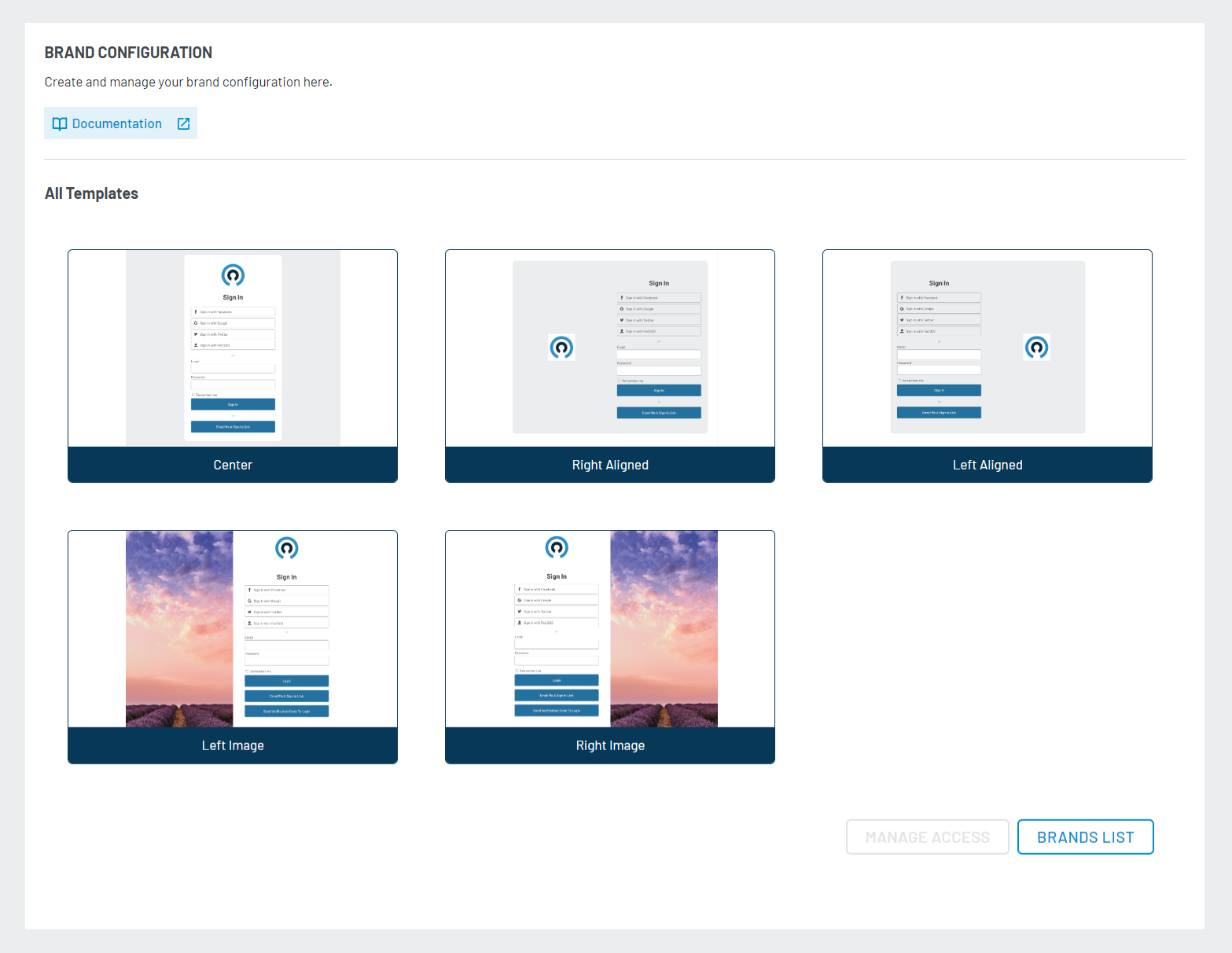
Note: The Manage Access button redirects you to the Admin Console's existing Team Management screen, where you can manage brand-wise access for existing team members or add new team members if needed.
-
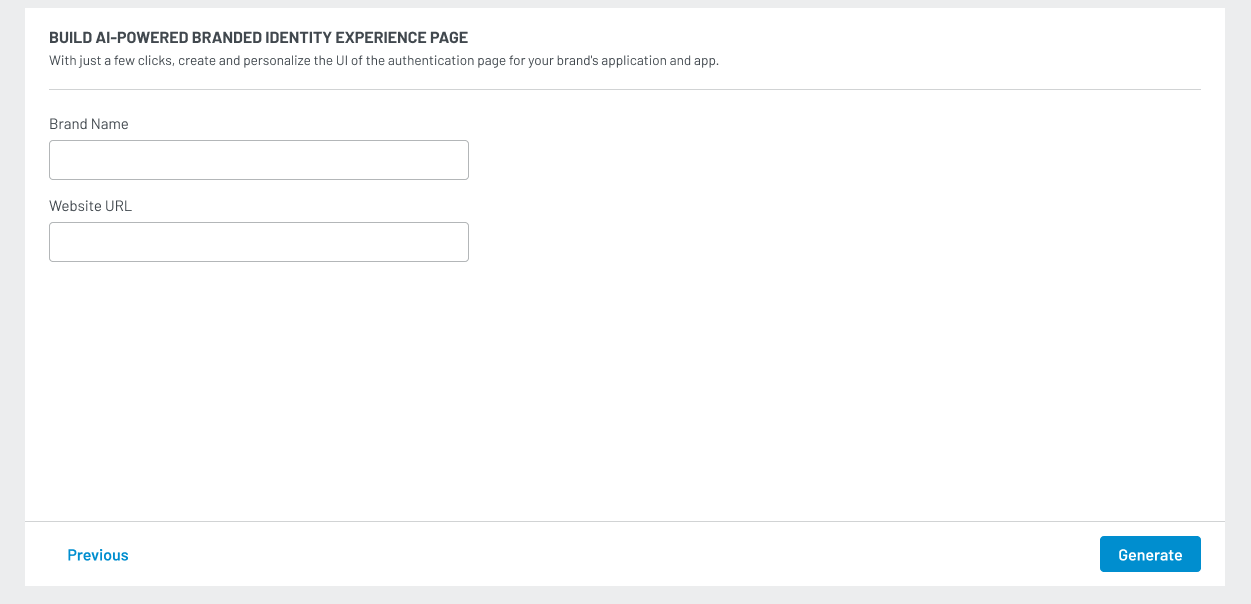
Brand Name and Website URL: After selecting the template, enter the Brand Name and Website URL. LoginRadius will automatically pick the Logo and Color theme of the desired brand.
-
Generate Button: Clicking this button fetches the necessary details and displays them on the screen. The right panel (highlighted) showcases a UI demo according to the fetched or added details.
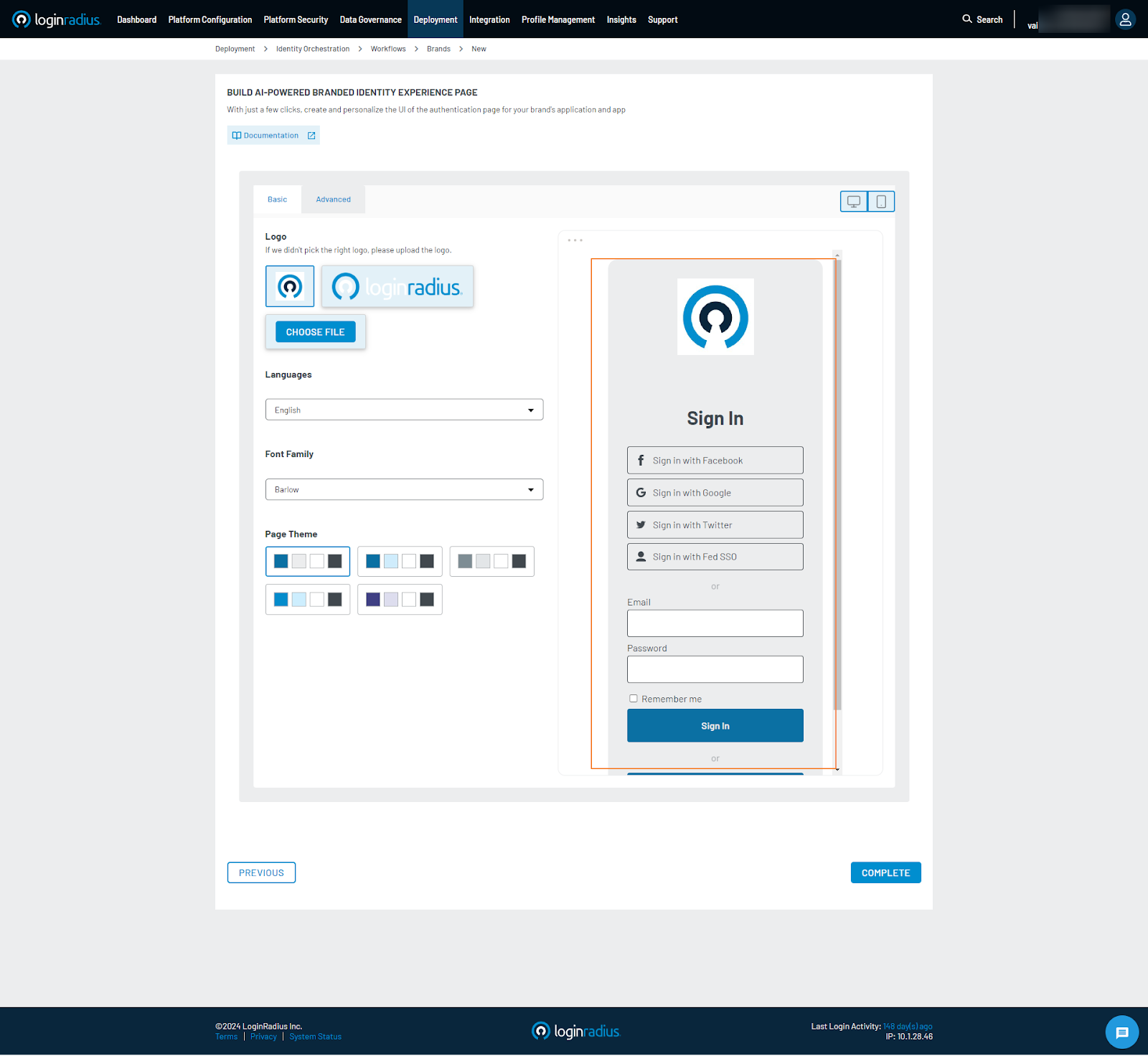
Note: You can modify these auto-fetched details if needed.
- Advance Tab: Clicking this tab will display advanced customization options.
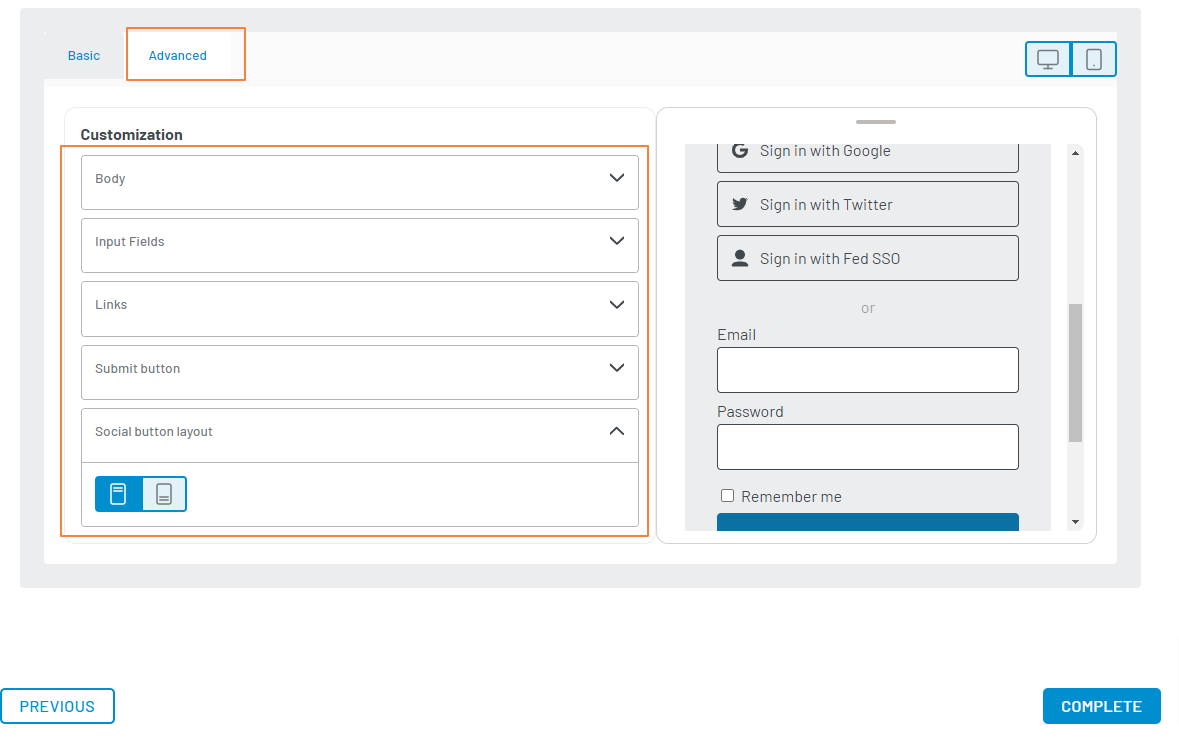
Style Options in the Advance Tab:
- Body: Background Image, Background Color, Text Color, Font Family.
- Input: Background Color, Border Color.
- Links: Link Color.
- Submit Button: Background Color, Text Color.
- Social Button Layout: Toggle between the social button layout options.
- Complete Button: Click to be redirected to the Brand Configuration screen.