Provider Analytics
- Use the calendar feature on the left to select the time period that the charts and statistics will reflect.(maximum for 90 days)
- Use the domain selector in the middle to choose which domain’s data should be reflected in the charts and statistics. You can select either a single domain or multiple domains.
- Use the User Profiles or Accounts selection on the right to choose whether the analytics should reflect user profiles or user accounts.
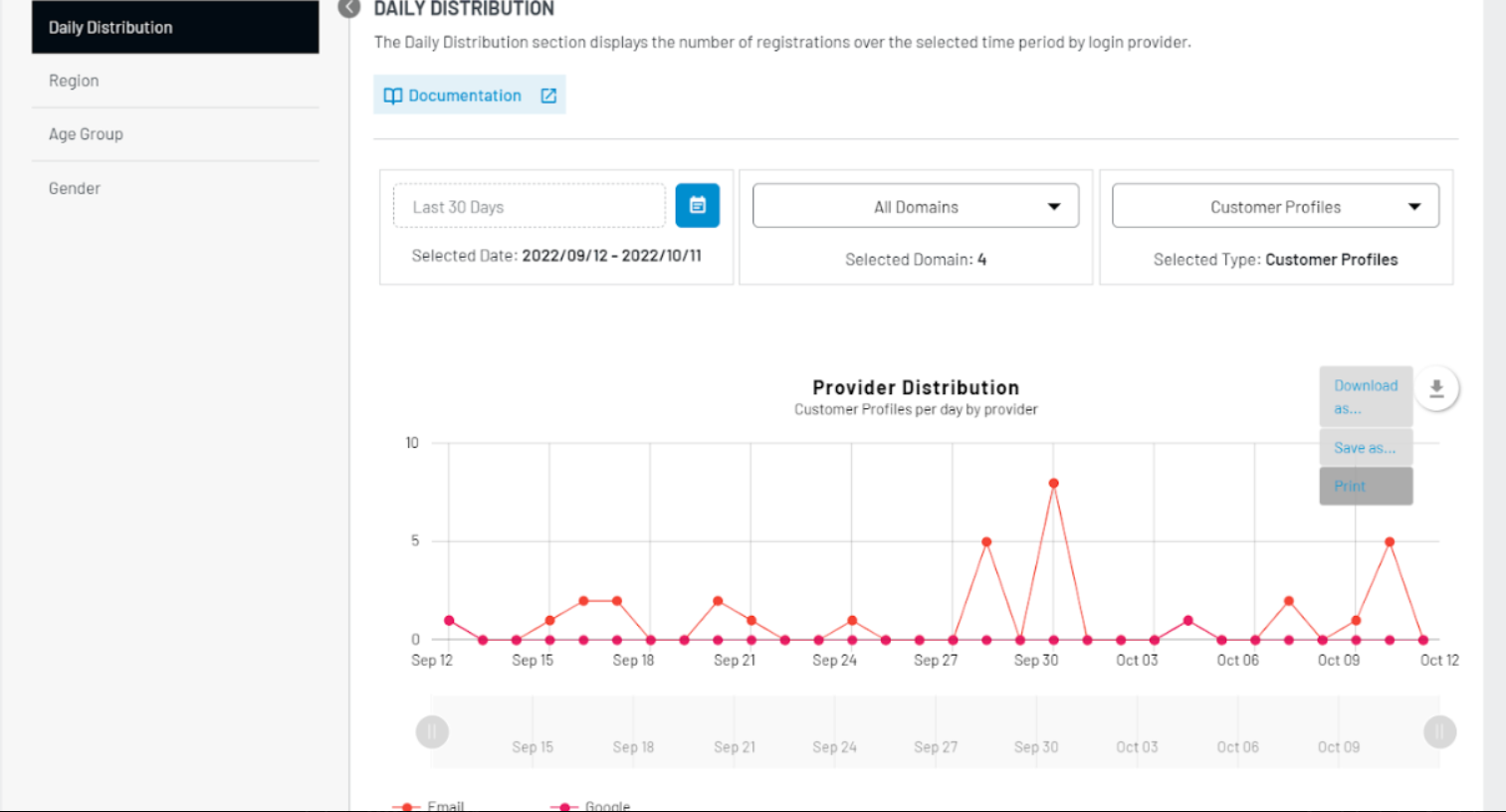
- All charts can be exported, saved, or printed by clicking on the download button in the upper right hand corner of each chart.
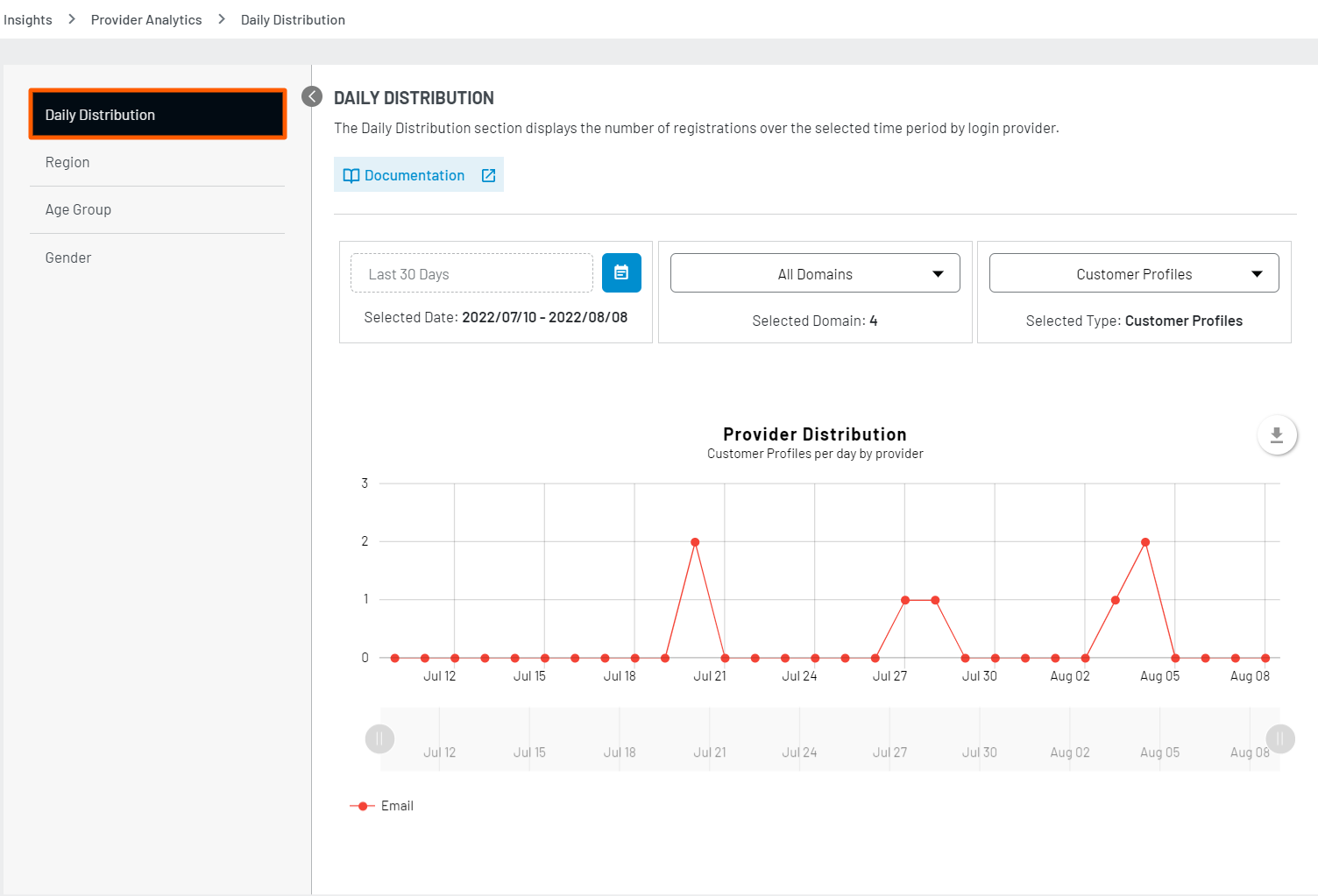
Daily Distribution
This chart displays the number of registrations per day based on the login provider - this helps to give you a better understanding of your users’ provider preferences.
Region
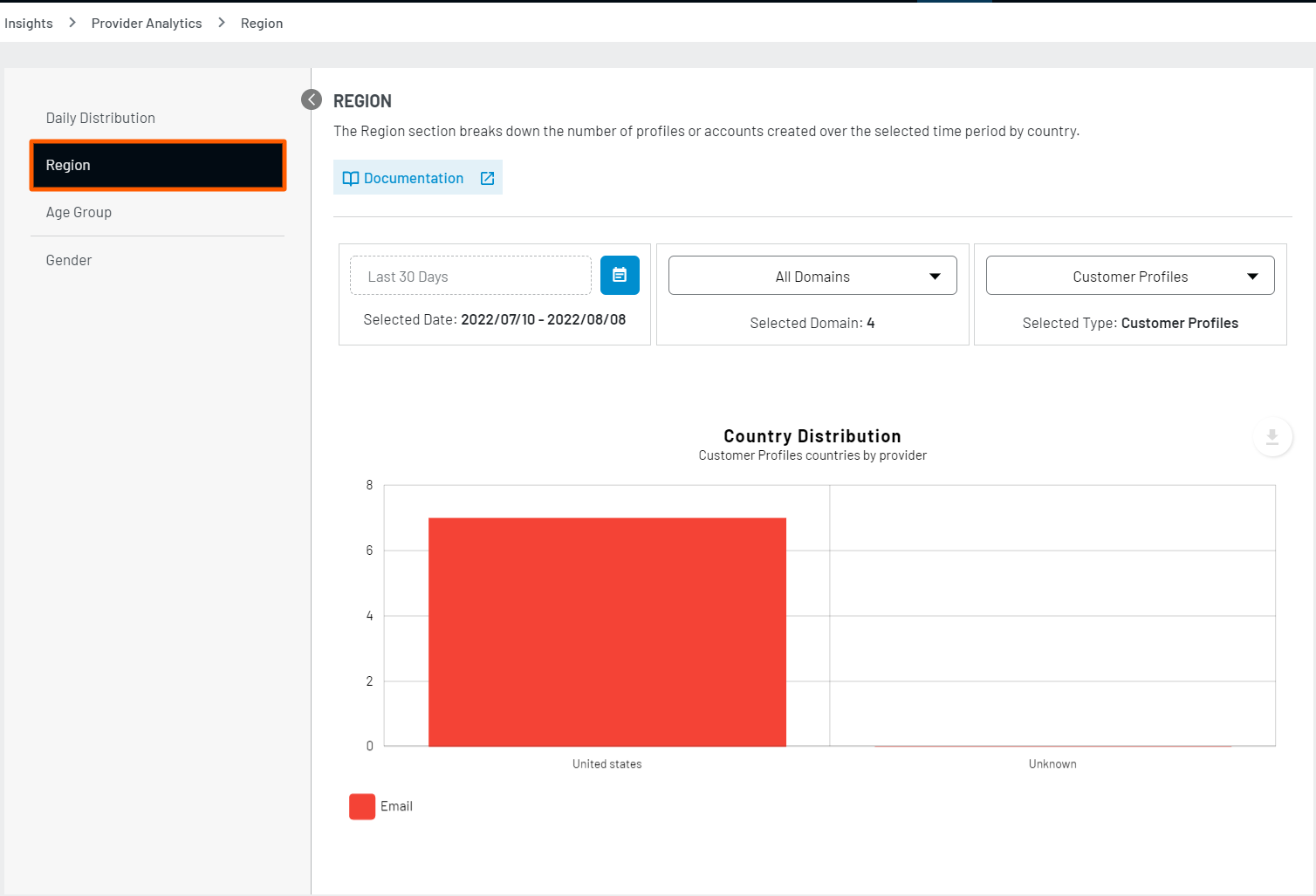
This chart breaks down the number of profiles or accounts created over the selected time period by the country listed for a clear view of where your users are located geographically.
Age Group
This chart displays the age demographics for your site. Of all of the profiles and accounts created within the selected time period, this will tell you how many are in each age range.

Gender
This chart displays the gender demographics for your site to show the gender distribution of the users who have registered during the chosen time period. Click the coloured squares to disclude a given grouping.

Steps to download Insights
LoginRadius also provides a feature to download all the data in the form of graphs and charts according to the requirements in multiple formats such as images, CSV, XML, and etc. You can directly get this data in the form of hard copy by using print feature.
When clicking on any of these mentioned file formats, the graphs file will automatically start to download on your local device.
Image Format
On clicking “Download as” you will be presented with multiple option such as:
- .PNG
- .JPG
- .SVG

Document Format
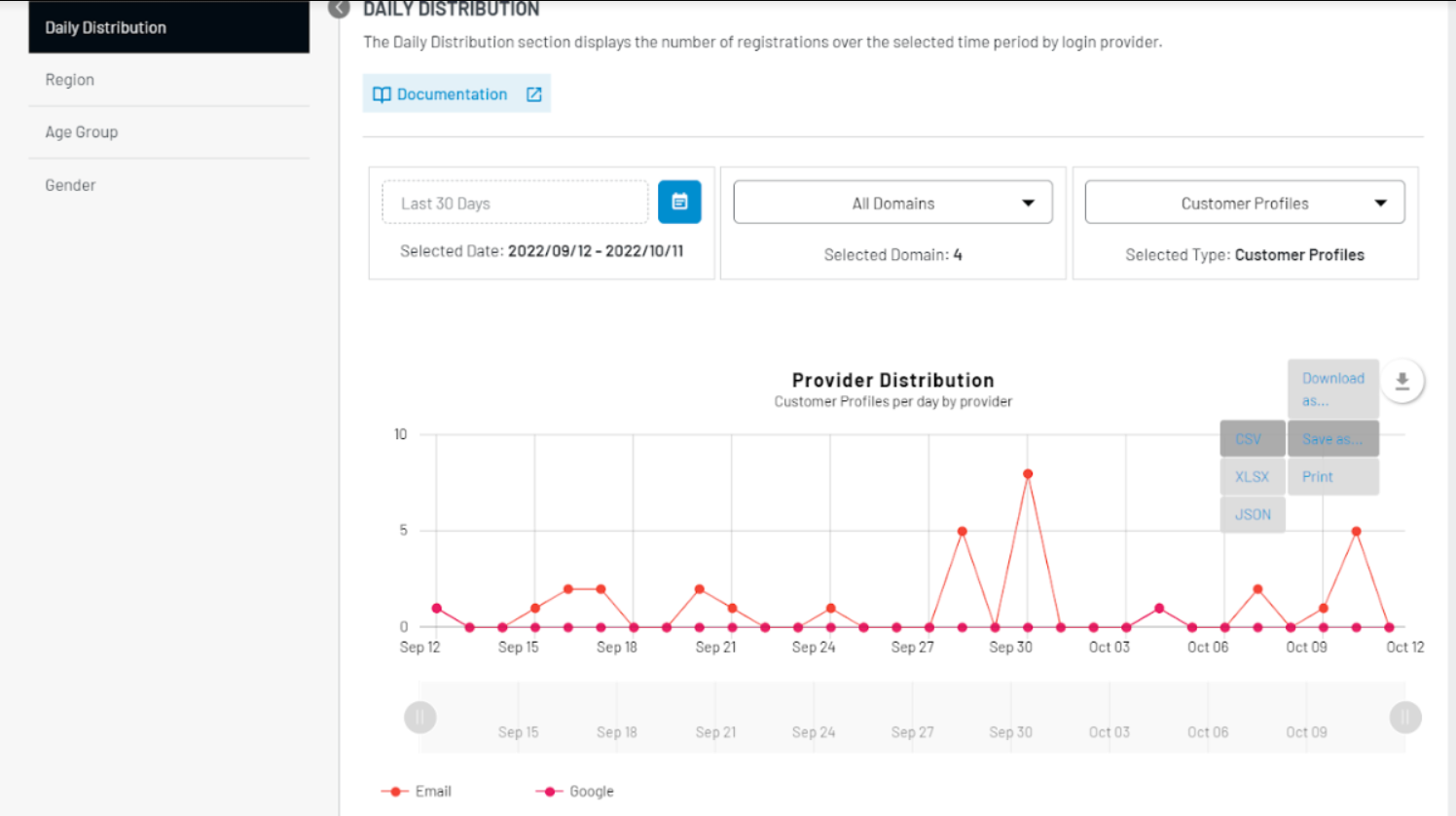
On clicking “Save as..”, other options will appear providing benefit of downloading the files in document format as well such as:
- .CSV
- .XLSX
- .JSON
As Print
If you are looking for physical copy of same, you can just click on third option “Print” and you will presented with option to print the same.