Comparative Analytics
- Use the calendar feature on the left to select the time period that the charts and statistics will reflect.
- Use the domain selector in the middle to choose which domain’s data should be reflected in the charts and statistics. You can select either a single domain or multiple domains.
- Use the User Profiles or Accounts selection on the right to choose whether the analysis should reflect user profiles or user accounts.
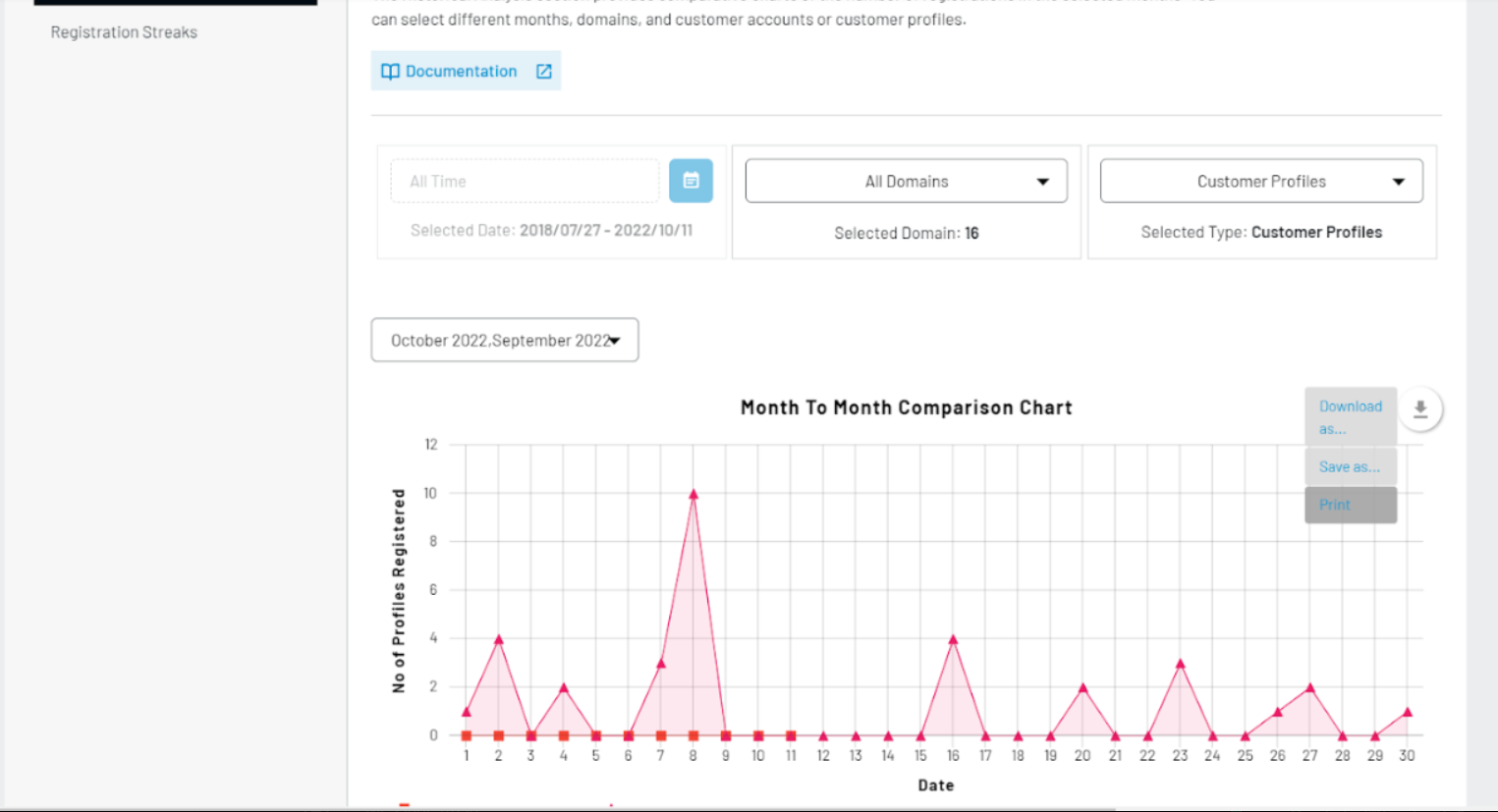
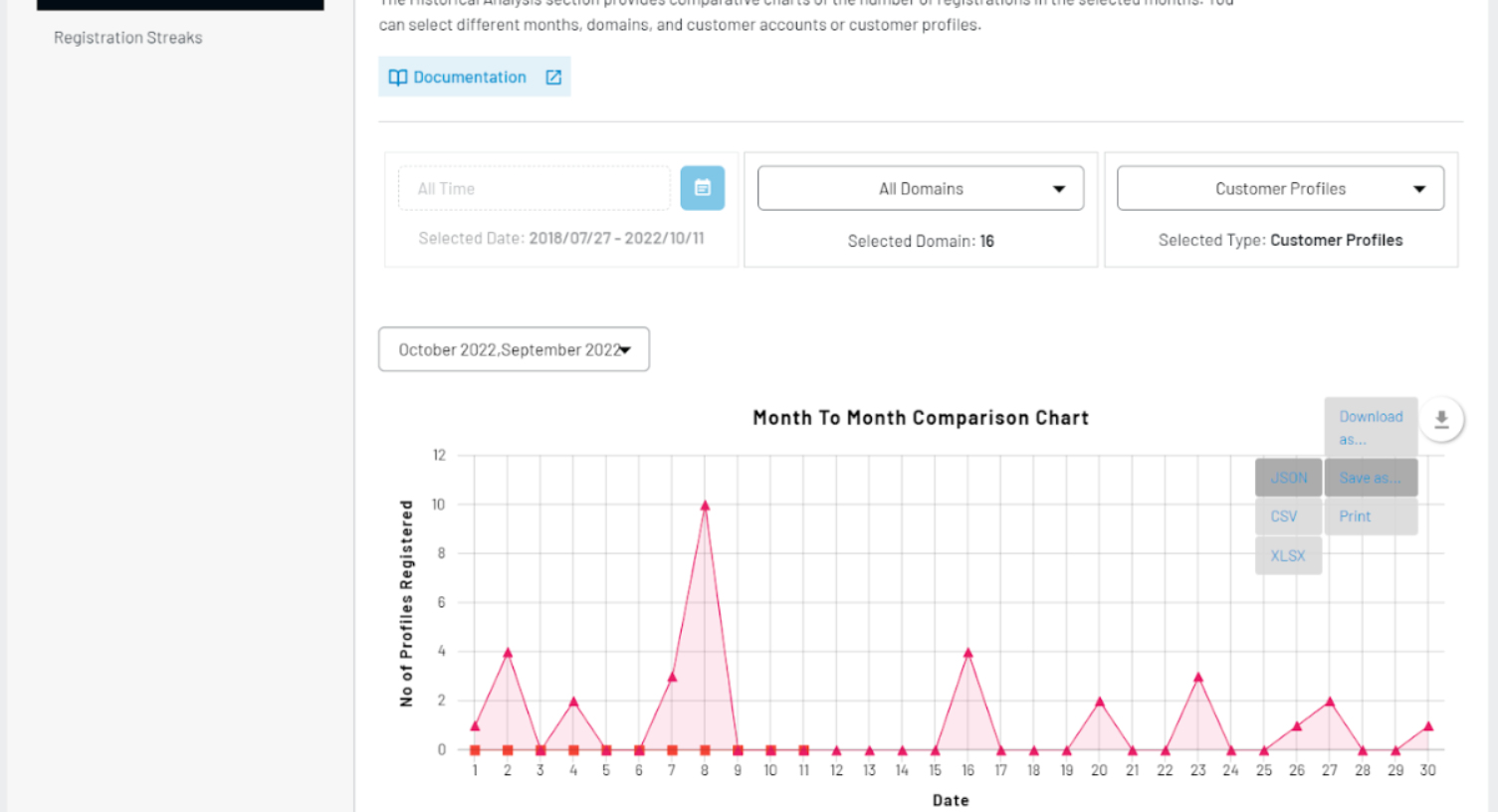
- All charts can be exported, saved, or printed by clicking on the download button in the upper right hand corner of each chart.
Month to Month Comparison
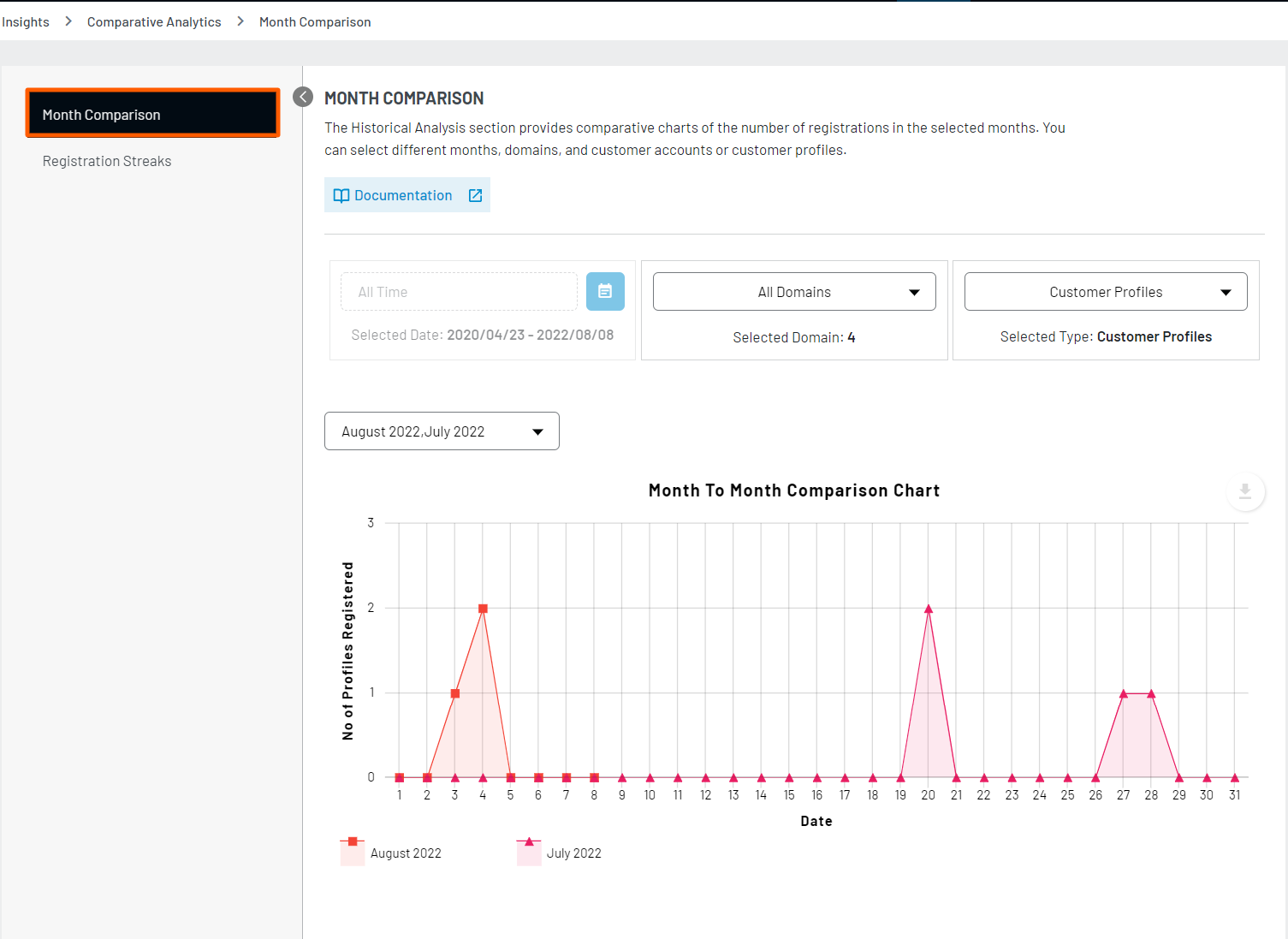
This section compares the number of user registrations between the selected months. You can narrow down the display to include only the selected months and specific domains, as well as specify whether you would like to compare user account registration numbers or user profile registrations.
Registration Streaks
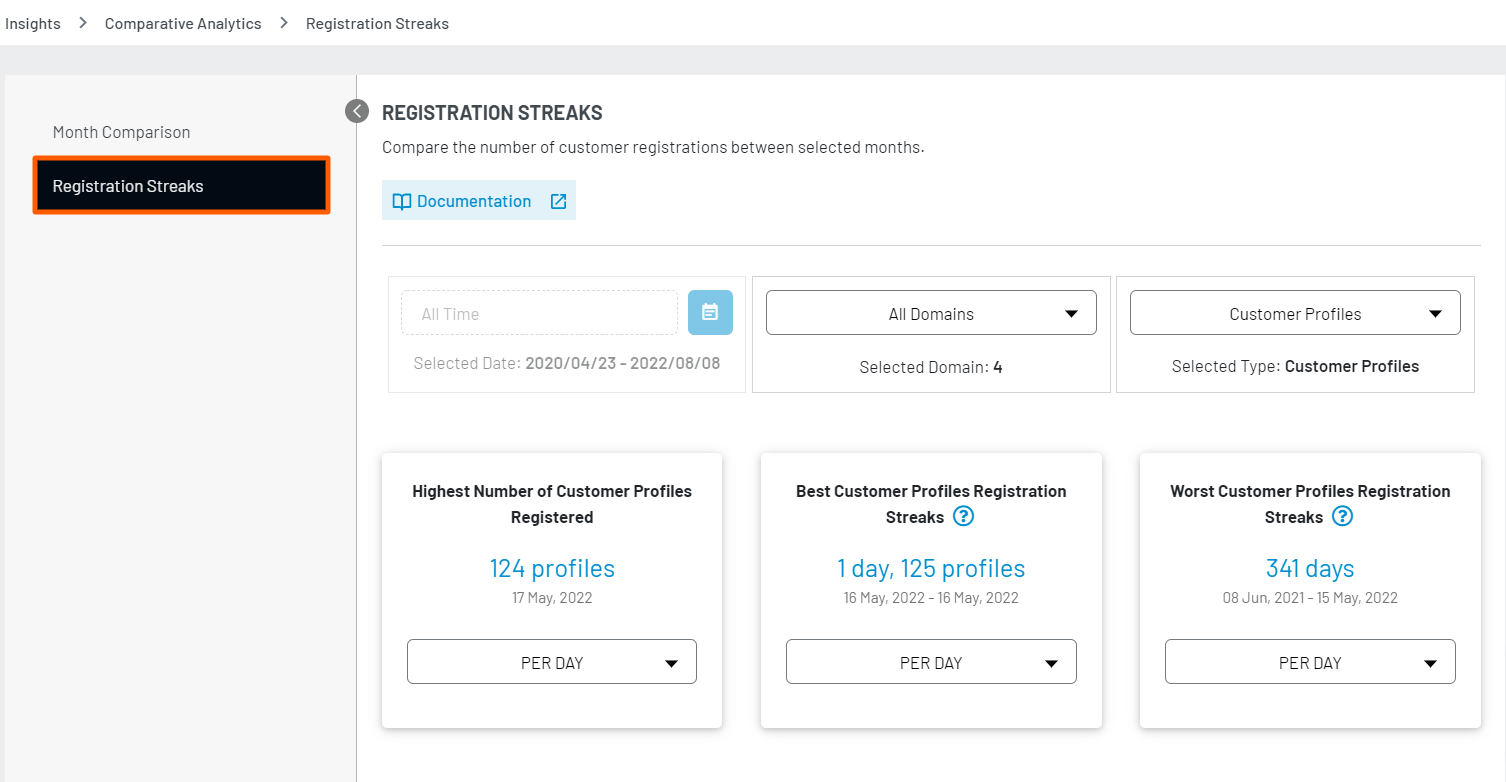
This section provides an overall look at the registration numbers to show the highest and lowest registration streaks on a given day, month, or year over the selected time period.
-
Highest Number of Customer Profiles/Accounts Registered:
Highest Number of User Profiles/Accounts Registered in a given time period. The time period can be selected from days, weeks, months, quarters or years.
-
Highest Customer Profiles/Accounts Registration Streaks:
Highest number of consecutive time period with at least 1 user registered among the selected dates. Streaks period can be selected from days, weeks, months, quarters or years.
-
Worst Customer Profiles Registration Streaks:
Highest number of consecutive time period with no user registered at all among the selected time period. Streaks period can be selected from days, weeks, months, quarters or years.
Steps to download Insights
LoginRadius also provides a feature to download all the data in the form of graphs and charts according to the requirements in multiple formats such as images, CSV, XML, and etc. You can directly get this data in the form of hard copy by using print feature.
When clicking on any of these mentioned file formats, the graphs file will automatically start to download on your local device.
Image Format
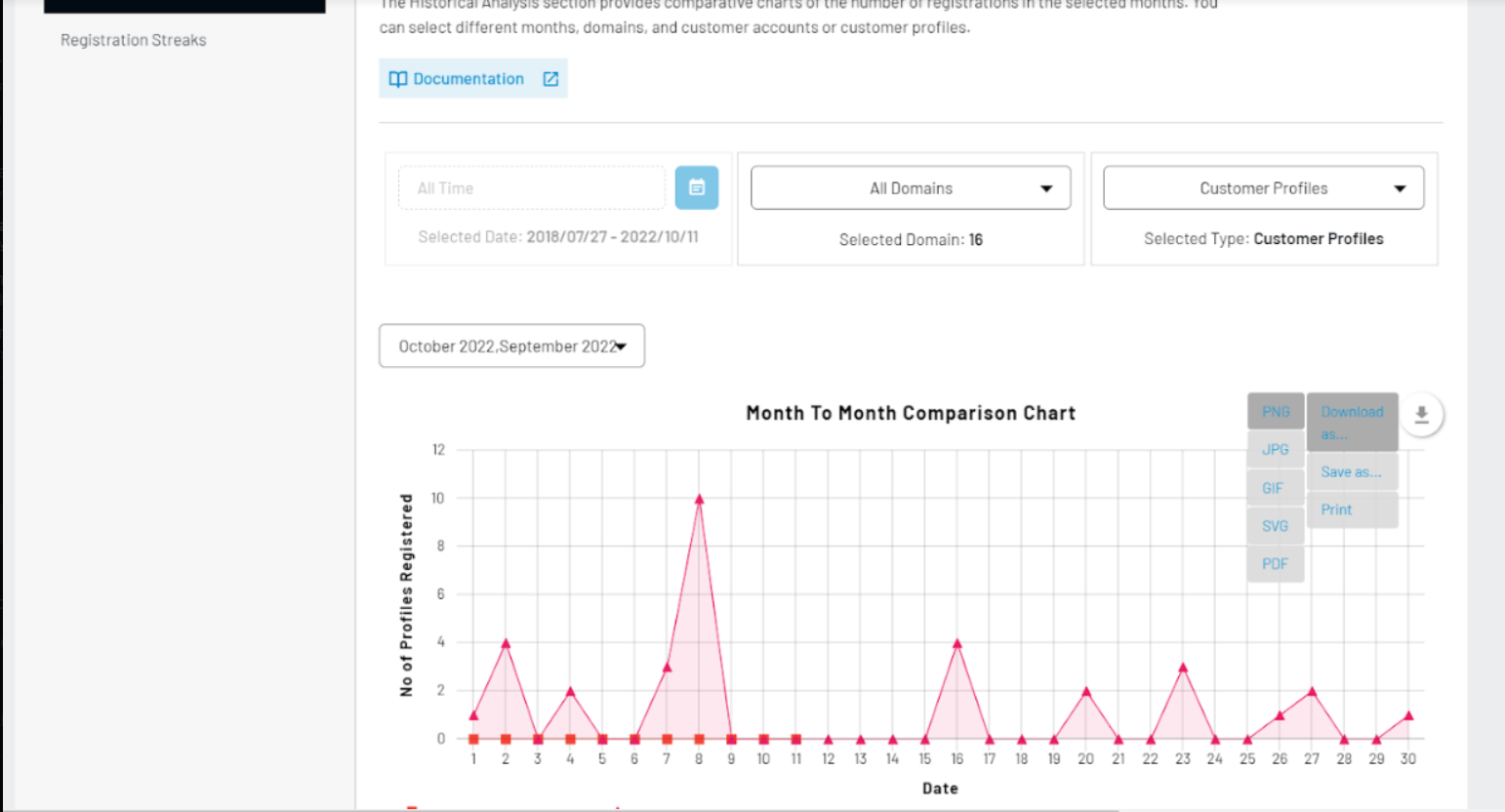
On clicking “Download as” you will be presented with multiple option such as:
- .PNG
- .JPG
- .GIF
- .SVG
Document Format
On clicking “Save as..”, other options will appear providing benefit of downloading the files in document format as well such as:
- .CSV
- .XLSX
- .JSON
As Print
If you are looking for physical copy of same, you can just click on third option “Print” and you will presented with option to print the same.