Cloud Connectors
The server-side integration handles server to server communications between the LoginRadius Cloud Storage and third-party applications. It is triggered based on one of over 40 different action triggers and is triggered automatically when the selected action occurs. Data flows automatically to the specified third party or back to the LoginRadius Cloud Storage in real-time.
In addition, server-Side Cloud Connectors allow you to have LoginRadius interact directly with your third party services by leveraging mechanisms within these platforms, often APIs. These integrations require no programming on your part, as the heavy lifting is performed by the connectors set up and maintained by the LoginRadius Implementation Team.
Features
Server-Side integration provides below features:
- Dashboard driven setup process
- Automatic two-way data syncing
- Fully mappable data
- Customizable business rules
- Flexible and configurable
Supported Actions
Check the following actions that you can take while performing Server-Side Integration which is supported by the LoginRadius:
- Data Mapping and Logic: Control the data that will flow to or from LoginRadius as well as the requirements this data must meet in order to be transferred.
- Tracking Events: Over 40 different events to trigger interactions off of, from common triggers such as registration to more specific cases like custom object deletion.
- Pre and post-event logic: Include customizable scripts to handle pre and post events manipulation of the data to guarantee that you are getting the data that you require.
Flows of Server-Side Connectors
There are two flows available for server-side connectors, Outflow and Inflow. Please see below for details on each flow.
Cloud Connector Outflow
The Outflow connector triggers are based on specific actions within LoginRadius. Based on the event trigger within LoginRadius, e.g. Login, Register, Update… etc., a specific workflow will be triggered and executed by the LoginRadius Cloud Connector Platform. Once the Cloud Connector Platform receives an event, it will execute the integration connectors for the given event trigger. These connectors are extremely flexible. Some of the available customizations that can be accomplished to meet your business requirements are the following:
-
Customizable Data Field Mappings to ensure that the data originating from LoginRadius is normalized and any required data points are included.
-
Pre and Post Event Hooks which allow the platform to supplement the LoginRadius data or run additional actions after a connector executes.
-
Customizable Business Rules which help control the flow of information and only distribute data to third-party services when relevant.
Cloud Connector Inflow
The Inflow connector allows your third party applications to submit data to a unique LoginRadius Cloud Connector Platform endpoint. Based on the submitted data, the LoginRadius Cloud Connector Platform will execute a custom connector associated with the given action. These connectors carry out multiple tasks:
-
Manipulate data posted to LoginRadius into a normalized user format.
-
Sanitize data posted to LoginRadius to ensure compliance with business and LoginRadius requirements.
-
Execute actions via the LoginRadius API with the posted data. The Inflow integration allows you to leverage LoginRadius fully as the central point for your customer data and ensure that your LoginRadius data is always up-to-date.
Retry Logic
The LoginRadius Server-side Cloud Connector platform has a built-in Retry process that is used to wrap an integration process to make sure that all requests are logged to your integration.
The Retry logic helps to overcome the issues that may occur while making calls in typical integration setups. If any of the API requests going to the third party's app appear to fail, the Cloud Connector system will execute the same request every 30 seconds to obtain a success response from the API.
Our system will retry the request 5 amount of times, after re-trying 5 times if the request keeps failing it will be logged as a failed query.
Managing Cloud Connector Configuration
Your currently active integrations are listed in the LoginRadius Admin Console: Integration > Third Party Software > Configuration.
Then, click the arrow to the right of Active Integrations:
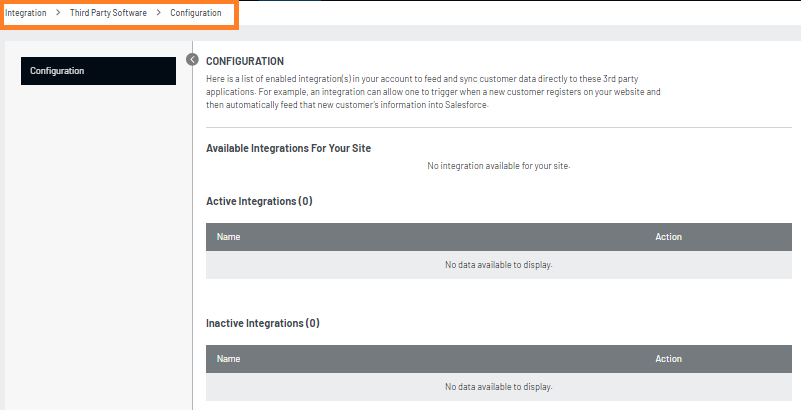
You can view, update, activate and deactivate cloud connector configuration in the Admin Console.
Deactivate Cloud Connector
Once you have Integration available for your site, it will look like this:
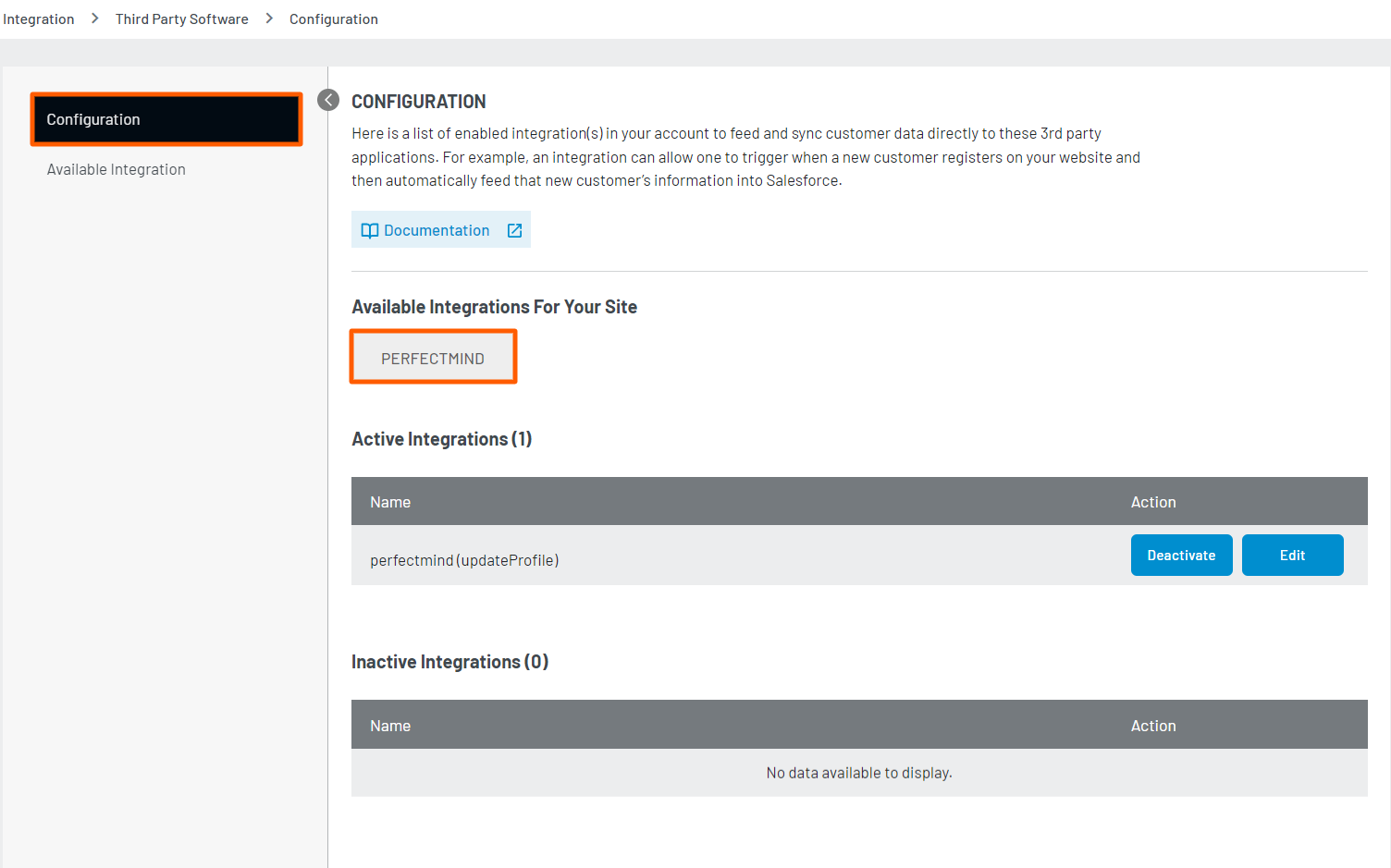
Here you can see the option to the cloud connector deactivate and also an option to edit the cloud connector configuration. You can deactivate the Cloud Connector for a configured webhook event by clicking on the Deactivate button.
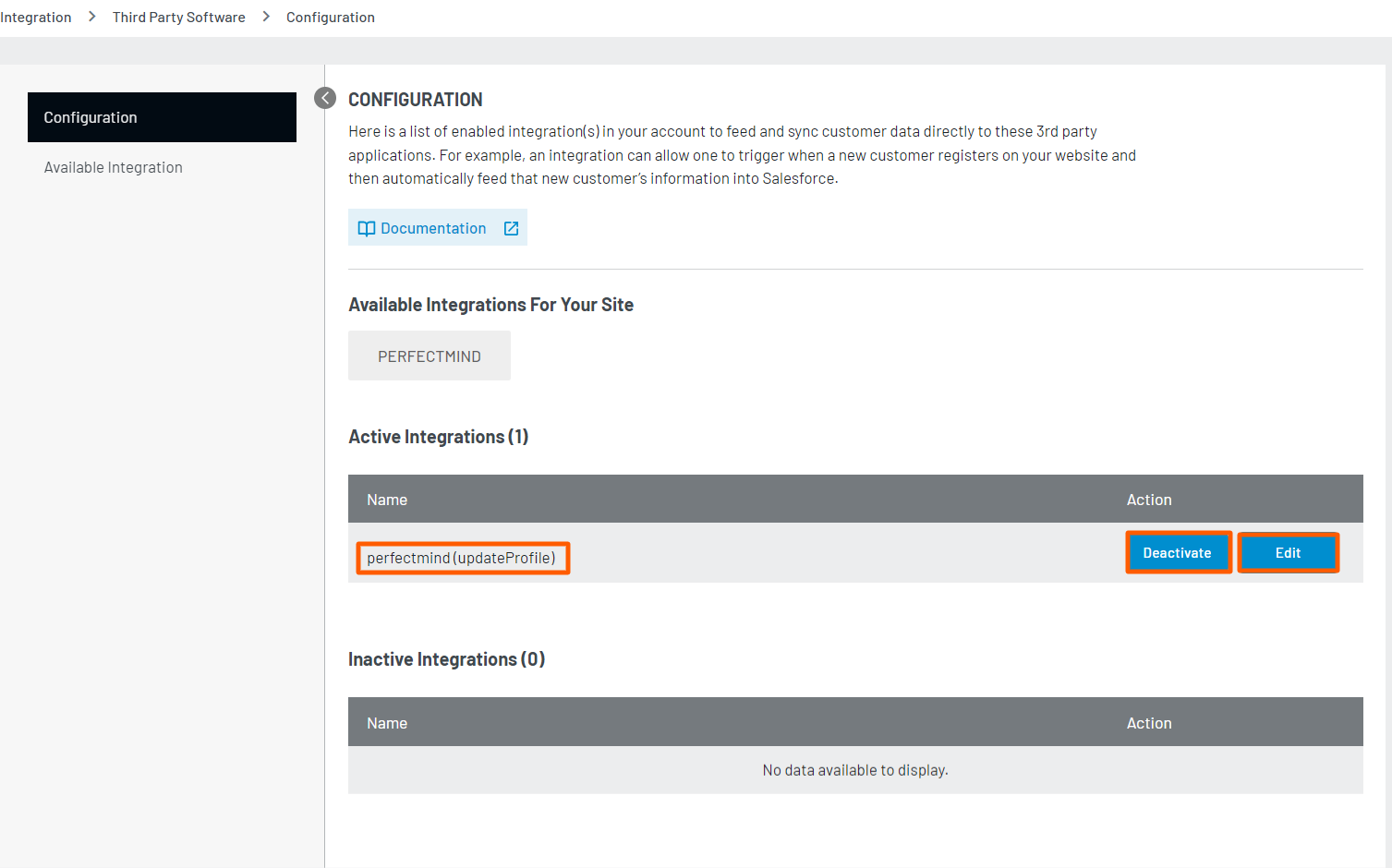
Once the cloud connector is deactivated, it will be visible in the Inactivate Integration section.
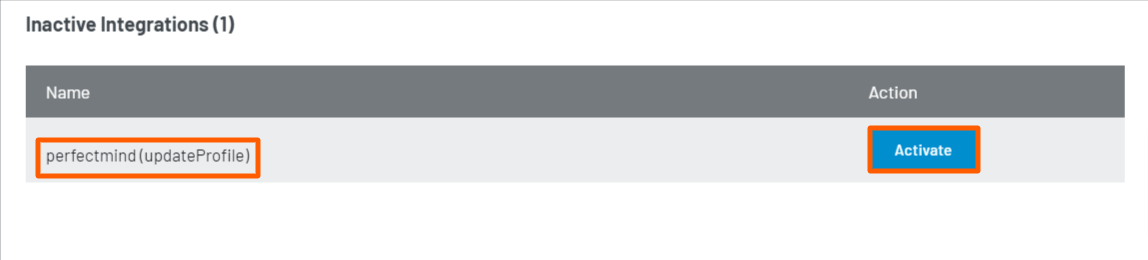
Activate Cloud Connector
You can activate the cloud connector for a webhook event again by clicking on the Activate button. The cloud connector again will be visible in the active integration section..
View and Edit Cloud Connector
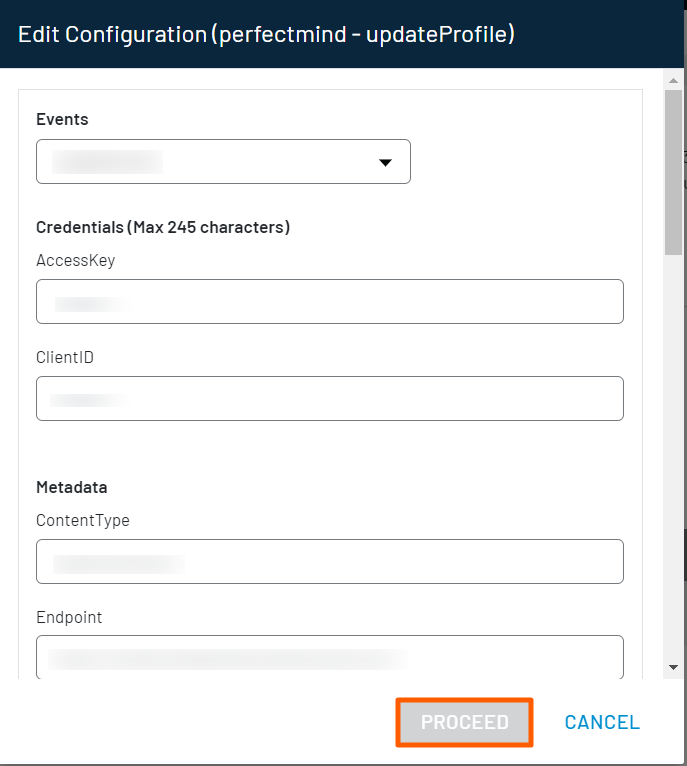
You can view and update the cloud connector configuration by clicking the edit button. You can update the configuration like credentials, data mapping, etc., as per your requirement, and click on the proceed button to save the configuration.
Available Integrations
A list of some of the integrations supported by LoginRadius can be found here.